Introduction
Access document metadata, audit history, comments, attachments, locations, references, validation results, and reminders, as well as view, annotate, download, and print document content through Lunr's integrated document viewer.
Overview
When you select a document in the repository, you'll see an overview and its metadata. The Tags page opens first, giving you access to more detailed document information.
Viewing Document Metadata
Tags
The Tags view presents a comprehensive list of all metadata tags linked to the document. To modify these tags, select the Edit button.
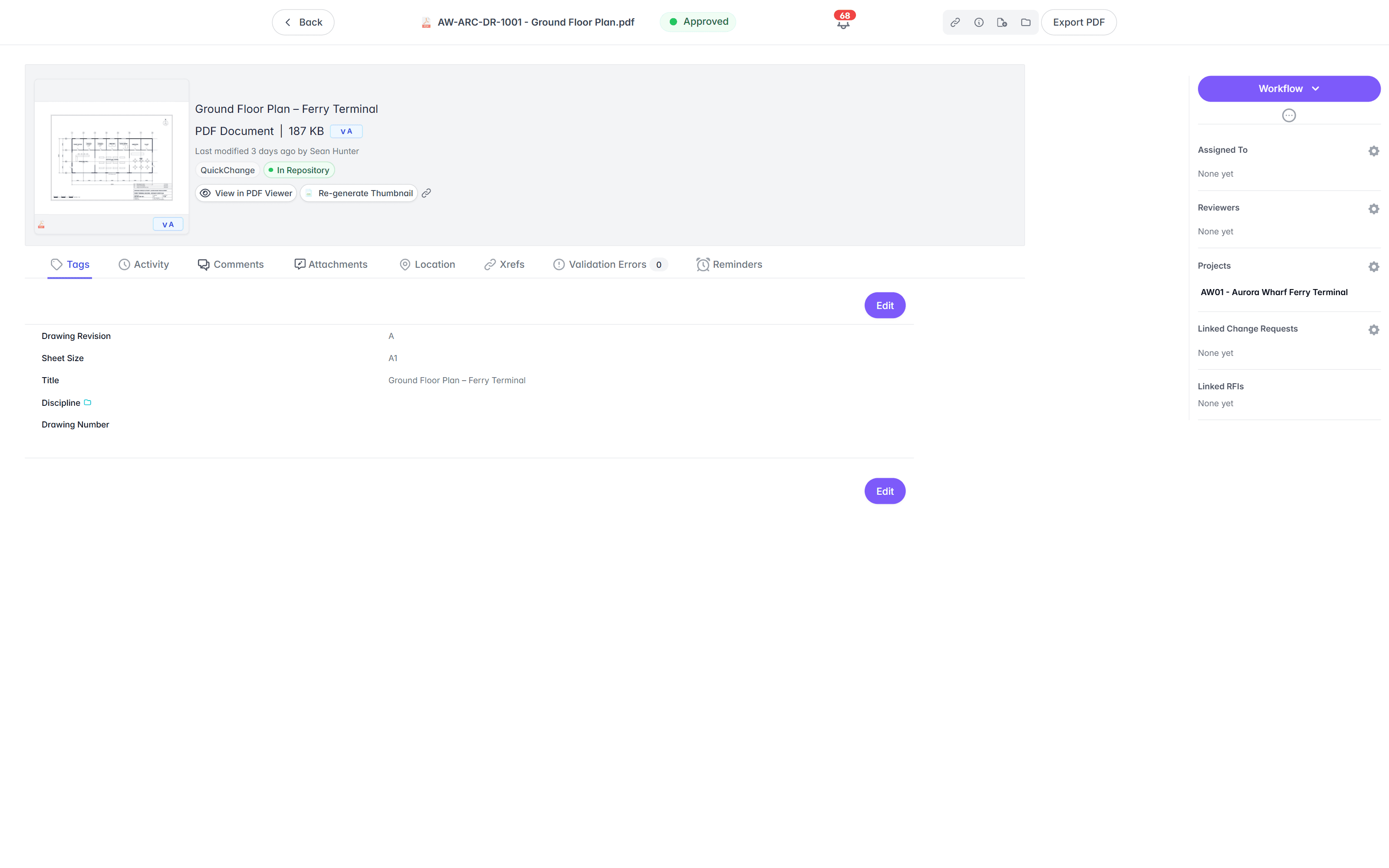
Editing tags at any time requires additional privileges; otherwise, you need sufficient access rights to edit tags during an active change.
In edit mode, modify tags using the available dropdown lists and free text fields. Required fields carry an asterisk, and some fields, such as the asset and discipline lookups, provide a typeahead so you can start typing to find a match. Select Cancel to discard any changes, or Save to apply them to the document's metadata.
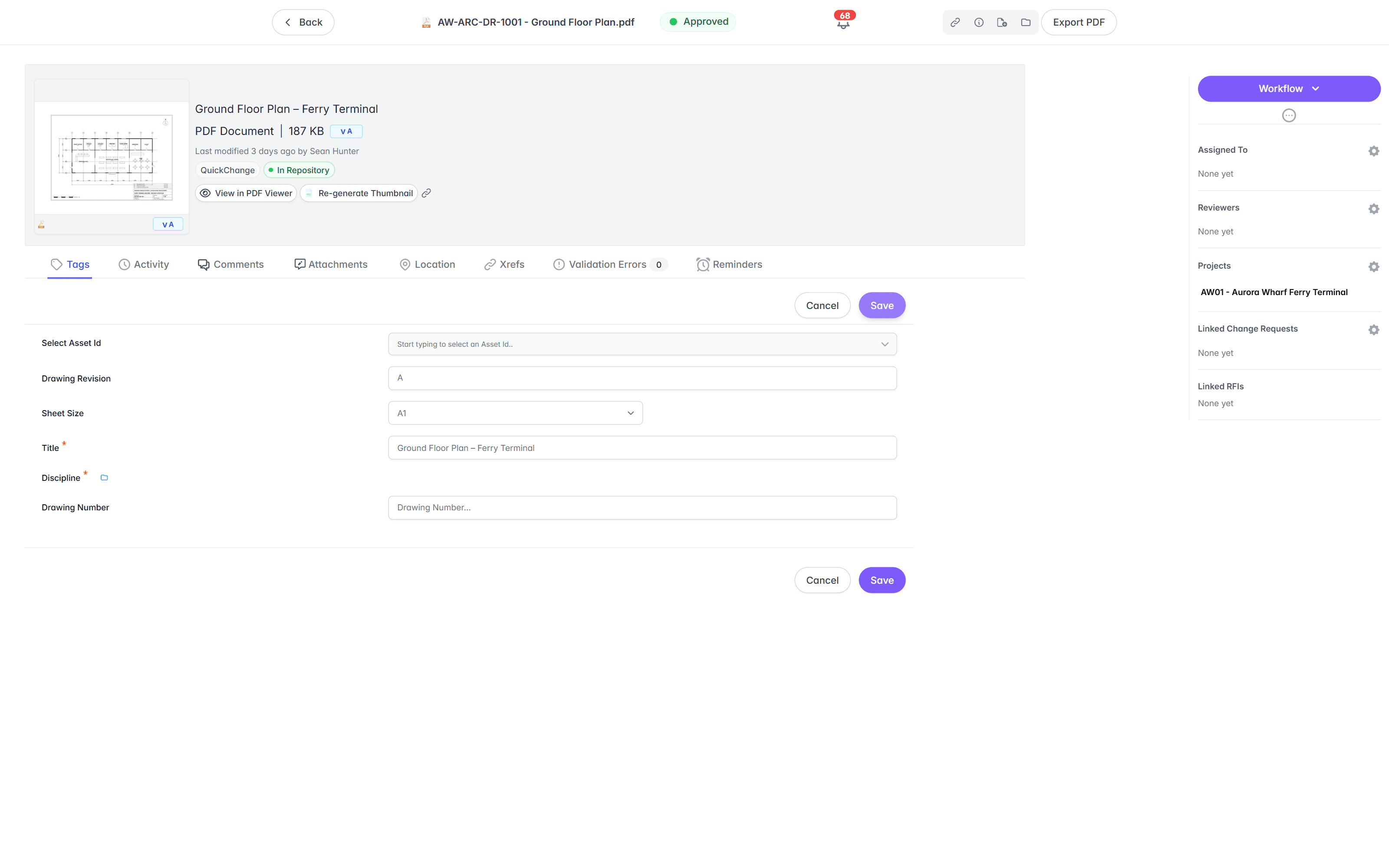
Lunr confirms before it discards a tag edit you have not saved. Selecting Cancel with unsaved changes opens a "Discard unsaved changes?" dialog, and submitting a workflow transition while still editing opens a "Tag editing in progress" dialog, warning that continuing may discard the changes. Navigating away from the document asks the same way.
Activity
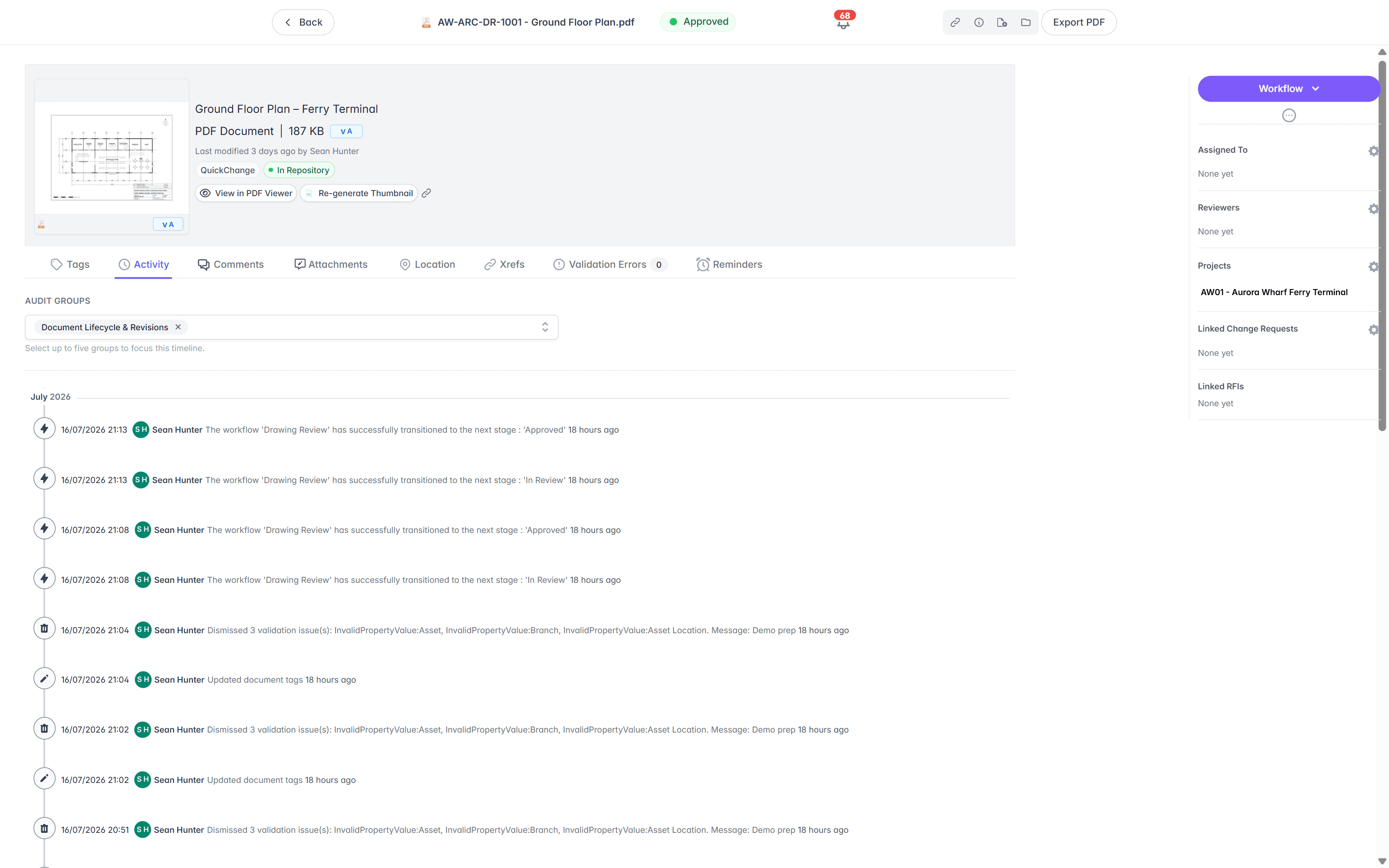
The Activity view offers a comprehensive audit trail of all user interactions with the document, including uploads, views, downloads, edits, and additional actions.
Documents can accumulate activity quickly, so use the Audit Groups multi-select to filter out nonessential entries and focus on the records that matter. Select up to five groups; each group you add appears as a chip, and you can remove one by selecting the x on its chip. The timeline then shows only the matching entries, such as workflow transitions, dismissed validation issues, and tag updates, each with the actor and a timestamp.
Comments
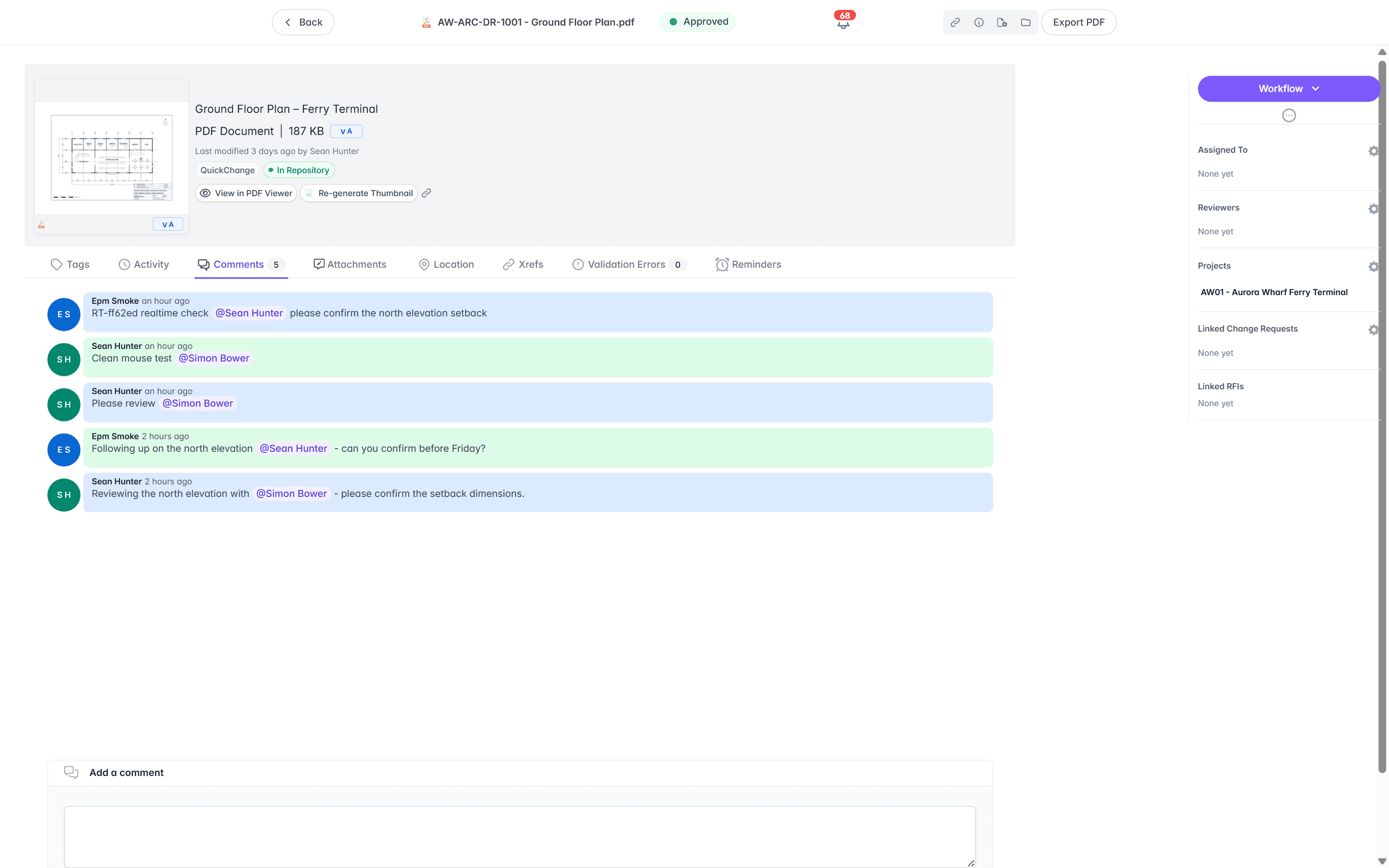
The Comments view shows every comment linked to the document, including those added during workflow steps, those left while revising or approving the document, and those entered directly on this page. Enter a new comment in the Add a comment box at the bottom, and use @mentions to notify specific people; mentions appear highlighted in the thread.
Attachments
The Attachments view shows all files added to a document, like photos of related equipment.
Location
The Location view holds the geographic location of the document and the assets it covers. A map band sits at the top of the view and stays in place as you scroll, with the assets listed in a table beneath it.
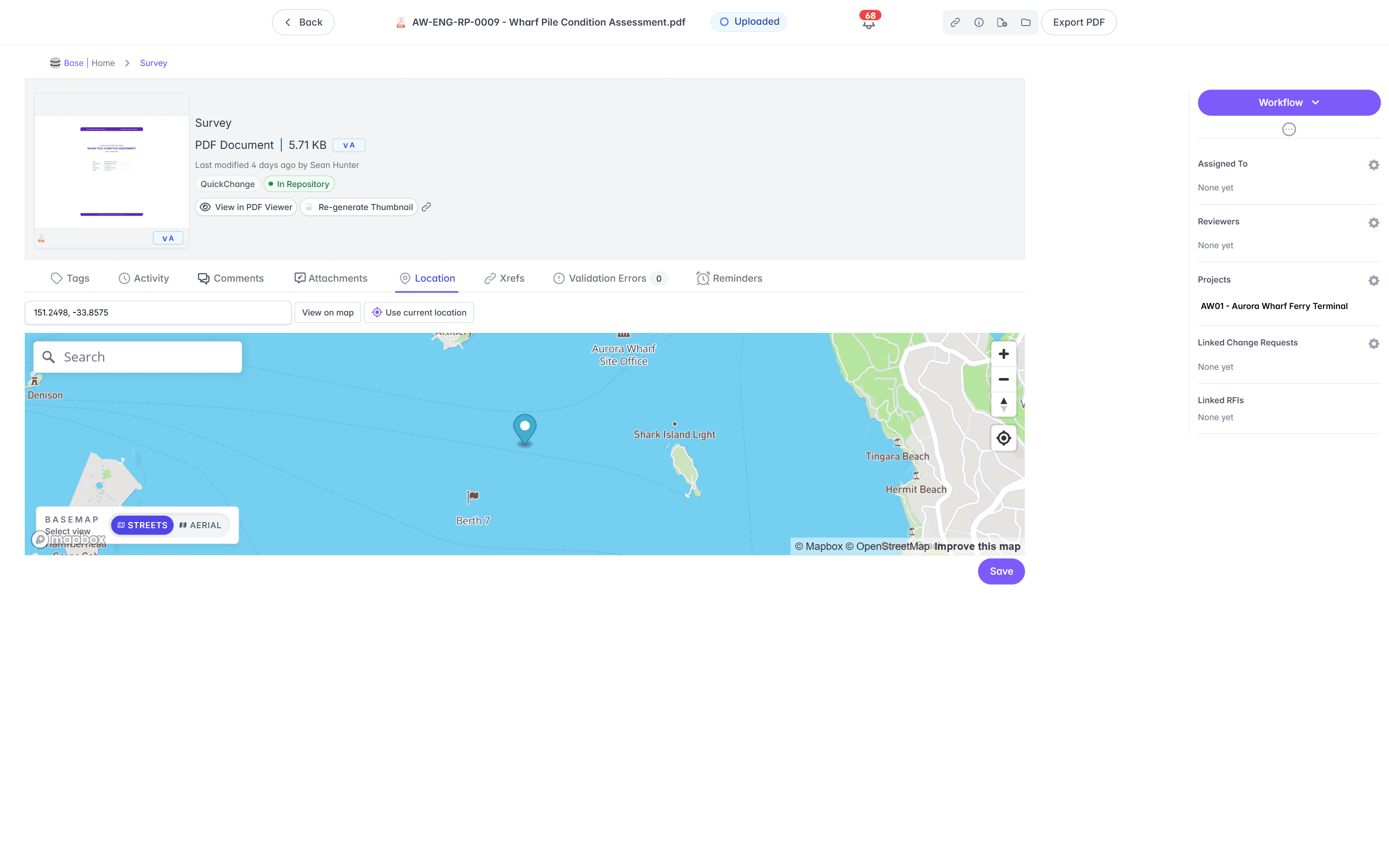
Where location data came from an external GIS system, the table lists one row per asset rather than a single point for the whole document. Each row shows the asset name, a copyable identifier when the source system's identifier differs from the name, a metrics line such as "25 vertices · 412 m", and the asset's own pin coordinates to six decimal places, with the full precision in the tooltip. A ring reports a perimeter rather than a length, and a single point reports no distance.
- Select a row's disclosure chevron to list the asset's individual vertices, each numbered and shown as a longitude and latitude pair. Use Copy all coordinates to copy the set out.
- Hovering a row highlights that asset on the map, and selecting one moves the map to it. Press Esc to clear the selection.
- Each row also carries actions to locate the asset on the map, copy its coordinates, and delete it. Deleting an asset removes its vertices and its pin.
- Where more than one asset can be framed, a control refits the map around all of them, which is the way back after you pan or zoom.
- Every asset carries its own pin, so a document spread across several assets no longer shows a single averaged pin that can land somewhere meaningless.
Below the table, a Set location manually disclosure holds the manual coordinate entry, closed by default. Enter a longitude and latitude, or select Use current location, then select Save. Both values must be numbers within the valid range, and Save stays unavailable until they are. Where the pair is unambiguously the other way around, Lunr reads it as a latitude and longitude and tells you so. Saving a location manually replaces the stored assets, and a warning beside Save says so.
Where a document has no stored location at all, the view reports "No location data" and explains that location data normally arrives with the GIS sync and can also be set by hand. Select Set location to open the manual entry ready to type into.
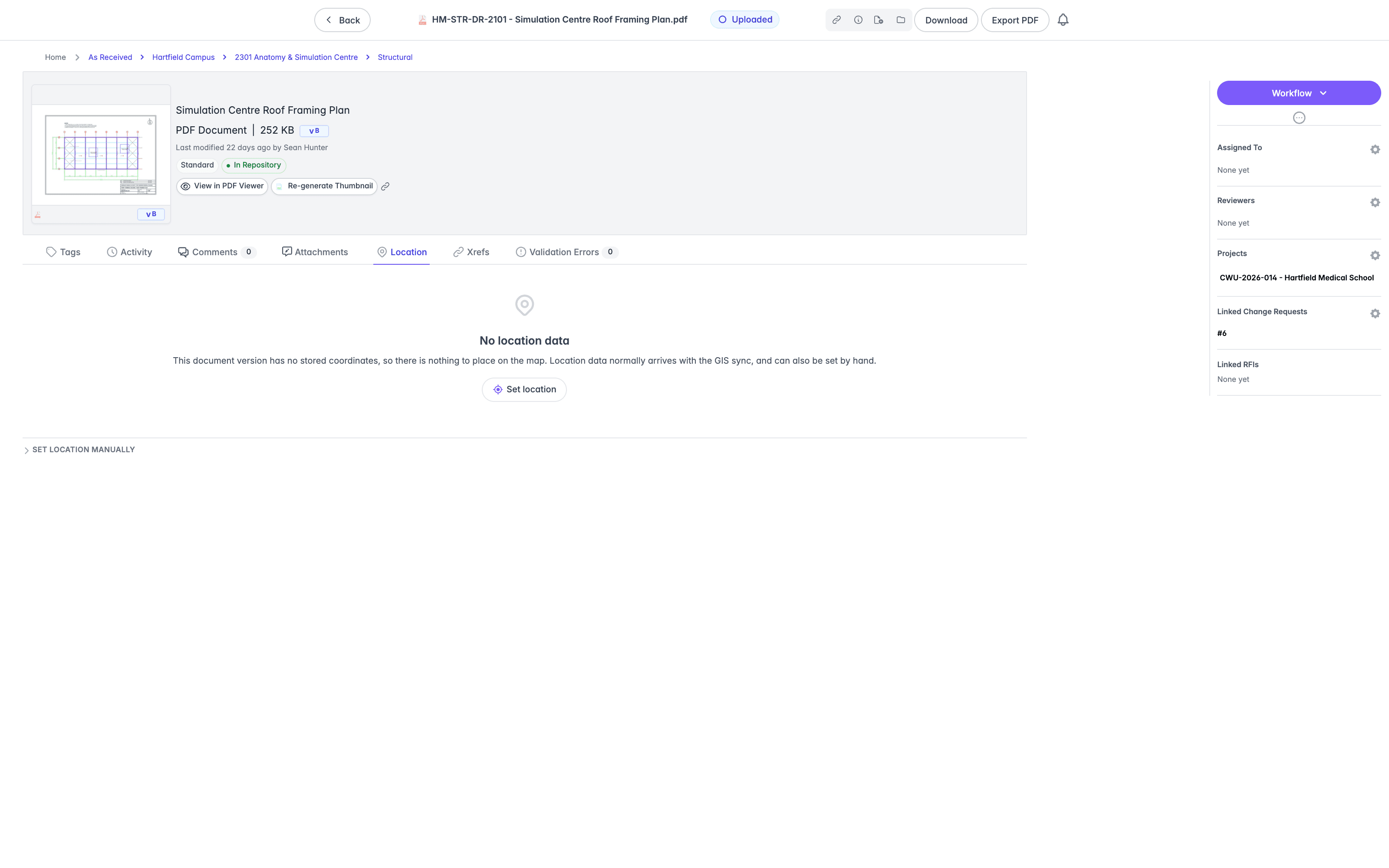
Select Clear all location data to remove every stored location from the document at once.
Editing a location requires the Edit Location access right, and a document at master status additionally requires the Edit in Master Documents access right where your organisation has opted into that restriction. The view is read-only without them.
If someone else changes a document's location while you have the view open, a delete refreshes the list instead of failing, and reports that the list has been refreshed. Check the table before repeating the action.
Xrefs
The Xrefs view lists the drawing's external references.
To update the Xrefs list, access the repository or project view, select the desired document by selecting its box, and then choose Link Xrefs from the Cross-references group of the More menu, covered in Document Actions.
Validation Errors
Lunr checks a document against your organisation's validation rules, and the Validation Errors tab reports the result. The tab carries a count, so a badge reading 0 tells you the document is clean without opening it.
With nothing outstanding the tab reads "Compliant" and "This document is compliant with the Lunr validation rules."
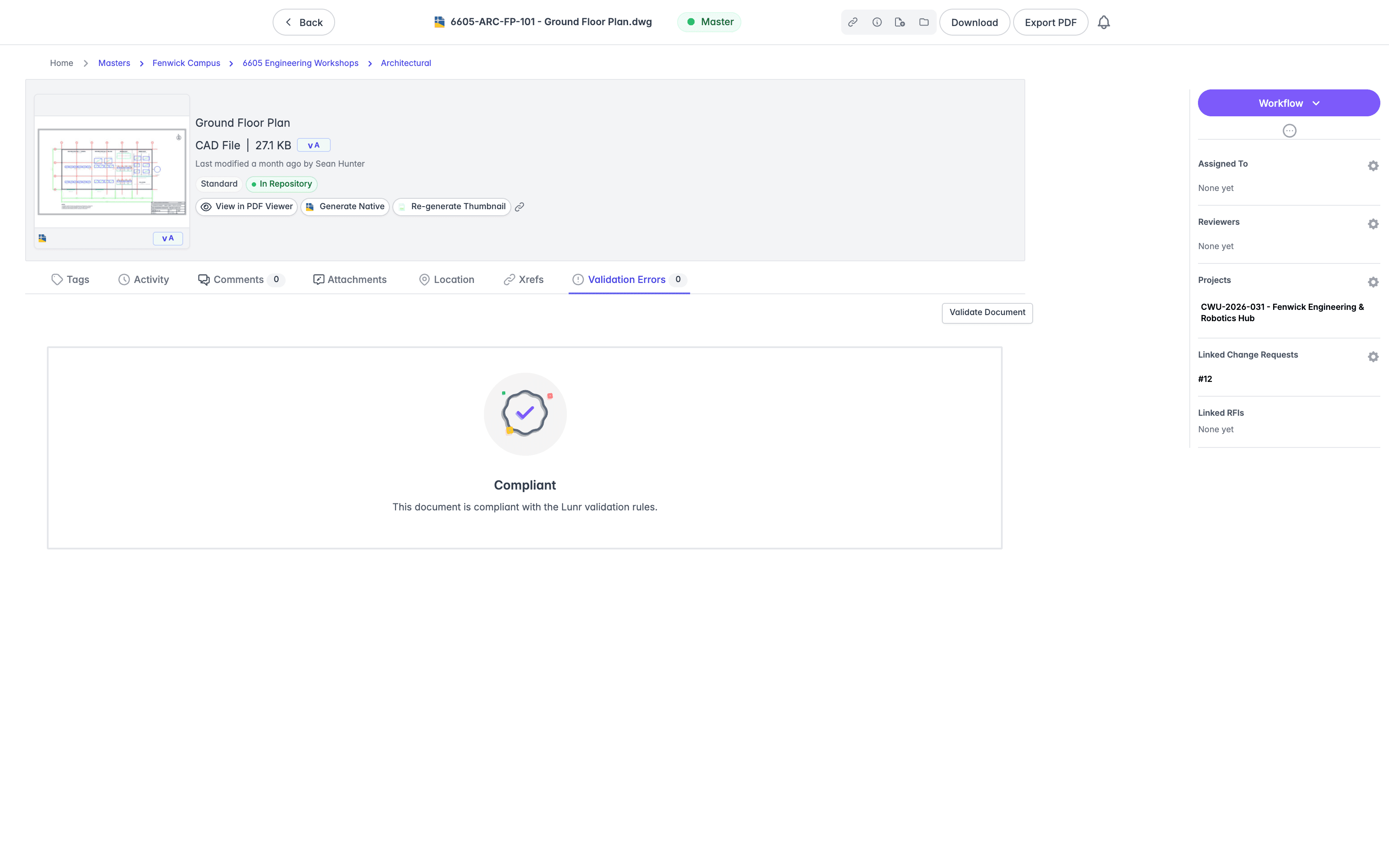
Where a document falls short, each issue is listed against the tag it concerns. An issue with no explanation of its own reads "Please supply a valid" followed by the name of the tag that needs a value.
Validate Document runs the checks again, which is what you want after supplying a missing tag value. Dismiss All clears the outstanding issues and appears only when there are issues to clear. To clear them across several documents at once, select the documents and choose Dismiss Validation Issues from the Archive & Delete group of the More menu, covered in Document Actions.
Reminders
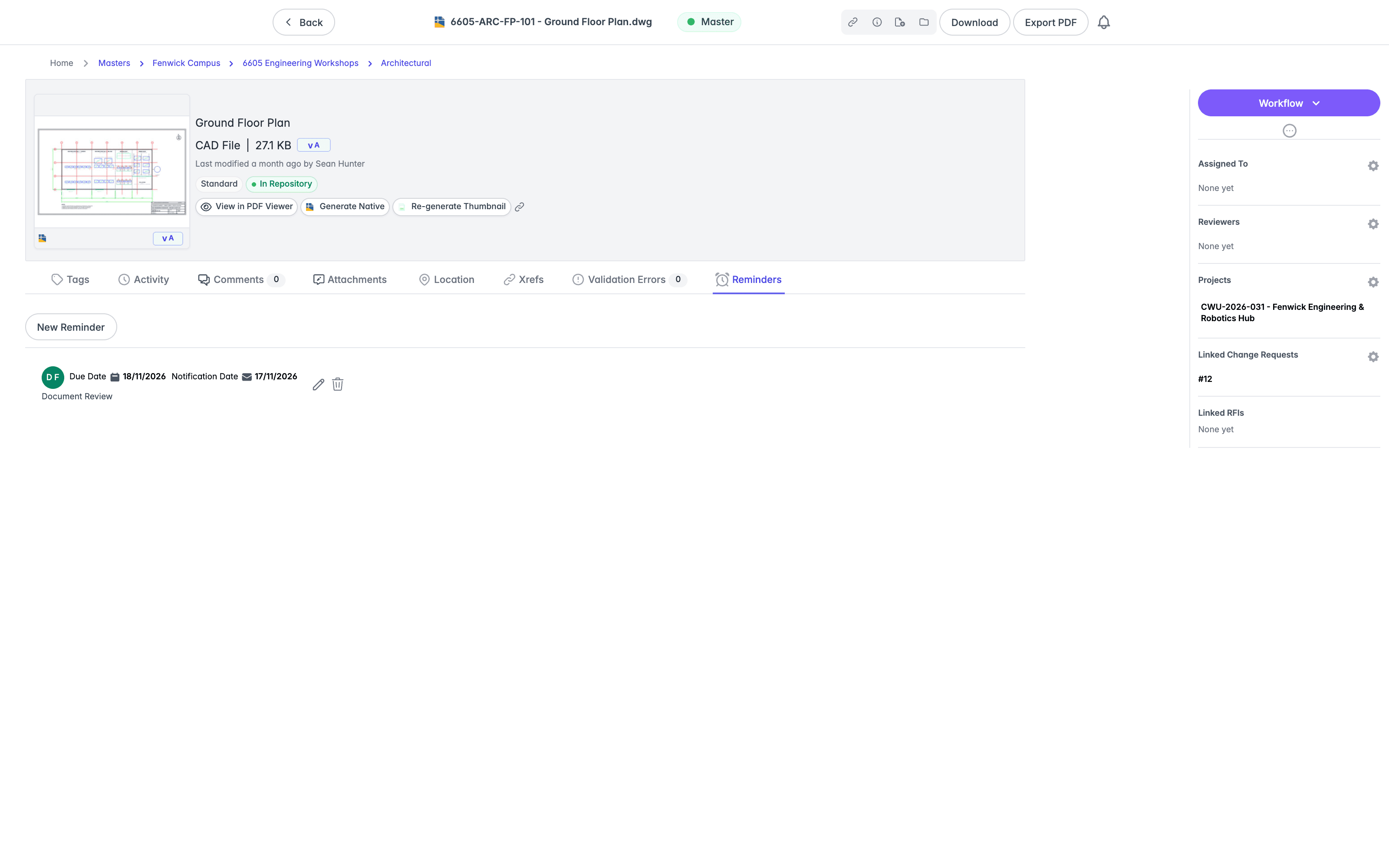
Where your organisation has reminders enabled, a Reminders tab lists the reminders set against this document. Select New Reminder to add one.
Each entry shows the people the reminder is for as avatars, its Due Date, and its Notification Date, the date Lunr emails about it, with the reminder's comment beneath. An edit and a remove icon sit at the end of the row, with the tooltips Edit reminder and Remove reminder. Editing is available only if you are allowed to change that reminder.
With none set, the tab reads "Reminders" and "No reminders have been added to this document."
For the list of every reminder waiting on you, across all documents, see My Reminders.
Viewing Document Content
Click a document’s thumbnail to open it in the viewer. The viewer's tools differ depending on the type of document, so this is covered on other pages in this section of the user guide.
Printing Documents
For best print results, download the document and print it with your preferred PDF viewer, like Adobe Acrobat Reader.
Printing From the Viewer
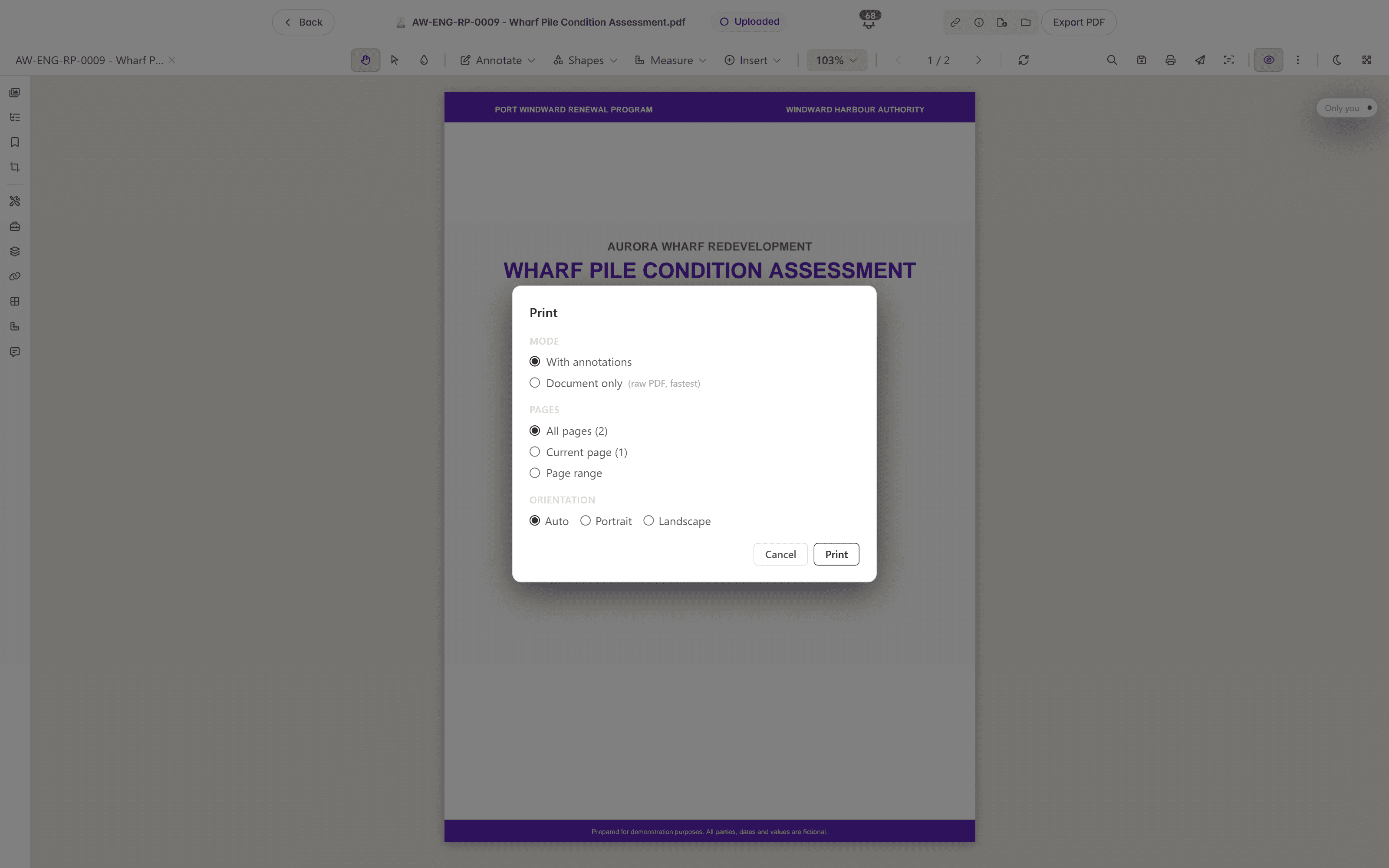
To print directly from Lunr, open the document in the Rift viewer and select the Print icon in the toolbar. The Print dialog offers three choices:
- Mode: select With annotations or Document only (raw PDF, fastest). With annotations rasterises the page in the browser and is needed when annotations or stamps must print. Document only sends the original PDF to the print driver for the highest quality but without annotations or stamps.
- Pages: select All pages, Current page, or a Page range.
- Orientation: select Auto, Portrait, or Landscape.
Select Cancel to close the dialog, or Print to continue.
Troubleshooting
| Message or Symptom | Likely Cause | Resolution |
|---|---|---|
| The PDF toolbar has no Save button. | You do not have permission to annotate documents, or the viewer is in read-only mode. | Request the annotation permission; mark-ups cannot be saved without it. |
| "Failed to load rendition. Invalid file." | The rendition could not be loaded for this version. | Confirm the source file is valid; re-upload or regenerate the rendition. |
| "Generating document preview. Try back later." | The document is still queued for rendition generation. | Wait a few minutes and try again. |
| View in Rift button is missing | The Rift viewer is not enabled in general settings. | An administrator must enable the Rift viewer. |
| View in Forge button is missing | Forge is disabled, the format is unsupported, or the model has no translated URN. | Ensure Forge is enabled and the model has been translated. |
| Compare Documents is greyed out or hidden. | You have not selected exactly two (non-folder) documents. | Select precisely two documents to compare them. |
| "OUTDATED RENDITION" watermark is displayed. | The rendition is out of date and the invalidation setting is on. | Regenerate the rendition to clear the watermark. |
Downloading Documents
Download native documents and PDF renditions individually or as packages, understand the PDF Export options, track packages on the My Downloads page, and know the permissions, retention, and limits that apply.
PDF Documents
Open PDF documents in Rift to view, navigate, search, annotate, measure, compare, collaborate on, and manage markup in real time, then save, submit or print the results directly from your browser.