Excel Spreadsheets
View and navigate Excel workbooks in Lunr's browser-based spreadsheet viewer, with support for worksheet navigation, filtering, searching, exporting, and printing while preserving the workbook's original formatting.
Overview
Lunr opens Excel workbooks in a browser-based spreadsheet viewer that keeps the workbook's formatting, including fonts, fills, borders, number formats, merged cells, frozen panes, conditional formatting, cell comments, and images. Very large sheets scroll smoothly. There is no desktop software to install.
The viewer opens workbooks for viewing. To edit a workbook, download it and open it in your spreadsheet application.
Opening a Spreadsheet
Open a .xlsx or .xls document and click View Spreadsheet to open it in the spreadsheet viewer.
A workbook may also open automatically in the spreadsheet viewer, depending on the default Excel viewer configured by your administrator.
Viewer Overview
The viewer fills the browser window, with a toolbar across the top, worksheet tabs along the bottom, and a status bar.
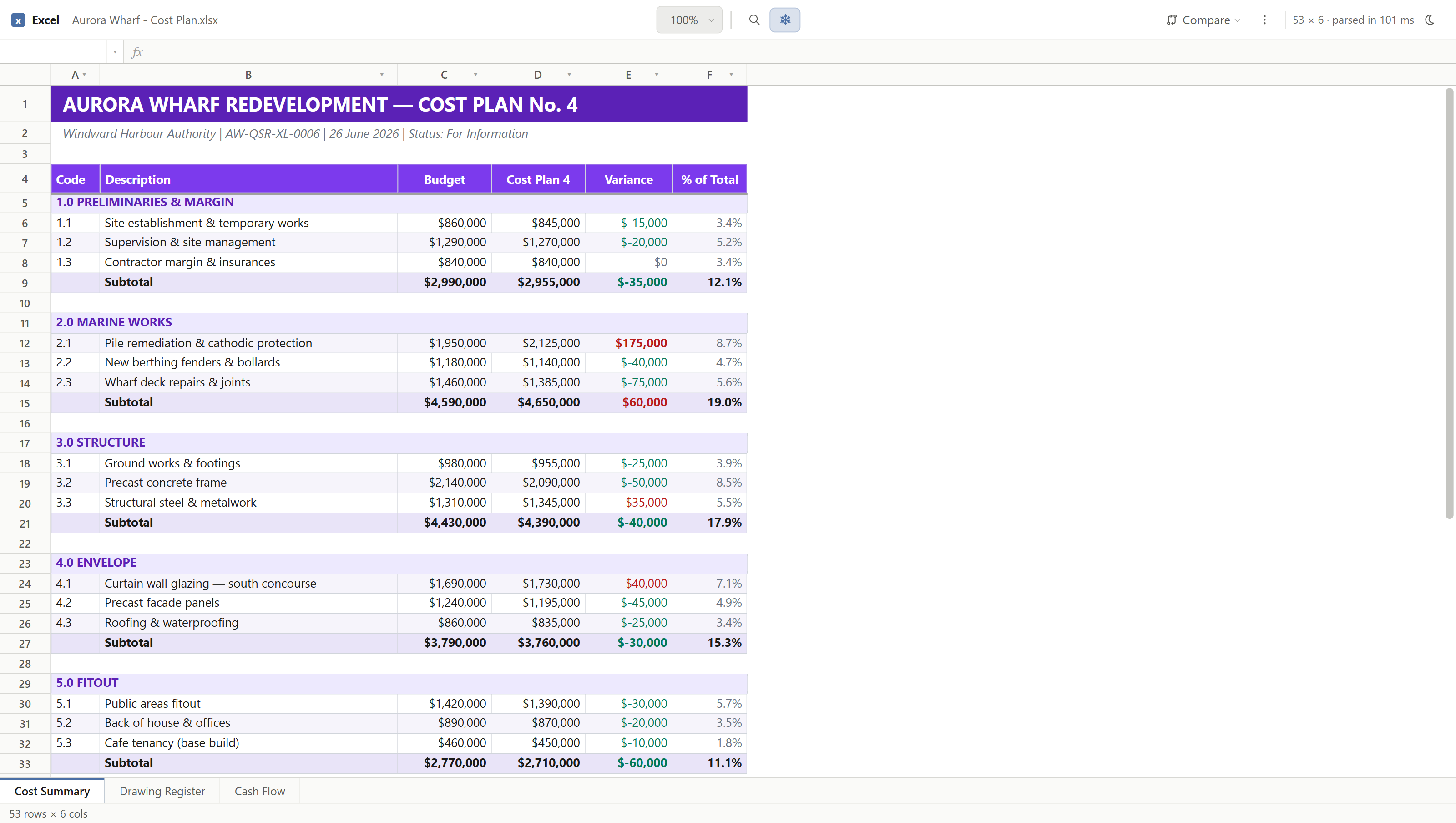
Toolbar
The toolbar holds the tools you use most often.

- Find (Ctrl+F) searches the sheet.
- Freeze panes keeps the top rows or left columns in place as you scroll.
- Export CSV saves the current sheet as a CSV file.
- Zoom in and Zoom out change the zoom level.
Navigating a Workbook
Move between worksheets with the tabs along the bottom. Within a sheet, hold Ctrl and press an arrow key to jump to the edge of a block of data, press Ctrl+A to select the used range, and use Ctrl+Home and Ctrl+End to go to the start and end of the sheet.
Drag the edge of a row or column heading to resize it, or double-click the edge to fit it to its contents.
Finding and Filtering
Press Ctrl+F to find text, which highlights every match in the sheet.
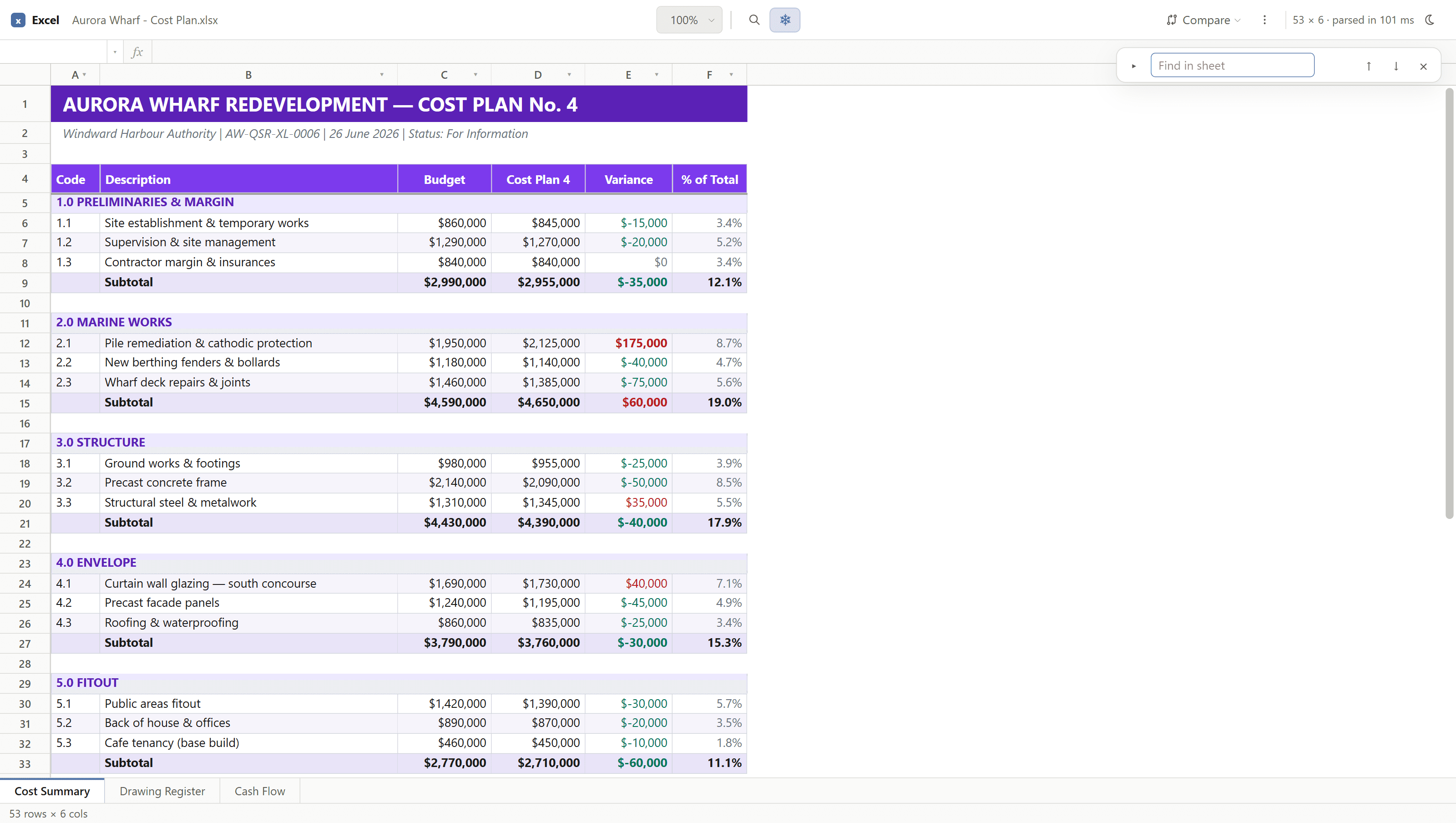
To filter or sort a column, click the arrow in the column heading and choose the values to show or the sort order.
Reading Values
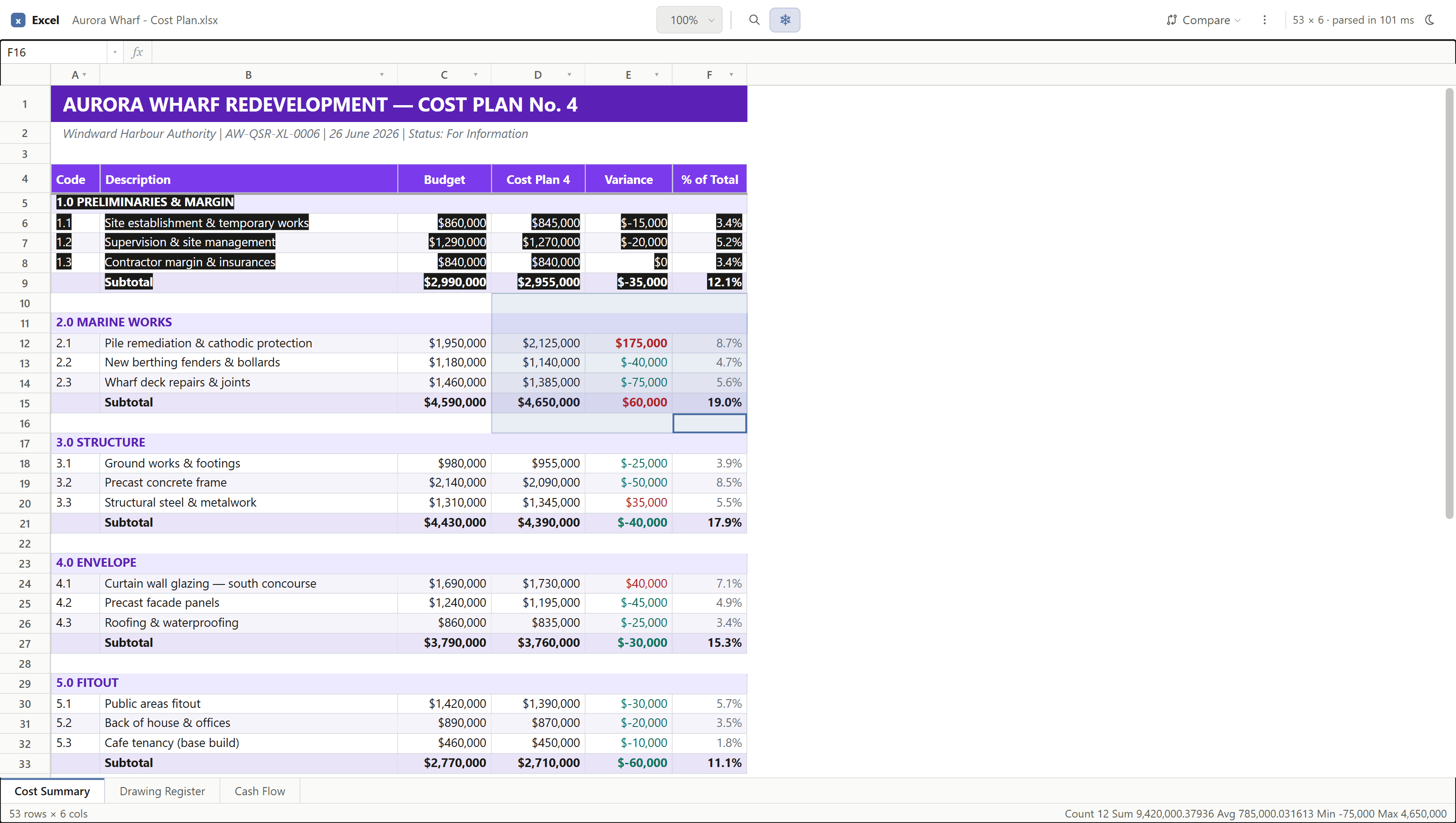
Select a range of cells and the status bar shows the totals for the selection: Count, Sum, Average, Min, and Max.
Exporting and Printing
Click Export CSV to save the current sheet as a CSV file.
To print, use the Print button on the page, which prints the workbook's PDF rendition. All worksheets are included in the rendition.
Keyboard Shortcuts
- Ctrl+F - Find, Enter - Next match, Shift+Enter - Previous match
- Ctrl and an arrow key to jump to the edge of a block of data
- Ctrl+A - Select the used range
- Ctrl+Home - Go to the start of the sheet, Ctrl+End - Go to the end of the sheet
- Ctrl+C - Copy the selection
Word Documents
View, search, edit, review and print Word documents in Lunr's native browser-based viewer, while preserving the document's original layout, formatting and review features.
BIM Models
View and explore IFC, Navisworks, and Revit building models in Lunr's browser-based 3D viewer, with tools for navigation, measurement, sectioning, model inspection, clash detection, and scene management.