Version History
Open a document's version history to see every revision it holds, restore an earlier one as the current version, insert or reorder versions, and rename, download, delete, or suppress an individual version.
Overview
A document in Lunr is a record with a history, not a single file. Each time its content is replaced, the previous content stays behind as an earlier version, so the document number and its metadata survive across revisions.
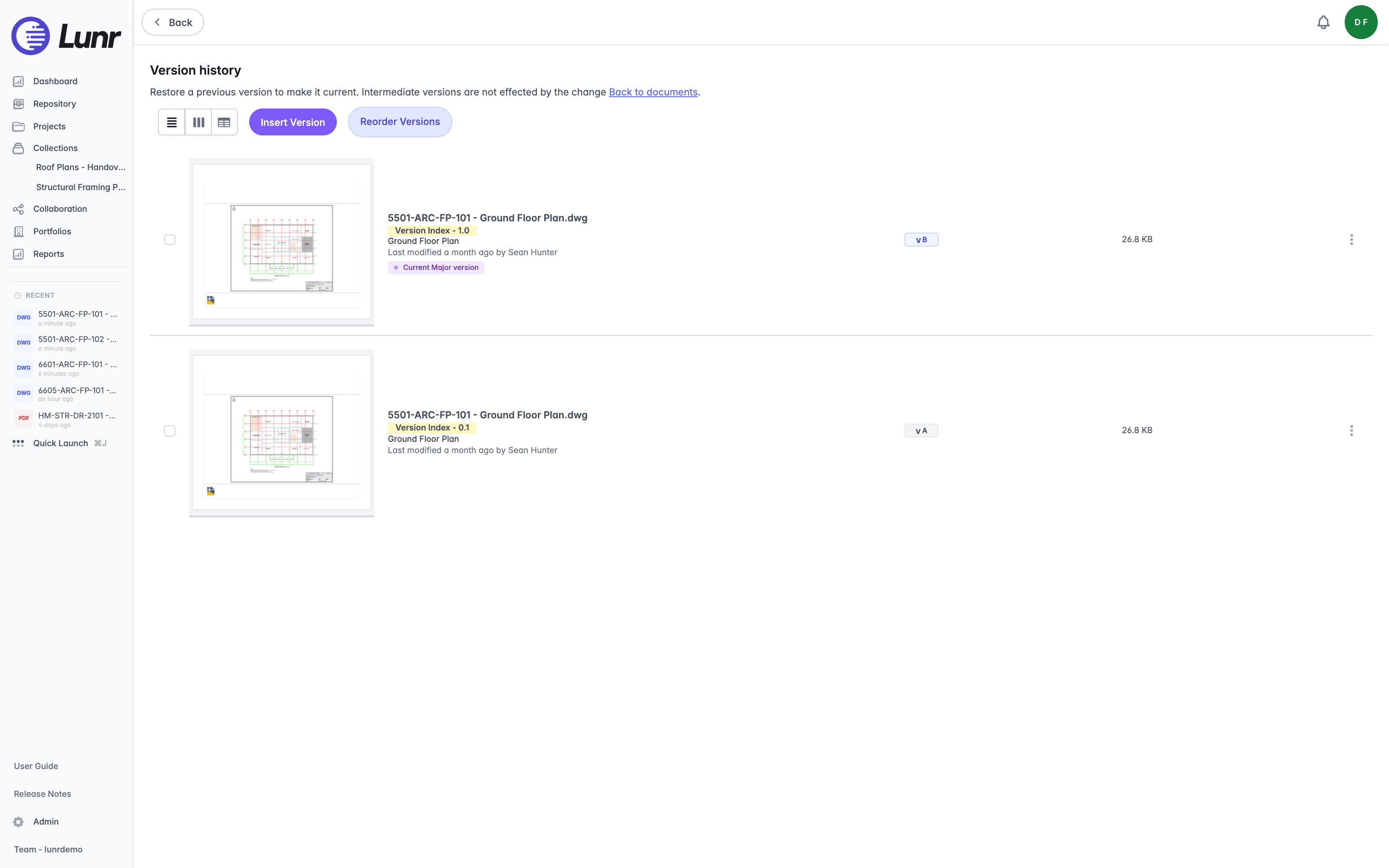
Choose Version History from a document's Options menu, opened by selecting the three dots at the end of its row. The page is headed Version history and explains that restoring a previous version makes it current while leaving the versions in between alone. Select Back to documents to return to the list you came from.
The Version List
Three view modes present the history as a list, as cards, or as a table. Choose whichever suits how many versions you are comparing.
Versions are listed newest first. Each entry carries a preview thumbnail, the file name, and a highlighted Version Index such as "Version Index - 1.0", followed by the document title, when it was last modified and by whom, the revision badge such as v B, and the file size. A Current Major version badge marks the version in use, so the entries without it are the superseded ones.
Working With a Single Version
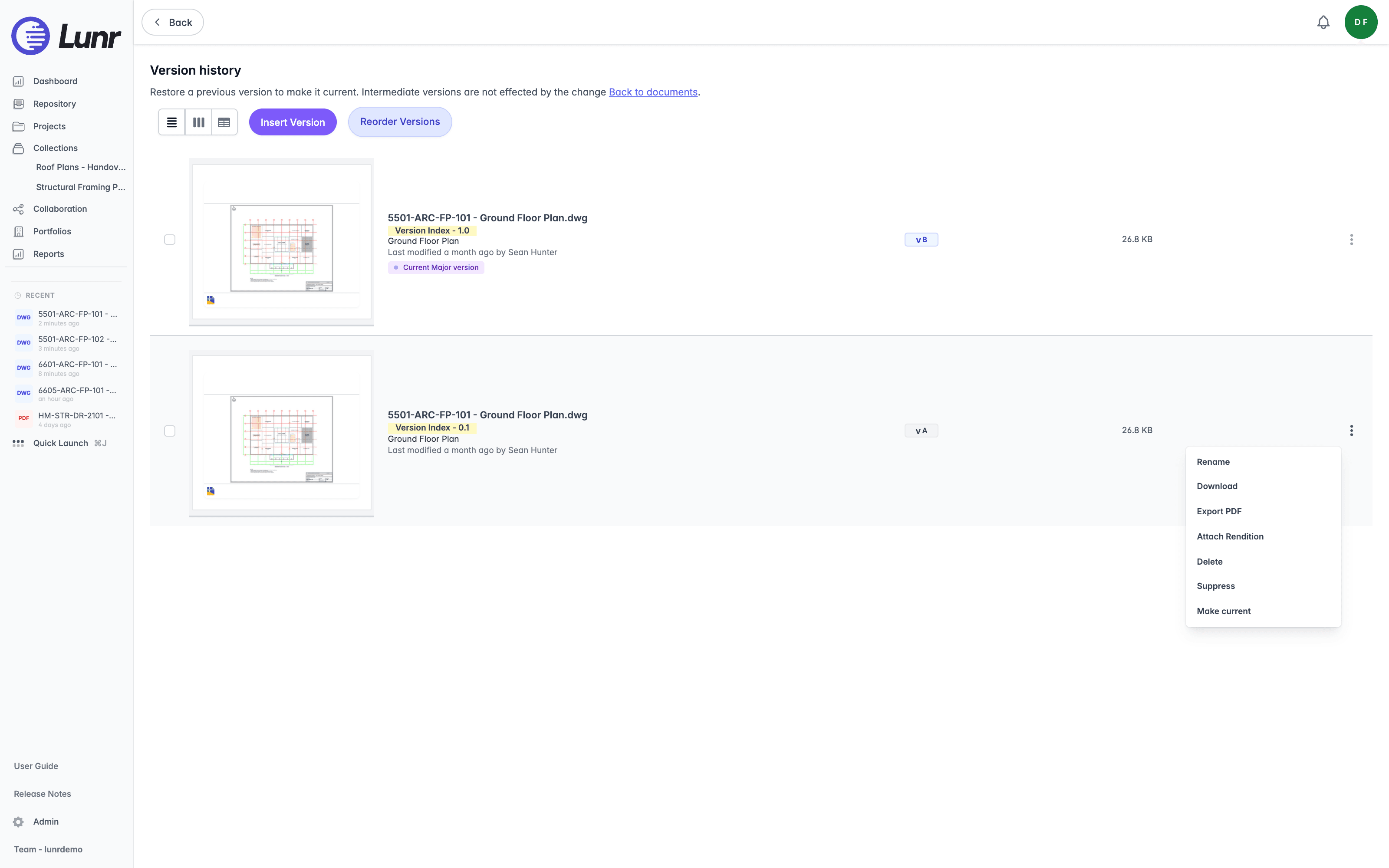
The Options menu at the end of a version's row acts on that version alone. What it offers depends on your access rights and on the state of the version you opened it on, so a version that is already current, or one that has been deleted, shows a different set.
| Action | What it does |
|---|---|
| Make current | Restores this version as the document's current one. It is not offered on a version that is already current, deleted, or suppressed. |
| Rename | Changes the name recorded against this version. |
| Download | Downloads this version's original file. |
| Export PDF | Produces a PDF of this version. |
| Attach Rendition | Attaches a viewable copy, such as a PDF of a drawing, to this version. |
| Publish | Publishes this version, where your organisation has publishing enabled. |
| Delete | Removes this version. |
| Undelete | Restores a version you deleted earlier, and appears only on a deleted version. |
These actions need the Restore Version access right. Without it the menu does not open at all, unless you hold View Suppressed Revisions, in which case it opens carrying the suppression actions alone.
Suppressing a Version
Suppressing hides a version from the history without deleting it, which suits a revision that was issued in error and should not be part of the record people read.
The Suppress Revision dialog puts it plainly: it hides the revision from users without the View Suppressed Revisions access right. Where you do not hold that right, suppressed versions are simply absent from the history rather than shown as hidden.
Suppress is offered only on a version that is superseded, so you cannot suppress the version currently in use, one already suppressed, or one that has been deleted. Unsuppress appears in its place on a suppressed version.
Inserting and Reordering Versions
Two controls at the top of the page change the shape of the history itself. Both need the Insert Revision access right, and neither appears without it.
Insert Version opens the Insert Revision dialog, which places a version at an index you choose rather than on the end. Drag a file onto the dialog, or use its file picker, then enter the major and minor revision index the inserted version should take. The dialog names the file you have supplied before you commit to it.
Reorder Versions opens the Reorder Versions dialog, where you move a version to a different position in the history.
Inserting, reordering, deleting, and suppressing all rewrite a document's record of itself. Prefer Make current where you simply need an earlier version back in use, since it leaves the history intact.
Document Actions
Act on documents through the two menus Lunr offers, the grouped More menu in the Action Pane that applies to everything you have selected, and the Options menu at the end of a document's row that applies to that document alone.
Uploading Documents
Bring files into the Lunr repository with the Create menu, the Upload button, or drag and drop, and understand when an upload becomes a new document, a new revision of an existing one, or a rendition attached to another.