Searching for Documents
Find documents using basic search, your recent searches, advanced search, tag filters, XRAY, Quick Search, Quick Launch, wildcard and boolean operators, archived document searches, and metadata export.
Overview
If you don't want to browse through folders, use one of these search options to quickly locate a document.
Basic Search
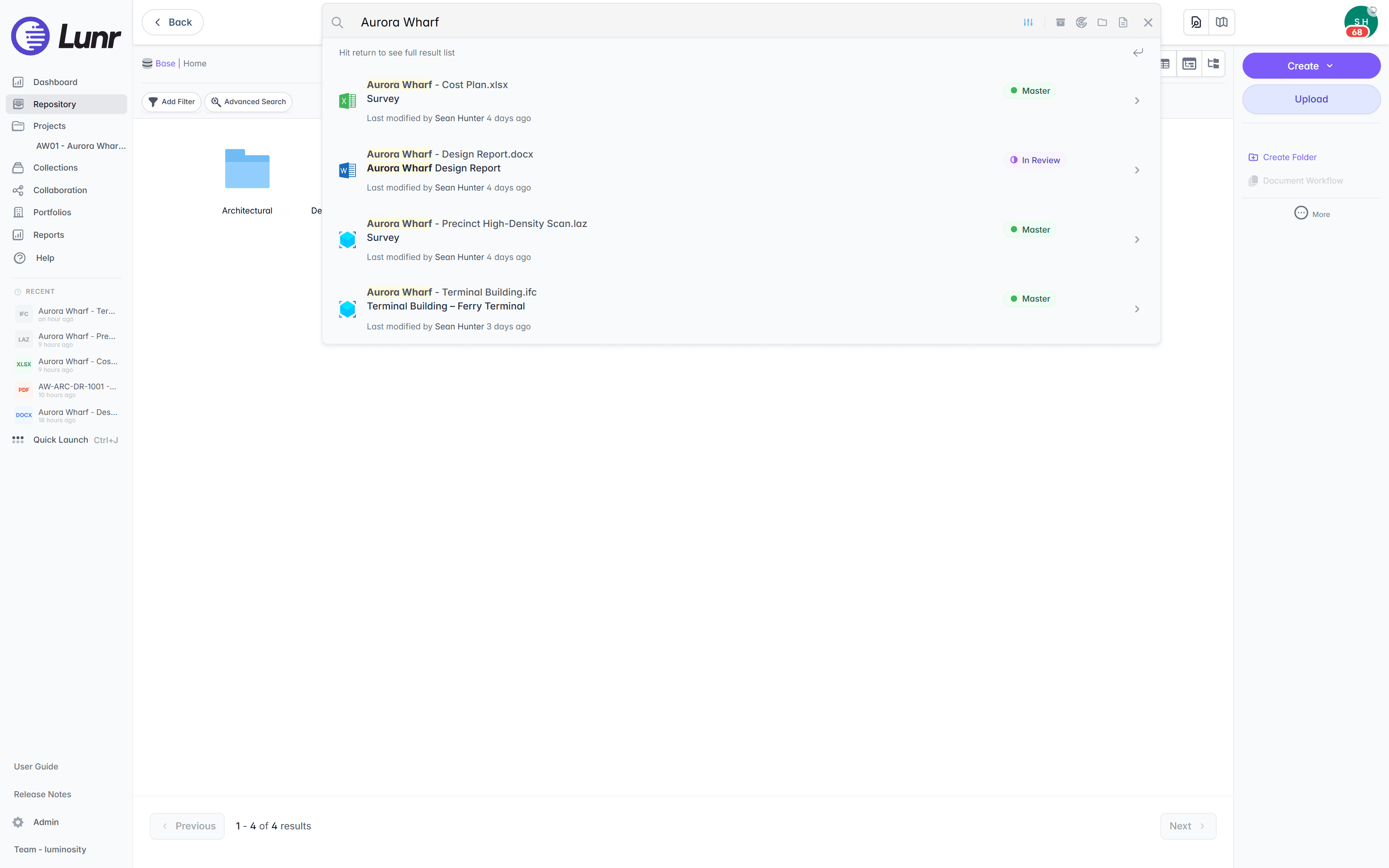
The search box is available from any page in the repository. It carries the placeholder Type a file name, tag or keyword, and by default a search matches document file names, titles, and tags rather than the text inside documents.
Enter three or more characters and a suggestion dropdown lists up to eight matching documents, with the matched term highlighted in each result name. Select a suggestion to open that document, or press Enter to open the full results page.
Recent Searches
Select the search box before you type anything and Lunr offers your recent searches, headed Recent searches. It is the quickest way back to a search you ran earlier, filters and all.
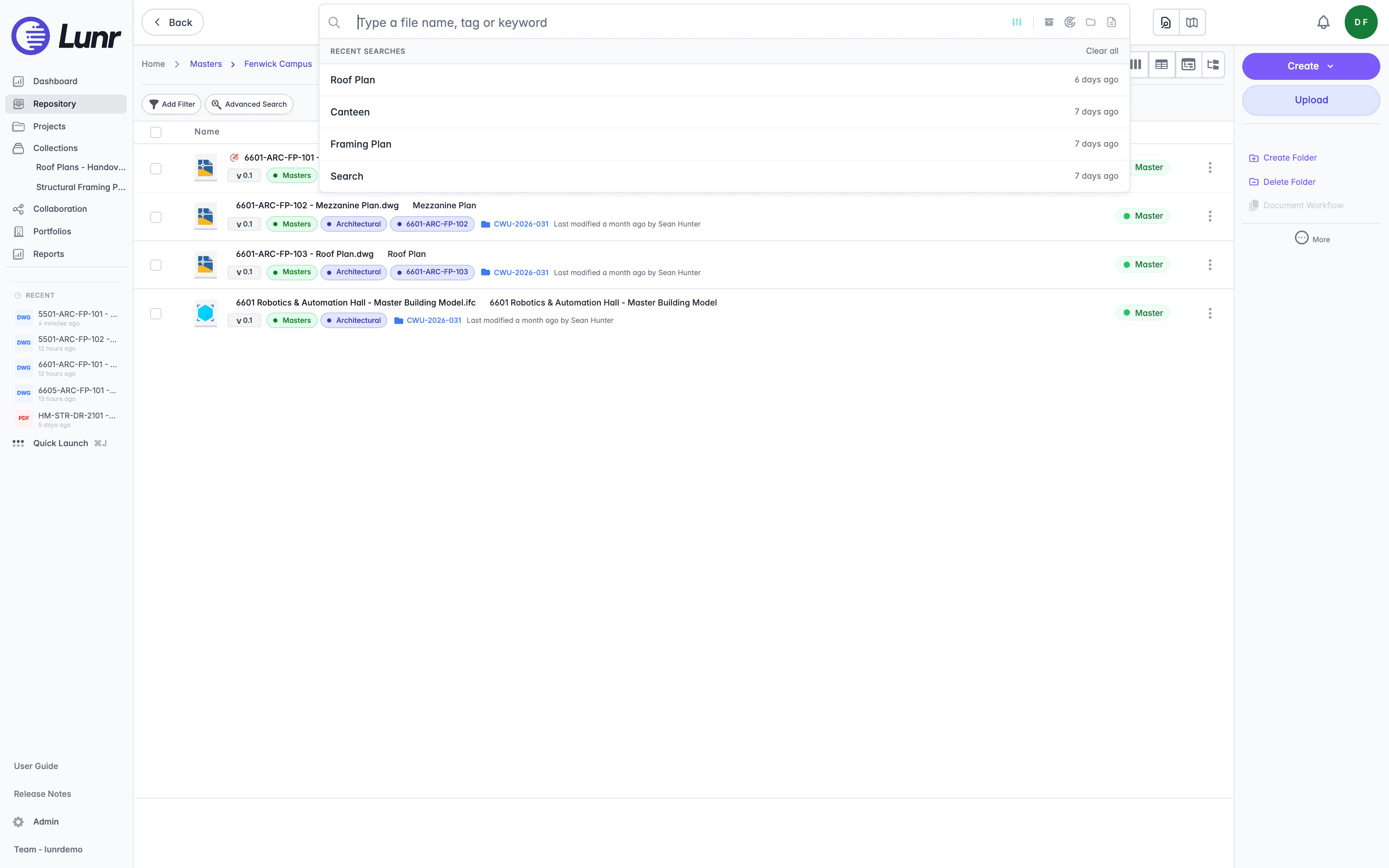
Each entry names the search and how long ago you ran it. Where the search carried filters, they appear as chips beneath the name, and pointing at an entry shows the filters in full. Select an entry to run that search again, including its filters.
Select Clear all at the top right of the panel to empty the history. Until you have run a search, the panel reads "Your recent searches will appear here".
The panel does not appear if you have enabled Hide Search History panel in your Preferences. Your history is still kept, it is just not offered here.
Once you type, the panel switches from your history to the matching documents described above.
Search Results
Press Enter to open the full results page. A result count and the searched library appear at the top, for example 4 Results · Base. In the list view, each result shows the file name with the matched term in bold, the document title beneath it, a version badge, discipline and other metadata tags, the project folder such as AW01, a last-modified line, and a status badge showing Master or In Review.
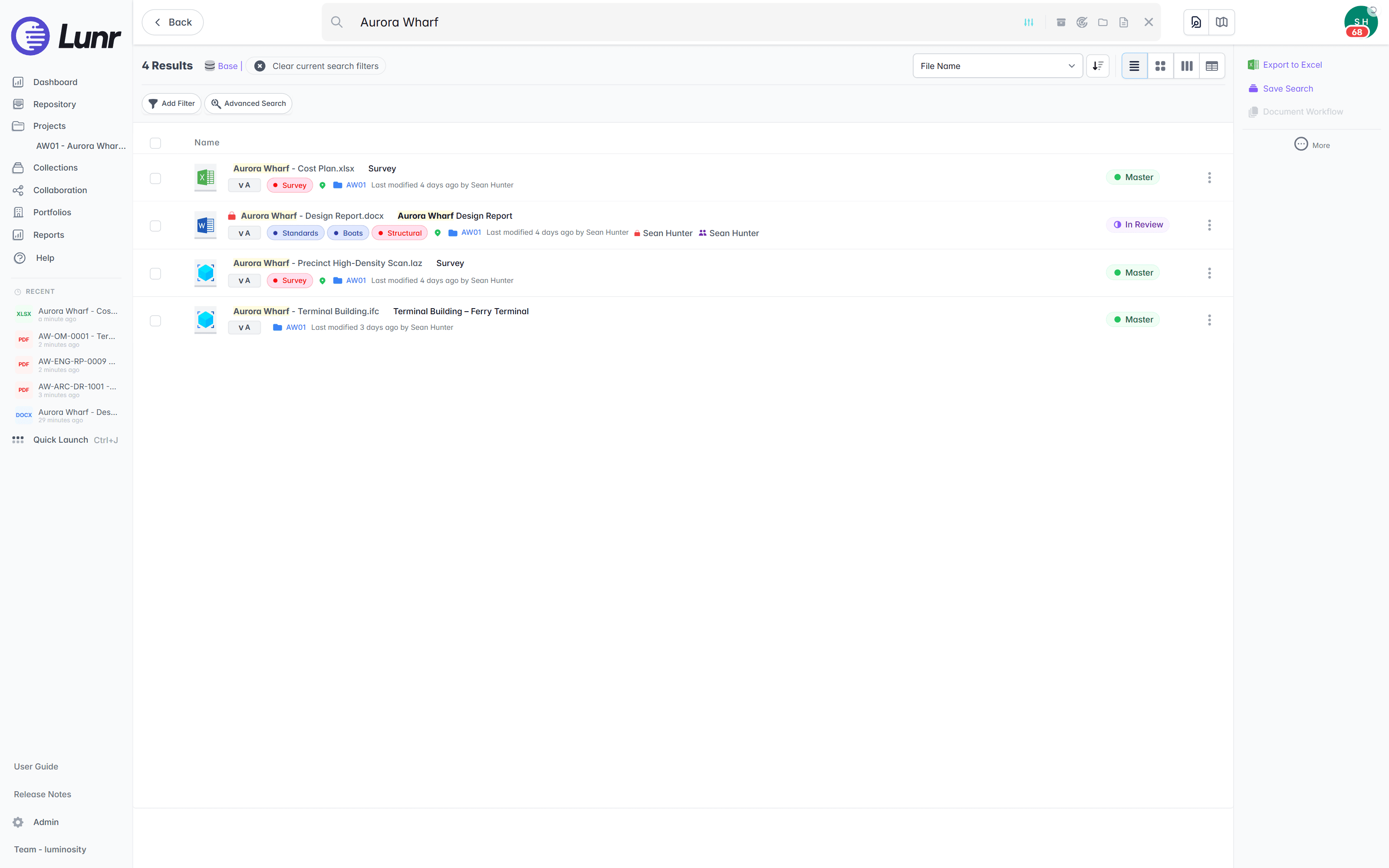
Use the Sort control to order the results and the view-mode switcher to change the layout. Results support the same view modes as browsing, so you can switch to a thumbnail view to recognise a document by its rendered preview.
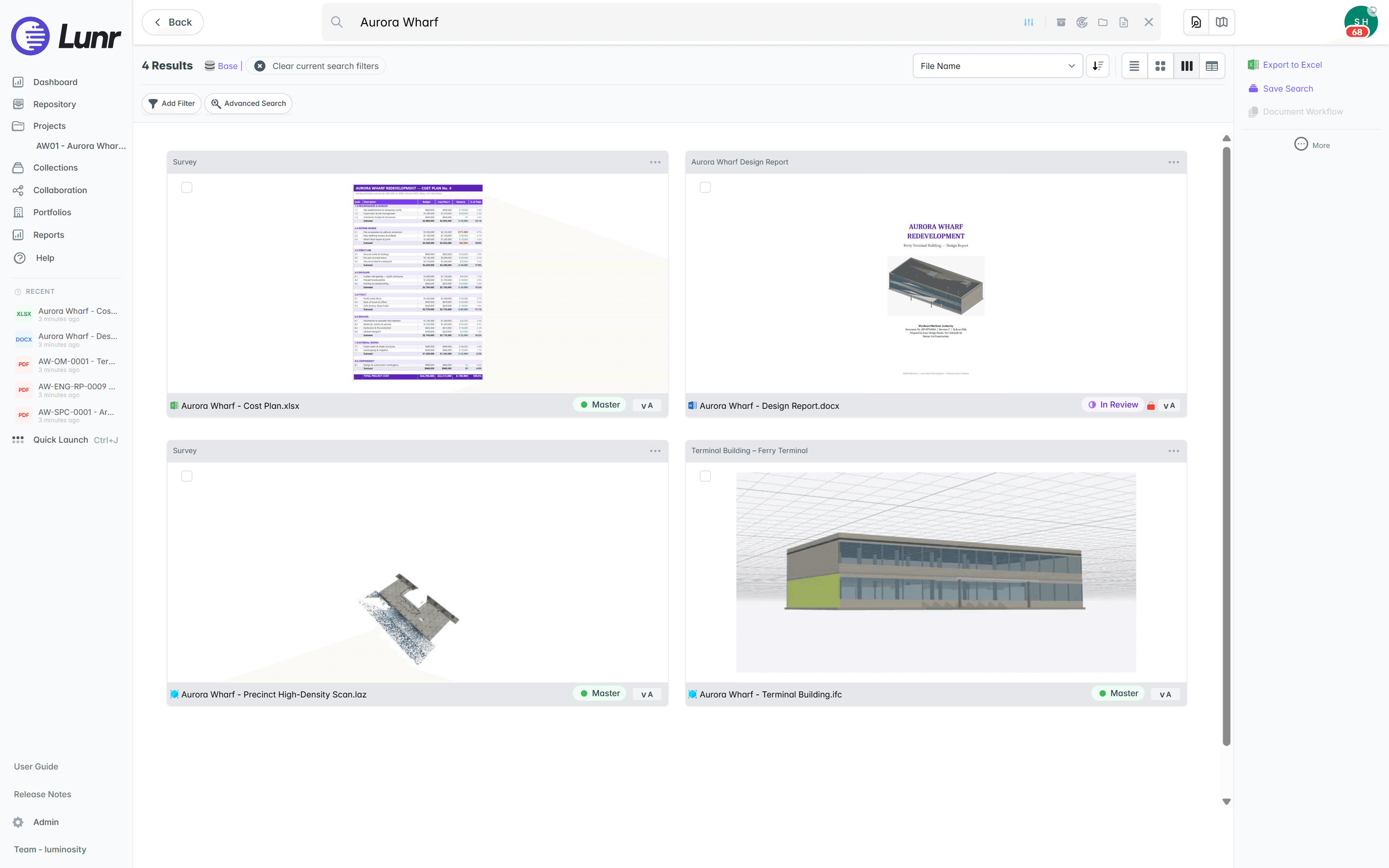
Select Clear current search filters to return to browsing, Export to Excel to download the results as a spreadsheet, or Save Search to keep the query for later.
Wildcard Searches
Lunr lets you perform wildcard and boolean searches right in the search bar.
Available search operators include:
- CONDENSING INSTRUMENT: both CONDENSING and INSTRUMENT are required.
- CONDENSING OR INSTRUMENT: either CONDENSING or INSTRUMENT are required.
- "CONDENSING INSTRUMENT": the exact term CONDENSING INSTRUMENT is required.
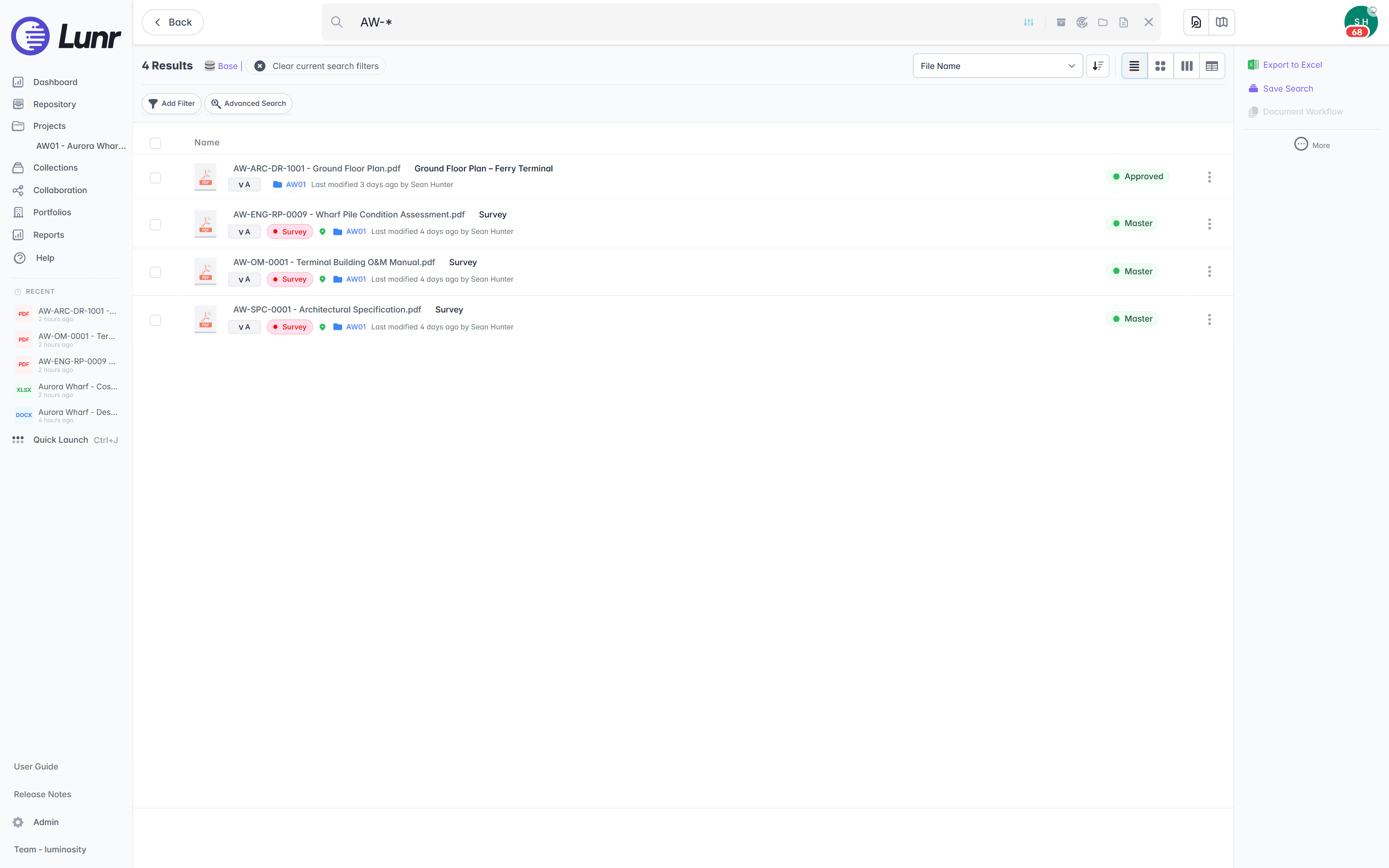
- AW-*: a trailing asterisk is a wildcard that matches any term beginning with AW-.
For example, searching AW-* returns every document whose name starts with AW-, such as the four AW-prefixed drawings and reports in the Aurora Wharf set.
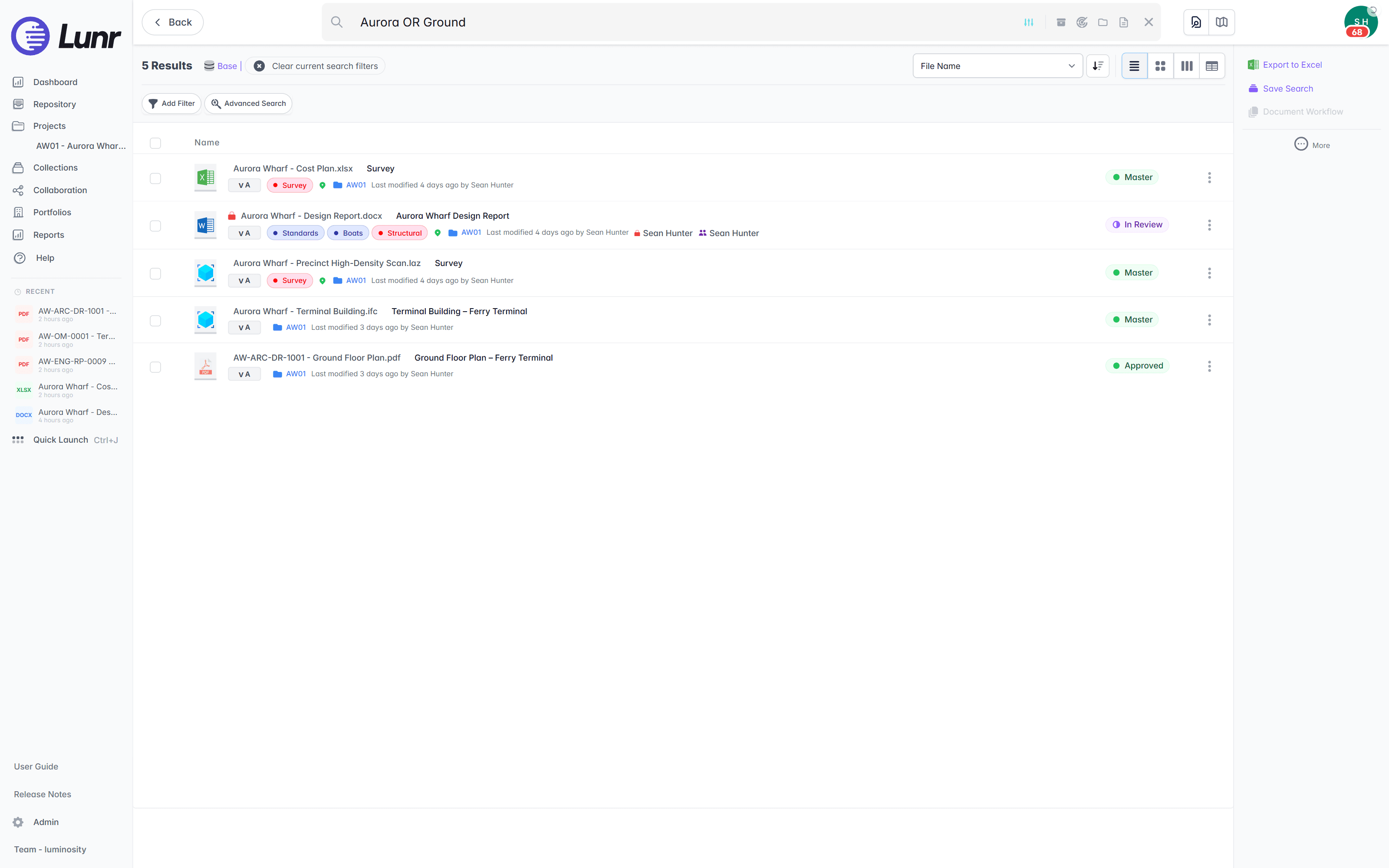
A boolean OR search widens the results to documents matching either term. Searching Aurora OR Ground returns the four Aurora Wharf documents together with the Ground Floor Plan.
Searches are not case sensitive.
Advanced Search
Use the Advanced Search feature to refine your search results with metadata filters and options.
- Go back to the main page by selecting the Repository link.
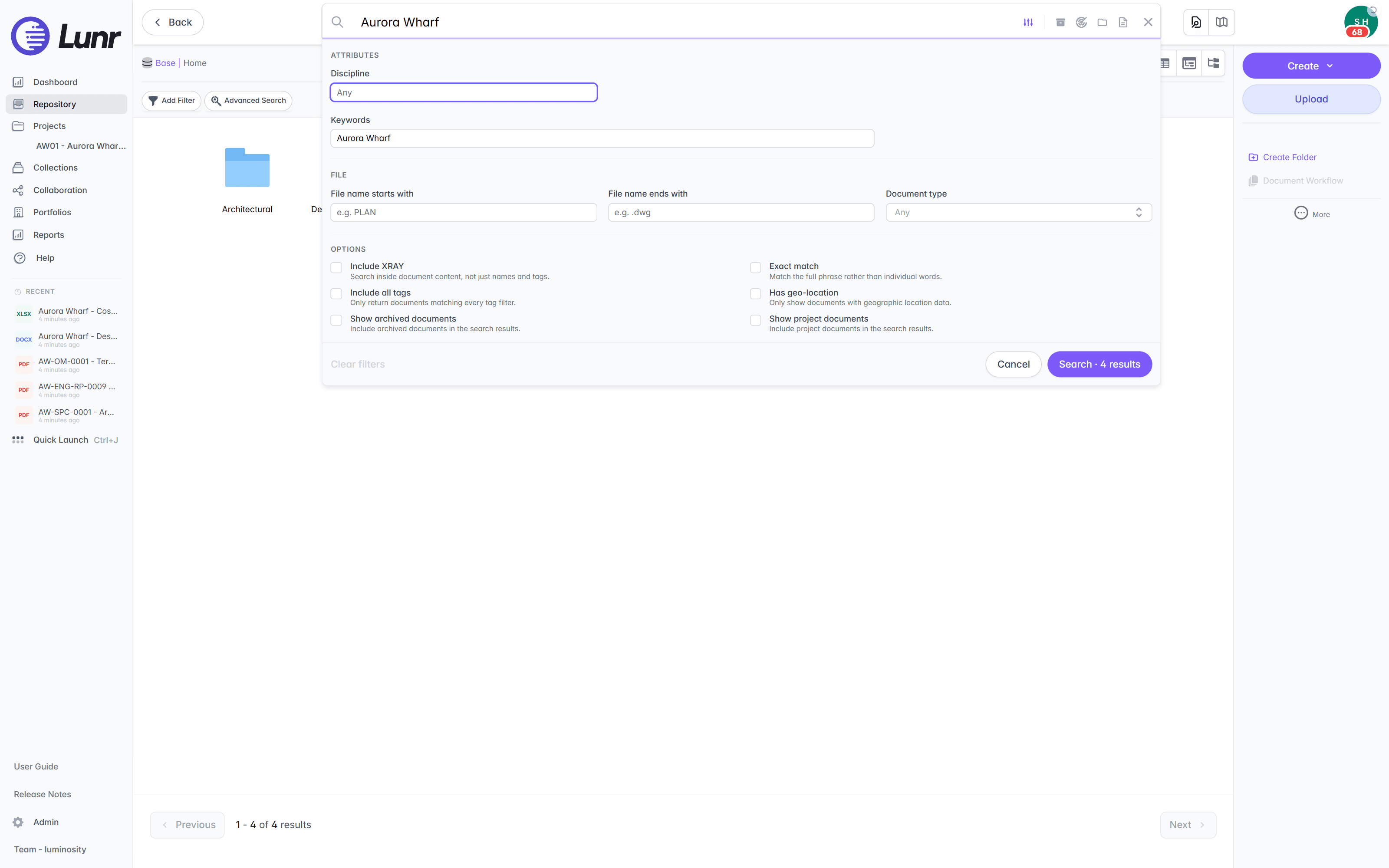
- Open the filter panel by selecting the adjust icon inside the search bar or by selecting the Advanced Search button.
- Choose your search criteria from the options displayed, then select the Search button.
In the filter panel, set the Discipline filter to narrow the results to a single discipline, and add a keyword in the Keywords field. Narrow further with the file filters for File name starts with, File name ends with, and Document type. Turn on any options you need, such as Include XRAY, Exact match, Include all tags, Has geo-location, Show archived documents, or Show project documents. The Search button shows a live count of matching documents, for example Search · 4 results, allowing you to see the effect of a filter before you run it.
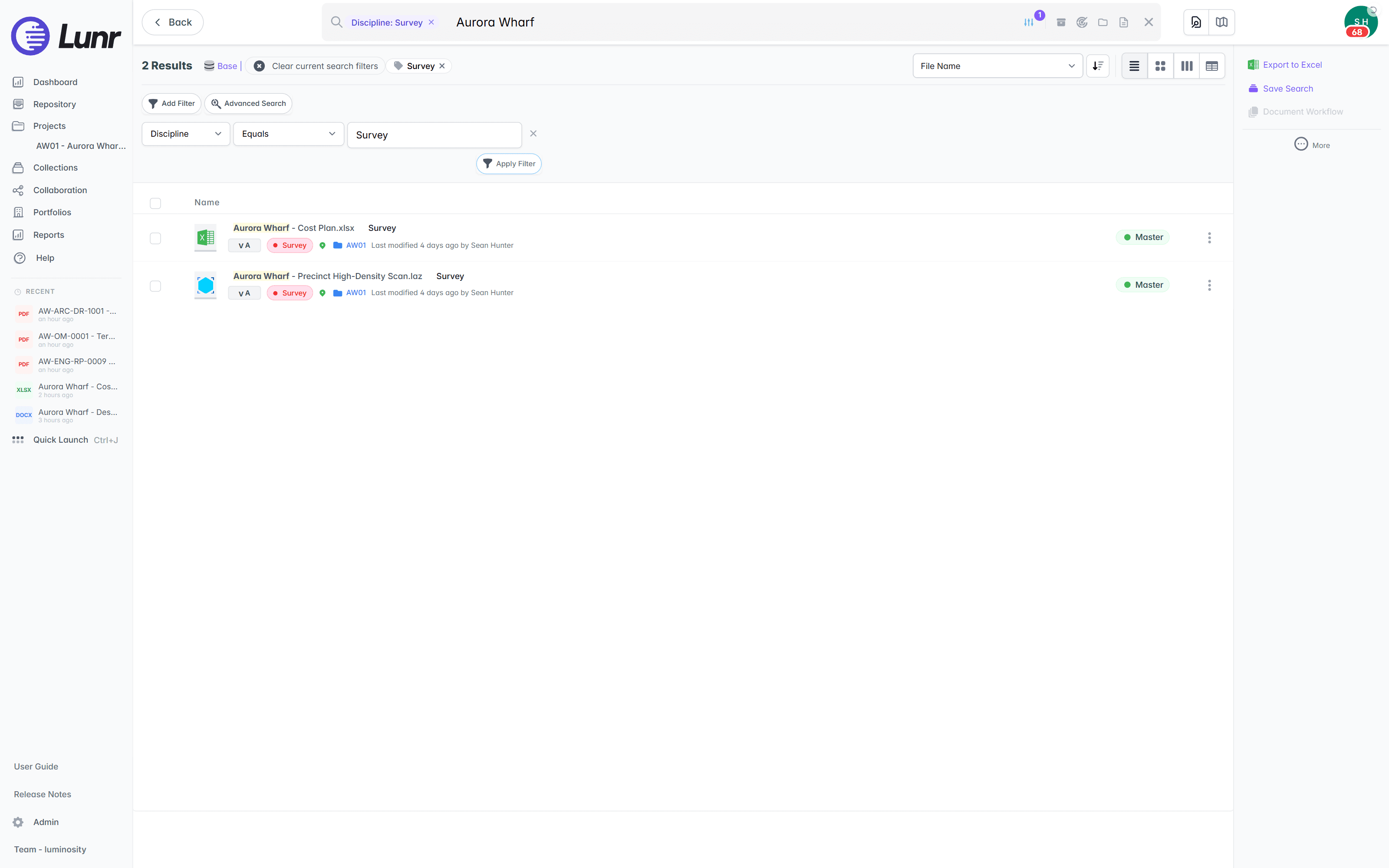
Selected tags appear at the top of the search results. To widen your search, remove a tag by clicking the x next to it.
Searching Using XRAY
XRAY is an AI feature that searches for any text on drawings, including handwriting and text not recorded in the displayed metadata.
Enable it by selecting the Include XRAY option on the Advanced Search page or by clicking the target icon in the search bar.
Searching for Archived Documents
Archiving documents hides outdated or obsolete drawings from most users, preventing confusion with current versions. Archived documents are excluded from search results by default.
To include them, enable the archive box toggle in the search bar or select the Show archived documents box on the Advanced Search page. Either action reruns the search immediately, the results header shows an Archived pill, and each archived row carries a small archive-box icon.
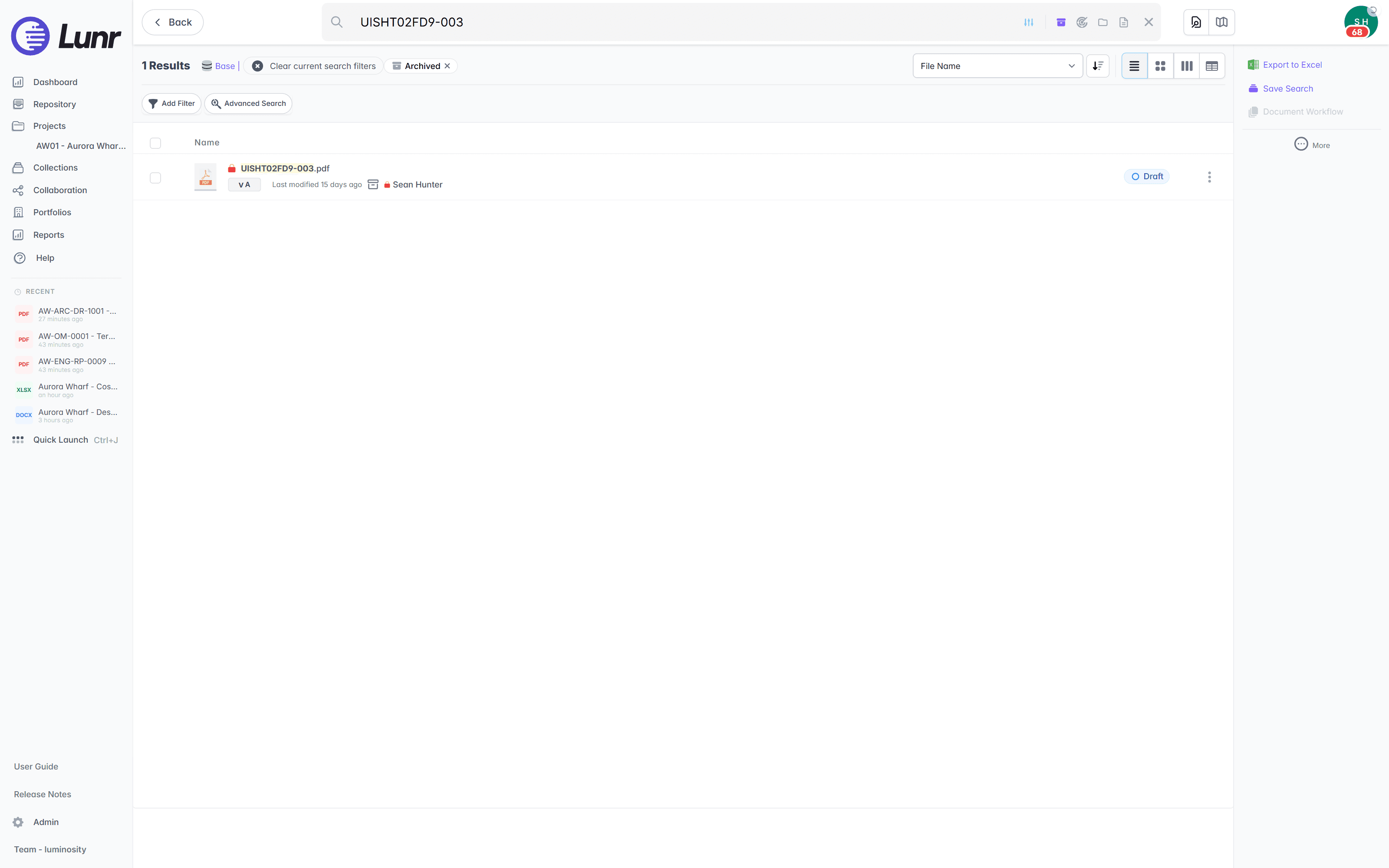
Archived documents display a small archive box icon next to each one in the search results.
Filtering With Tag Filters
Tag filters narrow the results already on screen without opening the Advanced Search dialog. Each filter combines a field, an operator, and a value, and the results update as soon as you apply it.
- On the results page, select the Add Filter button. The sibling Advanced Search button opens the filter dialog instead.
- In the filter row, choose a field from the first dropdown, such as Discipline or File Name.
- Choose an operator from the second dropdown, such as Equals, Contains, Starts With, or Is Empty.
- Enter or select a value. For Discipline, type in the value field and pick a discipline such as Survey from the typeahead.
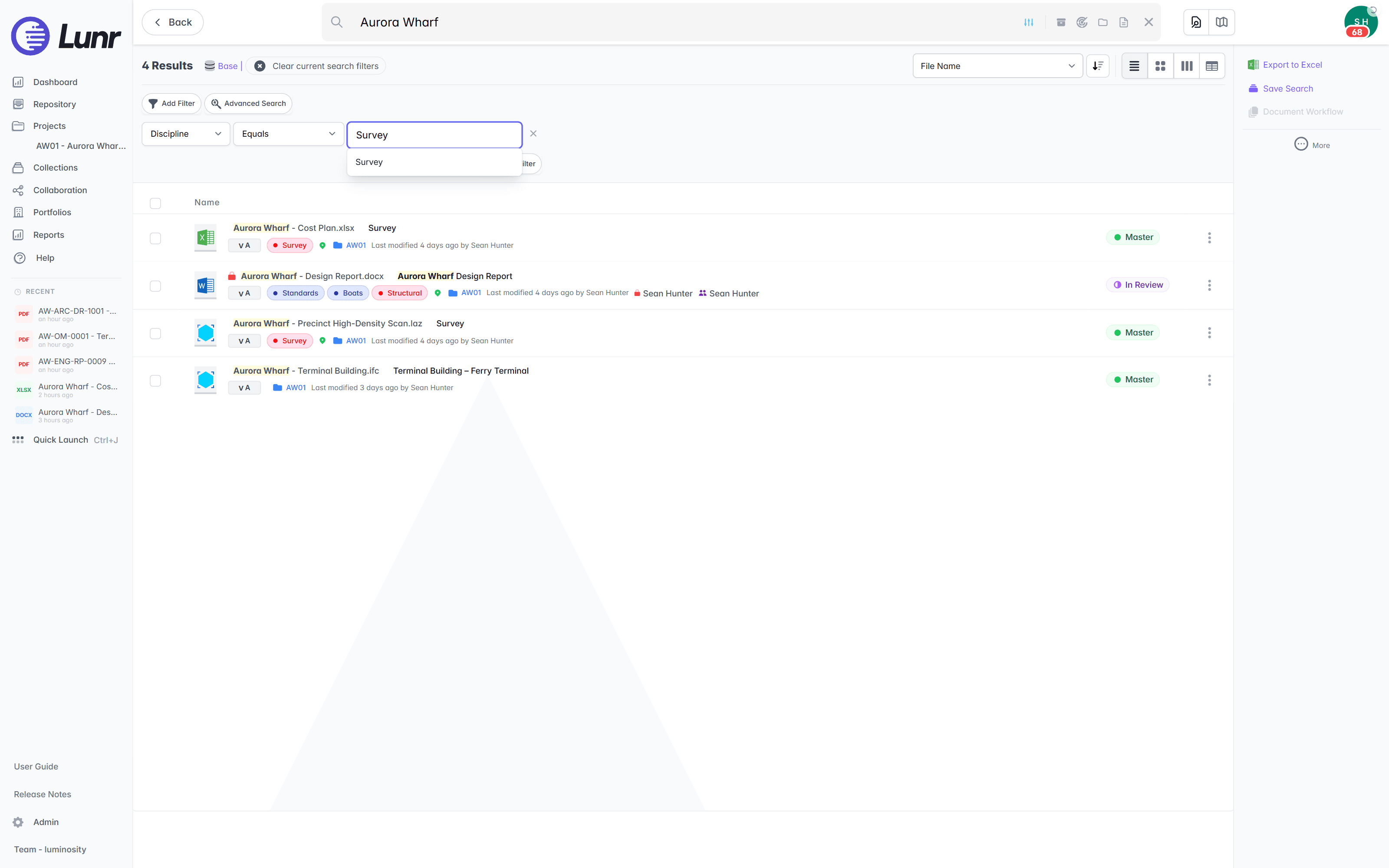
- Select Apply Filter.
The applied filter appears as a Discipline: Survey pill in the search bar and a Survey tag in the results header, and the filter toggle shows a count badge. The results narrow immediately, in this example from four documents to two.
Quick Search
Quick Search is a small panel in the sidebar, below the main navigation, that starts a search from tag values rather than from a keyword. It appears only where your organisation has marked tags to show there, so you may not have it at all.
The panel offers one selector per marked tag, each starting with that tag's name followed by an ellipsis, for example Discipline.... Choose a value from as many of them as you want to narrow by, then select Filter. Lunr opens the results page filtered to the values you chose.
Quick Search and Quick Launch sit near each other in the sidebar and do different jobs. Quick Search filters the repository by tag values. Quick Launch, covered below, jumps straight to a document, project, or change request you can already name.
Quick Launch
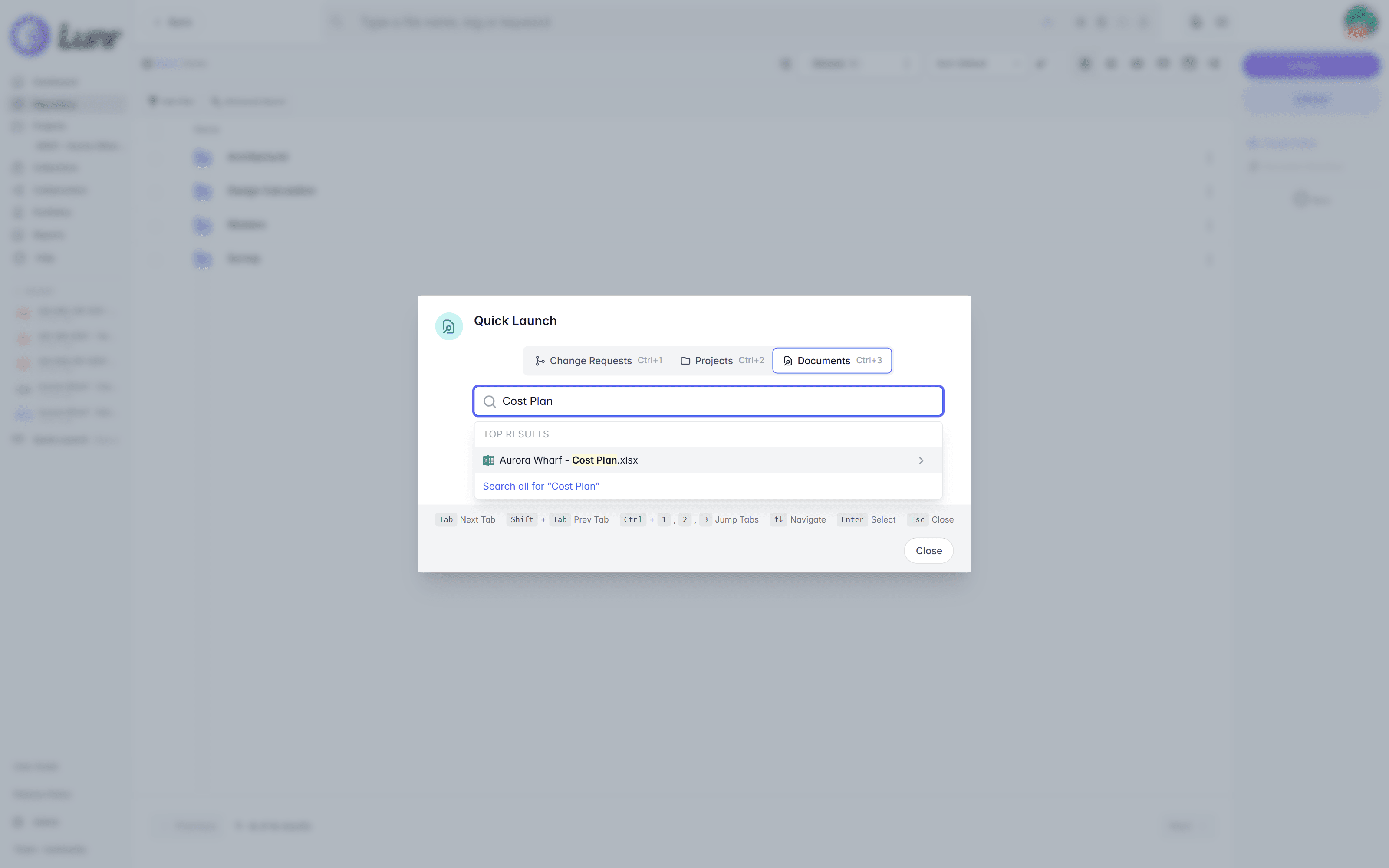
Quick Launch in Lunr helps you find documents, projects, or change requests fast. Access it from the main menu or press CTRL+J on the keyboard.
Keyboard shortcuts are shown at the bottom of the window.
Searching for Change Requests
Change requests are presented by default when accessing Quick Launch; alternatively, you may select the Change Requests tab or press CTRL+1 on the keyboard.
This feature enables searching by Change Request number or subject. As you enter your query, a drop-down list will appear. Selecting an item from this list will direct you to the corresponding Change Request.
Press Enter to navigate to the first result shown in the dropdown list.
Searching for Projects
After opening the Quick Launch window, select the Projects tab or press CTRL+2 on the keyboard.
This feature enables searches by project number, name, or description. As you begin typing, a drop-down list will appear; selecting an item from this list directs you to the corresponding project.
Press Enter to navigate to the first entry in the dropdown list.
Searching for Documents
After opening the Quick Launch window, select the Documents tab or press CTRL+3 on the keyboard.
Type keywords to see a Top Results drop-down list. Select a result to open that document, or select the Search all link to open the full search results page for your keywords.
Exporting Metadata
Click Export to Excel after your search to download a spreadsheet of metadata for all documents returned in the search results.
If you wish to export the metadata for specific documents, check the box next to each one before clicking Export to Excel.
Browsing the Document Repository
Browse the Lunr document repository using folder, thumbnail, and map views, choose which columns the table shows, select documents to act on them from the Action Pane, and reopen recent documents from the sidebar.
Document Actions
Act on documents through the two menus Lunr offers, the grouped More menu in the Action Pane that applies to everything you have selected, and the Options menu at the end of a document's row that applies to that document alone.