Uploading Documents
Bring files into the Lunr repository with the Create menu, the Upload button, or drag and drop, and understand when an upload becomes a new document, a new revision of an existing one, or a rendition attached to another.
Overview
There are two routes into the repository. Create starts a new document of a type your organisation has configured, and Upload takes files that already exist on your computer. Both sit at the top of the Action Pane on the right of the document list.
What matters most about an upload is which of three things it turns into: a new document, a new revision of a document already in the repository, or a rendition attached to an existing document. Lunr decides by comparing file names, covered under What an Upload Becomes.
The Create Menu
Select Create to open a menu of things you can start from here. Its contents depend on your organisation's settings and your access rights.
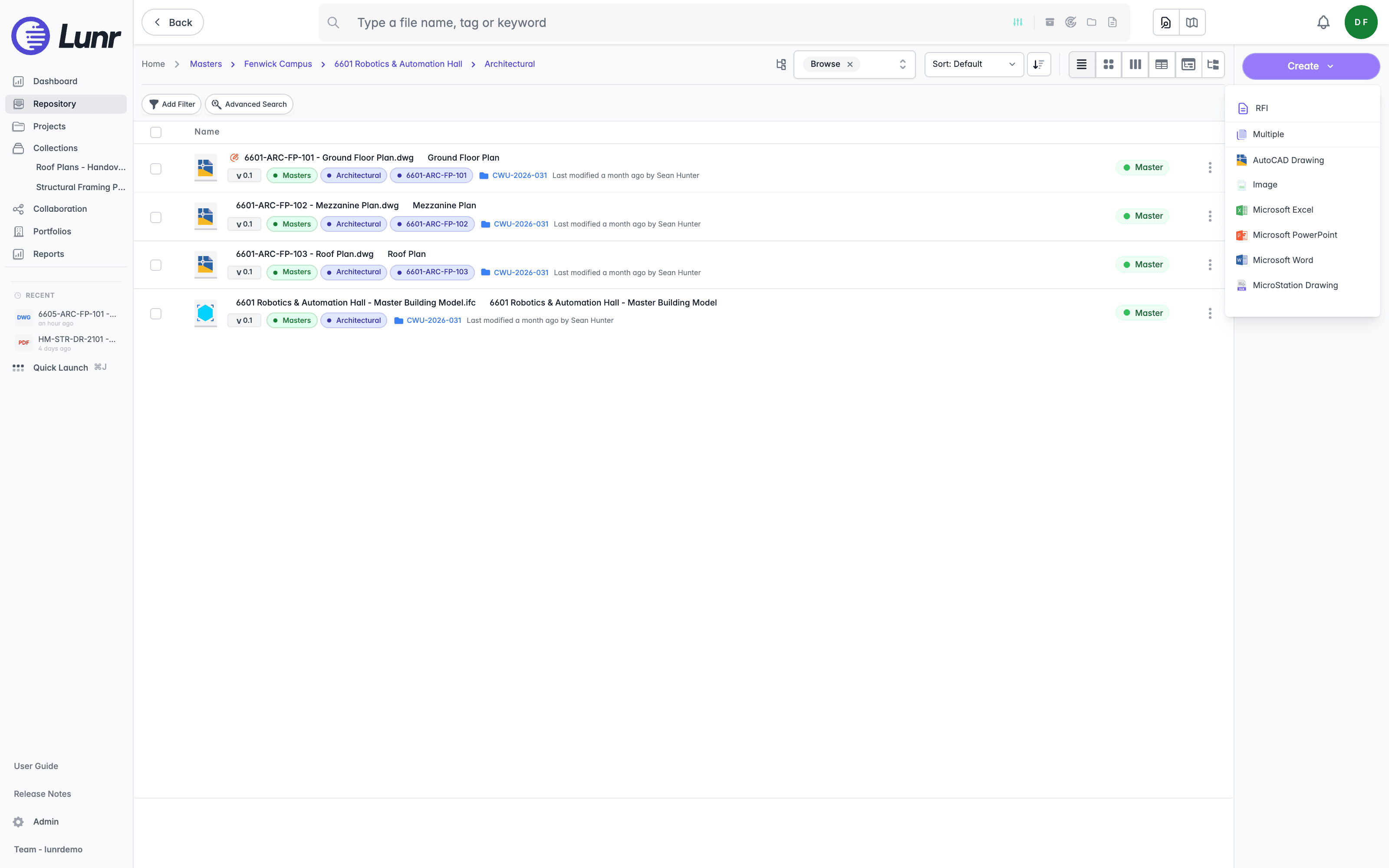
The first group holds records rather than documents, such as an RFI, labelled with your organisation's own wording. A Change Request entry appears where you can raise one, and a Drawing Numbers entry where document numbering is enabled.
The second group starts documents. Multiple takes several files at once, and below it sits one entry per document type your organisation has configured, each with its file-type icon, for example AutoCAD Drawing, Image, Microsoft Excel, Microsoft PowerPoint, Microsoft Word, and MicroStation Drawing. Choosing a type tells Lunr what the document is, so it can apply the right tags, numbering, and workflow.
Uploading Files
Select Upload to open your computer's file browser and choose the files to bring in. You can also drag files from your desktop straight onto the document list, which is quicker when you already have both windows open.
Files land in the folder you are looking at, so the tags of that folder are the tags the new documents pick up. Check the breadcrumb trail before you upload rather than moving documents afterwards.
What an Upload Becomes
Lunr checks whether the folder already holds a document of the same name, then takes one of three paths.
| The file you upload | What happens |
|---|---|
| Its name matches an existing document exactly, ignoring case and surrounding spaces | The upload replaces that document's content, creating a new revision. Its name, tags, and history carry over. |
| It is a PDF whose name matches a non-PDF document, for example Plan-01.pdf onto Plan-01.dwg | Lunr asks whether to attach it to that document as a rendition. Upload as separate document files it on its own instead. The prompt also explains how to make the PDF the document itself, covered in Turning a Drawing Into a PDF Document below. |
| Neither applies | Lunr creates a new document. |
The match has to be the whole file name. Plan-01.pdf does not claim Site-Plan-01.pdf, and Plan-01-revB.pdf does not claim Plan-01.pdf. Where an exact match and a same-name PDF both apply, the exact match wins, so a new revision of a PDF replaces that PDF rather than attaching itself to a drawing.
An exact name match replaces content without asking. If you mean to file a file as its own document, give it a name no document in that folder already carries.
Zip and Spreadsheet Uploads
Two file types can mean more than one thing, so Lunr asks before it commits. Both prompts are headed Select upload type and offer Cancel if you would rather not go ahead.
- Upload a
.zipand the dialog reads "You're uploading the zip file" followed by its name, then "Do you want to import it as a file or an import package?". Select Import Package to unpack it and bring its documents in individually, or Upload File to file the zip itself as a single document. - Upload an
.xlsxand the dialog reads "You're uploading the XLSX file" followed by its name, then "Do you want to import it as a file or bulk update tags in your package?". Select Update Tags to read the spreadsheet and apply its values to existing documents, or Upload File to file the spreadsheet itself as a document.
Choose Upload File when the zip or spreadsheet is itself the deliverable, for example a supplier's data pack you need to keep on record. Choose the other option when it is a means of getting content or tag values into Lunr.
Replacing a Document's Content
To replace one document's content deliberately, choose Replace Content from its Options menu, opened with the three dots at the end of its row, then pick the file.
Where the file you pick carries a different name from the document, a Replace Document Content dialog opens, subtitled "You're uploading a file to replace existing content". It shows the Current Document and the New Document so you can see both names, and a Document Name After Upload field you can edit.
- Leave the name as it is and the dialog reads "Content will be replaced", noting that the content changes while the name stays the same. The action reads Replace Content.
- Change it to the new file's name and the dialog reads "Document will be renamed", naming both the old and new names. The action reads Rename & Replace.
Select Cancel to abandon the upload. Where the names already match, no dialog appears and the content is replaced directly.
Turning a Drawing Into a PDF Document
A document whose native file is a drawing, such as a DWG, keeps its PDF as a rendition rather than as the document itself. To make the PDF the document, rename the document to .pdf first, which promotes its existing rendition to be the document's content, then upload the PDF again to replace that content.
Renaming to .pdf needs a rendition to promote. Where the version has none, the rename is refused and the name reverts.
Uploading in a Project or a Change Request
Everything on this page applies when you upload into a project or a change request as well as into the repository, including the name-matching rules and the zip and spreadsheet prompts. Three things differ:
- Files pick up the tags of the project or change-request folder you are in, and that folder's default document type where one is set.
- A member with the Change Requests Only access level can upload into a change-request folder they belong to, but not to the project root. See Project Members and Access.
- A project can override some organisation defaults that affect uploads, including how change-request uploads are handled and whether form recognition reads fields from uploaded forms into tags. An administrator sets these, covered under Editing a Project.
See Working in a Project for the Documents tab itself, and Change Requests for the ways documents reach a request.
Validation Errors
A document can arrive without everything your organisation requires, for example a missing tag. Lunr keeps it and flags it rather than refusing the upload, and a Validation Errors tab appears on the document listing what is outstanding. Dismiss All clears the flags on that document once you have dealt with them.
To clear flags across several documents at once, select them and choose Dismiss Validation Issues from the Archive & Delete group of the More menu, covered in Document Actions.
Version History
Open a document's version history to see every revision it holds, restore an earlier one as the current version, insert or reorder versions, and rename, download, delete, or suppress an individual version.
Downloading Documents
Download native documents and PDF renditions individually or as packages, understand the PDF Export options, track packages on the My Downloads page, and know the permissions, retention, and limits that apply.