Reports
Find the eight reports covering downloads, uploads, document assignment, projects, approvals, number requests, and reminders, understand what the Date range field filters, and export a report to Excel.
Overview
Select Reports in the main menu to open the Reports area. The whole area requires the View Reports access right. Without it, the menu entry does not appear at all.
The page opens straight onto the Downloads report, with the other seven reports as tabs across the top. Reports cover the repository you currently have selected, and there is no repository or project picker in the area.
The Reports
| Report | What it answers | What it shows |
|---|---|---|
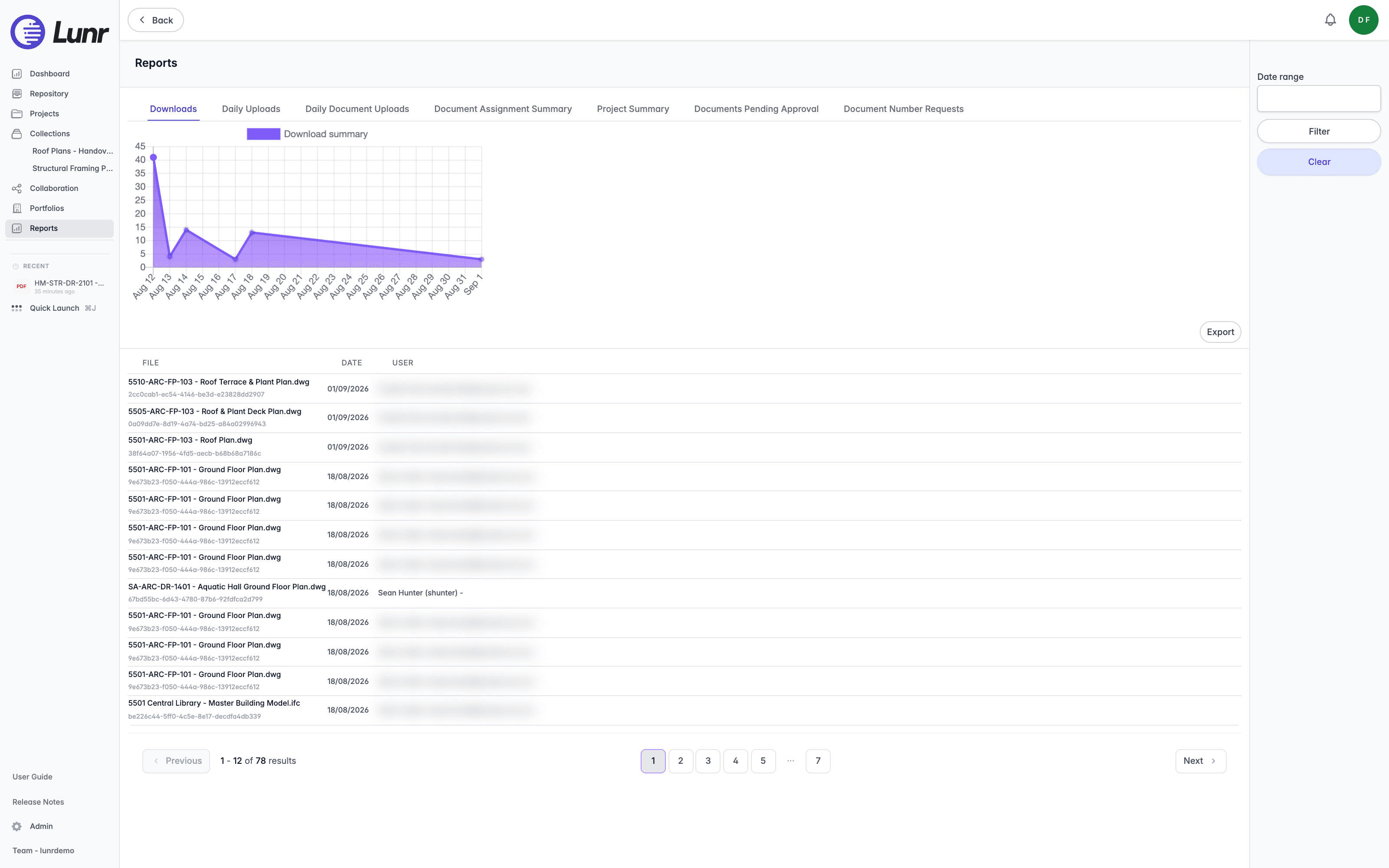
| Downloads | Which documents were downloaded, by whom, and when | A download summary line chart, then a table of File, Date, and User |
| Daily Uploads | What upload requests were raised, by whom, with how many documents | A table of Request, Created By, Project, and Documents |
| Daily Document Uploads | Which individual documents were uploaded, and against which change requests | A table of Document, Created By, and Change Requests |
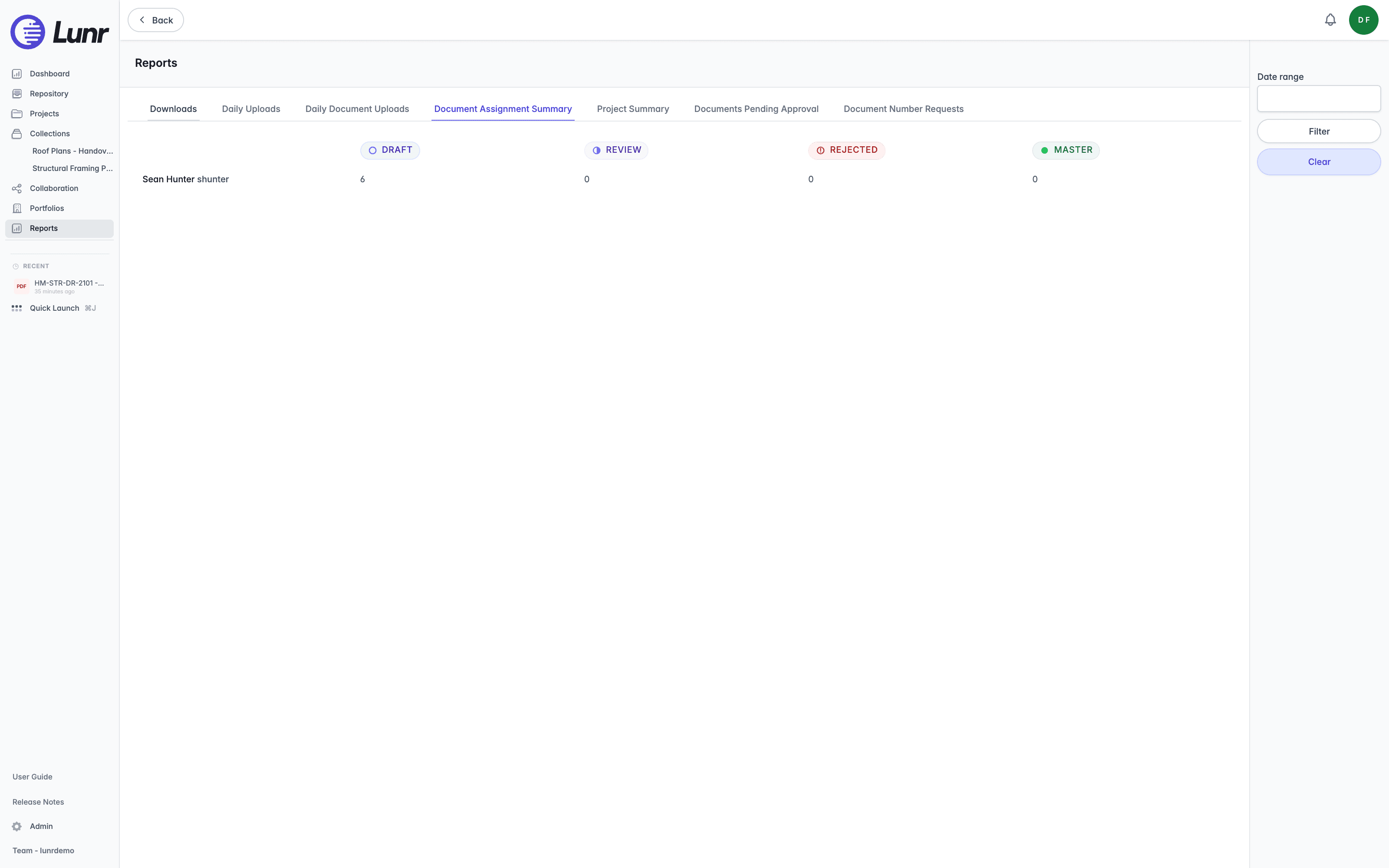
| Document Assignment Summary | How many documents each person has in each state | A table of User, then Draft, Review, Rejected, and Master |
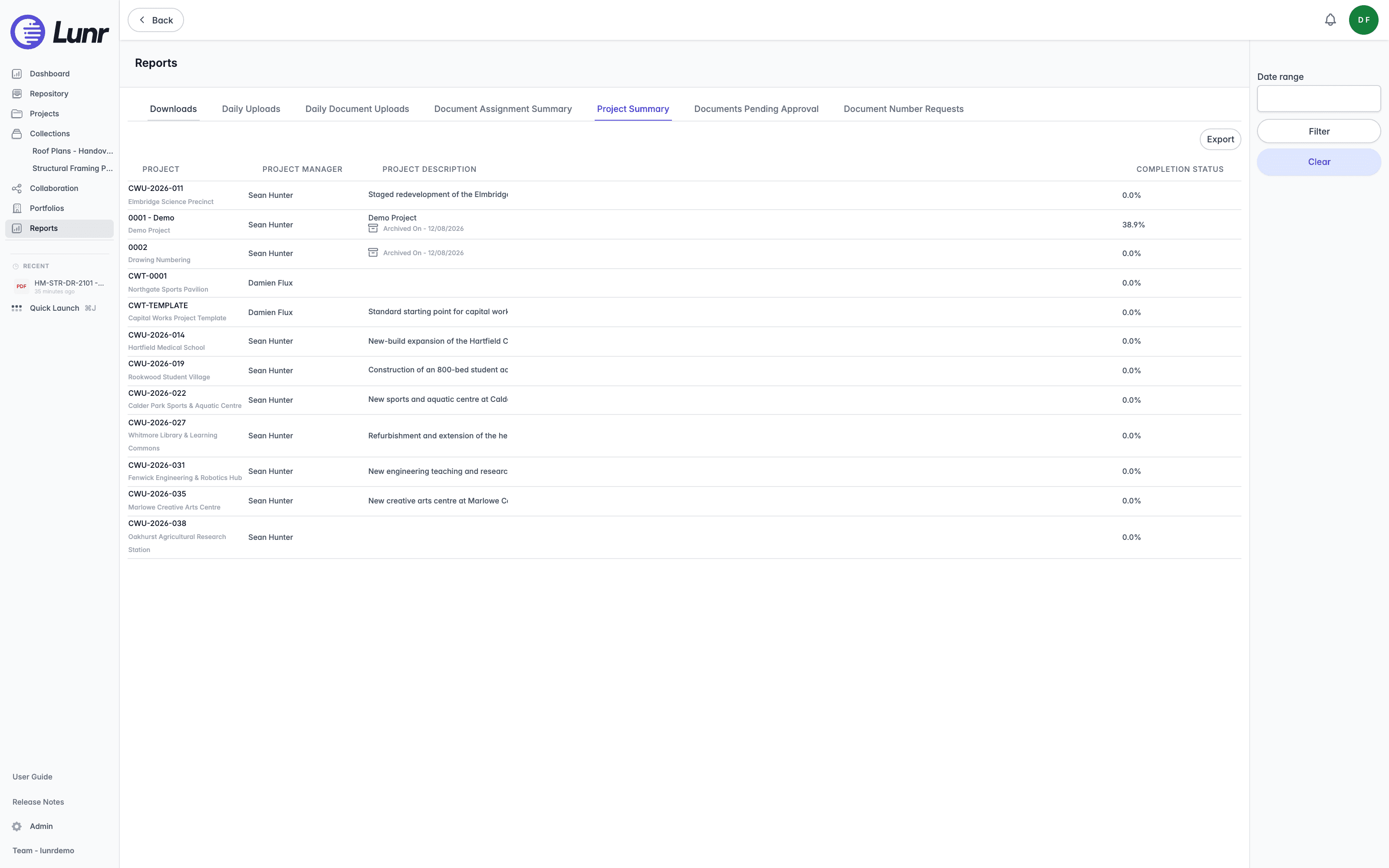
| Project Summary | Every project with its manager, description, and completion | A table of Project, Project Manager, Project Description, and Completion Status |
| Documents Pending Approval | Which documents are awaiting approval and who is reviewing them | A table of Document, Reviewers, Projects, and Change Requests |
| Document Number Requests | Which document number requests exist and for which project | A table of Request, Created By, Date Created, and Project |
| Document Reminders | Which reminders exist, when they are due, and who they are for | A table of File, Date Created, Notification Date, Date Due, Comment, and User |
Document Reminders only appears when your organisation has reminders enabled.
Document Assignment Summary counts documents assigned to each person across the Draft, Review, Rejected, and Master states only. Documents in other states are not represented in these four columns.
The Date Range
A Date range field sits to the right of every report, with Filter and Clear buttons. It defaults to the last month.
It filters these reports:
- Downloads
- Daily Uploads
- Daily Document Uploads
- Project Summary
- Document Reminders
It has no effect on these reports:
- Document Assignment Summary
- Documents Pending Approval
- Document Number Requests
Exporting
Five of the eight reports offer an Export button: Downloads, Daily Uploads, Daily Document Uploads, Project Summary, and Documents Pending Approval. Document Assignment Summary, Document Number Requests, and Document Reminders have none, though each row of Document Reminders can be edited instead.
Every export produces an Excel .xlsx file immediately, with no queue, no progress, and no expiry, so it never appears on the My Downloads page. Whether the file saves straight to your downloads folder or your browser asks where to put it follows the same per-project setting described on the downloading documents page.
Daily Uploads and Daily Document Uploads reject a date range longer than 365 days.
Paging
Reports that return many rows are paged, with Previous and Next buttons and a count reading, for example, "1 - 12 of 78 results".