Word Documents
View, search, edit, review and print Word documents in Lunr's native browser-based viewer, while preserving the document's original layout, formatting and review features.
Overview
Lunr opens Word documents in a native viewer that shows the document with its true page layout, including charts, tables, images, headers and footers, and footnotes. There is no desktop software to install.
When a document is under an active workflow, the current assignee can edit it. Everyone else sees it read-only.
Opening a Word Document
Open a .docx or .docm document and click View in Word Viewer to open it in the native Word viewer.
The button appears when the native Word viewer has been enabled by your administrator, and is available on larger screens.
While a document is under an active workflow, only the current assignee can edit it. All other users can open it in read-only mode.
Viewer Overview
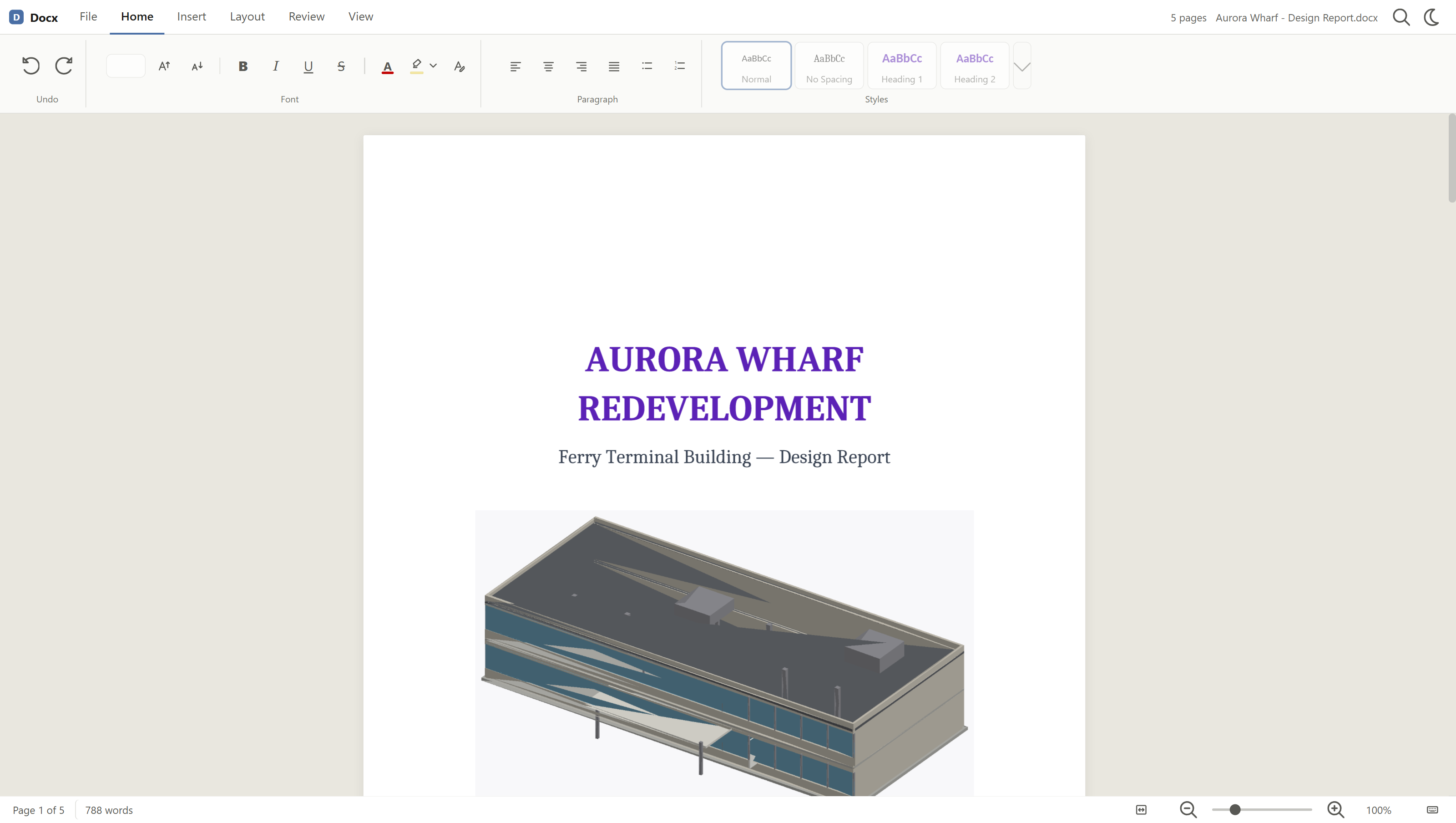
The viewer fills the browser window, with a ribbon across the top and a status bar along the bottom.
Ribbon
The ribbon groups the tools into tabs: Home, Review, and Insert. A Table tab appears when the cursor is in a table.
Status Bar
The status bar shows the current page as Page N of M and a live word count for the document. A theme toggle switches between light and dark.
Reading a Document
Use the zoom slider to set the zoom between 25% and 400%, or choose Fit page width or Zoom to 100%. Hold Ctrl and scroll to zoom around the pointer.
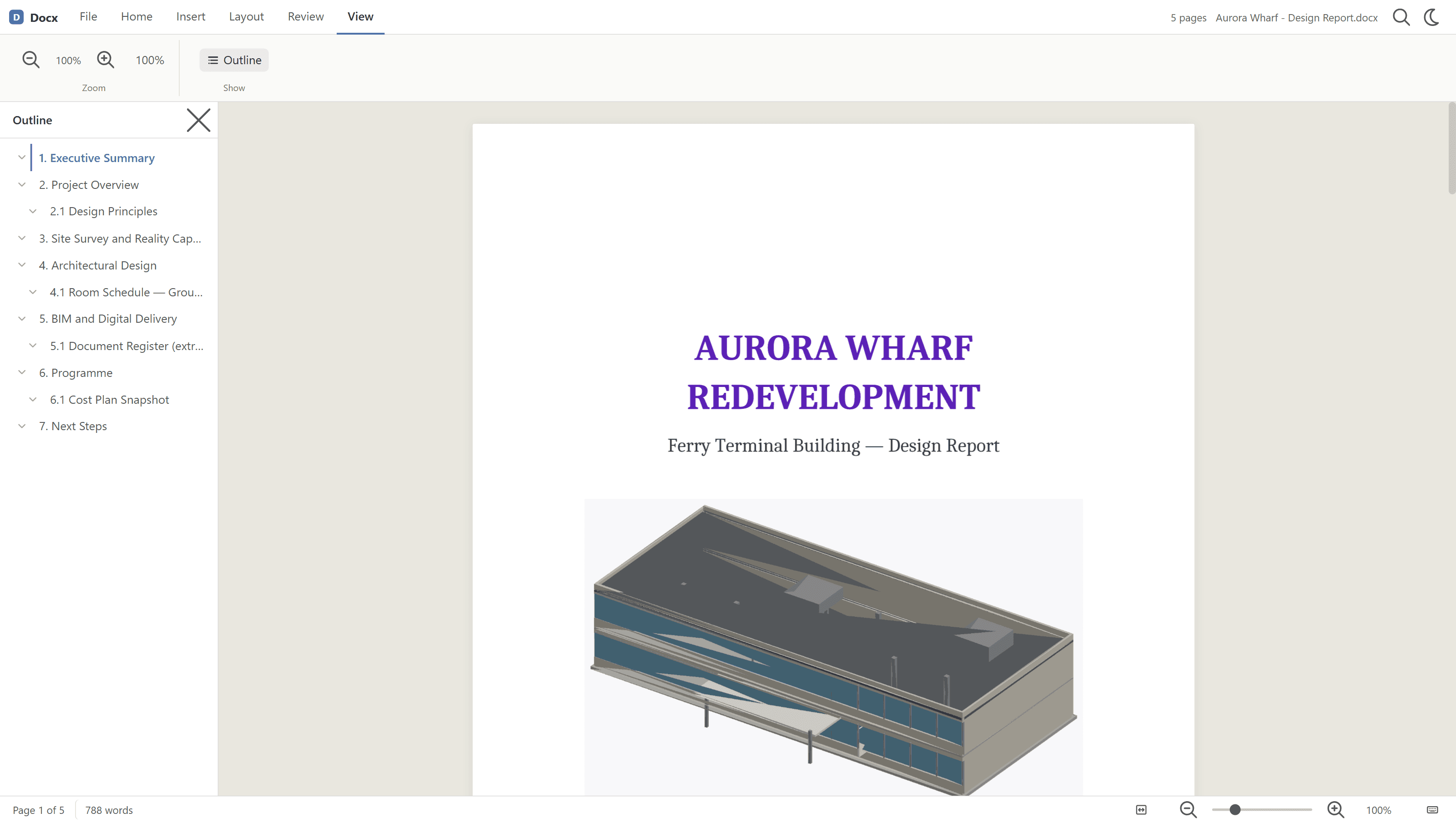
Open the Document outline panel to see the document's headings and jump between sections. You can select text and copy it even when the document is read-only.
Find and Replace Text
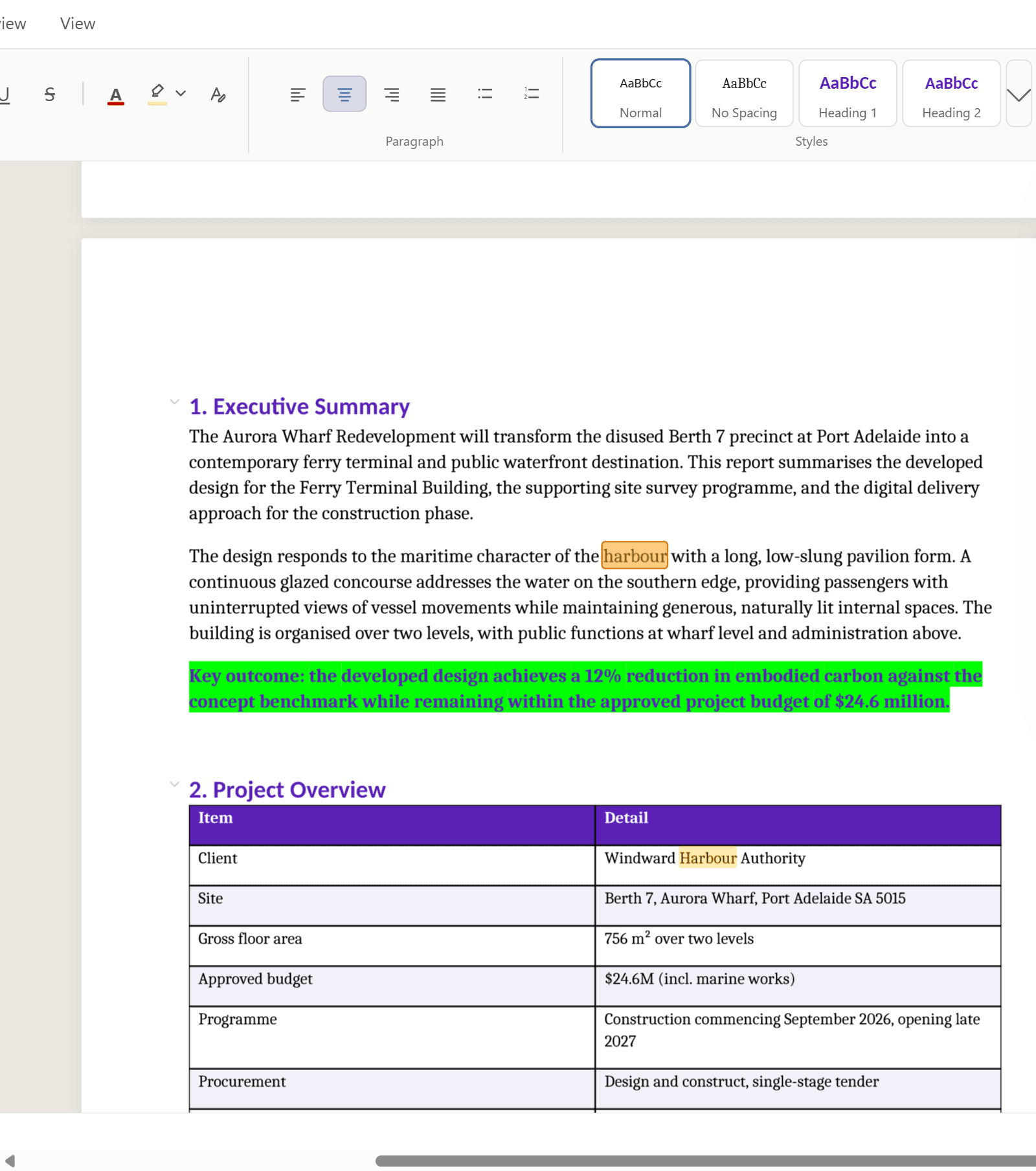
Press Ctrl+F to find text. The viewer highlights every match and shows a count. Press Enter to move to the next match and Shift+Enter for the previous one. Use Replace to replace matched text.
Editing
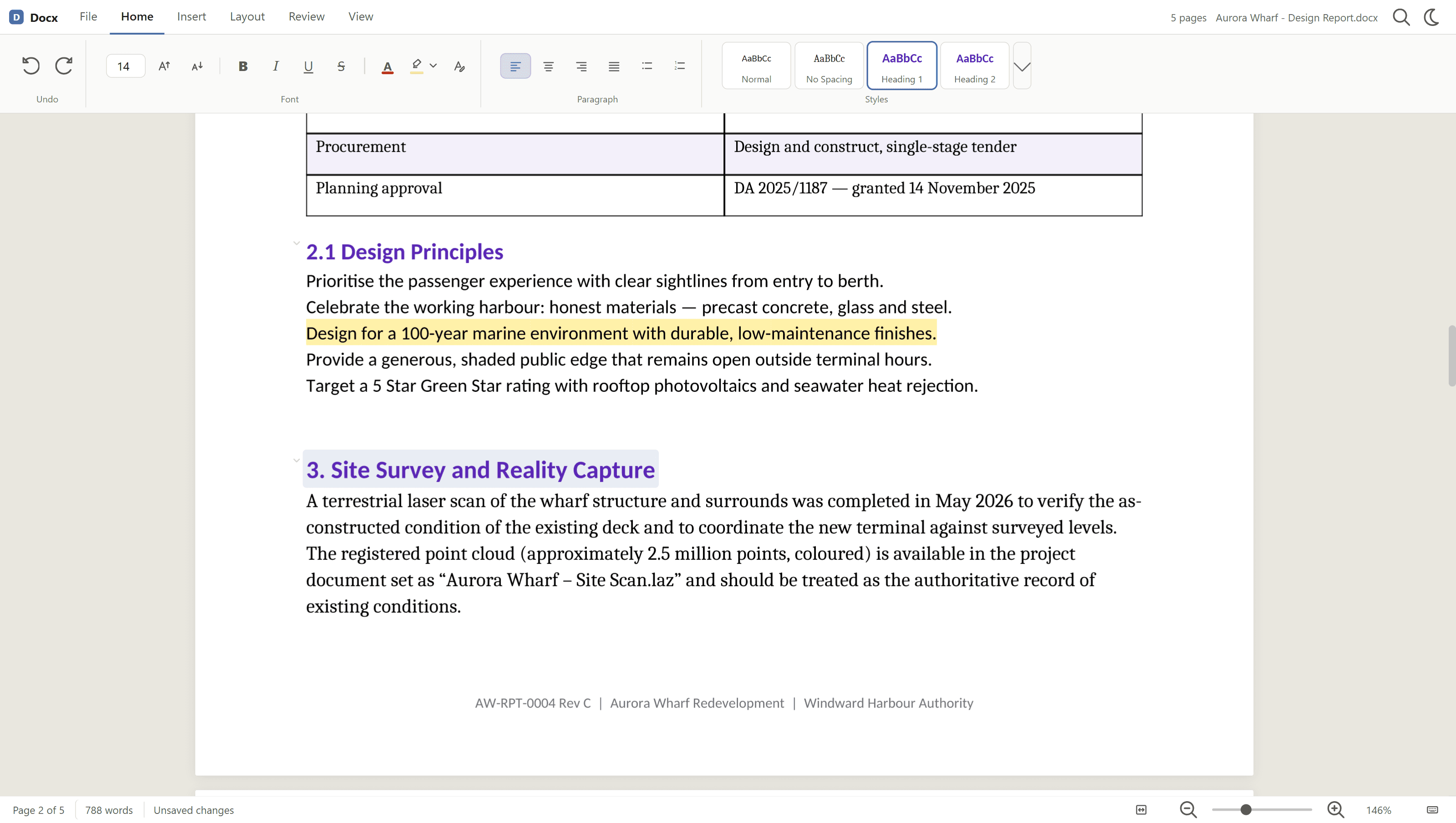
When you are the current assignee, the Home tab gives you the everyday formatting tools:
- Bold, Italic, Underline, and Strikethrough.
- Font size, font colour and Highlight.
- Alignment, Bullets, and Numbering.
- The Styles gallery, for heading and body styles.
To highlight text, select the words you want, then click Highlight or press Ctrl+Shift+H. The selected text is marked in colour, similar to a highlighter pen on paper.
From the Insert tab you can insert pictures, charts, and tables, add a page break with Ctrl+Enter, and open Page Setup. Step back and forward through your changes with Undo and Redo.
Reviewing
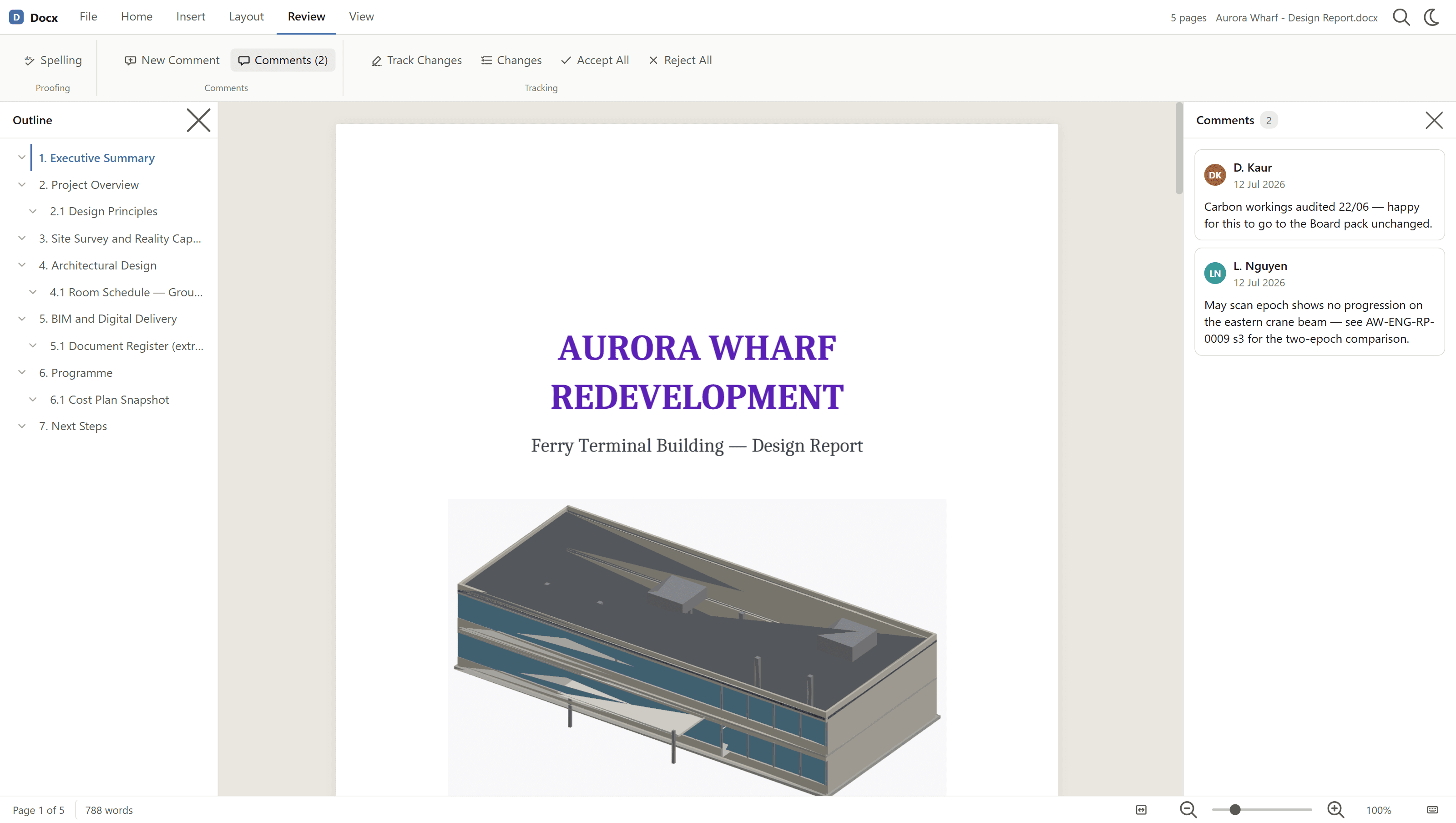
Open the Comments panel to work through comments. You can add a comment, Reply to a thread, and Resolve comment or Reopen comment.
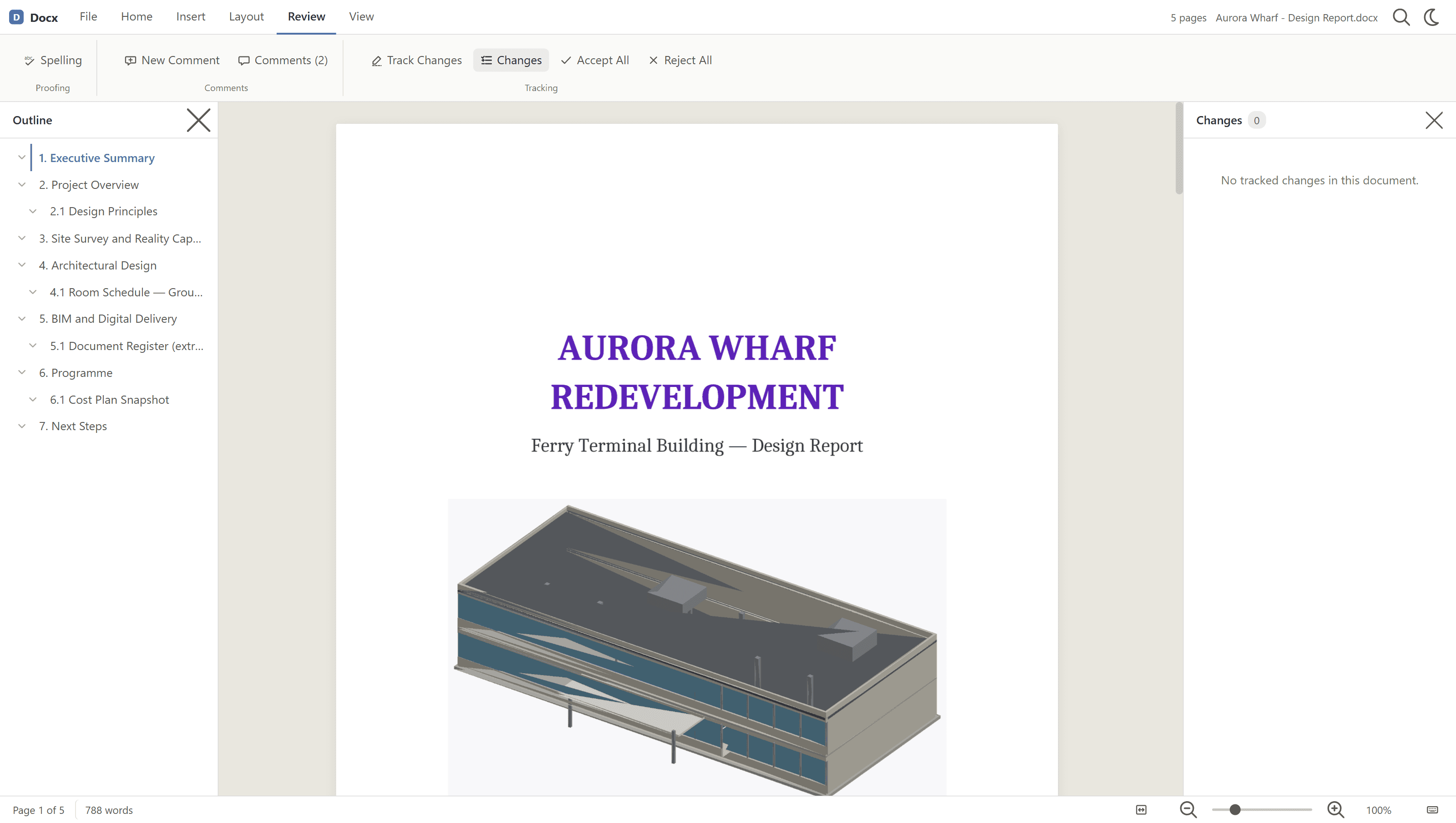
Open the Track Changes panel to review edits. Each change is shown in the author's colour, and you can Accept Change or Reject Change one at a time, or use Accept All or Reject All. The viewer also checks spelling as you work.
Saving and Printing
When you edit a document, Save downloads the edited .docx file. Saving the edited document back into the repository will be available in a future release.
To print, use the Print button on the page, which prints the document's PDF rendition.
Keyboard Shortcuts
- Ctrl+B - Bold, Ctrl+I - Italic, Ctrl+U - Underline
- Ctrl+Shift+H - Highlight the selected text
- Ctrl+L - Left align, Ctrl+E - Centre align, Ctrl+R - Right align, Ctrl+J - Justify
- Ctrl+Alt+1 to Ctrl+Alt+3 - Apply heading styles, Ctrl+Shift+N - Apply normal style
- Ctrl+Enter - Insert a page break
- Ctrl+F - Find
- Ctrl+Z - Undo, Ctrl+Y - Redo
- Ctrl+S - Save
PDF Documents
Open PDF documents in Rift to view, navigate, search, annotate, measure, compare, collaborate on, and manage markup in real time, then save, submit or print the results directly from your browser.
Excel Spreadsheets
View and navigate Excel workbooks in Lunr's browser-based spreadsheet viewer, with support for worksheet navigation, filtering, searching, exporting, and printing while preserving the workbook's original formatting.