About Lunr
Understand how a Lunr environment fits together, from your team down through repositories, documents, and versions, and how projects, tags, access rights, and workflows govern the content held inside it.
Overview
Lunr is an Engineering Content Management System built around a single idea: a document is not a file in a folder, it is a controlled record with metadata, a version history, a lifecycle, and an audience. Everything described in these guides exists to serve that idea.
This page introduces the structure that holds it all. The pages that follow explain how to use each area of Lunr; this one explains how those areas relate, so return to it whenever you need to work out which part of the system a setting belongs to. If you have not signed in yet, start with Getting Started.
The Shape of a Lunr Environment
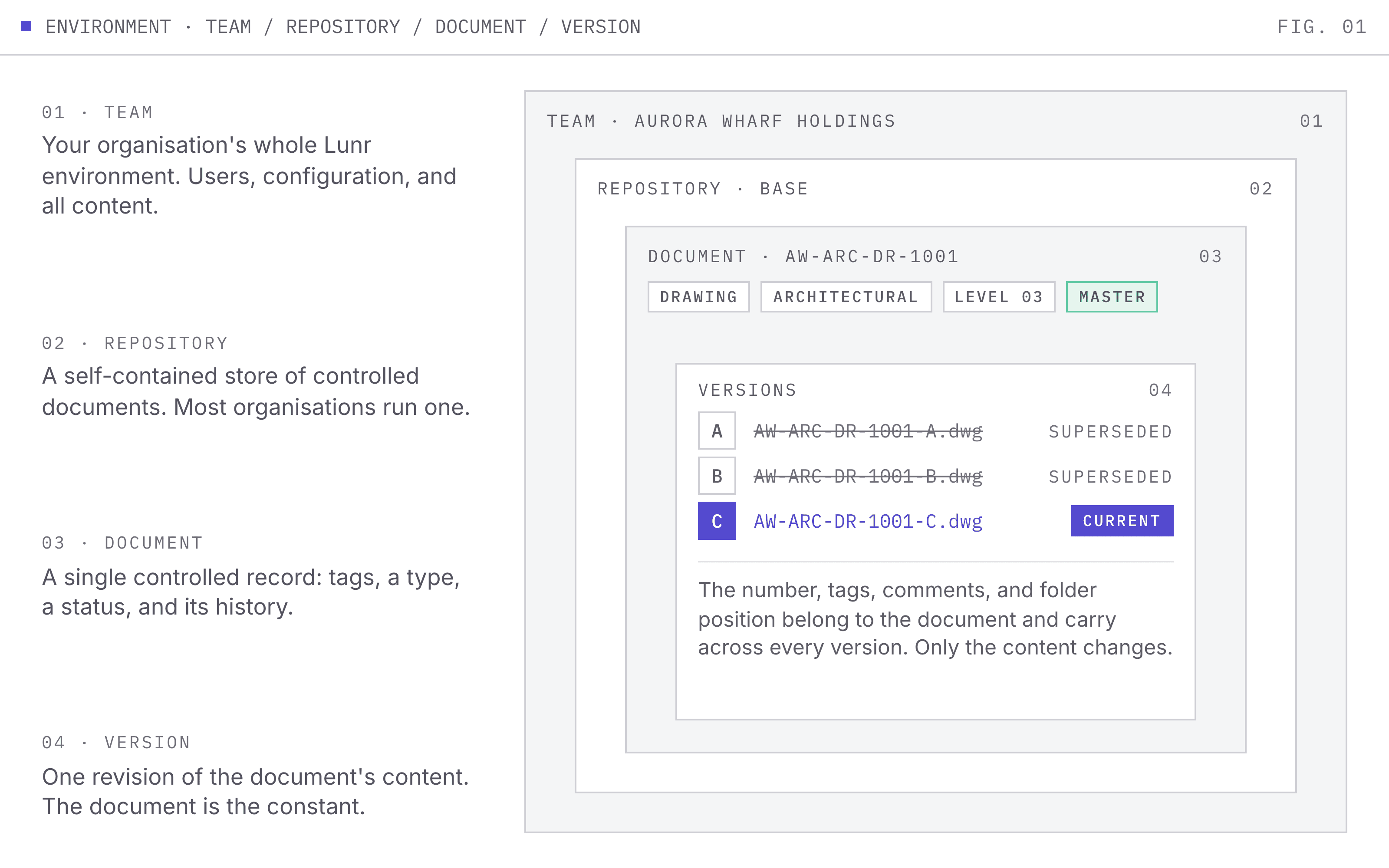
Lunr nests content in four levels. Each level is contained entirely by the one above it.
- Team, your organisation's whole Lunr environment
- Repository, a self-contained store of controlled documents
- Document, a single controlled record with its metadata
- Version, one revision of that document's content
- Document, a single controlled record with its metadata
- Repository, a self-contained store of controlled documents
Everything else in Lunr either sits inside this structure, such as a project, or describes it, such as a tag.
Your Team
Your team is the top level. It is your organisation's own Lunr environment, holding your users, your configuration, and all of your content, and it is entirely separate from every other organisation's.
Your team carries the settings that apply everywhere, and these are enabled by your administrators. If you see something in the documentation that would be useful, but is missing from your team, speak to an administrator.
Repositories
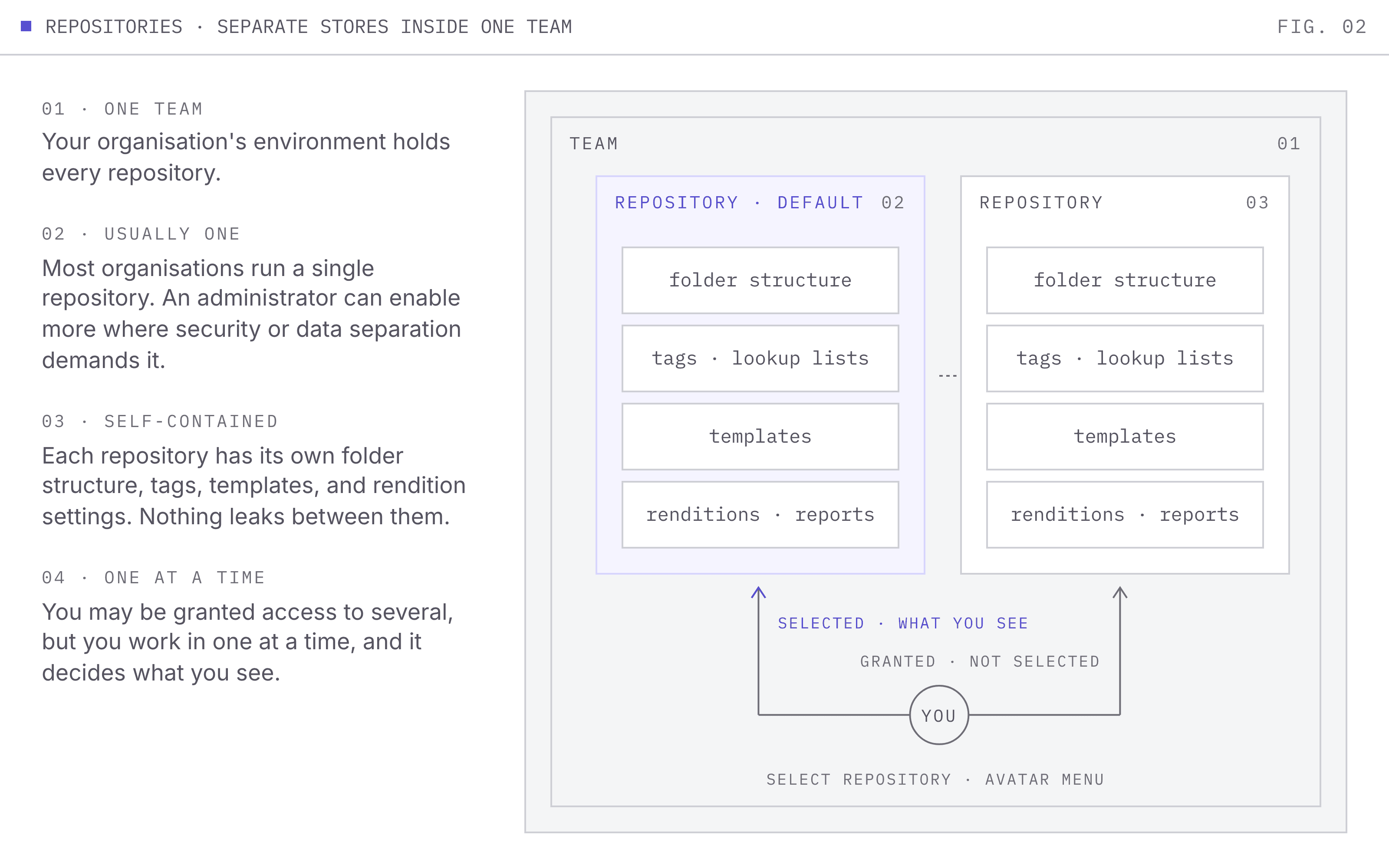
A repository is a store of controlled documents. Most organisations run one. Where security or data separation demands it, an administrator can enable more than one, and a user can be granted access to several.
To you as a user, a repository behaves like a standalone instance of Lunr. You work in one repository at a time, and the repository you are in decides what you see:
- The folder structure you browse and the documents inside it.
- The tags available, their display order, and the lookup lists behind them.
- The templates documents are created from, and the import and export templates offered.
- The default rendition settings drawings are generated with.
- The results in the Reports area, which always cover the repository you currently have selected.
Where your organisation has more than one, a Select Repository entry appears in the avatar menu, and one repository is marked as the default that users land in.
Documents
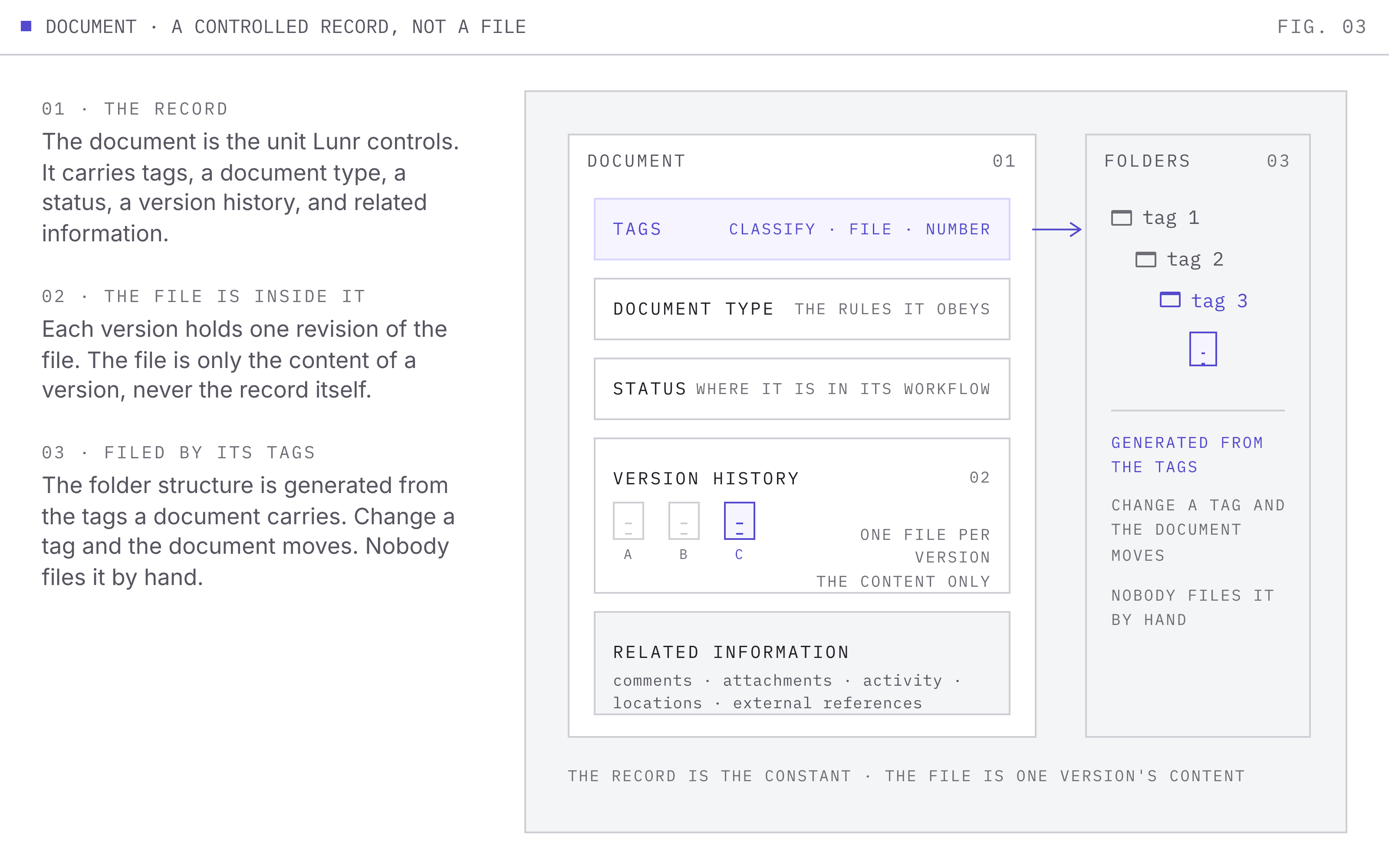
A document is the unit Lunr controls. It is not simply an uploaded file: it is a record that carries metadata, belongs to a document type, holds a version history, and moves through a workflow.
Documents are not filed by hand. The folder structure you browse in the repository is generated from the documents' tags, so a document is filed automatically based on the metadata it carries. Change a tag and the document moves. See Browsing the Document Repository.
Each document carries:
- Tags, the metadata that classifies it and drives its filing, its number, and its searchability.
- A document type, which decides the rules it obeys.
- A status, showing where it has reached in its workflow.
- A version history, described below.
- Related information, including comments, attachments, activity, locations, and external references.
Versions
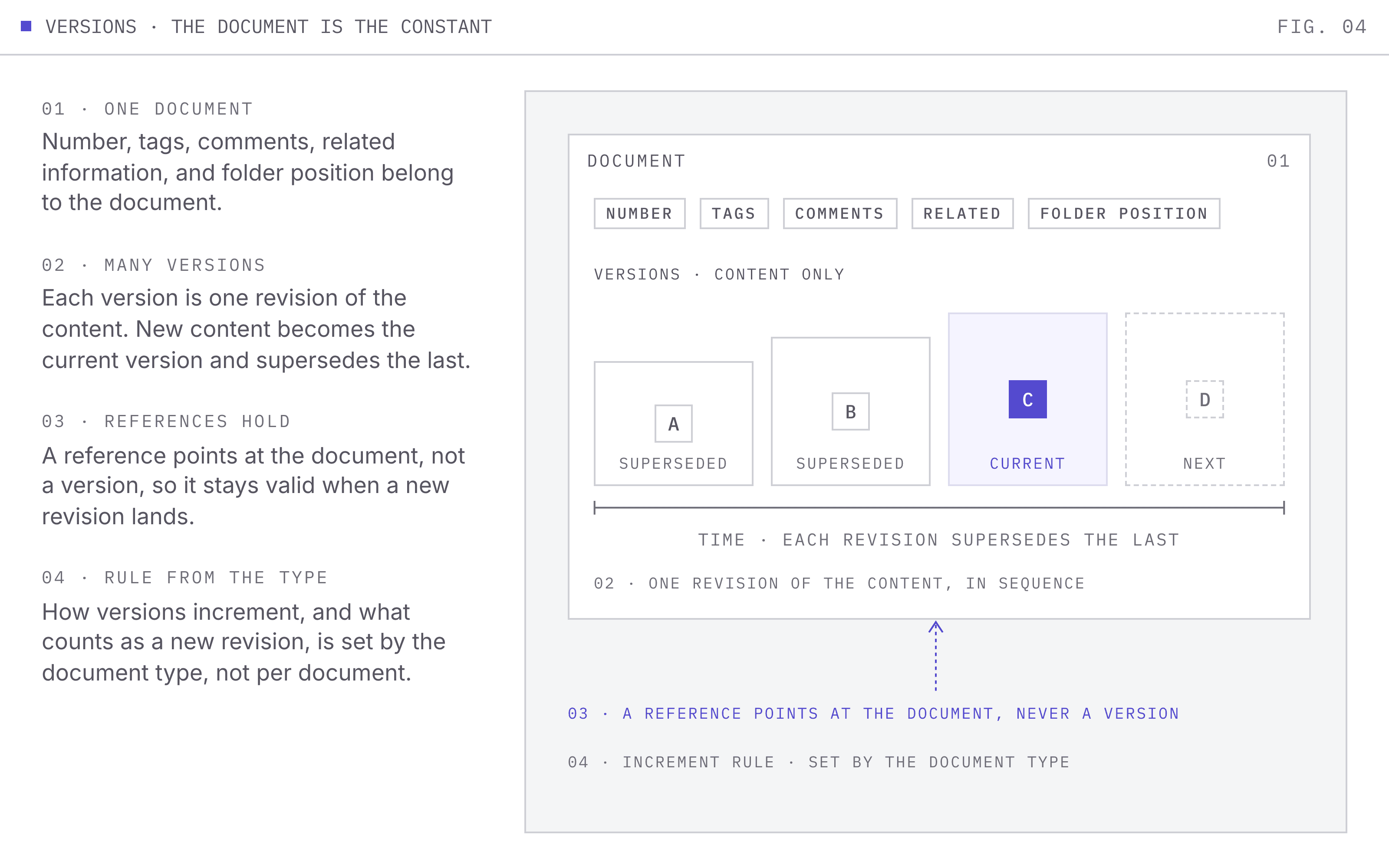
A version is one revision of a document's content. The document is the constant; the versions are the successive states of the file behind it.
This is why the document is the unit that matters. A document number, its tags, its comments, and its place in the folder structure survive across revisions, so a reference to a document stays valid when a new revision supersedes the last. Version badges appear throughout the interface next to a document's status, and a package built from a collection or a folder includes only current revisions.
How versions increment, and what counts as a new revision rather than a replacement of the current one, is set by the document type rather than chosen per document.
Organising Work
The team, repository, document, and version hierarchy describes where content lives. Three further concepts describe how work is organised across it.
Projects
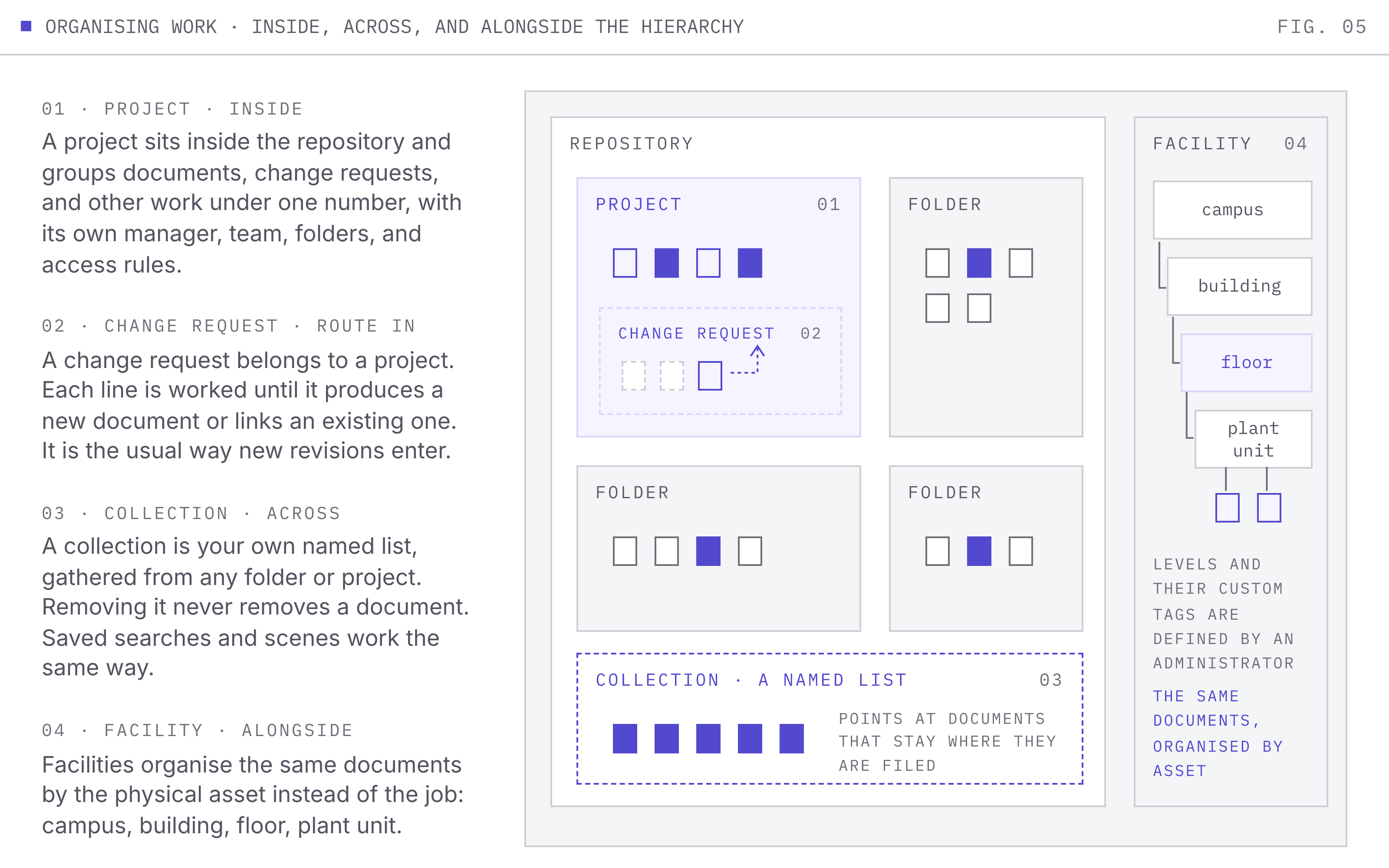
A Project groups documents, change requests, and other work under a single number and name, giving each job its own space with a defined manager, team, and folder structure. A document filed inside a project follows the project's access rules.
Depending on your organisation's settings, a project can also track requests for information, transmittals, document number requests, and checklists. See Projects.
Change Requests
A Change Request gathers a set of drawing changes under one request so they can be reviewed and released together. It belongs to a project, and is worked until every change it asks for has either produced a new document or been linked to an existing one. A change request is therefore the usual route by which new revisions enter the repository. Lunr offers two Change Request experiences, covered in Change Requests.
Collections
A Collection is a named list of documents you gather yourself, from across projects and folders, so you can return to them, share them, download them, or act on them as a group. Collections cut across the hierarchy rather than sitting inside it, and removing a collection never removes the documents in it. A Saved Search and a Scene are variations on the same idea. See Collections.
Facilities
Where projects organise documents by the job that produced them, facilities organise them by the physical asset they relate to: a campus, a building, a floor, or a plant unit. An administrator defines the levels of that hierarchy, and the custom tags captured at each level.
The Three Systems That Govern Content
Sitting over the hierarchy are three systems: classification, access, and lifecycle. These are described below.
Classification: What a Document Is
Metadata, not file names, is how Lunr organises content.
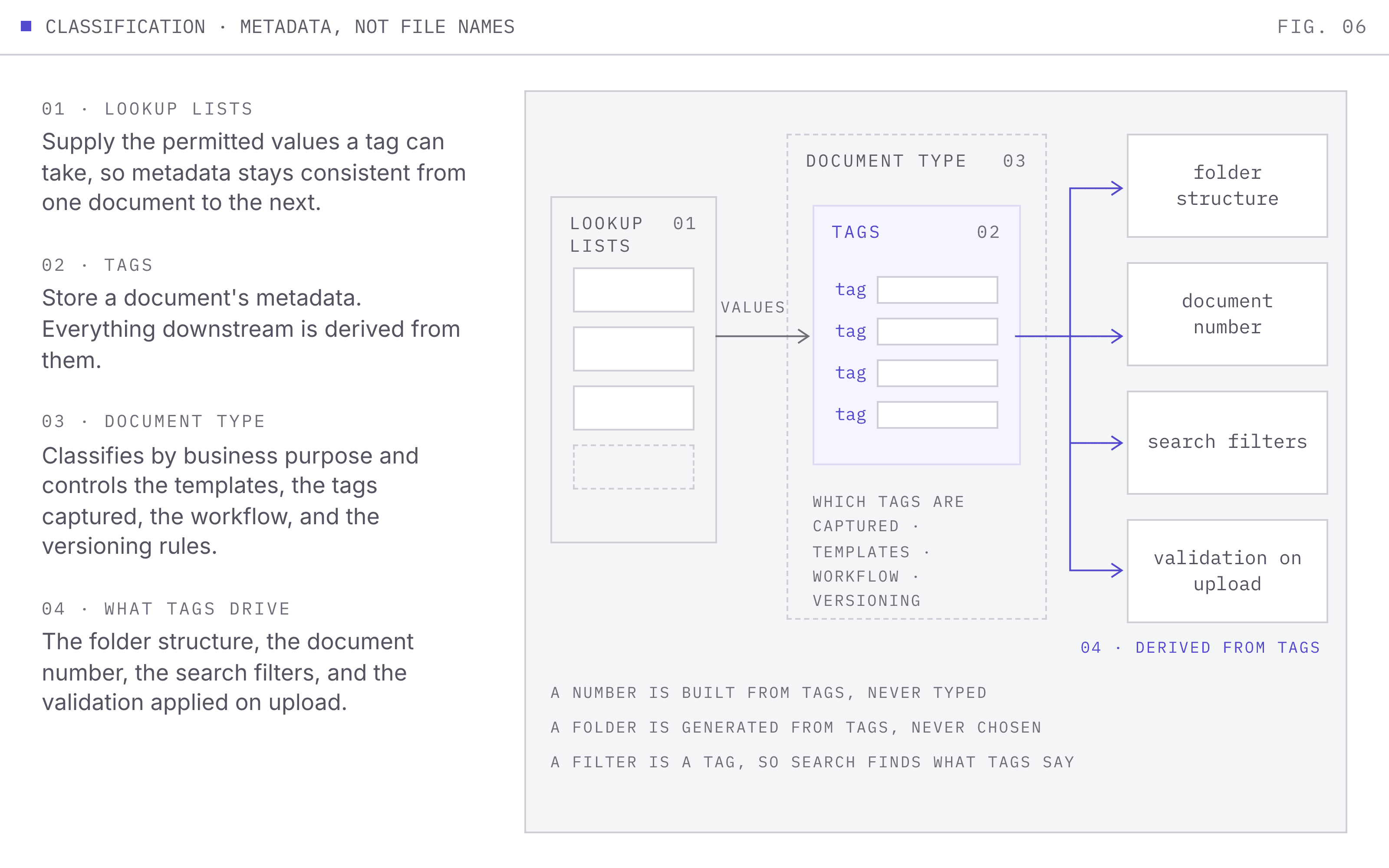
- Tags store a document's metadata. They drive the repository folder structure, the search filters, the validation applied on upload, and the values fed into document numbers.
- Document types classify a document by business purpose rather than file format, and control the templates it is created from, the metadata captured, the workflow it follows, and its versioning rules.
- Lookup lists supply the permitted values a tag can take, keeping metadata consistent between one document and the next.
- Document number formats and sequence sets build a unique number automatically from a document's tags, rather than leaving it to be typed.
Access: Who Can Do What
Access rights are never granted to a person directly. They travel along a chain:
- A user belongs to one or more groups.
- A group is granted one or more roles.
- A role bundles a set of access rights.
A user's access rights are therefore the sum of the roles held by their groups, and changing what someone can do usually means changing their group membership rather than editing the person. A company record sits alongside this, recording which vendor or third-party organisation a user belongs to.
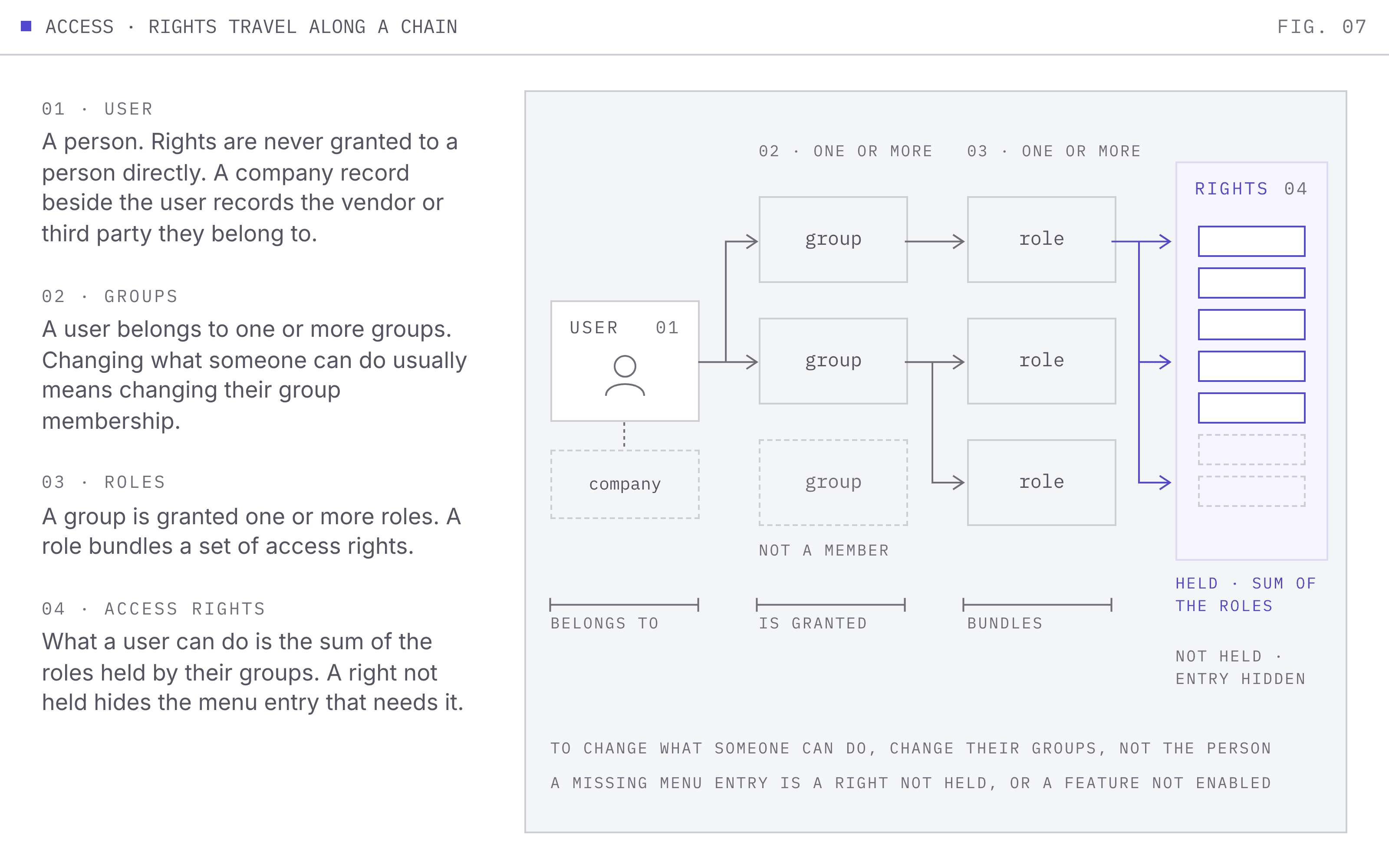
Access rights explain most of the differences between what two people see in Lunr. If a menu entry described in these guides is missing for you, either you do not hold the right that reveals it or the feature is not enabled for your organisation.
Lifecycle: How a Document Moves
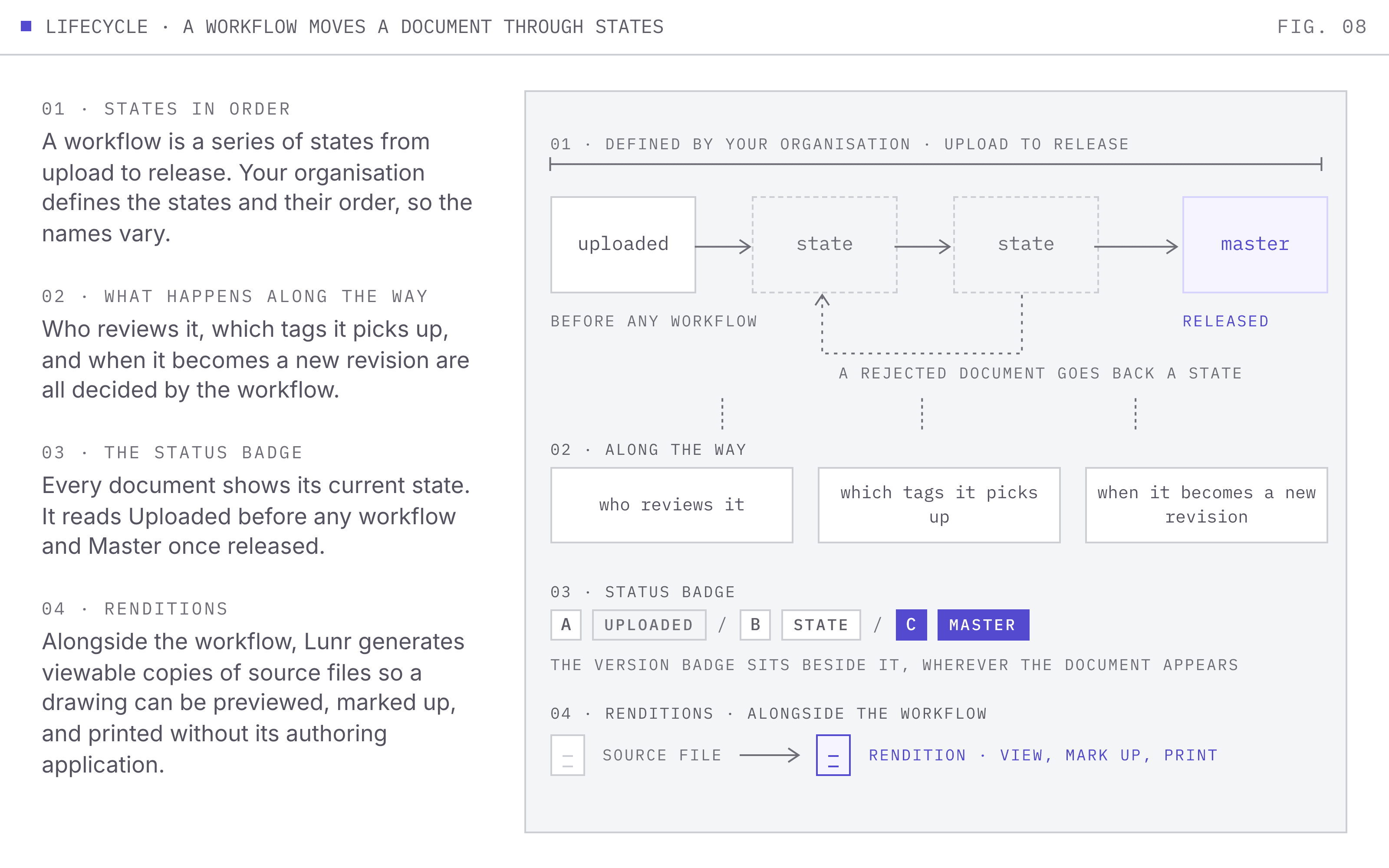
A document workflow moves a document through a series of states, from upload to release, and determines what happens along the way: who reviews it, what tags it picks up, and when it becomes a new revision. The states and their order are defined by your organisation, so their names vary from one environment to the next.
Every document carries a status badge showing its current state, reading Uploaded before it has entered a workflow and Master once it is released. Alongside the workflow, renditions are the generated, viewable copies Lunr produces from source files, so a drawing can be previewed, marked up, and printed without the authoring application. See Document Workflows.
Where Settings Are Made
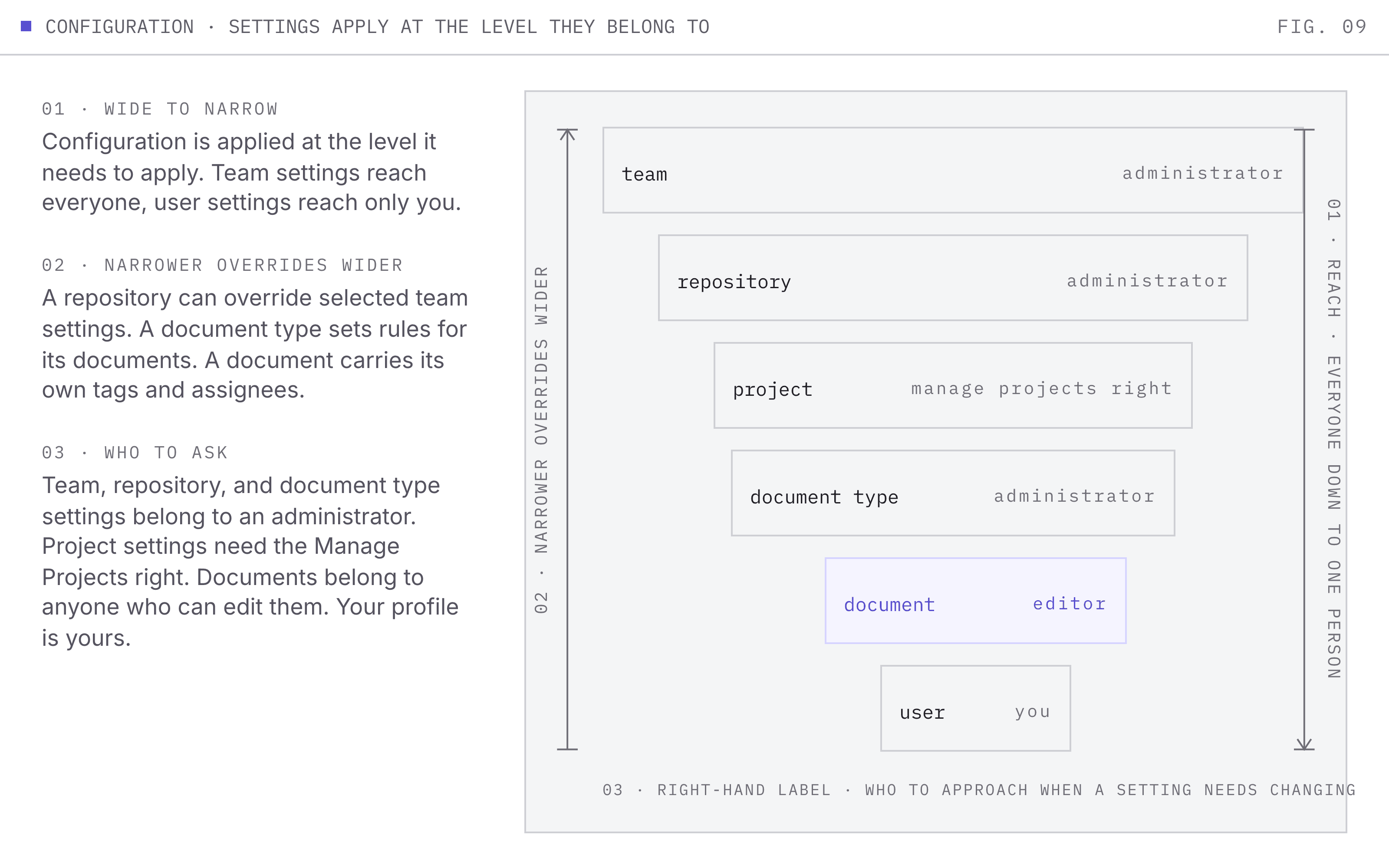
Configuration is applied at the level it needs to apply, and narrower levels can override wider ones. Knowing which level a setting belongs to tells you who to approach when it needs changing.
| Level | What is set there | Who sets it |
|---|---|---|
| Team | Plan and quotas, the features enabled for everyone, notification behaviour, and organisation-wide defaults. | An administrator |
| Repository | Which tags, lookup lists, and templates apply, tag display order, drafting packs, default renditions, and overrides of selected organisation-wide settings. | An administrator |
| Project | The manager, team, folder structure, and access rules for one job, plus any checklists attached to it. | Anyone with the Manage Projects access right |
| Document type | The rules a class of document obeys: templates, metadata captured, numbering, workflow, and versioning. | An administrator |
| Document | The tags on this record, its assignees and reviewers, and its own comments and attachments. | Anyone with rights to edit the document |
| User | Personal details, multi-factor authentication, and interface preferences. | You, on your own profile |
Two things account for most of the "I cannot find that page" questions: an access right you do not hold, and a feature your organisation has not enabled. Your administrator can tell you which applies.
Putting It Together
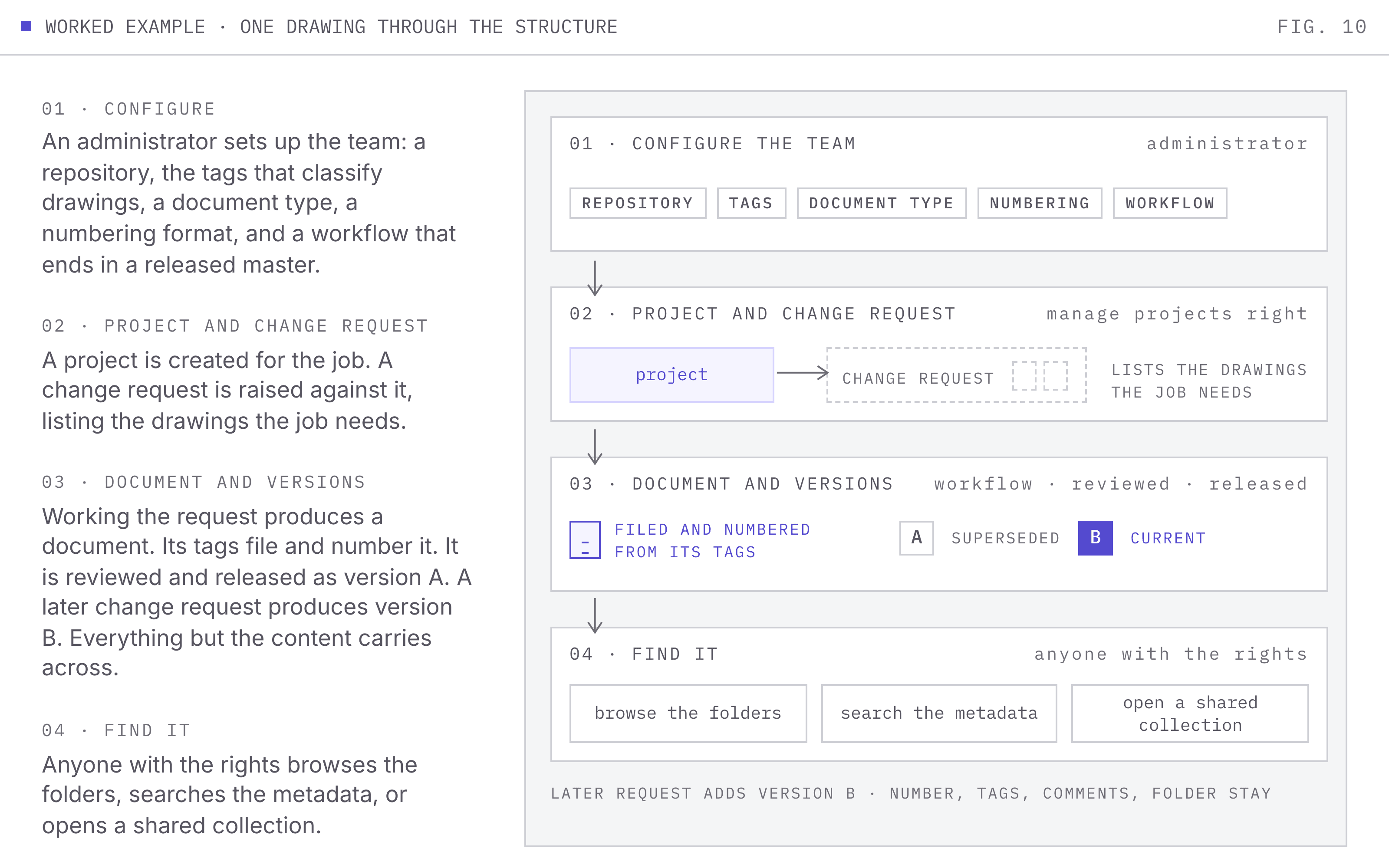
A worked example, following one drawing through the structure:
- Your administrator configures the team: a repository, the tags that classify drawings, a document type for drawings, a numbering format, and a workflow ending in a released master.
- A project is created for the job, with its manager, its team, and its folder structure.
- A change request is raised against that project, listing the drawings the job needs.
- Working the change request produces a document. Its tags file it automatically in the repository, and its number is built from those tags.
- The document enters its workflow, is reviewed, and is released as a master. That released content is version A.
- A later change request produces version B of the same document. The document number, tags, comments, and folder position all carry across; only the content is superseded.
- Anyone with the access rights to see it finds it by browsing the folder structure, searching its metadata, or opening a collection someone shared with them.