The Avatar Menu
Open the avatar menu to reach your profile, downloads, reminders, and repository picker, follow the reminders waiting on you, switch between repositories, and manage your photo, contact details, multi-factor authentication, and preferences.
Overview
Select the circular avatar at the top right to open a menu with these entries:
- Your Profile
- My Downloads, shown only when your organisation has package downloads enabled
- My Reminders, shown only when reminders are enabled
- Select Repository, shown only when your organisation has more than one repository
- Sign out
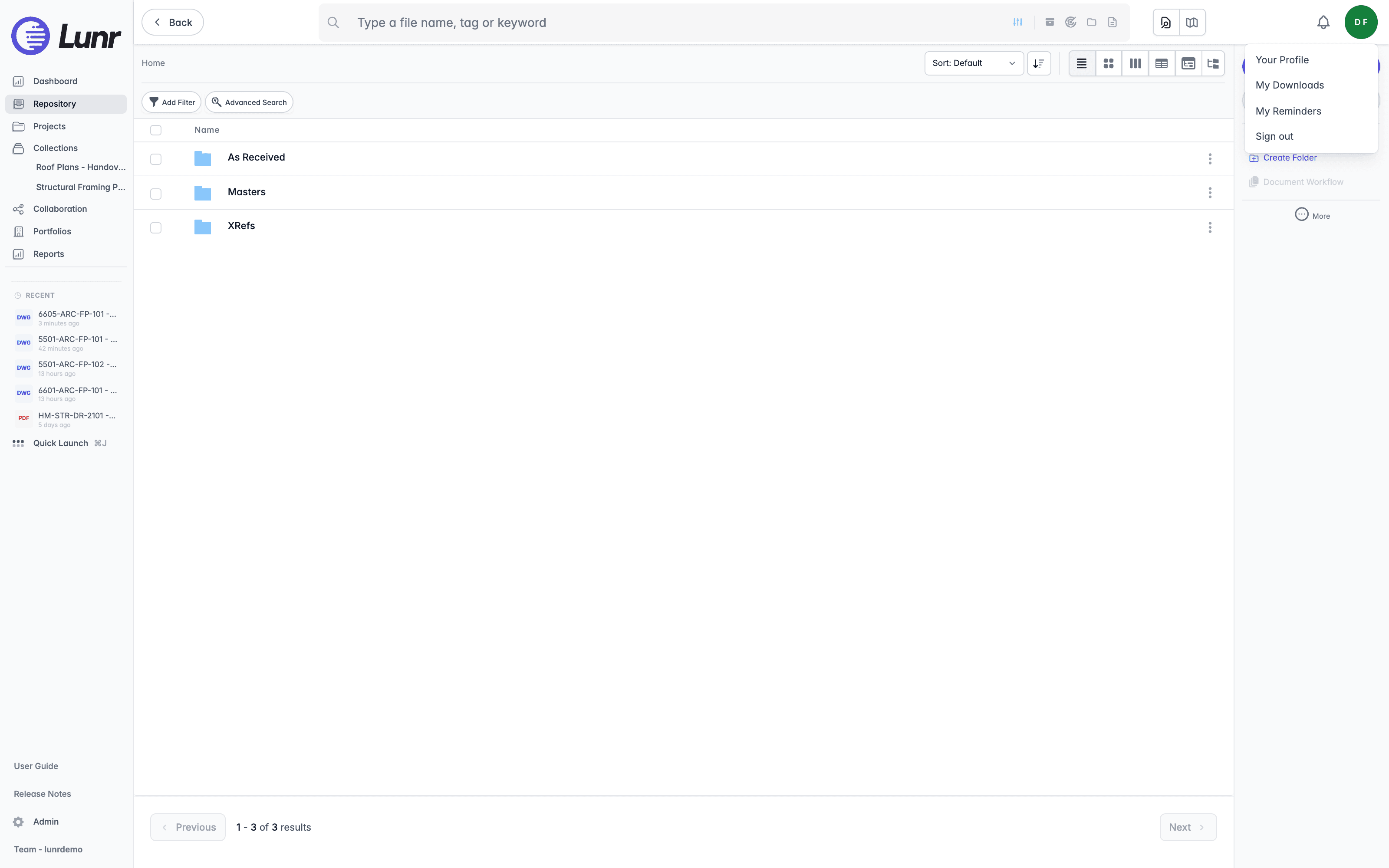
The middle three entries depend on your organisation's settings, so do not worry if you cannot see one of them.
My Reminders
A reminder ties a date to a document, so Lunr can prompt you before something falls due. My Reminders gathers every reminder waiting on you in one list. The entry appears in the avatar menu when your organisation has reminders enabled.
Each entry shows the document's file name, which opens the document, with the reminder's comment beneath it, for example "Document Review". Below that sits the version identifier of the document the reminder was set against. The next line carries the people the reminder is for, shown as avatars, then its Due Date and its Notification Date, the date Lunr emails you about it. A bin icon at the end removes the reminder, and its tooltip reads Remove reminder.
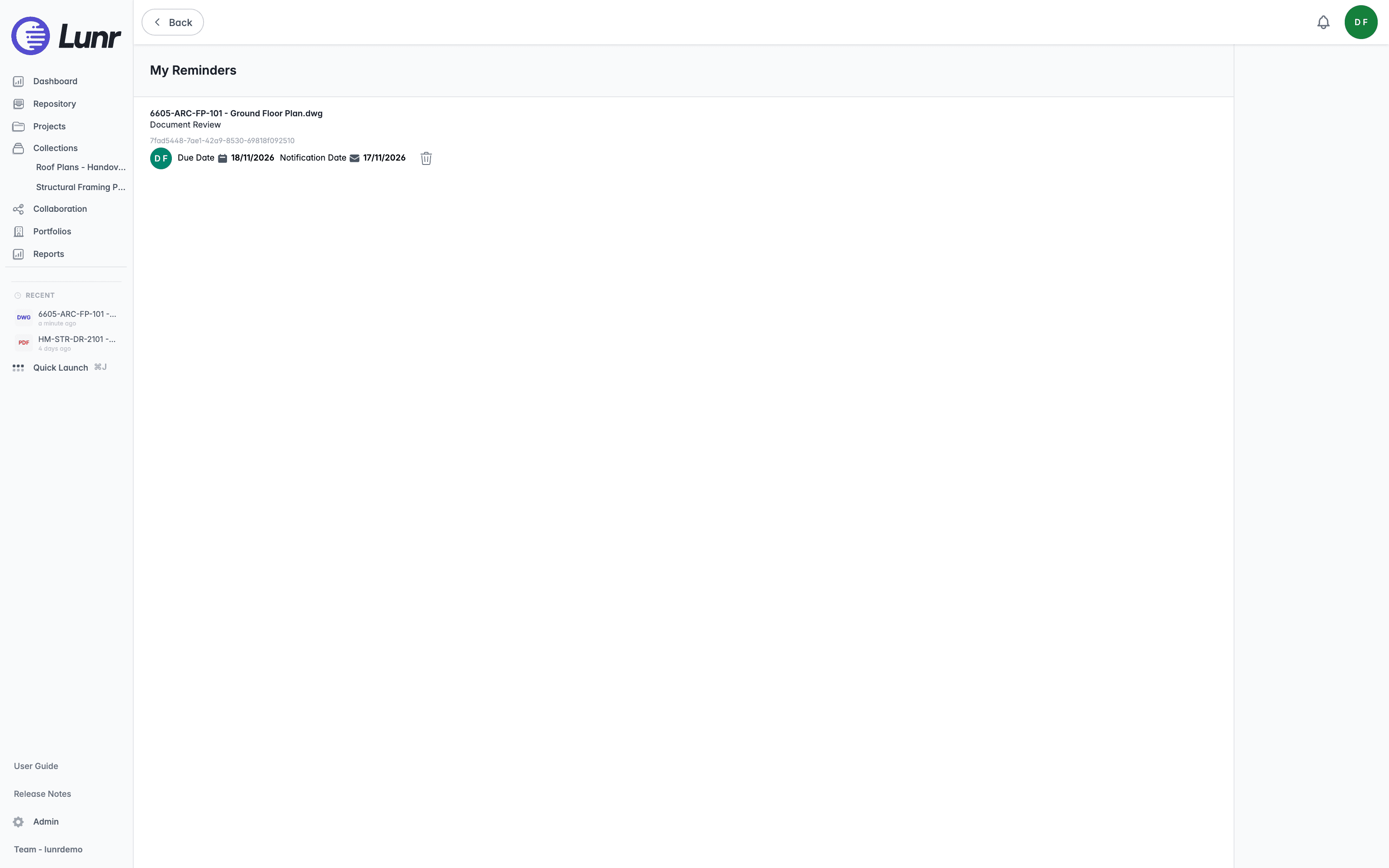
With nothing waiting, the page reads "Reminders" and "You don't have any pending reminders."
Reminders are created against documents rather than here. Select one or more documents, then choose Create Reminders from the Workflow group of the More menu, covered in Document Actions. A document also carries its own Reminders tab, and the Document Reminders report lists every reminder in the repository rather than only yours.
Select Repository
Some organisations hold their documents in more than one repository. Where yours does, a Select Repository entry appears in the avatar menu, and opening it shows which repository you are working in and lets you move to another.
The page names your current repository, then lists the repositories you can reach. Choose one and select Switch Repository. The button reads "Switching ..." while Lunr moves you across.
Switching changes what the rest of Lunr shows you. The repository you are in decides which documents you browse and search, which tags and folders you see, and which reports cover. Nothing you have open follows you across, so finish what you are doing before switching.
Where your organisation has a single repository, the entry does not appear and there is nothing to choose.
Your Profile
Select Your Profile in the avatar menu to open your profile page.
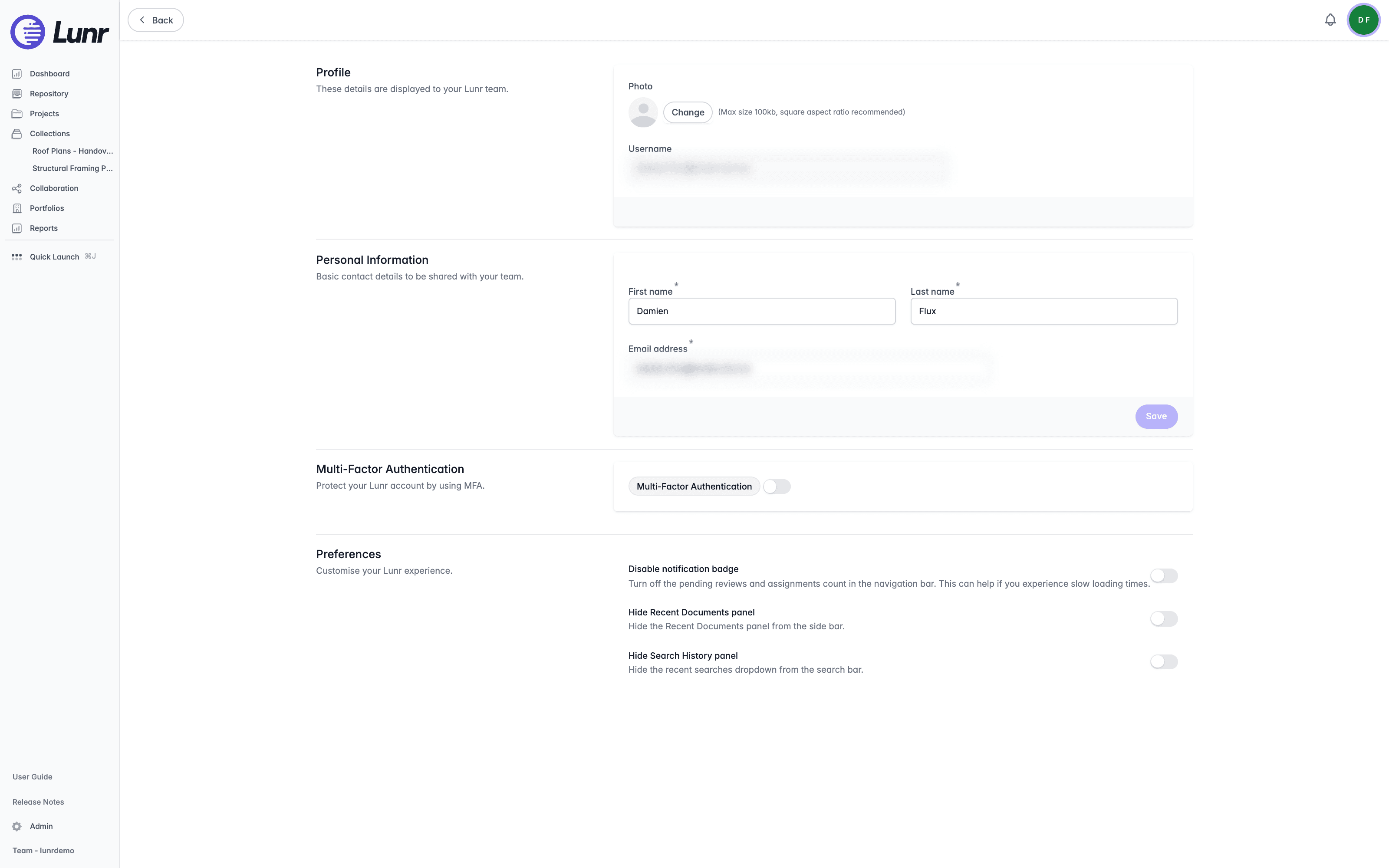
Profile
"These details are displayed to your Lunr team."
- Photo, with a Change button and the note "(Max size 100kb, square aspect ratio recommended)". A Remove link appears once you have set a photo.
- Username, read only.
Personal Information
"Basic contact details to be shared with your team."
Enter your First name, Last name, and Email address, all required, then select Save.
Multi-Factor Authentication
"Protect your Lunr account by using MFA." Lunr offers two methods, a code emailed to you or a code from an authenticator app. Use the toggle in this panel to turn multi-factor authentication on or off.
- The panel is hidden completely for single sign-on users, since their identity provider handles this instead.
- Your organisation can enforce multi-factor authentication. When it does, the toggle is locked and its tooltip reads "MFA is enforced by admin".
- To use an authenticator app, select Configure to open the Configure Authenticator App dialog. Scan the QR code, or enter the code shown by hand, then enter the six-digit code your app generates and select Verify.
- Switching from an authenticator app back to email warns you first: "Changing the MFA option to email will remove your existing authenticator app settings. Are you sure?"
There are no personal backup or recovery codes. If you lose access to your authenticator app, select "Lost access to your authenticator app?" on the sign-in screen and contact your administrator.
Preferences
"Customise your Lunr experience." Three toggles are available:
- Disable notification badge ("Turn off the pending reviews and assignments count in the navigation bar. This can help if you experience slow loading times.")
- Hide Recent Documents panel ("Hide the Recent Documents panel from the side bar.")
- Hide Search History panel ("Hide the recent searches dropdown from the search bar.")
Hide Recent Documents panel and Hide Search History panel are saved to your account, so they follow you to another computer. Disable notification badge is remembered only in the browser where you set it.
Notifications
Follow the work waiting on you from the notification centre, covering the Your Work shortcuts and the My Documents, My Reviews, My Change Requests, and Document Queue lists they open, the Activity and Mentions views, and the full notifications list.
Dashboard
View organisation-wide activity across documents, change requests, and requests for information in configurable KPI tiles, charts, and tables, switch between the General Dashboard and the Change Request Dashboard, and customise the layout to suit how you work.