Downloading Documents
Download native documents and PDF renditions individually or as packages, understand the PDF Export options, track packages on the My Downloads page, and know the permissions, retention, and limits that apply.
Overview
Lunr downloads documents in one of two ways, depending on whether your organisation has the Package downloads setting enabled.
With Package downloads enabled, downloading more than one document starts a background job that builds a package. A progress bar at the bottom of the app tracks the job, and the finished file appears on the My Downloads page. This is the behaviour covered throughout this page.
With Package downloads disabled, downloads are fetched immediately in the browser instead, with no package and no My Downloads page.
Downloading a Single Document
Select Download to get a document's original file, or Export PDF to get its PDF rendition. Both buttons appear in a document's Options menu, opened by selecting the three dots at the end of its row, and on the viewer toolbar.
- Download and Export PDF are hidden on small screens.
- Export PDF is also hidden for CAD and point-cloud formats, and while comparing documents.
Download is hidden when you do not have permission to download original files.
Downloading Several Documents
Select several documents with the row selection boxes, then use the Action Pane. This is available on search results, the repository, a project, a collection, a share, and a change request.
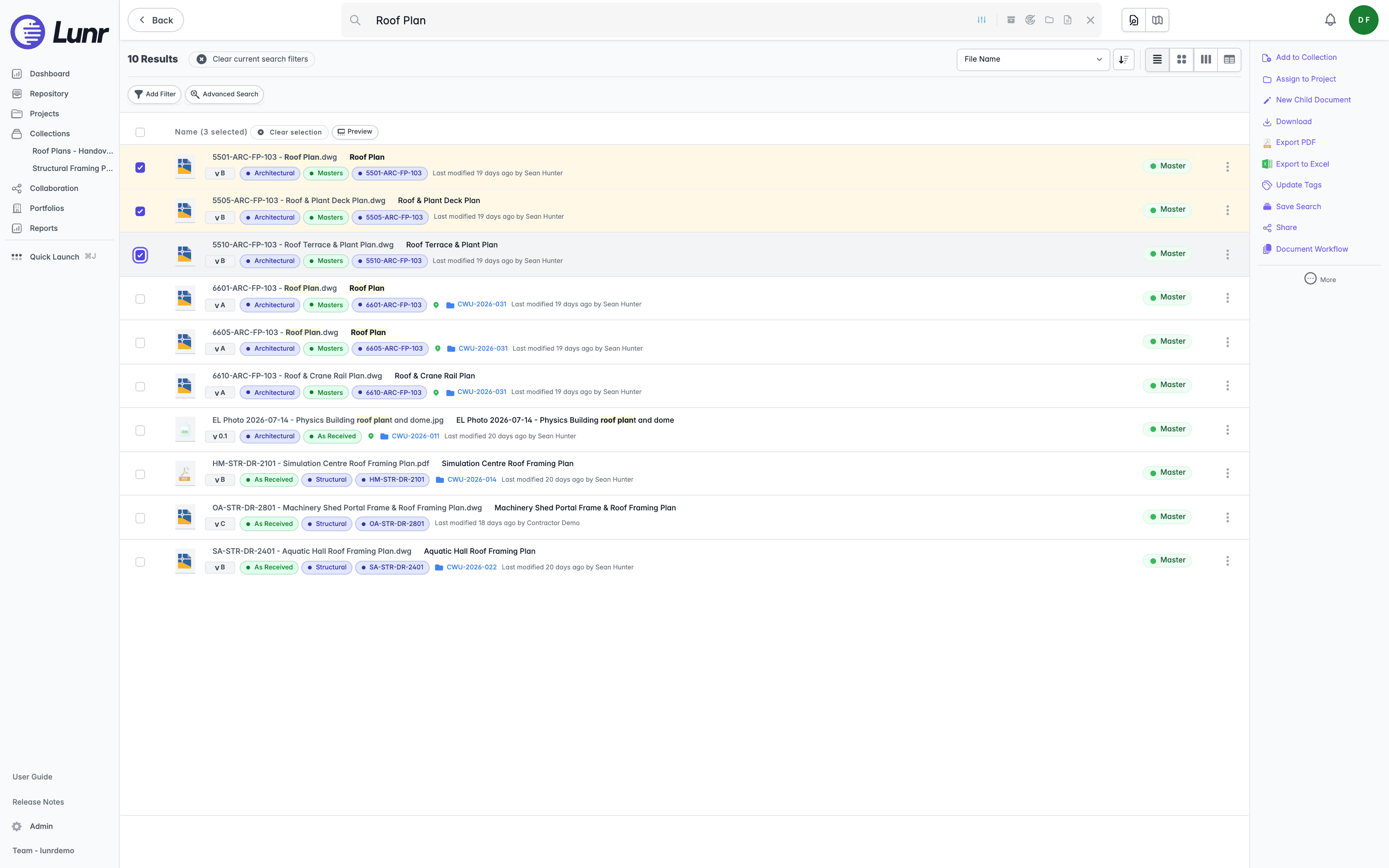
- Download builds a ZIP of the original files, named
Lunr Batch Downloadfollowed by a timestamp. There is no dialog and no options to set. - Export PDF opens the PDF Export dialog first.
The PDF Export Dialog
The PDF Export dialog reads "Download documents as a combined PDF or a ZIP." when several documents are selected, or "Download document as PDF." for one.
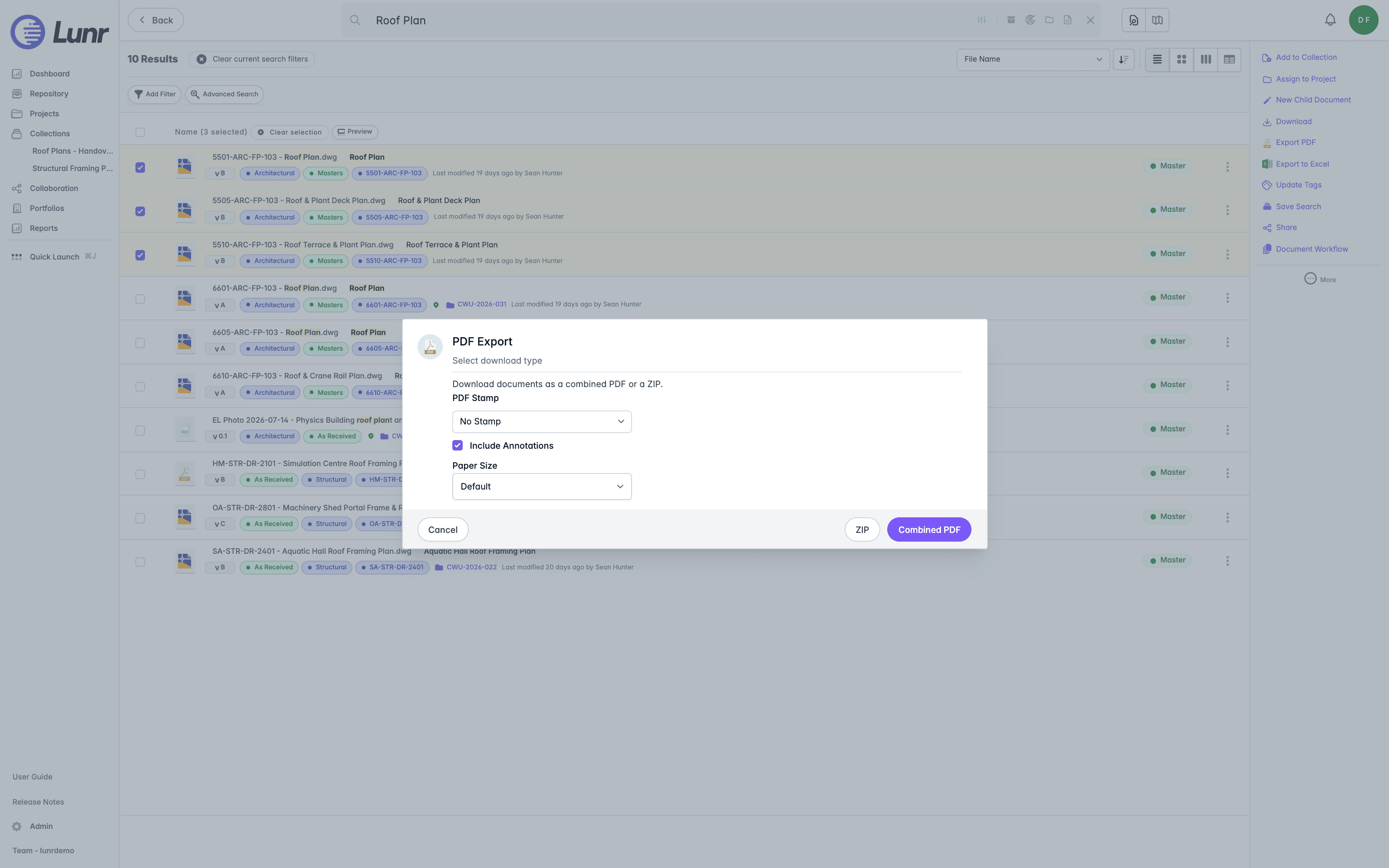
- PDF Stamp dropdown, defaulting to No Stamp. Your organisation configures the list of available stamps.
- Include Annotations box, selected by default.
- Paper Size dropdown, shown only when more than one document is selected. Your organisation configures the list of available paper sizes.
- Select Cancel to close the dialog without downloading, ZIP to download the documents as separate files in a ZIP, or Combined PDF to merge them into a single PDF in order. With a single document selected, there is no ZIP option and the primary button reads PDF.
Stamps and annotations only ever apply to PDF renditions. Original files are never modified, so these options have no effect on a Download.
Cross-References (Xrefs)
Downloading a single original file that has cross-references opens the Download Document With Xrefs dialog, asking "Download this document and its xrefs?" The Include xrefs box is selected by default. Select Cancel to back out, or Download to proceed. Including cross-references builds a package instead of a plain file.
A ZIP package of several documents always bundles the cross-references of the documents it contains. There is no option to leave them out.
Progress and My Downloads
While a package builds, a bar at the bottom of the app shows its progress: "Download requested", then the file currently being processed with a count, then "Download package ready" on success, alongside the elapsed time. Several packages building at once appear as a carousel you can page through.
If your project has automatic downloads enabled, the finished package downloads by itself and the bar disappears. Otherwise, the bar offers a Download button.
Open your avatar menu at the top right and select My Downloads to see every package you have requested. This page only appears when Package downloads is enabled.
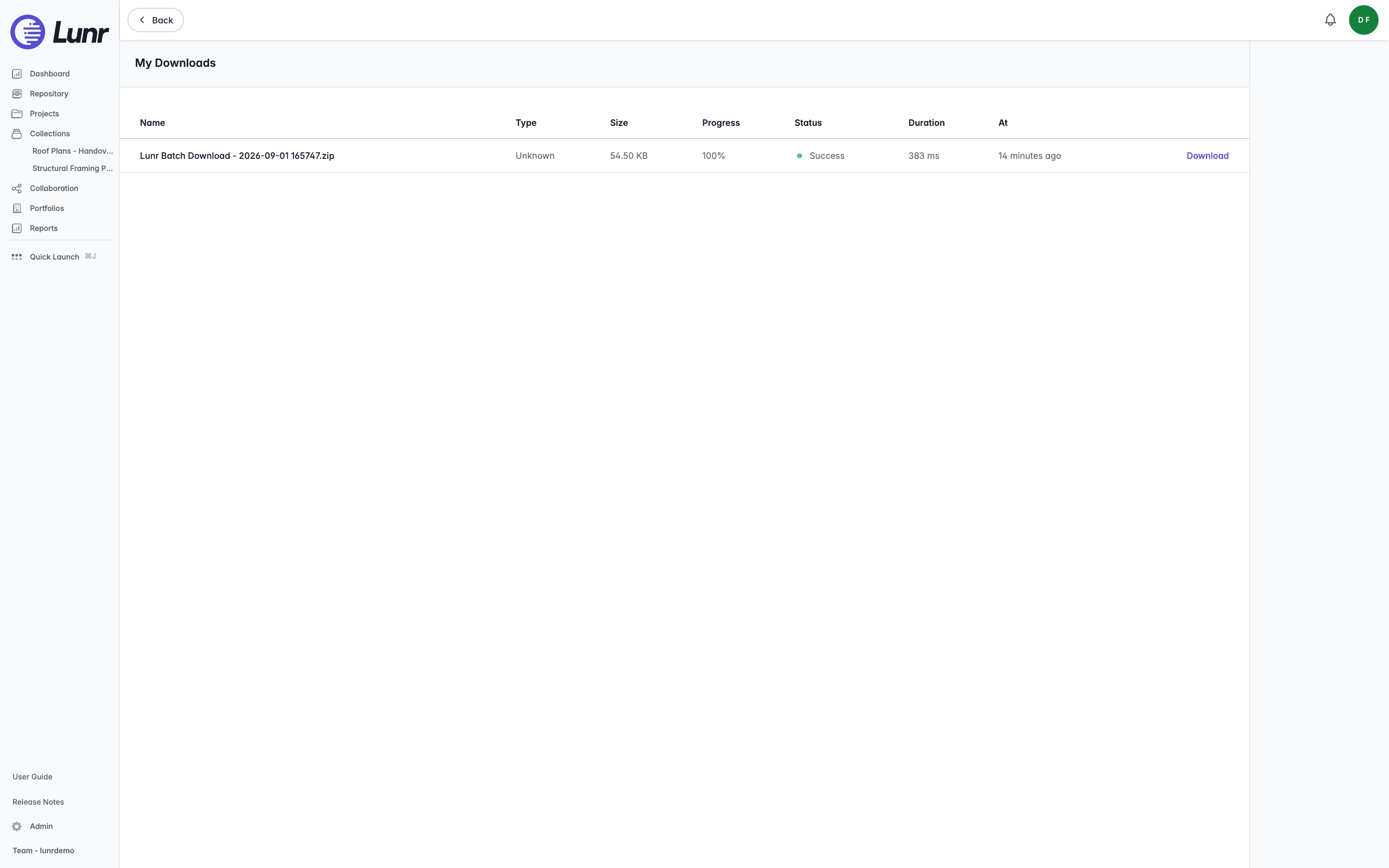
Each row shows a Name, Type (Document, Archive, or Multipage PDF), Size, Progress, Status, Duration, and the time the package was created, labelled At, plus an action.
The Status column shows Success, Partial Success, Error, Skipped, Cancelled, Running, or Unknown, each with a coloured dot. The row action reads Download once the package is ready, Terminate while its status is unknown, and Request Again once the package has expired.
Package Retention
Packages are kept for three days. A daily clean-up then deletes the package file, and the row's action changes to Request Again, which rebuilds it.
Why a Document Might Be Missing From a Package
A package does not fail when it cannot include a document. Instead it finishes, reports Partial Success, and leaves that document out. A document is skipped when it is:
- Archived, unless your organisation includes archived documents in bulk downloads. This is off by default.
- Deleted.
- Missing its file, or missing a rendition when you asked for PDFs.
- Not something you have permission to download.
- Blocked by security scanning.
Checking the Manifest
A ZIP download includes a text file named manifest.txt that accounts for every document. Open it first if a package looks incomplete. It records:
- Who created the package, when, and what it was built from.
- A count of documents included, skipped, and failed.
- Each included document by name.
- Each skipped or failed document by name, with the reason beside it, such as "document is archived, skipped" or "document access not permitted".
A Combined PDF has no manifest, since it is a single file rather than an archive, and the My Downloads page does not show these details either. Choose ZIP when you need to account for every document.
Security Scanning
If a document has not passed security scanning, downloading it is blocked. For a single document, Lunr shows "This document has not passed security scanning and has been quarantined. Please contact your administrator." For several documents, it shows "One or more documents have not passed security scanning and have been quarantined. Please contact your administrator."
Permissions
Downloading original files needs any one of the following: the Download Natives access right, access through the document's project while that project allows native downloads, being assigned to the document, or reaching the document through a change request.
A project's Allow Native Downloads setting only affects the project route. Turning it off stops people who reach a document through the project alone, but it does not stop someone who holds the Download Natives access right, is assigned to the document, or reaches it through a change request.
Downloading renditions needs the Download Rendition access right or equivalent project access. Restricted documents also need the Download Restricted Files access right, which governs whether you can see a restricted document at all, not just whether you can download it.
One exception is worth noting: a spreadsheet's original file can be downloaded by someone who only holds the rendition right.
When you lack permission, the Download action is hidden rather than shown greyed out.
Where the File Is Saved
Each project decides whether a download starts on its own or your browser asks first.
- Automatic downloads, the default, save the file straight to your browser's downloads folder.
- Otherwise your browser asks where to save the file before the download starts.
Limits
- A package can contain up to 1000 documents.
- Only a list-type collection can be downloaded as a whole. Saved searches and scenes cannot.
- A package built from a collection or a folder includes only current revisions.
Uploading Documents
Bring files into the Lunr repository with the Create menu, the Upload button, or drag and drop, and understand when an upload becomes a new document, a new revision of an existing one, or a rendition attached to another.
Introduction
Access document metadata, audit history, comments, attachments, locations, references, validation results, and reminders, as well as view, annotate, download, and print document content through Lunr's integrated document viewer.