Viewing Video Files
Play MP4, WebM, and MOV video files in Lunr's native browser-based video viewer, which streams the file so you can start watching and skip ahead without downloading it first.
Overview
Lunr plays video files in a native viewer that streams the file straight to your browser. Playback starts without downloading the whole file, and you can skip to any point in it. There is no desktop software to install.
The viewer plays .mp4, .webm, and .mov files directly, as long as your browser supports the video's format. If it does not, the viewer says it can't play the video and you can download the file to watch it in a desktop player. It also plays .mpg, .mpeg, and .avi files, which Lunr converts to a playback copy first.
Videos Converted for Playback
When you upload an .mpg, .mpeg, or .avi file, Lunr makes a playback copy in the background. Until the copy is ready, the viewer cannot play the video, and it shows a message explaining why instead of an error. The document's status shows a Video Playback icon. To make the copy again, select the document, open the More menu, and choose Re-convert Video for Playback from the Content group, covered in Document Actions. You can select several videos at once. A message confirms the conversion has been queued, and the videos cannot be played until it finishes.
Opening a Video
A video document opens in the video viewer, whether you open it from a document list, a link, or a share link. You can also select View in Video Viewer on the document overview, which is shown on larger screens only. Where the video viewer is available to your organisation, a video also plays inside the document preview, so you can watch it without leaving the list you are working in.
Where the video viewer is not available to your organisation, opening a video document takes you to its details page instead.
Viewer Overview
The viewer fills the browser window beneath the document's header. A ribbon runs above the video, and the playback controls run along the bottom of it:
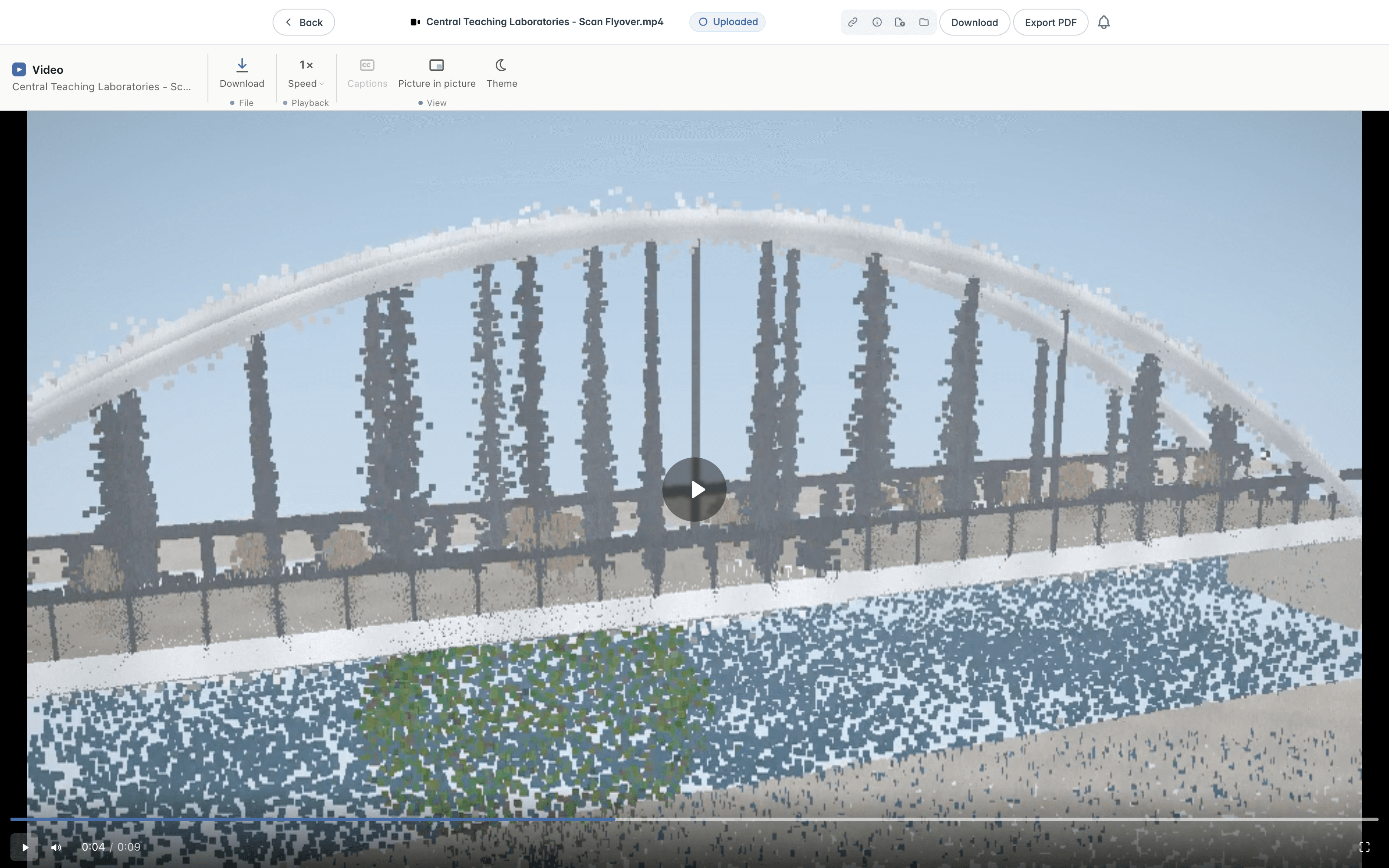
The ribbon is grouped as:
- File, with Download, which saves the video file.
- Playback, with Speed, which plays the video faster or slower. Choose 0.25×, 0.5×, 0.75×, Normal, 1.25×, 1.5×, 1.75×, or 2×.
- View, with Captions, Picture in picture, and Theme. Captions is disabled when the video has no captions. With one caption track it turns captions on and off, and with several it opens a list of tracks with an Off choice. Picture in picture keeps the video playing in a small window while you work elsewhere, and Theme switches between light and dark.
Along the bottom of the video:
- Play starts and pauses the video, and so does selecting the video itself. Double-click the video to enter or leave fullscreen.
- The Seek bar shows how far through the video you are. Drag it, or select a point on it, to skip there.
- Mute and Volume control the sound.
- The current time and the video's length, such as "0:04 / 0:09", sit beside them.
- Fullscreen fills the screen with the video.
The document header above the viewer has the same actions as the other viewers, such as Download and Add to Collection, where you have access to them.
Keyboard Shortcuts
- Space or K - Play or pause
- Left and Right - Skip back or forward 5 seconds
- J and L - Skip back or forward 10 seconds
- Up and Down - Raise or lower the volume
- M - Mute or unmute
- C - Toggle captions
- F - Toggle fullscreen
- Home and End - Go to the start or the end
- 0 to 9 - Jump to that tenth of the video
C works only when the video has captions. The shortcuts are ignored while a button, slider, or menu has focus.
Viewing Point Clouds
View and analyse LAS and LAZ point clouds in Lunr's browser-based point cloud viewer, with tools for navigation, measurement, clipping, visualisation, saved viewpoints, and scene management.
Introduction to Projects
Organise documents, change requests, and other work by project, covering the projects list, searching and filtering it, and favouriting the projects you use most.