Comparing Documents
Compare two documents, or two revisions of one document, in Lunr to see what changed, with side by side, overlay, and pixel diff views in the Rift viewer, a Changes panel, and downloadable comparisons and summaries.
Overview
Compare Documents shows what changed between two documents, or between two revisions of the same document. Lunr compares the PDF of each, so a drawing or a Word document is compared through its PDF rendition. A document that has no PDF version, is password protected, or is damaged cannot be compared, and the comparison shows a message saying so.
Where your organisation uses the Rift viewer by default, the comparison opens in the Rift viewer, covered in most of this page. Otherwise it opens in the classic PDF viewer, covered under The Classic Comparison.
Starting a Comparison
- In the repository, a project, or search results, select exactly two documents. Folders do not count.
- Select More in the Action Pane, then Compare Documents in the Content group.
Compare Documents appears only while exactly two documents are selected. See Document Actions.
To compare two revisions of one document, open its Version History, select the two versions, and choose Compare Documents above the version list.
The header names the two documents with an arrow between them, the old one first, and in side by side mode each page is headed with its document's name and (Old) or (New). When you select two revisions of one document, Lunr always compares the older revision with the newer one, whichever order you selected them in. Otherwise the first document you selected is the old one. Select Back to leave the comparison.
Comparison Modes
Three buttons in the toolbar switch how the two documents are shown. A legend at the foot of the viewer explains what the colours and outlines mean in the mode you are using.
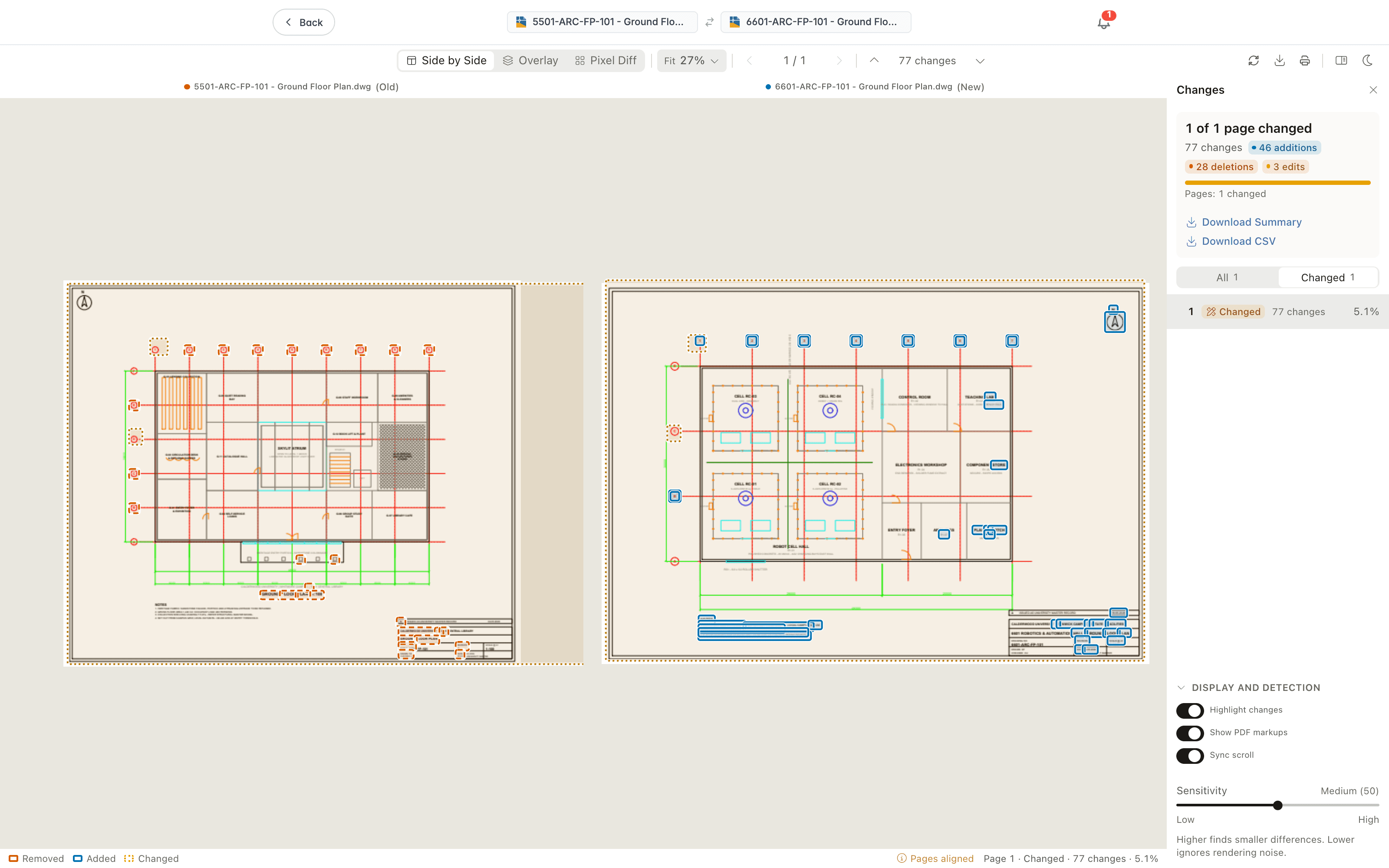
- Side by Side shows the old and new pages next to each other, with outlines marking what was Removed (orange, dashed), Added (blue, solid), and Changed (yellow, dotted). Press 1 to select it.
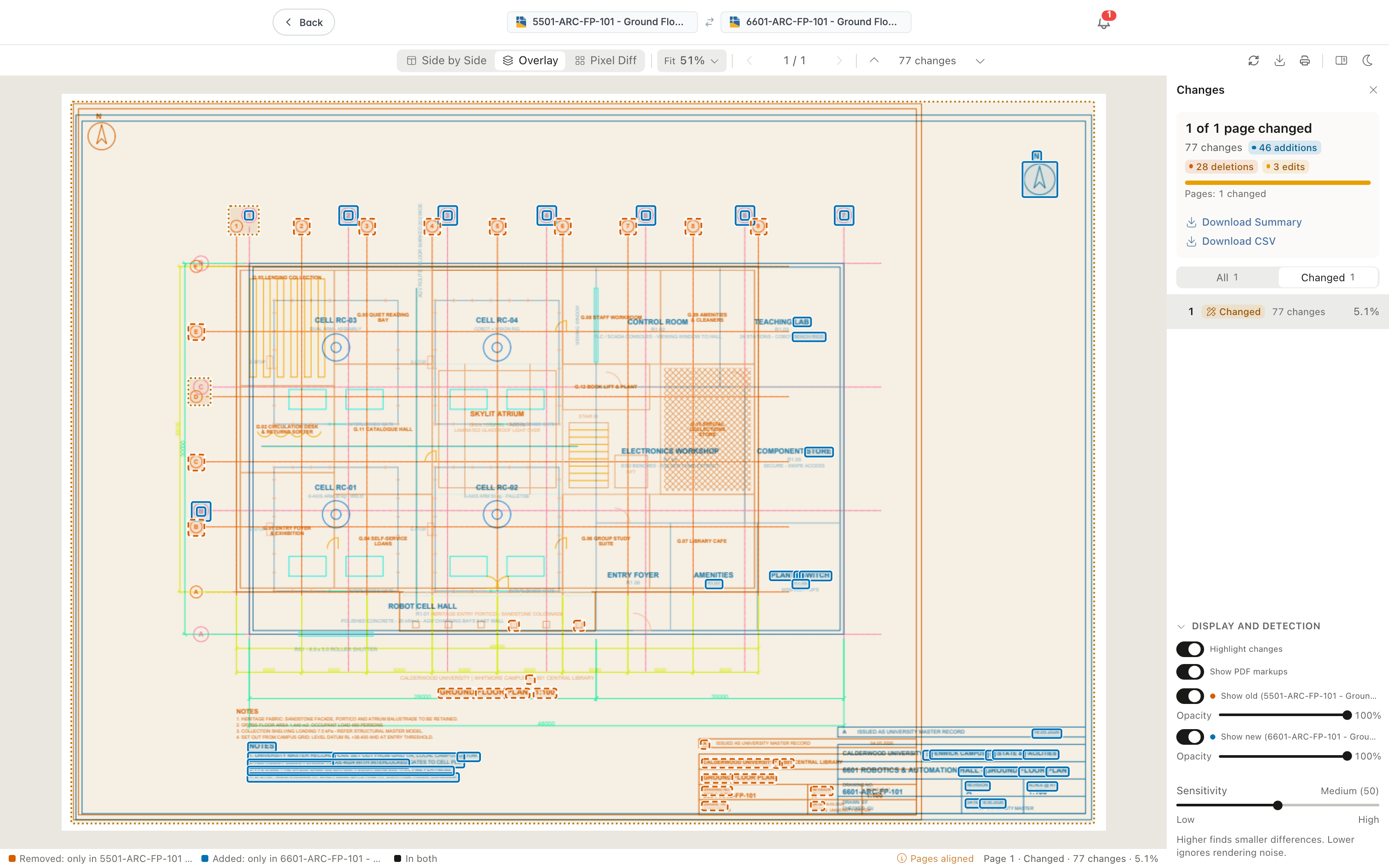
- Overlay draws the two pages on top of each other. Content only in the old document reads "Removed: only in" followed by its name, content only in the new document reads "Added: only in" followed by its name, and shared content reads "In both". Press 2 to select it.
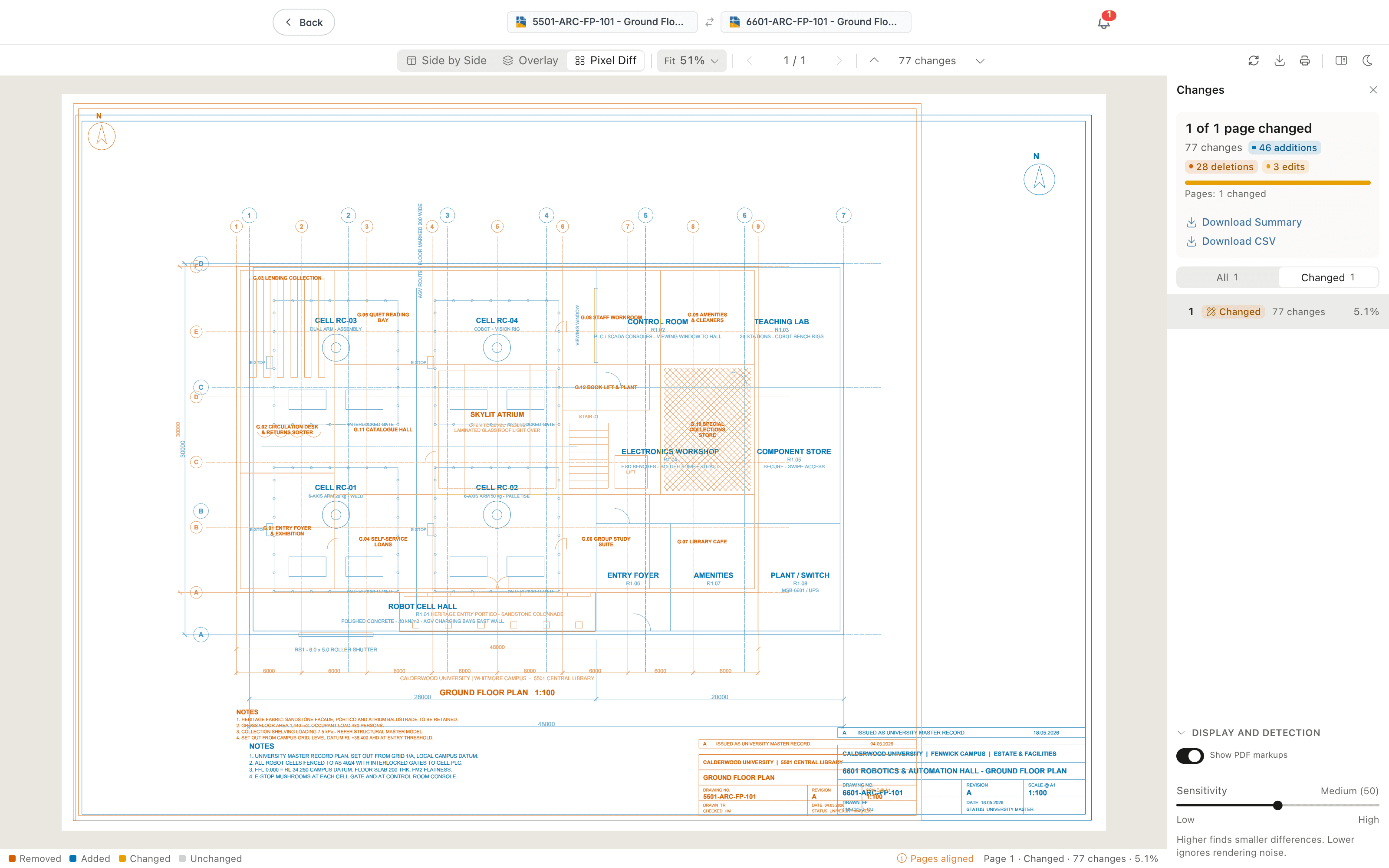
- Pixel Diff fills the areas that differ, as Removed, Added, Changed, or Unchanged. Press 3 to select it.
Where the two pages are different sizes, or one is rotated or scaled, Lunr lines them up before comparing. A Pages aligned button in the status bar opens a note saying how, for example that the page sizes differ and the pages are aligned at the bottom left corner. The note also warns where the pages differ across most of the sheet, because they may then be different drawings rather than two revisions of one.
The status bar also reads the current page and its result, for example "Page 1 · Changed · 76 changes · 4.4%", where the last figure is the share of the sheet that changed.
Navigation
Select Next Change and Previous Change to step through the differences. The toolbar counts them, for example "80 changes", and shows your position as you step. Use the Previous Page and Next Page buttons or PgDn and PgUp to move between pages. You can also select the page box, which reads for example "1 / 5", and type a number to jump to that page.
Zoom with the zoom menu, which reads "Fit" and the zoom percentage, or hold Ctrl (Cmd on a Mac) and scroll. Select Rotate View to turn both pages a quarter turn clockwise. The sun or moon button at the right of the toolbar, labelled Dark Mode or Light Mode, switches the viewer between light and dark.
The Changes Panel
Select Changes Panel in the toolbar to show or hide the panel. In a narrow window it starts hidden, so the pages keep their width. It holds the summary, the display controls, and the page list.
Summary
The summary card reads "Comparing pages" with a progress count such as "3 of 10" while the comparison runs. If any page cannot be compared, a link such as "1 page couldn't be compared" shows only those pages in the page list. When it finishes, it reads "Identical", "No changes found in" followed by a number of pages, or a count such as "5 of 5 pages changed". Beneath it are the total number of changes and a chip for each kind, such as "6 additions", "72 deletions", and "2 edits", then a line counting pages, for example "Pages: 1 changed, 4 added".
Where one document has more pages than the other, a note beneath says so, for example that the new document has 4 more pages than the old one and that pages 2 to 5 are shown as added.
Once the comparison finishes, two downloads appear in the card.
- Download Summary saves the summary pages alone as a PDF.
- Download CSV saves the same figures as a spreadsheet file, with a row for each page giving its status, the number of changes, and the changed area.
The downloads are hidden if either document could not be loaded.
Display Controls
The Display and detection section, which opens and closes when you select its heading, shows the controls that apply to the current mode. It starts closed in a narrow window.
- Highlight changes shows or hides the change outlines, in side by side and overlay modes.
- Show PDF markups shows or hides the markups embedded in the PDFs, in every mode.
- Sync scroll keeps the two pages scrolling together, in side by side mode.
- In overlay mode, Show old and Show new, each followed by the document's name, show or hide a document. While a document is shown, an Opacity control beneath it sets how strongly it shows.
- The Sensitivity slider runs from Low to High, and names its level, for example "Medium (50)". Higher finds smaller differences, and lower ignores rendering noise.
Where nothing differs at the current sensitivity, a banner reads "All" followed by the number of pages and "match at this sensitivity". Select Increase Sensitivity to look for smaller differences, or Dismiss to close the banner.
Page List
The page list has a row for every page. Filter it with All and Changed, each followed by its count, and Errors, which appears only if a page could not be compared. Each row shows the page number and its status, which is No differences, Changed, Added, Removed, or Error. For a changed page, the row also gives the number of changes and the share of the sheet's area that changed. Select a row to go to that page.
Downloading and Printing
Select Download Comparison to save the comparison as a PDF, or Print Comparison to print it. Both open a dialog with these choices.
- Pages: All pages, Current page, Changed pages, which is available once the comparison finishes, or a Page range such as 1-3, 5.
- Layout, which is one of Side by Side, Overlay, and Pixel Diff, and starts as the view you are using.
- Include: Summary page, for a download, which adds a summary page at the front, and Page headers, which adds a header to each page. Summary page is available only when more than one page is exported, and the dialog says so.
- File name, for a download, which starts as the two document names followed by "(comparison).pdf".
- Auto, Portrait, or Landscape orientation, for a print.
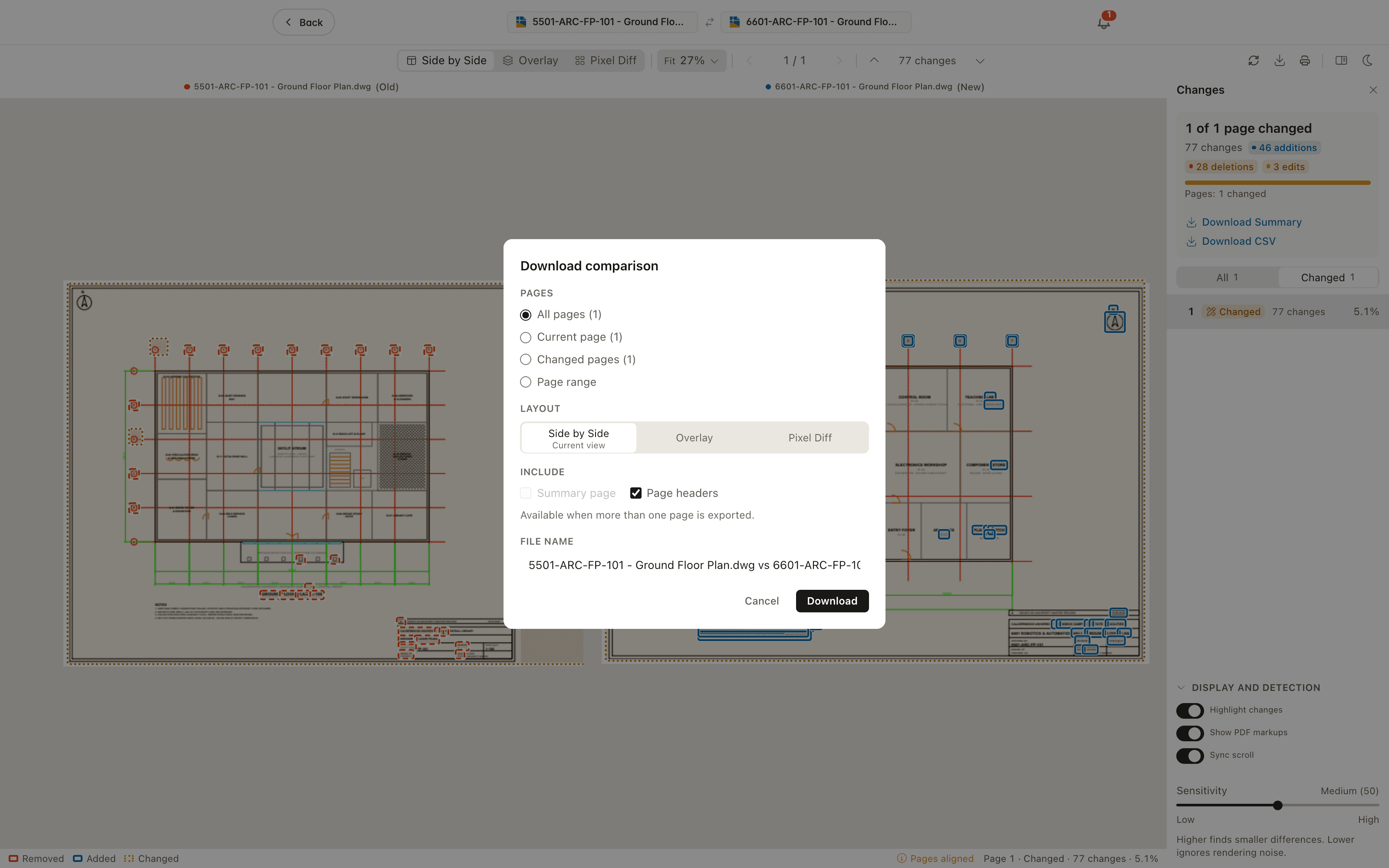
Select Download or Print, or Cancel to close the dialog. A progress message reads "Comparing page", "Rendering page", and then "Assembling the PDF" as the file is built.
If a page is too large to keep at full resolution, the dialog tells you which pages were saved at a lower resolution once the file has downloaded. Select Done to close it. If the download fails, the dialog shows the reason and Try Again.
Keyboard Shortcuts
Shortcuts apply while the comparison has focus. On a Mac, use Cmd in place of Ctrl.
- N or F7 - Next change, Shift+N or Shift+F7 - Previous change
- PgDn - Next page, PgUp - Previous page
- Home - First page, End - Last page
- 1 - Side by Side, 2 - Overlay, 3 - Pixel Diff
- Ctrl+Plus - Zoom in, Ctrl+Minus - Zoom out
- Ctrl+0 - Fit page, Shift+W - Fit width
- Ctrl+Shift+Right - Rotate view
- Ctrl+P - Print comparison, Ctrl+Shift+S - Download comparison
- Ctrl+\ - Show or hide the Changes panel
The Classic Comparison
Where your organisation does not use the Rift viewer by default, Compare Documents opens the classic PDF viewer. It shows the differences between the two documents on a single combined page. Its header includes Download, Rotate, and Hide Annotations, which becomes Show Annotations once the annotations are hidden. It has no mode buttons, Changes panel, or summary downloads.
Introduction to Viewing
Access document metadata, audit history, comments, attachments, locations, references, validation results, and reminders, as well as view, annotate, download, and print document content through Lunr's integrated document viewer.
Viewing PDF Documents
View PDF documents in Rift, Lunr's browser-based viewer, with tools for navigation, text search, drawing references, and layers, plus keyboard shortcuts, and work with colleagues in real time.