My Issues
Find the issues assigned to you or that you are watching, across every project, covering the My Issues page, a project's Issues tab, the issue page with its properties, thread, and activity, the states an issue moves through, and watching an issue.
Overview
An issue is a problem or question pinned to a particular spot in a drawing or 3D model, so the person who picks it up can see exactly what you meant. Each issue belongs to one project and carries a number, a title, a category, a state, and optionally an assignee and a due date.
Issues are raised in the viewers and followed up in two places:
| Where | What it shows |
|---|---|
| My Issues in the main menu | Issues assigned to you, or that you are watching, across every project. |
| A project's Issues tab | Every issue in that project, with filters. |
My Issues and the Issues tab appear where your organisation has issues enabled and you are allowed to view them. Raising an issue is available only to people your organisation has allowed to create issues.
Raising an Issue
You raise an issue from the viewer, on the spot it is about:
- In the PDF viewer, open the View ribbon and select Issue Pin in its Issues group, then click the drawing where the issue belongs. Right-clicking a point and choosing Raise an issue here also works.
- In the 3D viewer, select a part and then Raise issue on selection, covered in Raising an Issue on a Part.
- On a note in a BIM model or a point cloud, select Make issue on its row in the Annotations panel, covered in Notes. A point cloud clip offers the same.
A Raise an issue dialog opens with a picture of the view you are looking at. Enter a title, choose a category, and add an assignee, due date, and description if you want them, then select Create Issue. Only the title is required.
You are added as a watcher of every issue you raise, so it appears in My Issues straight away, even before anyone is assigned to it.
The My Issues Page
Select My Issues in the main menu to see the issues that need your attention, whichever project they belong to. It lists an issue when it is assigned to you or when you are watching it. There are no filters on this page: it is a single list of your own issues.
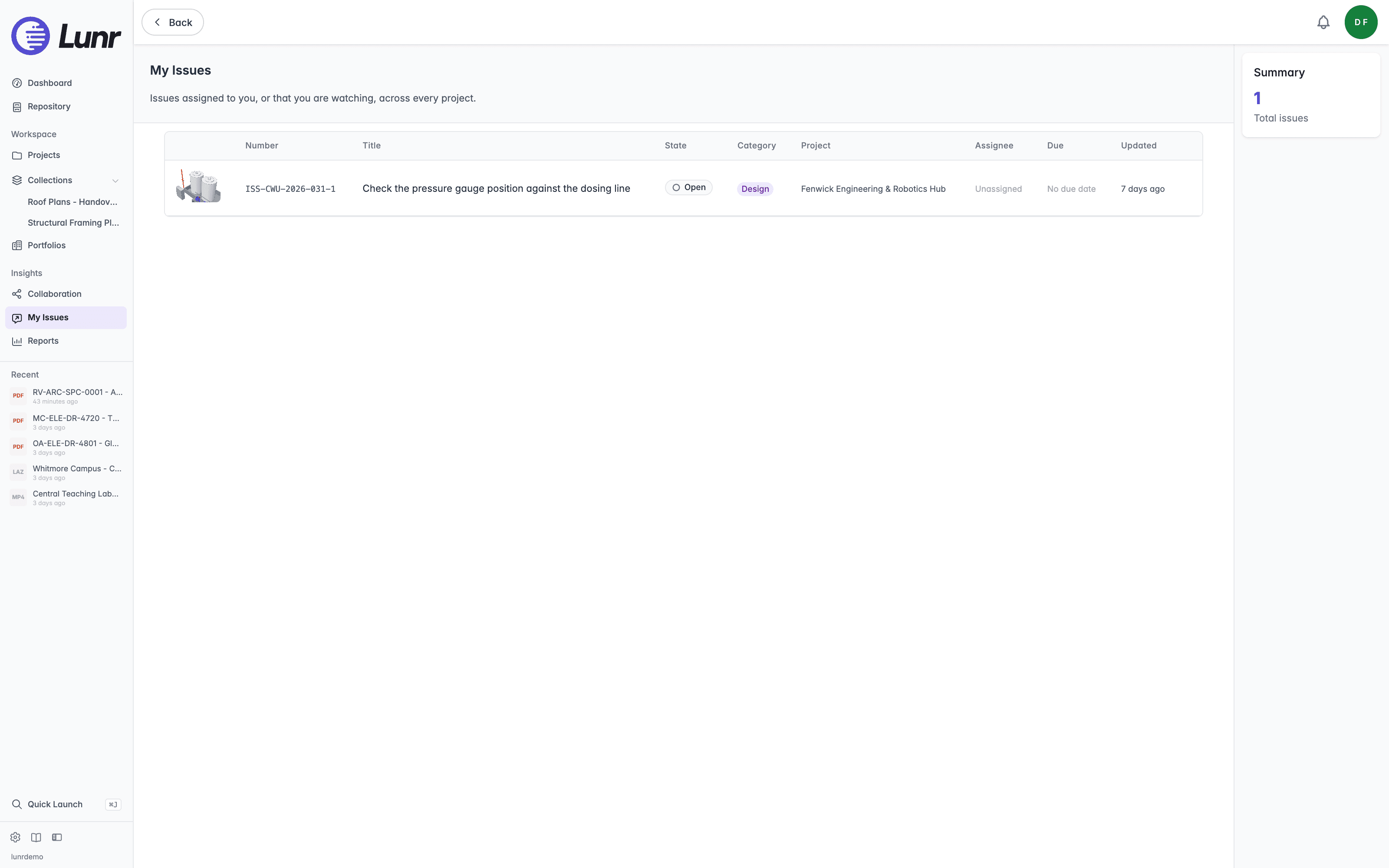
Each row shows:
| Column | What it shows |
|---|---|
| A thumbnail | A picture of the view the issue was raised on |
| Number | The issue's number, such as ISS-CWU-2026-031-1 |
| Title | The title you or a colleague gave it |
| State | Its state, such as Open |
| Category | Its category, such as Design |
| Project | The project it belongs to |
| Assignee | Who it is assigned to, or Unassigned |
| Due | Its due date, or No due date. A date past due on an issue that is still open is shown in red. |
| Updated | How long ago it last changed |
Select a row to open the issue. Long lists are paged, and the Summary panel at the right shows how many issues you have in total.
Where nothing is assigned to you and you are not watching anything, the page reads "Nothing assigned to you" and "Issues assigned to you, or that you start watching, will appear here." If the list cannot be loaded, it reads "Issues could not be loaded". Refresh the page to try again, because an empty list and a failed load are not the same thing.
A Project's Issues Tab
Open a project and select its Issues tab to see every issue in that project, not only your own. The tab shows a count of the issues it holds.
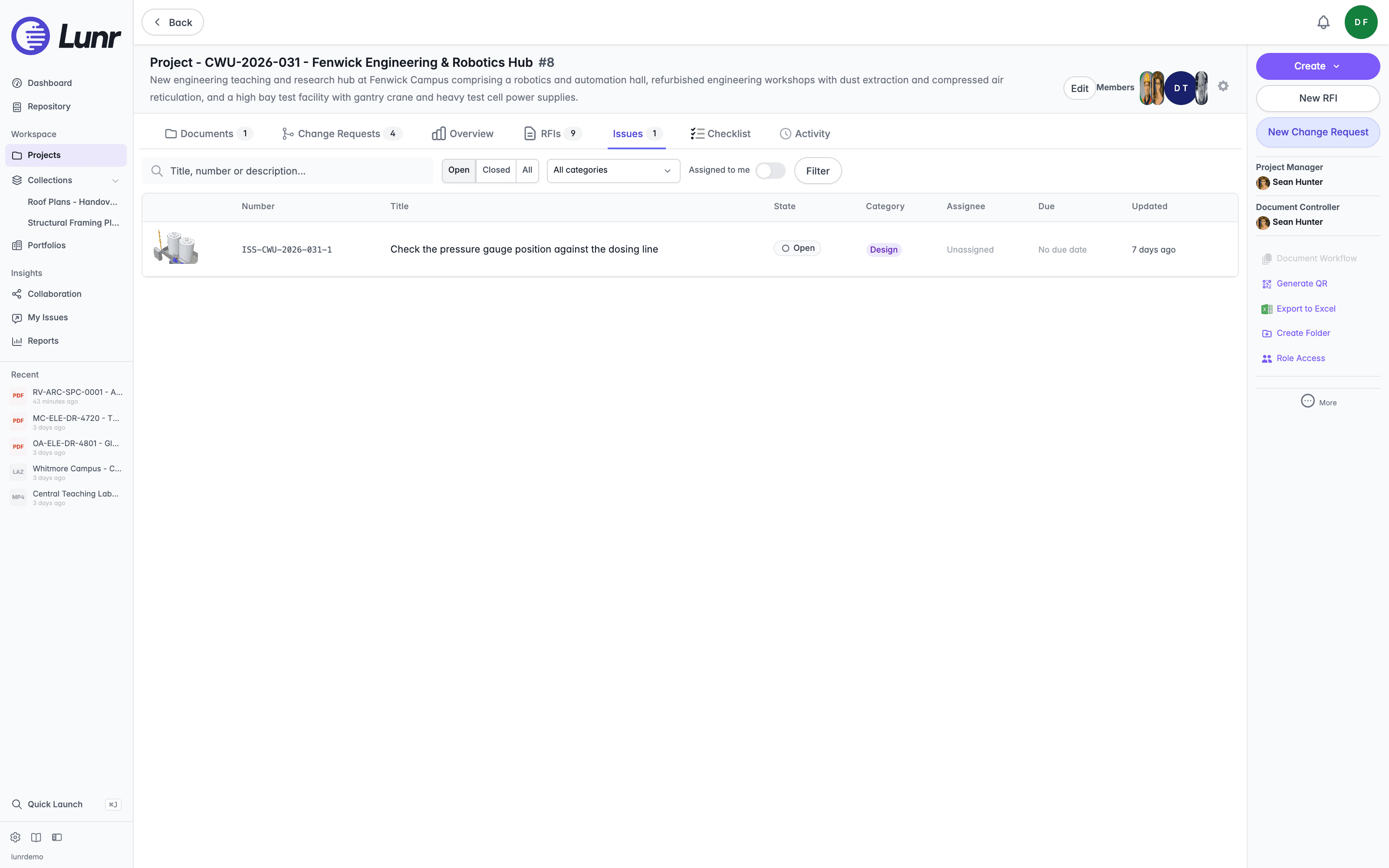
The table has the same columns as My Issues, without Project. Above it you can:
- Search by title, number, or description in the search field.
- Select Open, Closed, or All to choose which issues to list. The tab opens on Open, because the open issues are the live work.
- Choose a category from the dropdown, or leave it on All categories.
- Turn on the Assigned to me toggle to list only the issues assigned to you.
- Select Filter to apply your search and choices, and select Clear current search filters to remove them.
With no issues in the project, the tab reads "No issues yet." and explains that you raise one by dropping an issue pin on a drawing in the viewer. See Working in a Project for the project's other tabs.
The Issue Page
Select an issue anywhere it is listed to open its own page. A breadcrumb at the top leads back through the project and its Issues tab, and the number is the last step. Below it are the title, the state, who raised the issue and when, and its due date, with a note when it is overdue.
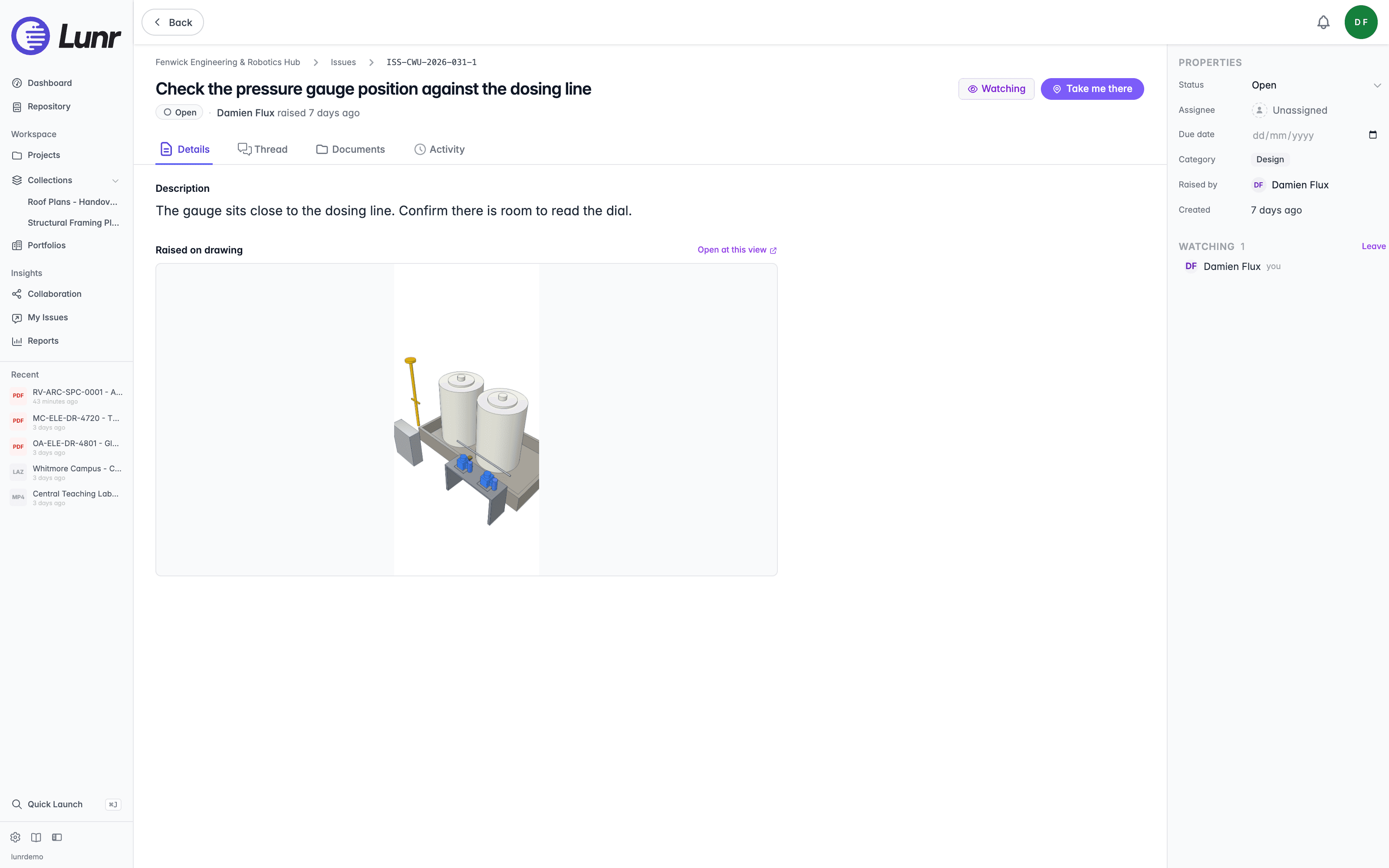
Two buttons sit at the top right of the page:
- Watch follows the issue, and reads Watching once you do. Select it again to stop. See Watching an Issue.
- Take me there opens the drawing or model at the view the issue was raised on, with the issue's pin selected. It appears for issues that were raised from a view.
Four tabs run below the title.
Details
The Details tab shows the issue's description, which reads "No description provided." where there is none. Under Raised on drawing it shows a picture of the view the issue was raised on. Select the picture, or Open at this view, to open the drawing at that view. Any tags the issue carries are listed beneath.
Thread
The Thread tab holds the conversation about the issue. Enter a comment and select Comment to add it. Type @ to mention a colleague who can access the issue. Until someone comments, the tab reads "No comments on this issue yet."
Documents
The Documents tab shows the drawing the issue was pinned to under Raised on, with an Open in Viewer button. If the drawing is no longer available, the button is unavailable. Below it, References is for linking other documents to an issue, which is not available yet.
Activity
The Activity tab is the issue's history. State changes, reassignments, and edits are recorded here as the issue moves, and it reads "Nothing has happened yet" until the first one.
Properties
The Properties panel at the right of the issue page holds the issue's details:
| Property | What it holds |
|---|---|
| Status | The issue's state, chosen from a dropdown |
| Assignee | Who is responsible for it. Select it to search for a person. |
| Due date | The date it should be done by |
| Category | What kind of issue it is, such as Clash, Design, Site, Query, or Other |
| Raised by | The person who raised it |
| Created | How long ago it was raised |
Changes save as you make them, so there is no Save button. If you cannot edit an issue, the panel is read-only and you can still read everything in it.
States
An issue moves through four states:
| State | Counts as |
|---|---|
| Open | Open. This is where a new issue starts. |
| In progress | Open. Someone is working on it. |
| Resolved | Closed. The problem is dealt with. |
| Closed | Closed. The issue is finished with. |
The Open and Closed buttons on a project's Issues tab group the states in this way. Your organisation can rename the states and categories, or add its own, in which case you see its names. Each state still counts as open or closed, so the buttons and the overdue marker keep working.
Watching an Issue
Watching an issue means you are told about changes to it. The Watching panel at the right of the issue page lists everyone who is watching, with you marked as "you", and a Join or Leave button beside its heading. The Watch button at the top of the page does the same thing.
An issue you watch appears in My Issues, whether or not it is assigned to you. That is how you keep an eye on an issue without owning it. Select Leave to stop watching it. It then leaves My Issues, unless it is assigned to you.