Introduction
Organise documents, change requests, and other work by project, covering the projects list, searching and filtering it, and favouriting the projects you use most.
Overview
A Project groups documents, change requests, and other work under a single number and name, giving each job its own space with a defined manager, team, and folder structure. A document filed inside a project follows the project's access rules. Depending on your organisation's settings, a project can also track requests for information, transmittals, document number requests, and checklists, alongside an overview dashboard that summarises its activity.
The Projects List
Select Projects in the main menu to see every project you have access to. Each row shows the project number, with a project-type pill underneath it, the project name, the start date, the due date, the project manager, the project team as an avatar stack, plus a star and an Options menu, opened by selecting the three dots at the end of the row. Select a project's number or name to open it.
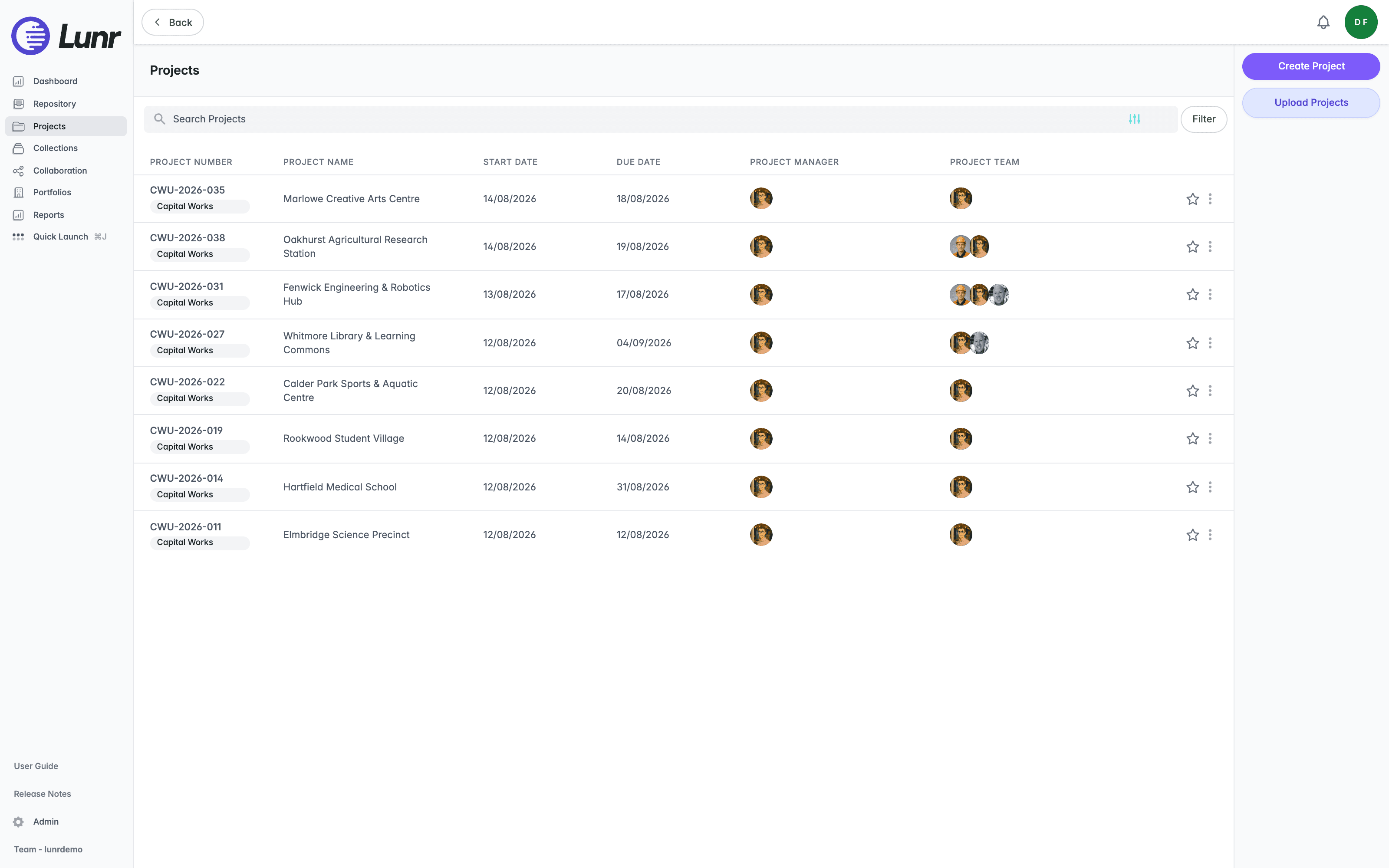
The list holds 15 projects per page, sorted with the newest project first. Select a column heading to sort by that column instead. If a project you expect is missing, check with your project manager.
Searching and Filtering Projects
Enter a project name, number, or description in the "Search Projects" field. Select the filter icon inside the field, or the Filter button beside it, to open the filter panel.
The filter panel offers a Project Type dropdown, a Select Project Manager field, and four boxes: Show deleted projects ("Include deleted projects."), Show archived projects ("Include archived projects."), Show favourite projects ("Show favourite projects only."), and Show my projects only ("Show only projects where I am assigned."). Select Ok to apply your filters, or Cancel to discard them.
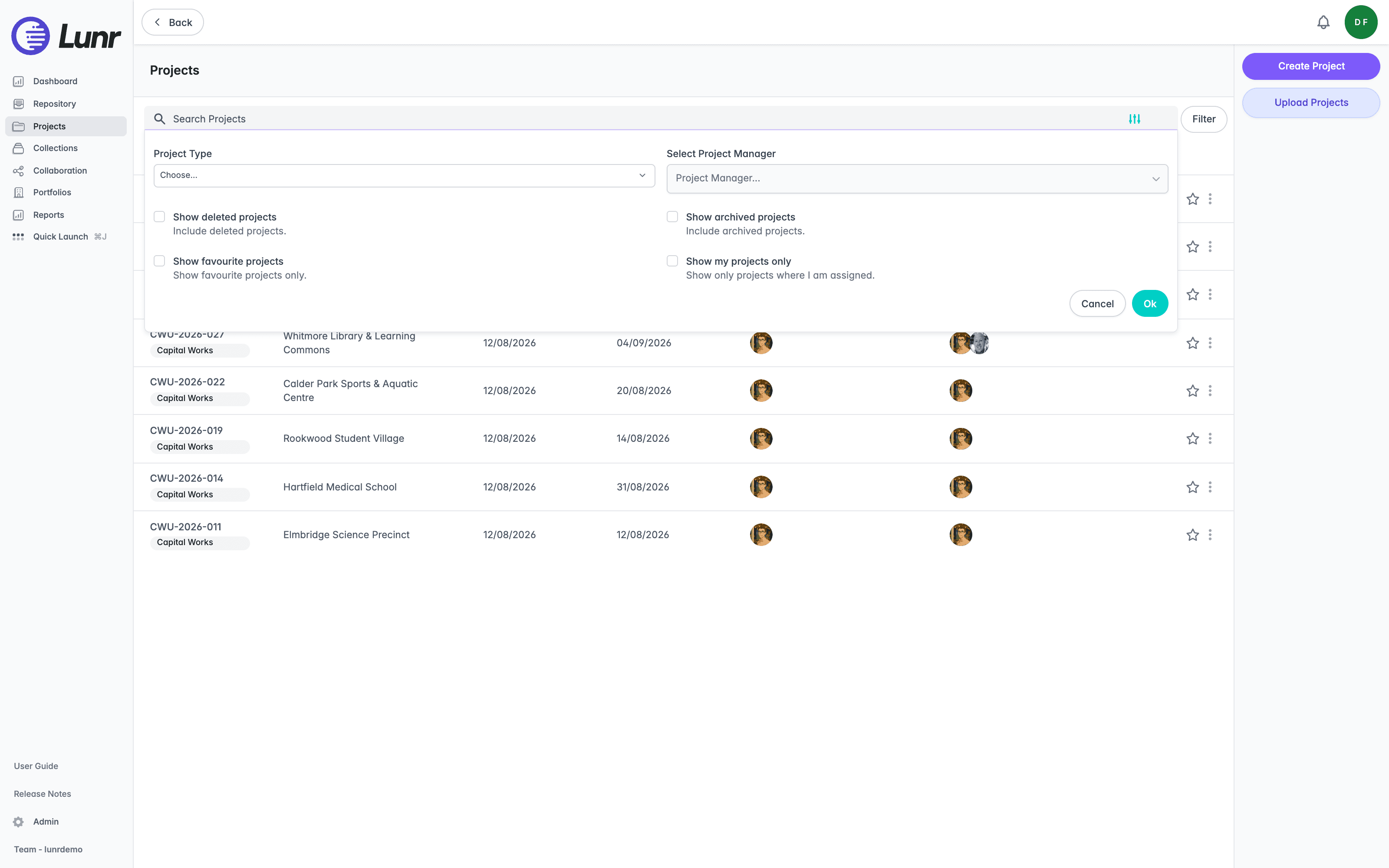
Depending on your organisation's settings, the filter panel can also include a Project Status dropdown, one field per project tag your organisation has defined, and, if project templates are enabled, an Include templates box ("Include project templates in the results."). The Show deleted projects and Show archived projects boxes only appear if you hold the Manage Projects access right, and your organisation can set Show my projects only to be on by default for everyone. Applied filters appear as removable badges beside the search field.
Favouriting Projects
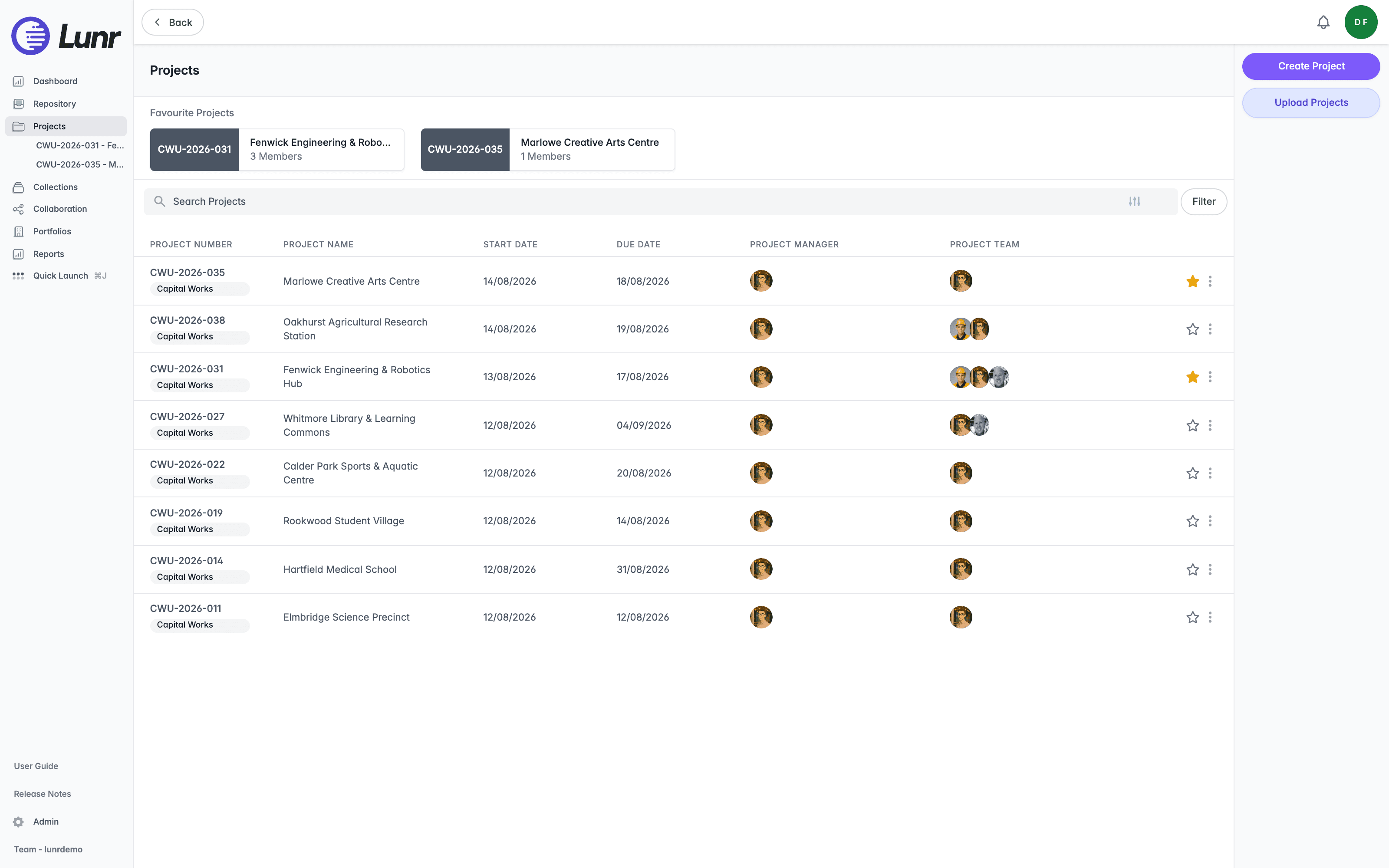
Select the star icon next to a project to mark it as a favourite. Its tooltip reads "Favourite this project" and switches to "Un-favourite this project" once starred. Up to five favourites appear in a Favourite Projects strip above the search field, each showing the project number, name, and member count, and the same favourites are nested under Projects in the main menu.
Working in a Project
Select a project's number or name to open it. A project opens on a row of tabs that varies with your organisation's settings, with a panel of actions to the right of every tab. See Working in a Project for the tabs, the action panel, project folders, and subscriptions.
Managing Projects
Creating a project, uploading projects from a spreadsheet, managing members and access, and editing, archiving, or deleting a project are all covered in Managing Projects.
Point Clouds
View and analyse LAS and LAZ point clouds in Lunr's browser-based point cloud viewer, with tools for navigation, measurement, clipping, visualisation, saved viewpoints, and scene management.
Working in a Project
Open a project and work in it, covering the tabs it offers, the Action Pane, project folders, and subscribing to a project.