Viewing Excel Spreadsheets
View and navigate Excel workbooks and CSV files in Lunr's browser-based spreadsheet viewer, with support for worksheet navigation, filtering, searching, exporting, and printing while preserving the workbook's original formatting.
Overview
Lunr opens Excel workbooks in a browser-based spreadsheet viewer that keeps the workbook's formatting, including fonts, fills, borders, number formats, merged cells, frozen panes, conditional formatting, cell comments, and images. There is no desktop software to install.
The viewer opens workbooks for viewing. To edit a workbook, download it and open it in your spreadsheet application.
Opening a Spreadsheet
How a .xlsx or .xls workbook opens depends on how your organisation has set up viewing. If spreadsheets open in the spreadsheet viewer by default, select the document's thumbnail to open it there. Otherwise a workbook opens as a PDF rendition, in Rift where Rift is the default viewer, and you can select View Spreadsheet on the document overview to open it in the spreadsheet viewer instead. The View Spreadsheet button is shown on larger screens only.
CSV (.csv) and TSV (.tsv) files open in the spreadsheet viewer too. Open one from a document list, or select View Spreadsheet on its document overview. A CSV button in the viewer header, labelled "How this CSV is read. Click to change it.", opens Import options for the delimiter, the encoding, and the columns to keep as text.
Viewer Overview
The viewer fills the browser window, with a toolbar across the top, a status bar along the bottom, and worksheet tabs when the workbook has more than one sheet.
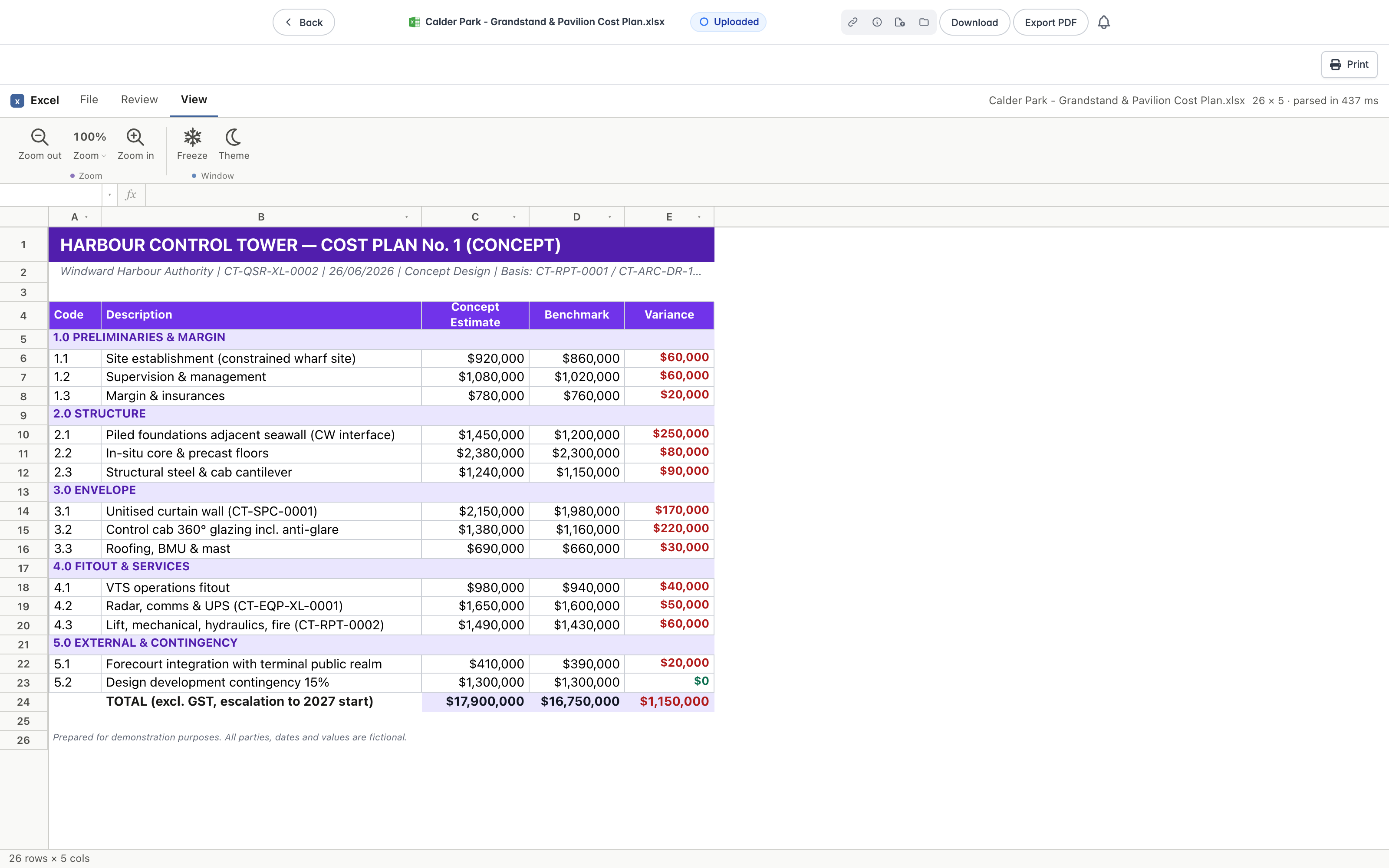
Toolbar
The toolbar holds the tools you use most often.

The toolbar is a ribbon with three tabs: File, Review, and View. The viewer opens on the View tab.
- File has Export, which saves the current sheet as a CSV file.
- Review has Find to search the sheet, covered in Finding and Filtering, and Compare, which compares the workbook against another workbook that you choose from your computer. A Differences panel counts the rows and cells that were added, changed, and removed. A Match rows choice lines them up by position or by a key column, and Previous, Next, and Stop step through the differences and end the comparison.
- View has a Zoom group and a Window group. The Zoom group has Zoom out, Zoom in, and a Zoom level menu that sets the level from 50% to 200% or resets it to 100%. The Window group has Freeze, which keeps the top rows or left columns in place as you scroll, and Theme, which switches between light and dark.
At the right of the tab row, the viewer shows the workbook's name and its size, for example "26 × 5", with how long it took to read.
Below the toolbar, the name box shows the selected cell, such as B12, and the formula bar shows its contents. Enter a cell reference or range in the name box and press Enter, or press Ctrl+G, to jump to it.
Navigation
When a workbook has more than one sheet, move between worksheets with the tabs along the bottom. Within a sheet, hold Ctrl and press an arrow key to jump to the edge of a block of data, press Ctrl+A to select the used range, and use Ctrl+Home and Ctrl+End to go to the start and end of the sheet.
Drag the edge of a row or column heading to resize it, or double-click the edge to fit it to its contents.
Finding and Filtering
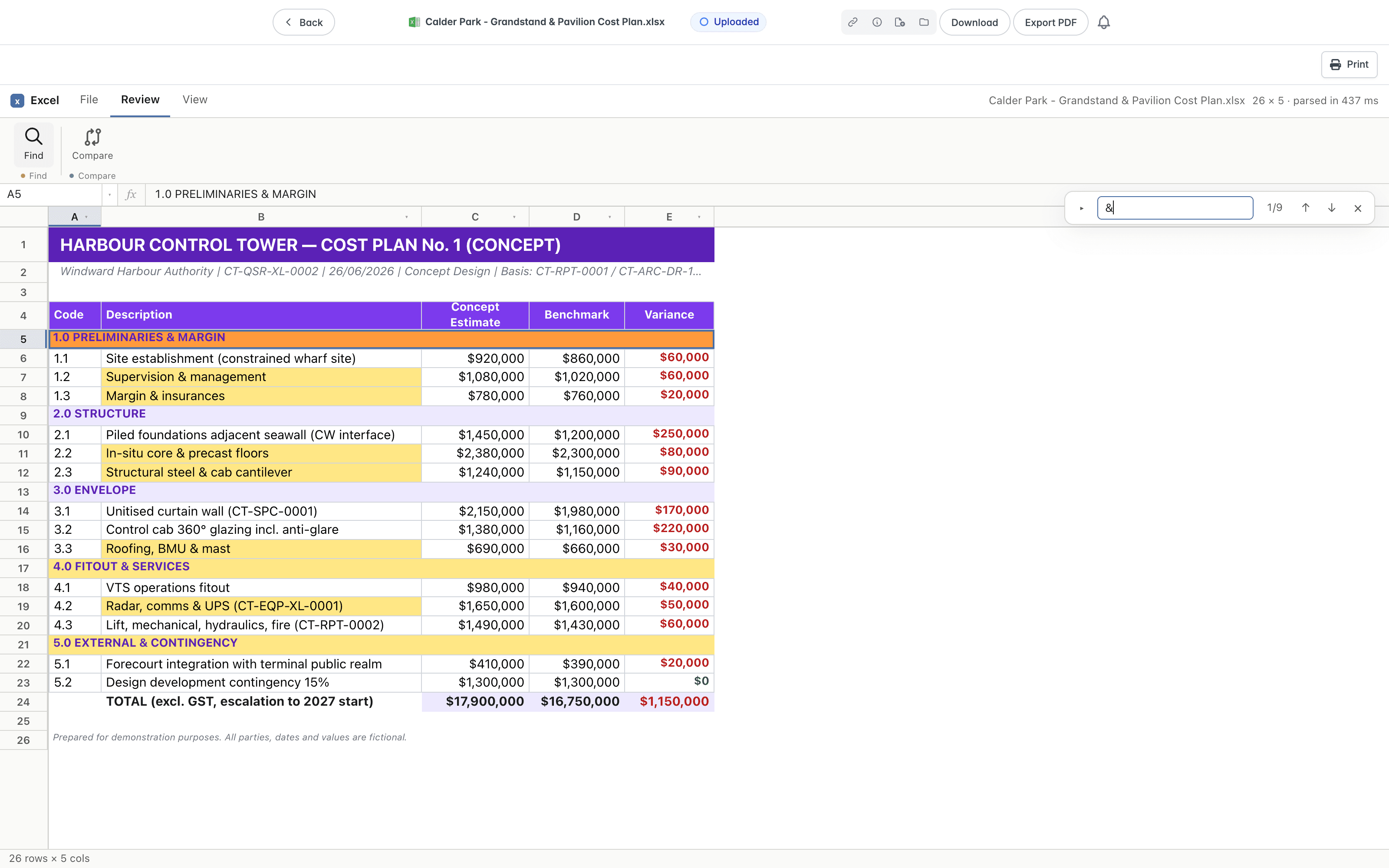
Press Ctrl+F, or select Find on the Review tab, to find text. A find bar opens at the top right of the sheet and highlights every match, with the current match in orange. The bar shows your position and the number of matches, for example "1/9", and the up and down arrows (Shift+Enter and Enter) move between them. Press Esc to close it. Find searches the current worksheet only, and skips rows that a filter has hidden.
To filter or sort a column, point at its heading and select the filter button that appears. Choose the values to show, or select Sort A→Z or Sort Z→A. Select Stats to see a summary of the column, including its types, blanks, distinct values, and most common values.
Reading Values
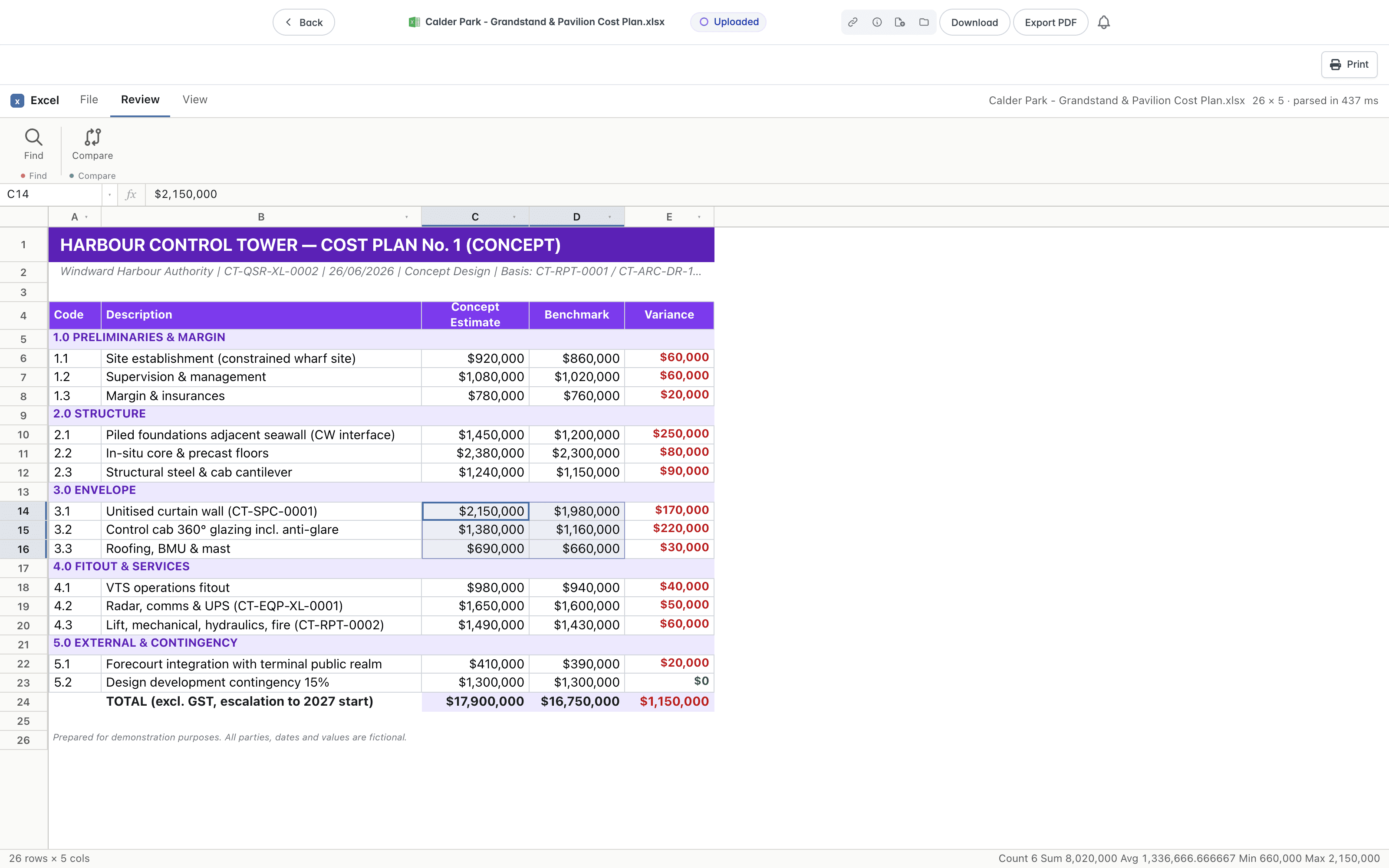
Select a range of cells and the status bar shows the totals for the selection: Count, Sum, Avg, Min, and Max.
Exporting and Printing
Open the File tab and click Export to save the current sheet as a CSV file.
To print, select Print at the top right of the viewer, which prints the workbook's PDF rendition. All worksheets are included in the rendition.
Keyboard Shortcuts
- Ctrl+F - Find, Enter - Next match, Shift+Enter - Previous match
- Ctrl+Arrow keys - Jump to the edge of a block of data
- Ctrl+A - Select the used range
- Ctrl+Home - Go to the start of the sheet, Ctrl+End - Go to the end of the sheet
- Ctrl+G - Go to a cell or range
- Ctrl+C - Copy the selection
Viewing Word Documents
View, search, edit, review, and print Word documents in Lunr's native browser-based viewer, while preserving the document's original layout, formatting, and review features.
Viewing BIM Models
View and explore IFC, Navisworks, and Revit building models in Lunr's browser-based 3D viewer, with tools for navigation, measurement, sectioning, model inspection, clash detection, and scene management.