Standard Change Requests
Raise a standard Change Request from the Create Change Request dialog, gather the documents it covers, and work it through review to release, using its Documents, Comments, and History tabs.
Overview
The standard Change Request is Lunr's original Change Request experience. You raise one from a short dialog, then work it on a page carrying Documents, Comments, and History tabs.
This page covers the standard experience from end to end. If your organisation gives you the full Change Request page instead, see Full Change Requests. Introduction explains which one you have and how the two differ.
Change Requests are listed on a project's Change Requests tab, described in Working in a Project.
Raising a Change Request
Select New Change Request in the Action Pane of a project's Change Requests tab.
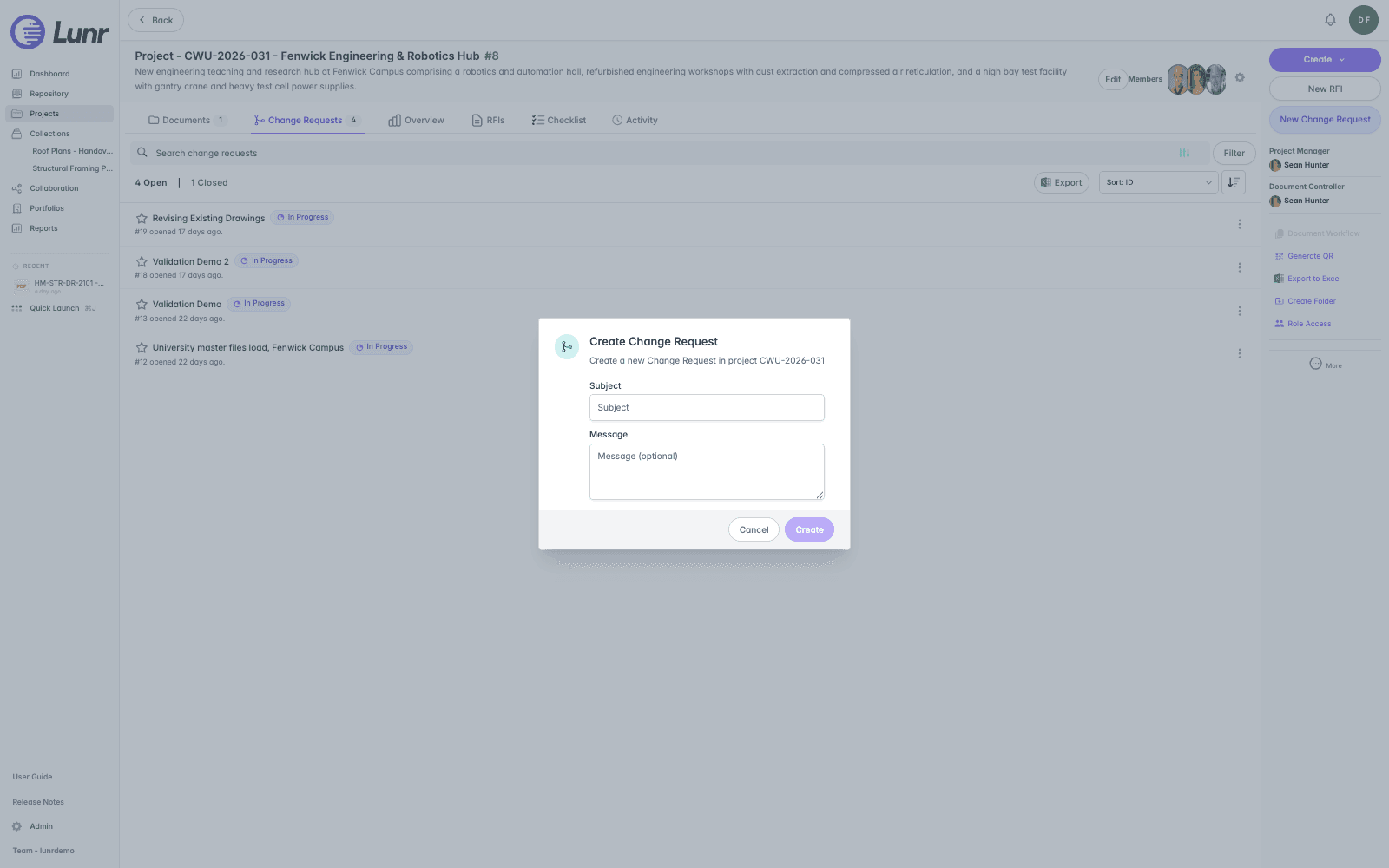
The Create Change Request dialog asks for very little. Enter a Subject, which is required, and an optional Message. Raised from outside a project, the dialog adds a Project field: search for the project, and the one you pick is confirmed below the field as Selected Project, with a Clear button to choose a different one. Create is unavailable until there is a subject, and a project where the dialog asks for one.
Any documents you have selected when you raise the request are attached to it, so selecting the documents first is the quickest way to start a request around work already in the repository. Raised from inside a project folder, the request records that folder as its own.
Selecting Create returns you to the project's Change Requests tab. Open the new request from the list to work it.
Assigning Documents to a Change Request
Documents reach a Change Request in three ways.
- Select them before raising the request, as described above.
- Upload them into the request. On the Documents tab, drag files onto the page, or use the Create menu in the Action Pane to create a document in the request. The same name-matching rules apply here as anywhere else, so an upload matching a document already in the request replaces its content, covered in Uploading Documents.
- Assign existing documents to it. Select the documents anywhere in the repository or a project, then select Assign to Change Request in the More menu.
Assign to Change Request opens a dialog naming the documents you selected. Choose the project under Assign to project, then the request under Assign to Change Request. Leave the Change Request field empty, or enter a subject that matches no existing request, and Lunr creates a request with that subject and assigns the documents to it. The dialog confirms which of the two will happen before you submit, and warns you when a document already has child documents, since proceeding creates concurrent versions of it.
Assign to Change Request requires the Can Assign to Project access right, and is unavailable while only folders are selected.
Working a Change Request
A standard Change Request opens on its Documents tab, which lists the documents gathered under the request. Comments and History sit alongside it, and Checklist joins them where checklists are enabled.
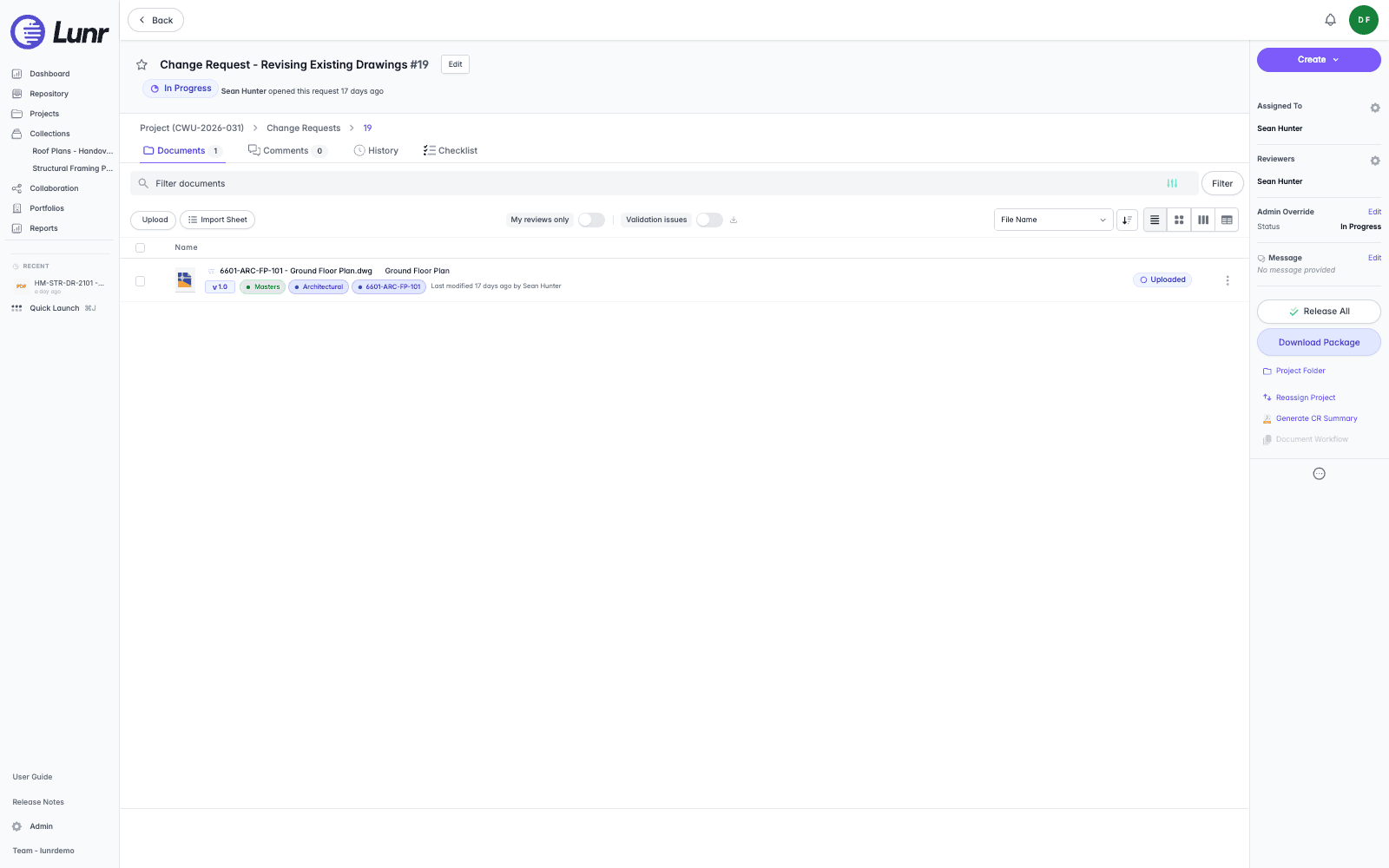
The header carries the request's status badge, an On Hold badge where it applies, and who opened the request and when, above a breadcrumb back to the project and its Change Requests list.
| Action | What it does |
|---|---|
| Create | Creates a document directly in the request. |
| Request Workflow | Moves the request to its next status. It appears only where you have an action available, which depends on the request's current status, your access rights, and whether you are its creator, its assignee, or one of its reviewers. A request with validation issues offers no actions until they are resolved. |
| Place on Hold and Resume | Pauses a request awaiting external input and picks it up again, where your organisation has Change Request holds enabled. |
| Release All or Release Selected | Releases the request's valid documents, all of them or only those you have selected. |
| Download Package | Downloads the request's documents as a package. |
| Generate CR Summary | Exports a PDF summary of the request. |
Assigned To and Reviewers sit below, each listing the people currently on the request and reading "None yet" until someone is set. Where you can change them, a control beside the heading reassigns the request or its reviewers.
The request's Message appears here too, shortened to a preview with Read more, and Edit where you can change it. It reads "No message provided" until there is one.
Selecting documents in the list switches the lower part of the panel to batch actions covering the selection, including updating tags, transitioning documents through their own workflow, sharing, exporting, and Discard from CR.
Change Request Folders
Where your organisation enables Change Request folders, a request can hold folders of its own.
A Change Request folder starts closed, visible only to the members assigned to it rather than to everyone on the request. This is the opposite of a project folder, which starts open, so check folder membership if you expect the whole request to see a folder's documents.
Comments
Anyone who can open a Change Request can comment on it. You do not need to be its creator, its assignee, or one of its reviewers.
Favourites
Select the star on a Change Request row to favourite it, and it appears in your favourites for quick access. A request that closes, meaning it reached Complete or Cancelled, drops out of your favourites list, though its star still shows on the request's own page so you can clear it. A rejected request is not closed and stays in the list, since it can be updated and resubmitted.
Finding Change Requests
The Change Requests tab offers a search field, a Filter button, an "Open | Closed" summary, an Export button, and a Sort dropdown. The filters include one for requests with validation issues, which narrows the list to the requests whose documents have them.
Introduction
Understand what a Change Request is in Lunr, how the standard and full Change Request experiences differ, and which one your organisation has given you.
Full Change Requests
Raise a Change Request on the full Change Request page, work through its reference documents by allocating new drawings and sheets or linking existing ones, and manage its folders, comments, and favourites.