Document Workflows
Move a document through its workflow, read its status badge, take part in reviews, and see why a workflow action might be unavailable.
Overview
A document workflow moves a document through a series of states, from upload to release, and can determine what happens along the way, for example who reviews it, what tags it picks up, and when it becomes a new revision. The steps in a workflow, and the order they run in, are defined by your organisation rather than by Lunr itself.
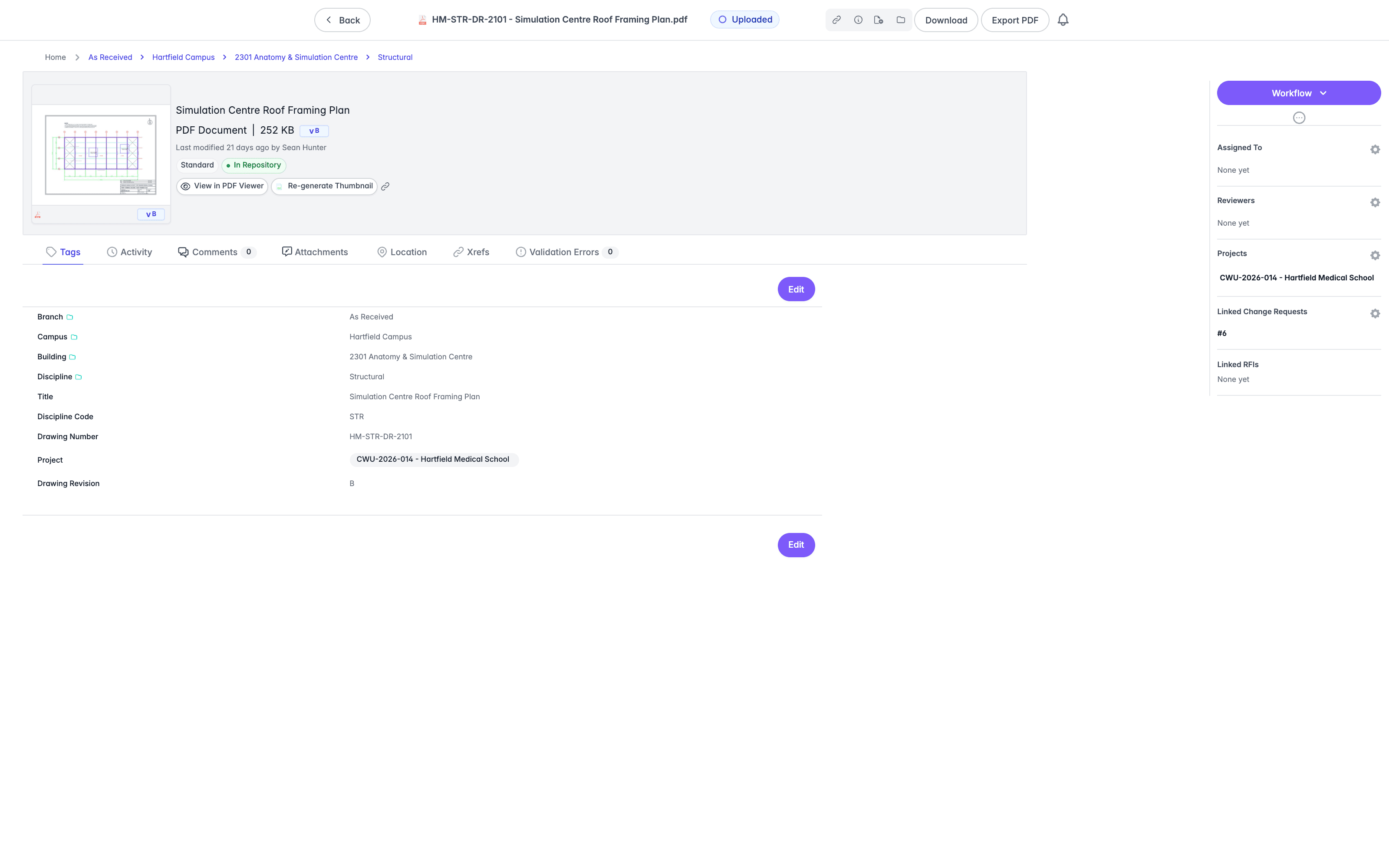
A document page shows a Workflow button, and a View workflow button that opens a read-only diagram of the workflow with the current step highlighted. Because each workflow is built by your organisation, its states are named by whoever built it and vary from project to project.
Status Badges
Every document carries a status badge showing the current state's own name, or Uploaded before the document has entered a workflow. A released document reads Master, and a child document reads Child Document.
The document page also shows Assigned To and Reviewers, each with its own settings cog for updating who is assigned or nominated to review.
Where You Meet a Workflow
You can start or continue a document's workflow from three places:
- On a document page, select the Workflow button in the Action Pane.
- In a document's Options menu, opened by selecting the three dots at the end of its row, select the Workflow entry.
- On any document list, select one or more documents and choose Document Workflow in the Action Pane. This is available on search results, the repository, projects, collections, change requests, my documents, my reviews, and my reminders.
Moving a Document Through a Workflow
Selecting Workflow opens a panel headed Workflow, with a badge reading Start Workflow before the document has entered one, or Workflow Options once it is running. Depending on how the workflow was built, the panel can contain any of the following.
- A Comment field. Where the workflow requires one, the field is marked Required and its placeholder reads "Enter a comment (required)...". Leaving it empty shows "A comment is required to proceed with this workflow action."
- A list of the steps available from the current state, each with a name and a description.
- Reviewer selection, where the step asks you to nominate reviewers. It shows a count, an avatar list, and either a list of people to choose from or a "Start typing to add a reviewer" field.
- A Document Assignee field, where the step assigns the document to someone.
- A form, where the workflow author defined one. Fields vary by workflow and can include scores, dates, dropdowns, and boxes. Required fields are marked, and submitting with one incomplete shows "Please complete all required fields in the form".
- Auto Tags, a read-only preview of the tag values the step will apply.
- Optional Actions, boxes that are selected by default. Clear one to skip that action.
Select Submit to make the move, or Cancel to back out without changing anything.
Reviews and Approvals
Where a workflow uses a review round, the nominated reviewer may select Approve ("This revision is good to go.") or Request changes ("Send the document back with feedback for the team."). Requesting changes needs a comment, entered under the heading "What needs to change?".
Where a workflow nominates an approver to close the round, that person sees each reviewer's vote and comment, then chooses Approve cycle ("Lock in the reviewers' decision and advance the workflow.") or Reject and restart ("Open a fresh cycle so reviewers can vote again."). Rejecting needs a reason. Earlier rounds are listed underneath for reference.
Each reviewer's avatar carries a status icon: an amber clock for not yet voted, a green tick for approved, and a red cross for changes requested.
Why an Action Might Be Unavailable
This is the section worth reading closely if a workflow action will not go through.
- You are not a reviewer or the assignee. Once a workflow is running, only its nominated reviewers can act on it. If it has no reviewers, the assignee can act instead. A document controller can always act, regardless of nomination. Otherwise the panel says "You don't have permission to perform workflow actions. Only reviewers or document controller can act while a workflow is in progress."
- The PDF preview is still being produced, or is out of date. The panel says "Rendition generation is in progress. This document cannot be workflowed until the rendition is up to date." or "This document's rendition is out of date. It cannot be workflowed until the rendition has been regenerated." Both clear by themselves once the preview finishes, so you do not need to reopen anything.
- The document has validation errors. The panel says "This document has validation errors that must be resolved before workflow transition." Resolve the errors first.
- Something is already running on the document. The panel says "This document's workflow is still being processed. Please wait a moment and try again."
- Starting certain built-in workflows needs an access right. Quick Change needs Release as Master, and Archive and Un-Archive need Archive Documents. A workflow you cannot start is left off the list entirely rather than shown unavailable, so an empty list of options usually points to a permissions or setup question for your administrator.
- An archived document offers only Un-Archive.
- A document already in a workflow cannot be started in another. Only one workflow runs on a document at a time.
- A locked parent. If a child document is holding a lock on this one, it cannot enter a workflow until that lock is released.
Moving Several Documents at Once
Select two or more documents on a list, then choose Document Workflow in the Action Pane. Every selected document must already be in the same workflow and at the same step, otherwise Lunr refuses the whole batch.
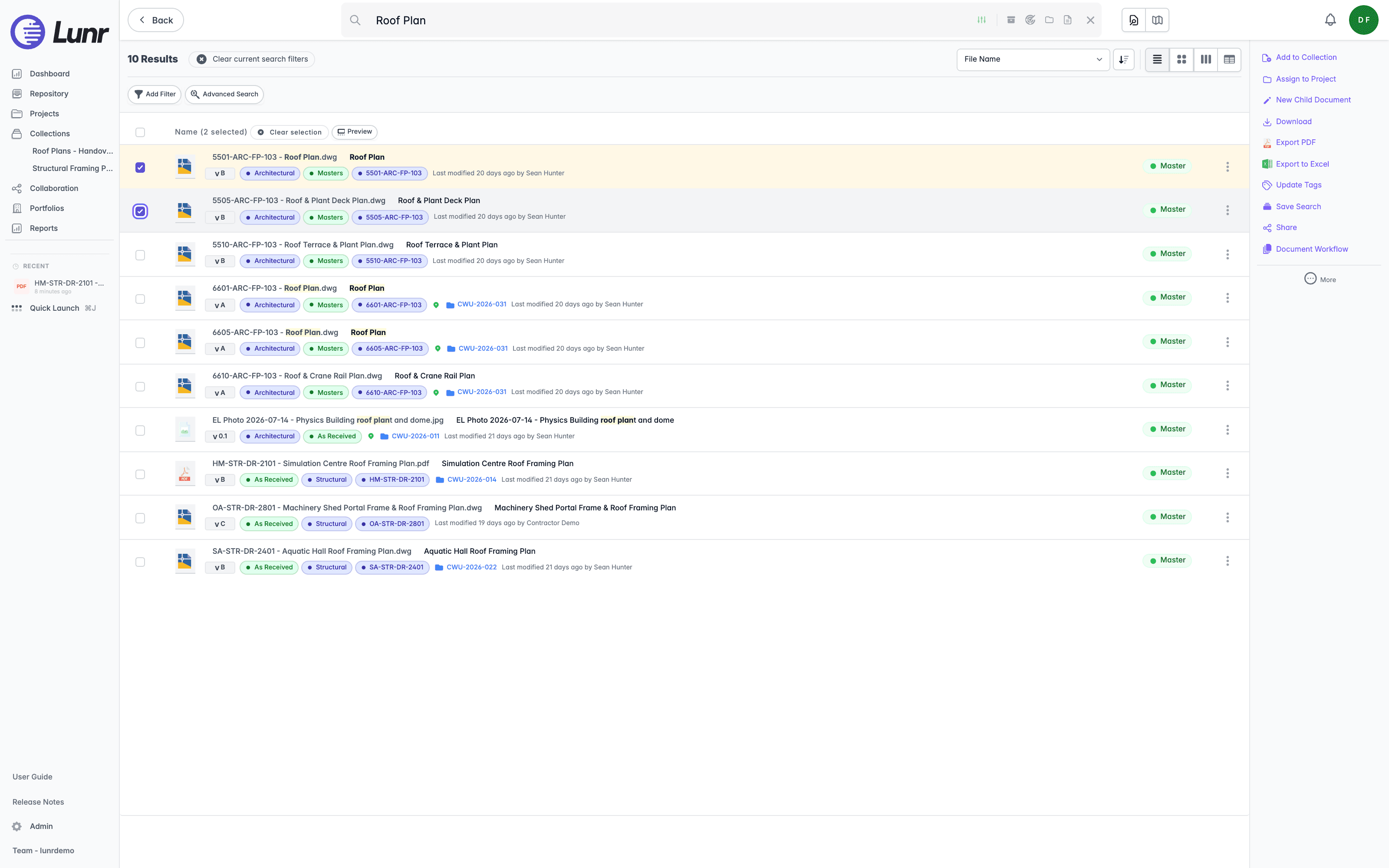
Documents whose preview is still being produced are left out of the batch and reported afterwards, while the rest proceed. Documents you do not have permission to move are reported as skipped rather than failing the whole batch.
A large batch runs in the background, with progress shown in the bar at the bottom of the app, reading "Transitioning N documents" while it runs, then finishing as "Transition executed", "Transition executed with issues", or "Transition failed". The summary that follows counts how many documents were transitioned, skipped, and failed.
Full Change Requests
Raise a Change Request on the full Change Request page, work through its reference documents by allocating new drawings and sheets or linking existing ones, and manage its folders, comments, and favourites.
Managing Projects
Create, upload, edit, archive, and delete projects, and manage who can reach a project and its documents through members, folder access, and roles.