Project Templates
Mark a project as a template to create other projects from it, learn exactly what is and is not copied to a new project, and understand the project number format that numbers projects created from a template automatically.
Overview
A project template is not a separate kind of object. It is an ordinary project with a flag set, created, edited, archived, and deleted through exactly the same screens as any other project. What makes it useful is that other projects can be created from it, copying across its folder structure, tags, and other settings so a new project starts in a consistent, ready-to-use state.
Project templates are disabled by default for your organisation and can be enabled by an administrator.
You cannot convert an existing project into a template, or turn a template back into an ordinary project. Decide whether a project is a template when you create it.
Creating a Template
Select the Create as Template box on the Create a project form, described as "Mark this project as a template that can be used to create other projects." Ticking it reveals a Project number format field, covered in The Project Number Format below.
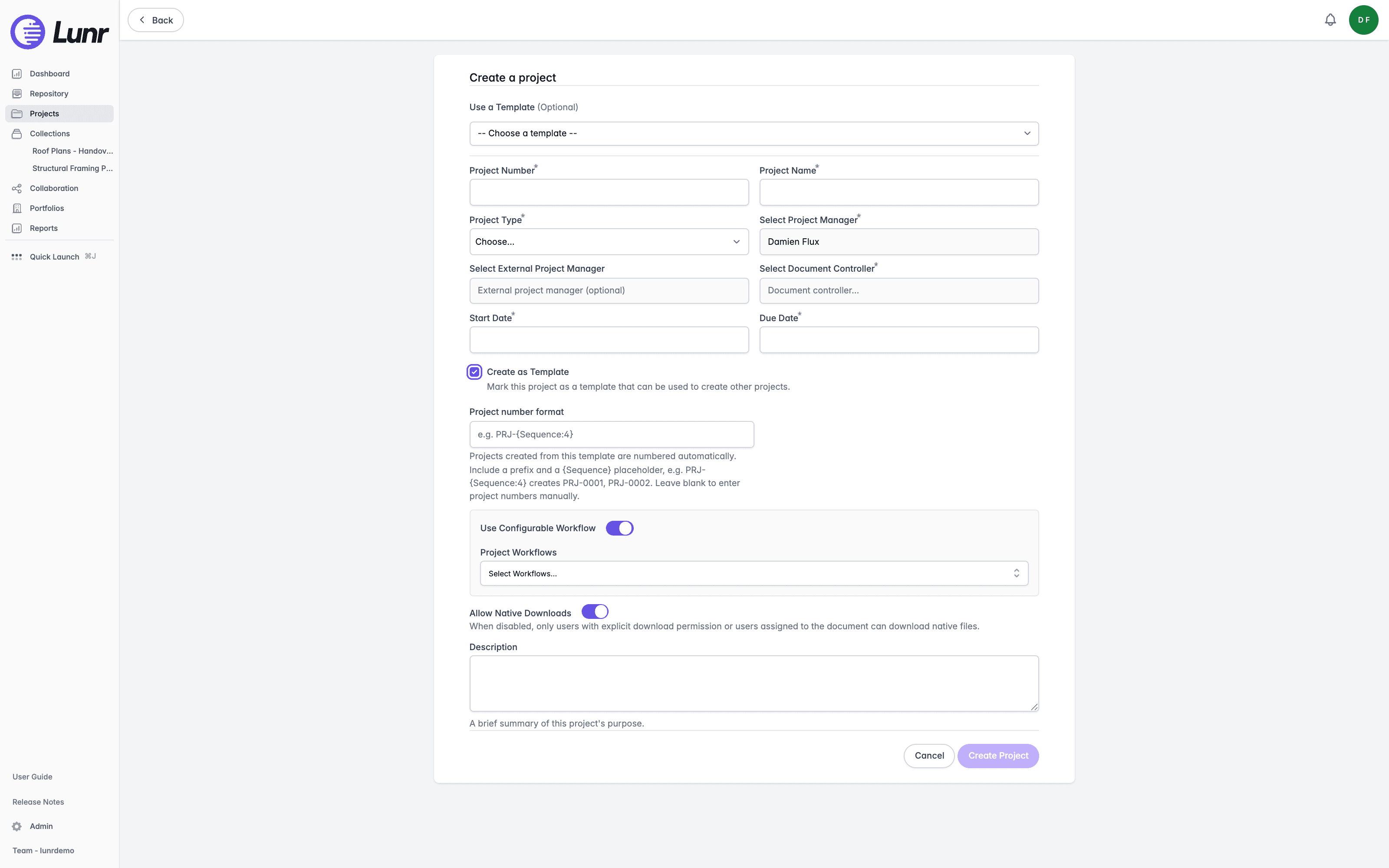
The template still needs its own project number entered by hand, in the ordinary Project Number field further up the form. The number format you set only applies to projects created from the template, not to the template itself.
Using a Template
Once at least one template exists, a Use a Template (Optional) dropdown appears at the top of the Create a project form, defaulting to "-- Choose a template --". Each entry shows the template's name followed by its number in brackets.
Choosing a template shows a Template Details card and replaces the Project Number field with a read-only box reading "Assigned automatically", followed by a worked example such as "(e.g. CWT-0001)" when the template's format contains a sequence placeholder. The Create as Template box disappears from the form, since a project created from a template cannot itself be a template.
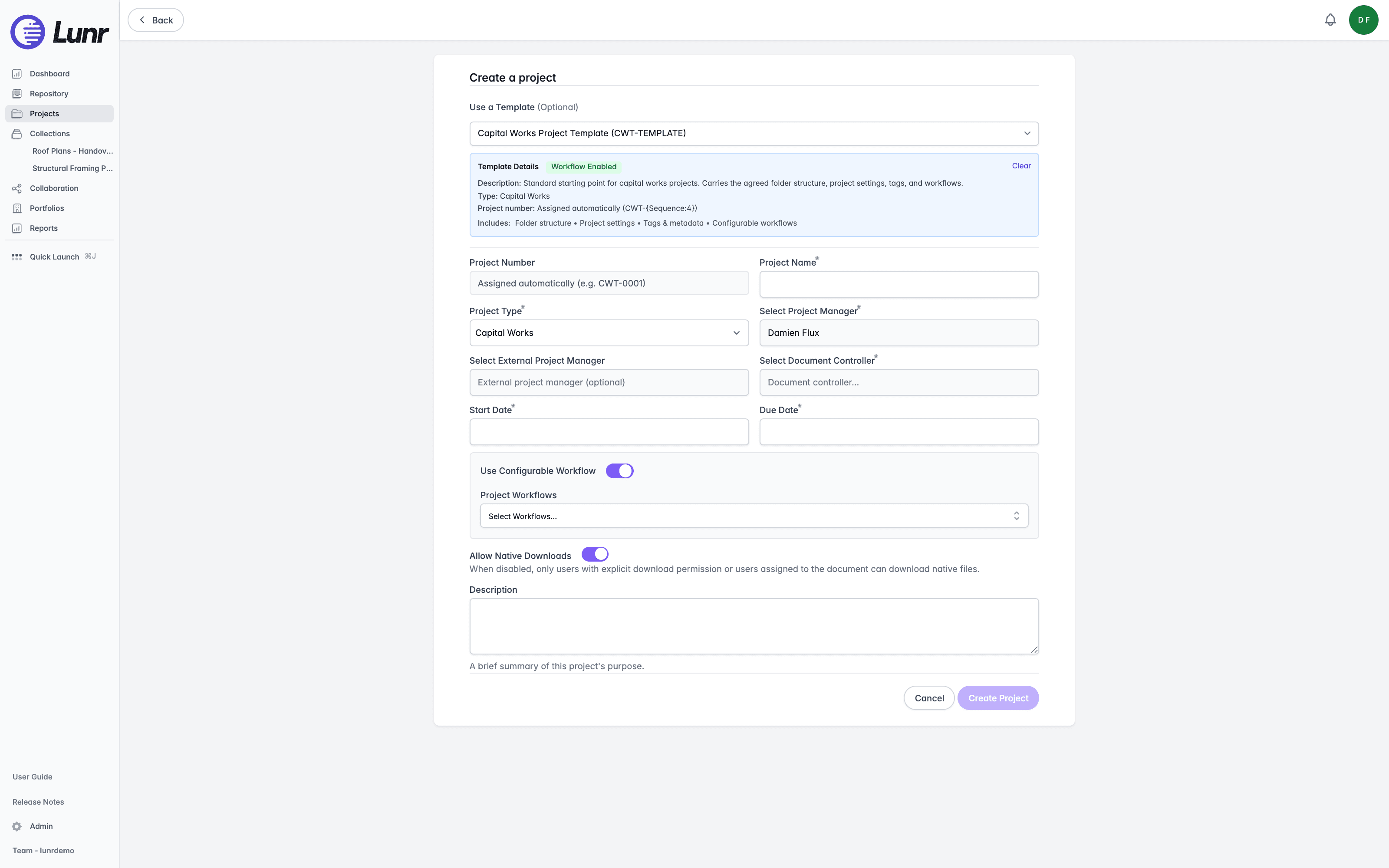
The Template Details card shows a Workflow Enabled or Workflow Disabled pill, followed by Description:, Type:, and Project number: lines, each shown only when the template has that value, and an Includes: line. A Clear link removes the selected template.
The Includes: line reads "Folder structure • Project settings • Tags & metadata • Configurable workflows" on every template. It is fixed text, not a summary of the specific template you chose, so do not rely on it to describe what a particular template will copy. See What Is and Is Not Copied below for the actual detail.
Selecting Clear only resets the Use a Template dropdown. Any values the template already copied onto the form, including the project type, tag values, and workflow selections, remain in place. Clearing a template does not undo them, so check the rest of the form after you clear a selection.
What Is and Is Not Copied
Creating a project from a template copies some things automatically, leaves others for you to fill in on the create form, and never brings some things across at all.
Copied From the Template
- The folder structure, including nesting, each folder's name, its default document type, and its configurable workflow setting.
- The project type.
- Project tags and their values, with one exception: a tag named Meridian Project Id is never copied.
- Checklist configuration. Any checklist set to attach automatically is created on the new project straight away, so a checklist can appear that you did not add yourself.
- The document repository. A template can only produce projects in its own repository.
You Supply These Yourself
- Project name, number, description, start date, due date, and status.
- Project manager, external project manager, and document controller.
- Workflows. The create form re-sends the template's workflow selections for you, but the server does not inherit them on its own.
Never Copied
- Documents. A template never brings files across.
- Members.
- The project number format itself, which belongs only to the template.
- The template flag. A project created from a template is never itself a template.
- Folder sharing and folder members.
Two behaviours are worth calling out because you would otherwise notice them and wonder why:
- Folders created from a template start closed rather than open. A folder you create manually defaults to open access, visible to everyone on the project. A folder copied from a template does not, so check folder sharing on a new project if you expect the whole team to see its folders.
- No project role is created when you use a template, even if your organisation normally creates one when you create a project. The role creation step is skipped on the template path.
The Project Number Format
The Project number format field controls how Lunr numbers projects created from a template.
- The syntax is
{Sequence}or{Sequence:N}, whereNis the number of digits to pad to. Exactly one{Sequence}placeholder is required, alongside whatever prefix text you want, for examplePRJ-{Sequence:4}. - Default padding is 4 digits.
- The finished project number cannot exceed 20 characters.
- Leave the field blank to keep entering project numbers by hand on projects created from the template.
- Two templates that use exactly the same format share one counter, even across different document repositories, because the counter is keyed on the format text itself.
- If a number the format would produce is already taken, Lunr skips past it and uses the next free one.
- Once a template has a format, anything you type into the project number field on the create form is discarded. The server assigns the number.
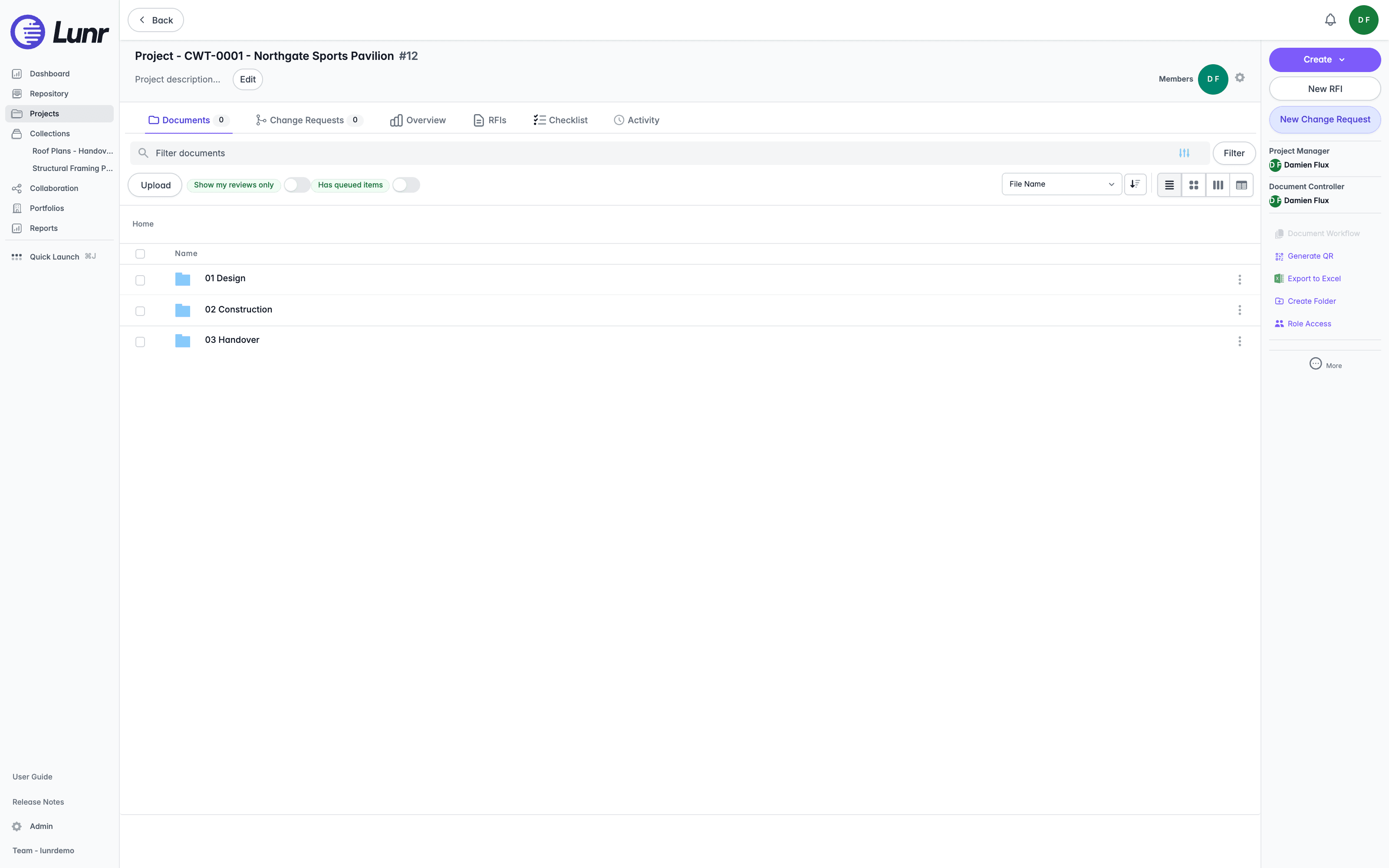
For example, a template with the format CWT-{Sequence:4} produces CWT-0001 on the first project created from it, then CWT-0002, and so on.
Where Templates Appear
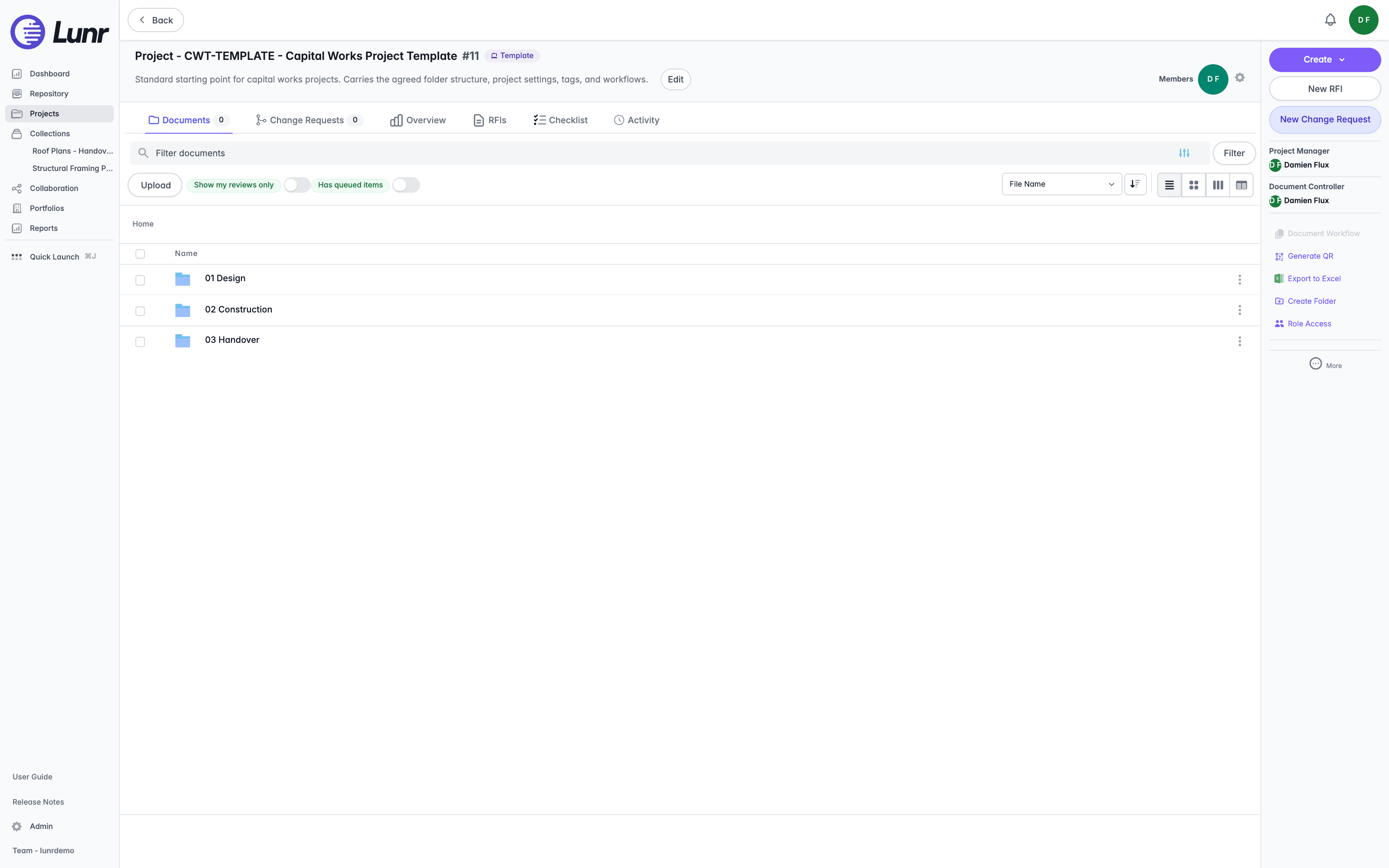
A purple Template pill appears beside the project name in the project header and in the projects list, so you can tell a template apart from an ordinary project at a glance.
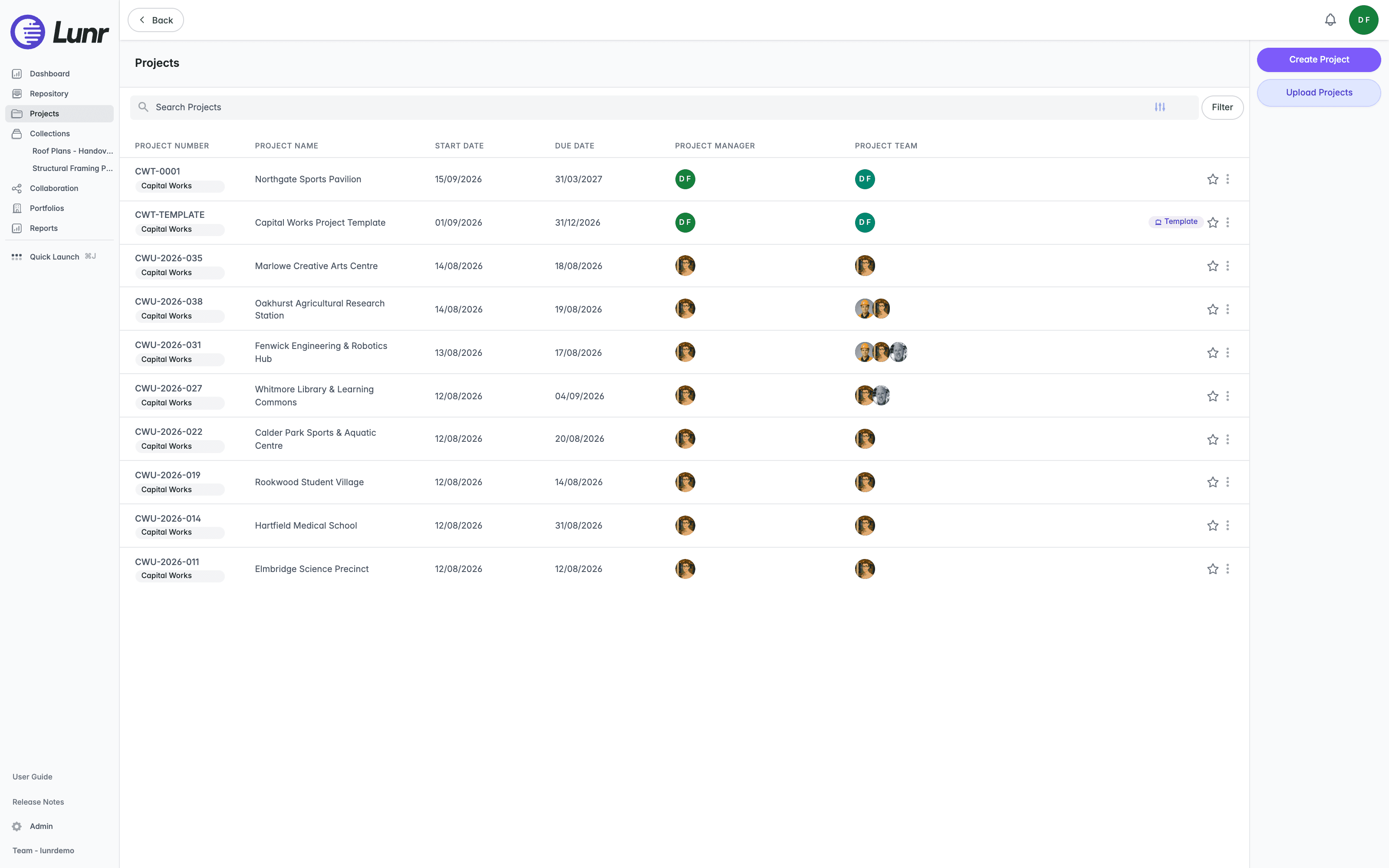
Templates are hidden from the projects list by default. Select the Include templates box in the filter panel, described as "Include project templates in the results.", to see them alongside your ordinary projects. An Include Templates badge then appears with the other applied filters.
The project created from a template carries none of this: no Template pill, and no record visible anywhere in Lunr of which template it came from.
Editing a Template
Select Edit from a template's Options menu in the projects list, opened by selecting the three dots at the end of its row, to open the Edit project form, the same form used for any other project, requiring the Manage Projects access right. A template's edit form carries one extra field that an ordinary project's does not: Project number format. Everything else on the form is the same as editing an ordinary project.
The checklist block on a template's edit form notes that its checklists "are copied to every project created from this template."
Managing Projects
Create, upload, edit, archive, and delete projects, and manage who can reach a project and its documents through members, folder access, and roles.
Introduction
The Collections area gathers documents from across projects and folders into a named list, a dynamic Saved Search, or a Scene, covering the landing page, searching and filtering, the Options menu, and favourites.