Navigation
Move around Lunr from the sidebar, covering its entries and groups, favourite projects and collections, the Recent list, Quick Launch, the footer buttons, and collapsing the sidebar to an icon rail.
Overview
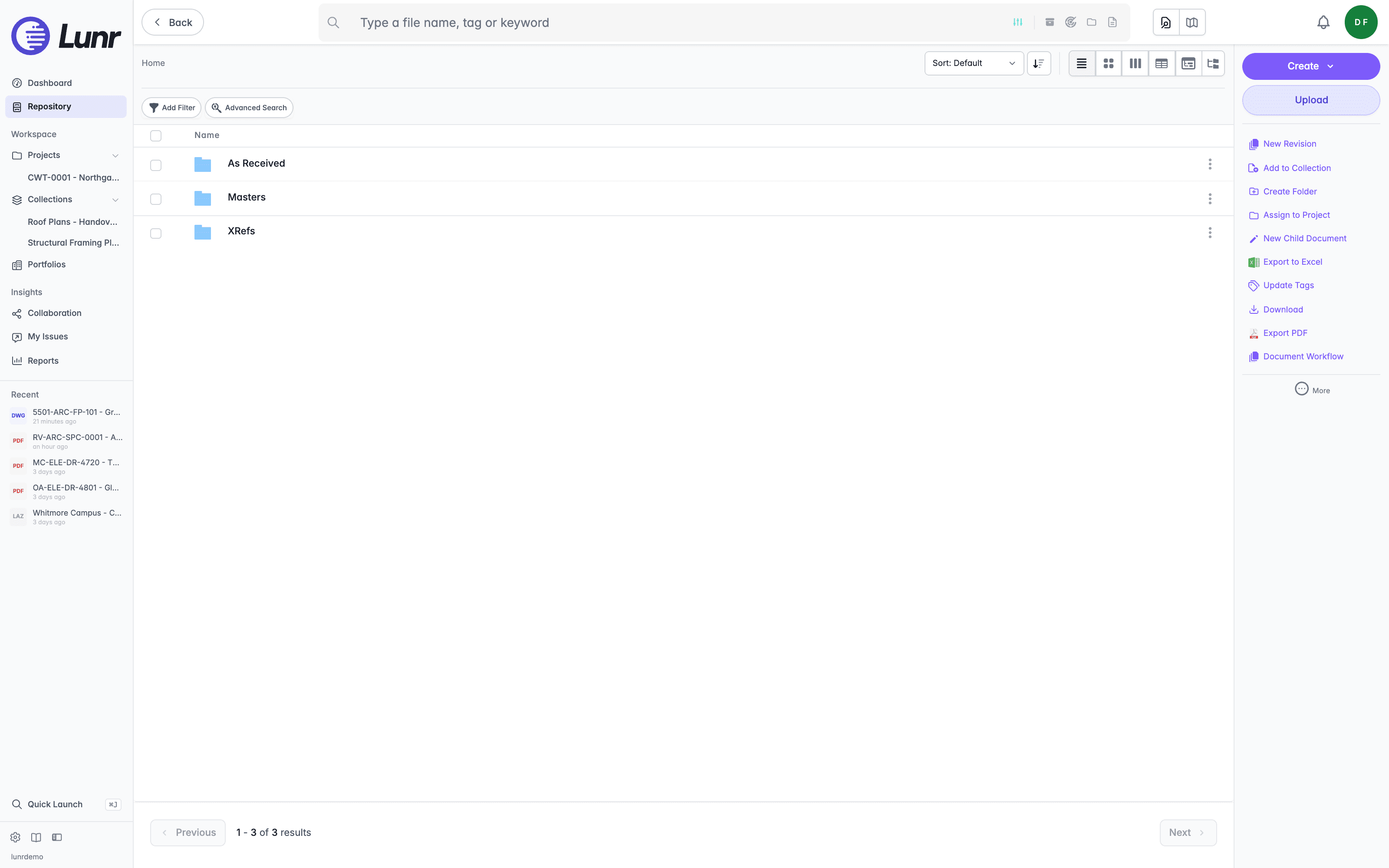
The sidebar down the left of the window is the main menu. It stays in view as you move between the areas of Lunr, so any area is one selection away. Select the Lunr logo at the top to open the repository from anywhere.
Your avatar at the top right opens the avatar menu, which holds your profile, downloads, and reminders, as well as Release Notes and the version of Lunr you are running.
Entries
Two entries sit at the top of the sidebar, followed by two groups.
| Entry | What it opens | When it appears |
|---|---|---|
| Dashboard | The Dashboard | Where your organisation has the dashboard enabled |
| Repository | The document repository | Always |
The Workspace group holds the places where you organise work.
| Entry | What it opens | When it appears |
|---|---|---|
| Projects | The projects list | Always |
| Collections | Your collections, saved searches, and scenes | Always |
| Portfolios | Your organisation's assets and locations as a hierarchy | Always |
The Insights group holds the places where you follow what is happening.
| Entry | What it opens | When it appears |
|---|---|---|
| Collaboration | Shares, Change Requests, and RFIs | Always |
| My Issues | Your coordination issues | Where your organisation has issues enabled and you are allowed to view them |
| Reports | The reports | Where your organisation allows you to use reports |
The entry for the area you are in is highlighted.
Favourites
Favourite projects and favourite collections appear beneath Projects and Collections once you have any. Select one to open it.
A chevron beside Projects or Collections hides or shows its favourites. The sidebar remembers which lists you have hidden. To add a favourite, see Favouriting Projects and Favouriting Collections.
The Recent List
The Recent list shows the documents you opened most recently, each with its file type, name, and how long ago you opened it. Select one to open it again. Select Clear history to empty the list.
To hide the list, use the preferences described in Your Profile. See also Recent Documents.
Quick Search and Quick Launch
Two search tools sit near the bottom of the sidebar.
- Quick Search starts a search from tag values. It appears only where your organisation has marked tags to show there. See Quick Search.
- Quick Launch jumps straight to a document, project, or Change Request. Select the button, or press Ctrl+J (Cmd+J on a Mac). See Quick Launch.
Footer Buttons
A row of icon buttons at the foot of the sidebar gives you quick access to a few extras. Hover over a button to see its name.
- Admin opens the administration area. It appears only where you have been given access to administration.
- Help opens the help page, where your organisation provides one.
- User Guide opens this guide in a new tab.
- Collapse Sidebar narrows the sidebar, as described below. When it is narrow, the same button reads Expand Sidebar.
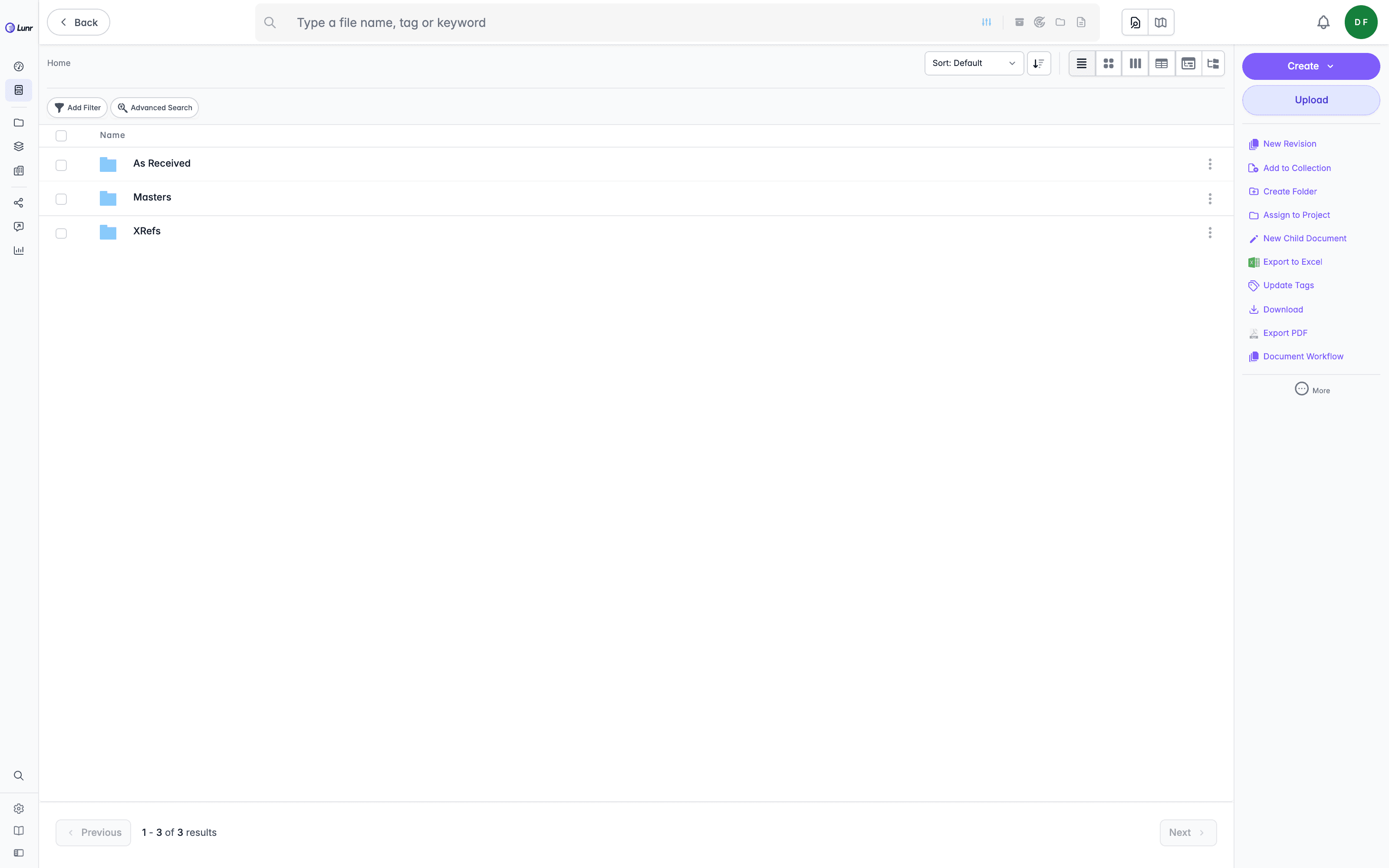
Collapsing the Sidebar
Collapse the sidebar to give the content more room. Press Ctrl+B (Cmd+B on a Mac), or select Collapse Sidebar. Press the shortcut again, or select Expand Sidebar, to restore it.
A collapsed sidebar is a narrow icon rail. Each entry shows only its icon, and its name appears when you hover over it. The favourites, the Recent list, and Quick Search are hidden while the rail is narrow, and Quick Launch and the footer buttons stay available as icons.
The shortcut does not work while you are typing in a text field or an editor, so Ctrl+B still makes text bold where you are writing. The sidebar remembers your choice for your account in the browser you are using, and it does not follow you to another browser.
Signing In
Sign in to Lunr with single sign-on or a Lunr username and password, work through multi-factor authentication and lockouts, reset a forgotten password, and understand how long a session lasts.
Notifications
Follow the work waiting on you from the notification centre, covering the Your Work shortcuts and the My Documents, My Reviews, My Change Requests, and Document Queue lists they open, the Activity and Mentions views, and the full notifications list.