Signing In
Sign in to Lunr with single sign-on or a Lunr username and password, work through multi-factor authentication and lockouts, reset a forgotten password, and understand how long a session lasts.
Signing In to Your Lunr Organisation
Open a browser and navigate to https://documents.lunr.app.
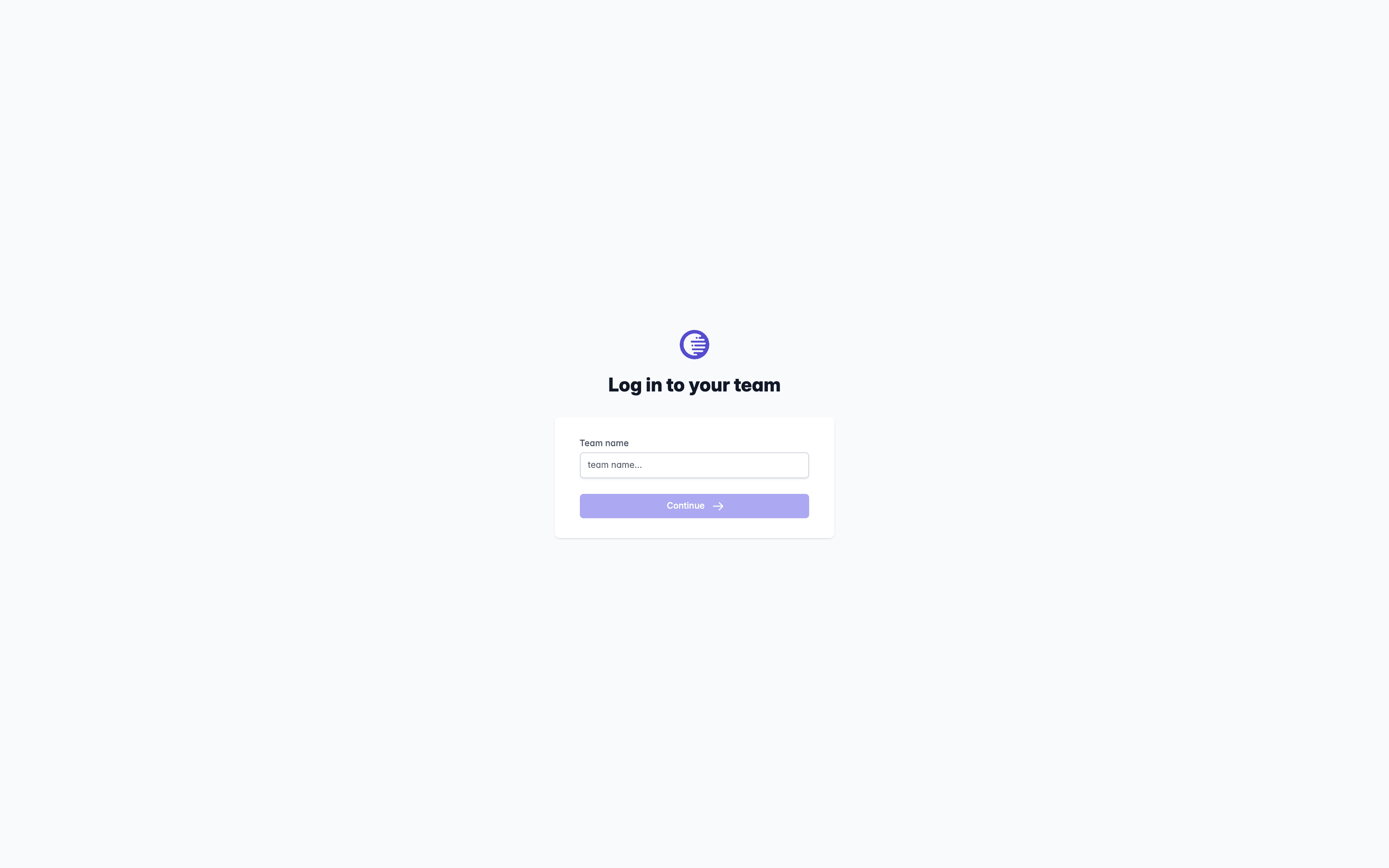
The first screen is headed "Log in to your team". Enter your organisation's team name in the Team name field and select Continue. This points the app at your organisation's own Lunr address.
The next screen reads "Log in to team" followed by your team name in brackets. What appears depends on how your organisation is set up:
- Single sign-on. Select a button reading Sign in with followed by your provider's name, for example "Sign in with Microsoft".
- A Lunr username and password. Enter your details into the User name and Password fields, then select Login. If you have forgotten your password, select Forgot your password?.
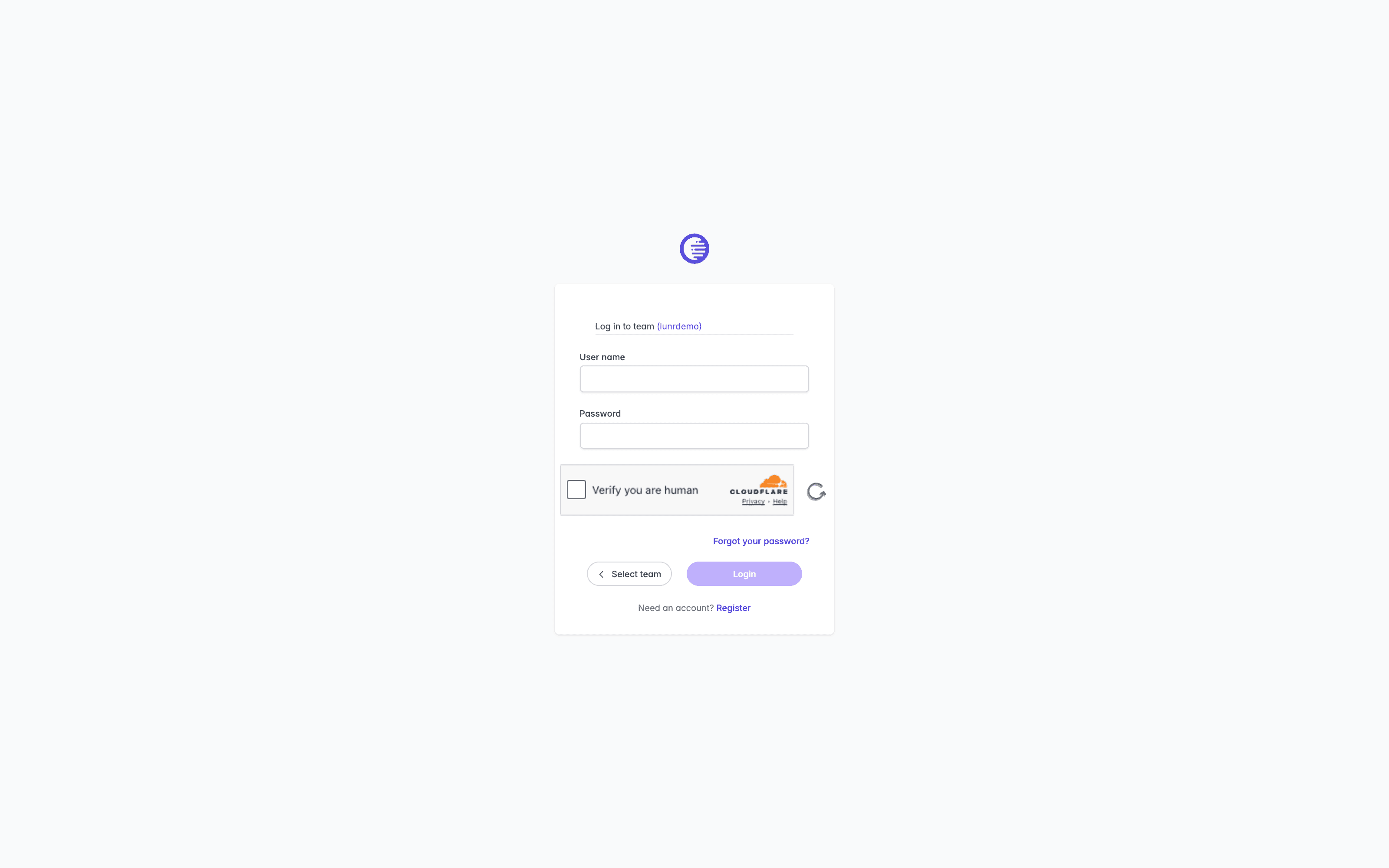
Select Select team to go back and choose a different team. Doing this signs you out first, so only use it if you meant to change teams.
If you do not yet have an account, most Lunr accounts arrive by invitation from your administrator. Where your organisation allows self-registration, a "Need an account?" line with a Register link also appears on this screen.
Multi-Factor Authentication at Sign-In
If your organisation requires multi-factor authentication, a further screen headed "Log in to Lunr" asks for a six-character code. The instructions change with your method: "Open your authenticator app to view the authentication code." or "A one-time authentication code was sent to your email address." See Multi-Factor Authentication on the avatar menu page for how the two methods work and how to configure one.
Getting Locked Out
Five failed sign-in attempts in a row lock your account for 15 minutes. An incorrect multi-factor code counts towards this total the same as an incorrect password. While locked out, Lunr shows "This user account has been locked out. Please reset the password or contact administrator to have this account re-enabled for login." Both you and the support team are emailed when a lockout happens.
Resetting your password clears the lockout immediately, so you do not have to wait out the 15 minutes.
Passwords
The password reset screen shows a checklist headed "Password must contain:" Satisfy every rule on the list and Lunr accepts your new password:
- At least 10 characters
- At least 1 digit
- At least 1 lower case letter
- At least 1 upper case letter
- At least 2 unique characters
- At least 1 non-alphanumeric character
Resetting a Forgotten Password
Select Forgot your password? on the sign-in screen and enter your email address. Lunr shows "Password reset link sent." Check your email inbox and follow the link to choose a new password.
If you sign in with single sign-on, you cannot reset a Lunr password. Your password lives with your identity provider, and Lunr refuses the attempt.
Staying Signed In
Your session renews itself quietly while you are using Lunr, so you are not signed out just for being idle for a while. When your session eventually expires, Lunr returns you to the sign-in screen.
About Lunr
Understand how a Lunr environment fits together, from your team down through repositories, documents, and versions, and how projects, tags, access rights, and workflows govern the content held inside it.
Notifications
Follow the work waiting on you from the notification centre, covering the Your Work shortcuts and the My Documents, My Reviews, My Change Requests, and Document Queue lists they open, the Activity and Mentions views, and the full notifications list.