Notifications
Follow the work waiting on you from the notification centre, covering the Your Work shortcuts and the My Documents, My Reviews, My Change Requests, and Document Queue lists they open, the Activity and Mentions views, and the full notifications list.
The Notification Centre
Select the bell at the top right to open the notification centre. A count appears on the bell when items need your attention, and reads "99+" once the count passes 99.
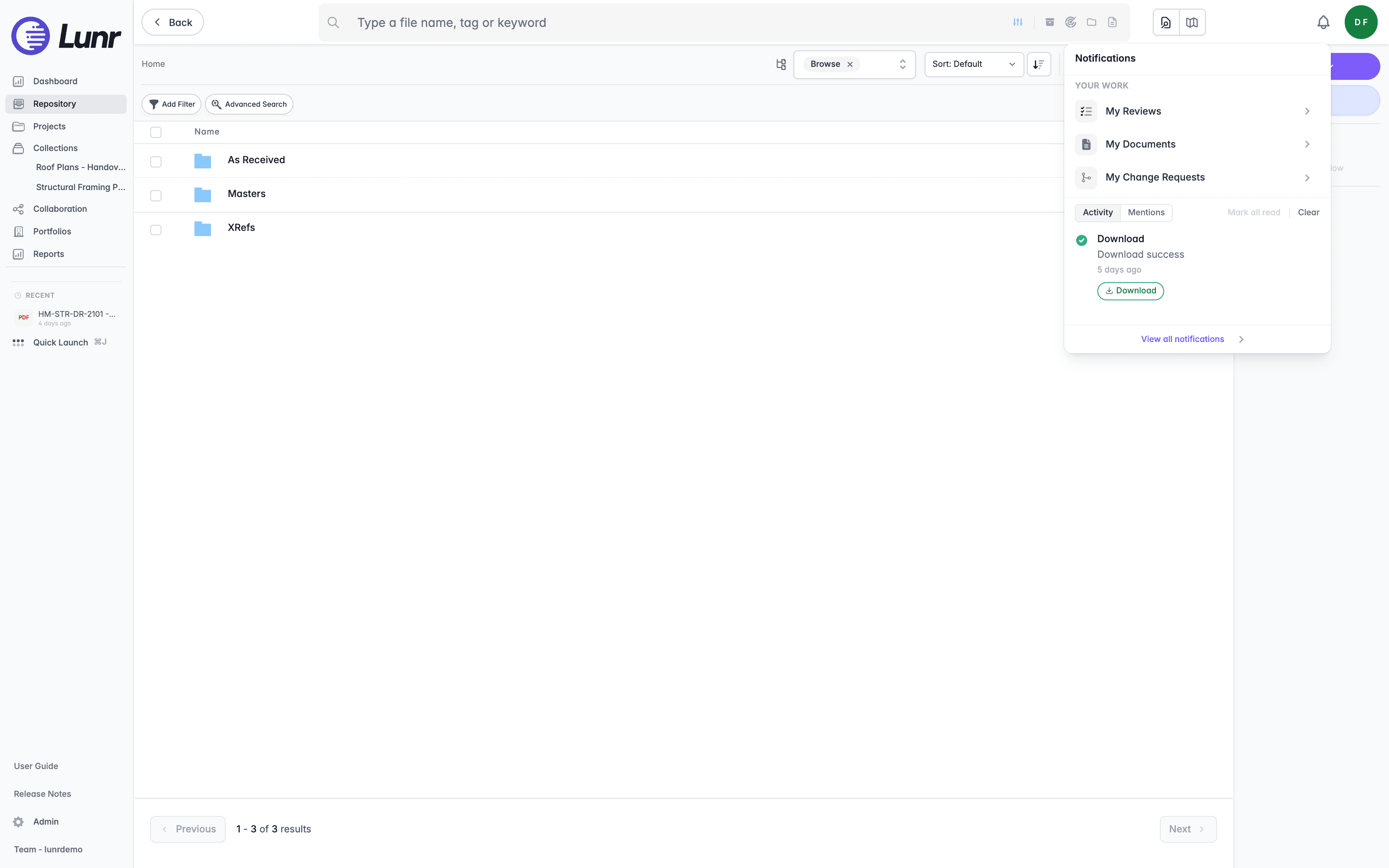
To hide the count on the bell, enable Disable notification badge in your Preferences. The notifications themselves are unaffected.
Your Work
The top of the panel lists shortcuts to the work waiting on you, each with its own count: My Reviews, My Documents, and My Change Requests. A Document Queue entry joins them when you can reach the document queue. Select any entry to open its full list, each described below. These lists are not in the main menu, so the notification centre is the way in.
Where you can reach more than one repository, a This repository only toggle limits these counts to the repository you are working in.
My Documents
My Documents holds the documents assigned to you. Enter a term in the Filter documents field to narrow the list by name.
Select Filter to open a panel offering Document Workflow Status, which limits the list to one state: Approval, Approved, Archived, Drafting Changes, Master, Pending Archive, Pending Publish, Rejected, Retired, or Uploaded. Select Ok to apply it, or Cancel to leave the list as it was.
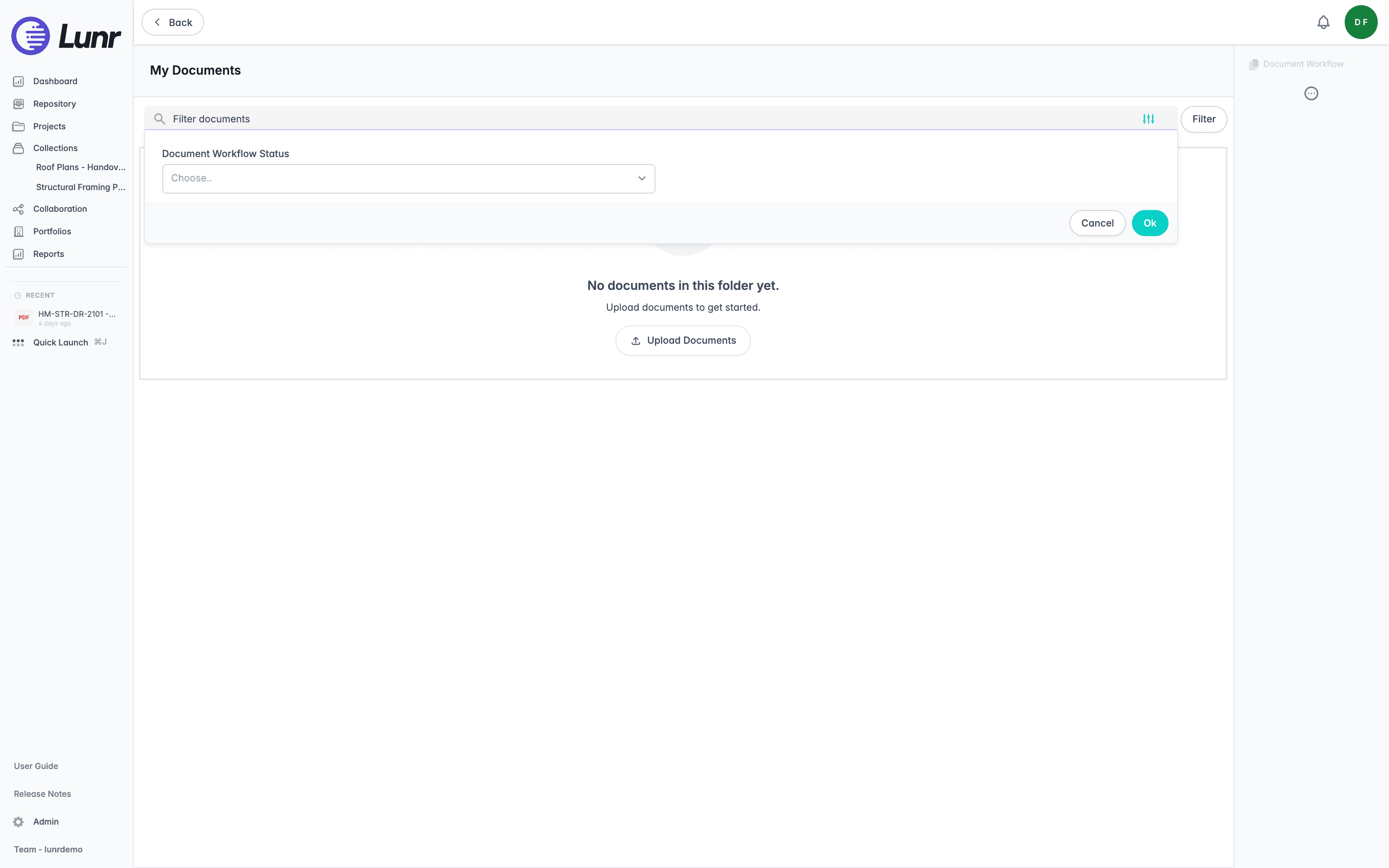
The Action Pane offers Document Workflow for moving the documents you select through their workflow, and More for the same grouped actions described in Document Actions. Export to Excel downloads the list as a spreadsheet, and covers every document in the list rather than only the page on screen.
With nothing assigned to you, the list reads "No documents in this folder yet." and "Upload documents to get started.", alongside an Upload Documents button.
My Reviews
My Reviews holds the documents waiting on your review. It takes the same shape as My Documents, with a Filter documents field, the same Filter panel of workflow states, the same Action Pane actions, and the same Export to Excel.
The difference is what fills it. My Documents answers what is assigned to you, while My Reviews answers what is waiting for your decision.
My Change Requests
My Change Requests is headed "Review and act on change requests assigned to you. Use the search box and advanced filters below to narrow the list."
Two options sit at the top, both enabled by default:
- Only show reviews assigned to me hides change requests that are not yours.
- Limit to requests currently in review hides those that have moved past review.
Clear either one to widen the list.
Below them, enter a term in the Search change requests field, or select Filter to open a panel offering Assignee, which is prefilled with your own name. Select Export to download the list as a spreadsheet. Order the list with Sort By, choosing Sort: ID or Sort: Subject, and reverse the direction with the sort control beside it.
An Applied Filters panel on the right lists what is currently narrowing the list as separate entries, for example Assignee: You, My reviews only, and In review. Select Clear filters to drop them all at once and see every change request assigned to you.
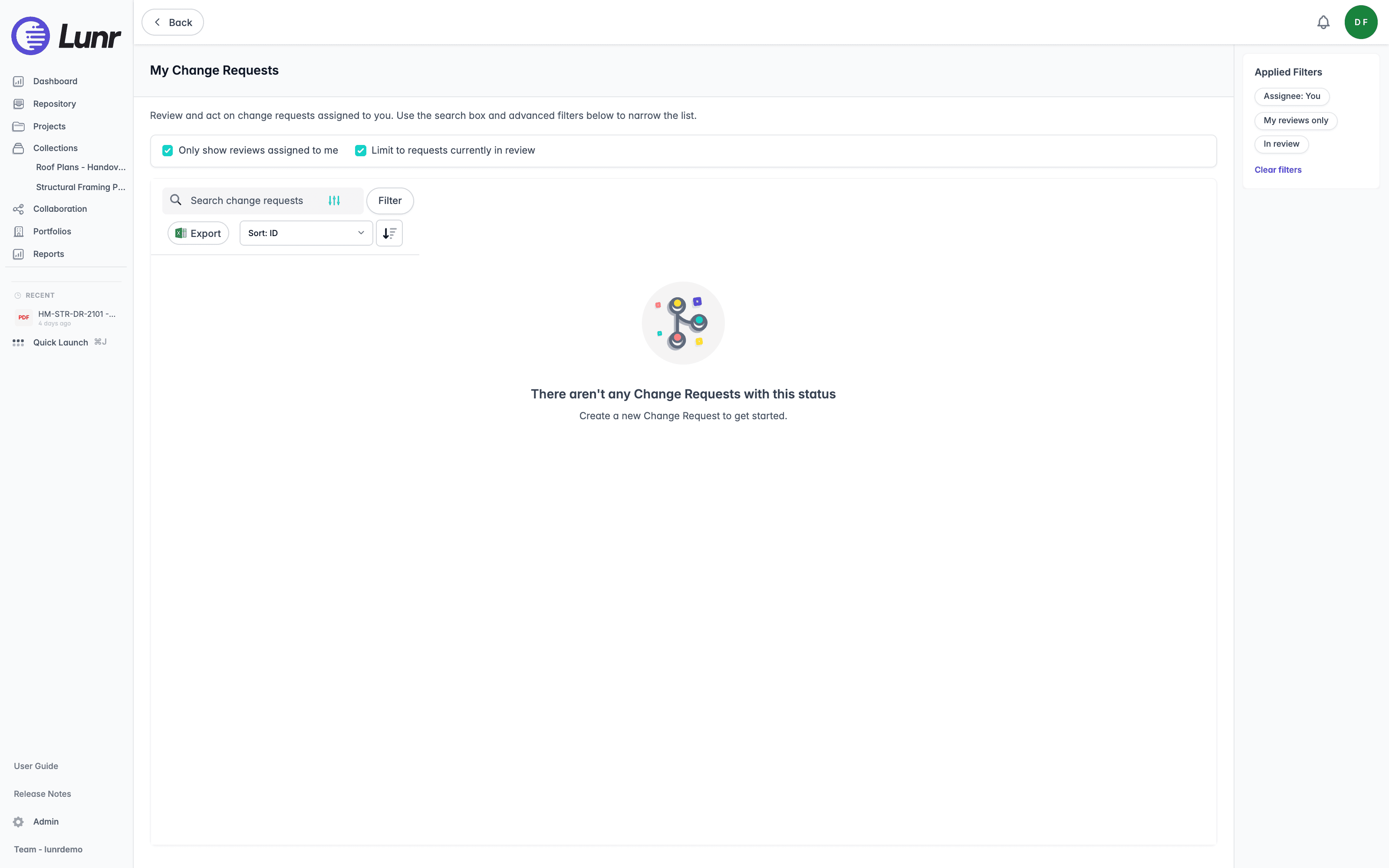
With nothing matching, the list reads "There aren't any Change Requests with this status" and "Create a new Change Request to get started."
See Change Requests for what a change request is and how to work one through.
Document Queue
The Document Queue holds change requests waiting to start on parent documents, so you can see what is queued behind something else and the order it will run in. The page is headed Document Queue with "Change requests waiting to start on parent documents." beneath it, and Refresh re-reads the queue.
Reaching it needs the View Document Queue access right. Without it the page reads "No access to the document queue" and "You don't have permission to view the document queue. Contact your administrator if you need access."
Narrow the queue with the Filename and CR ID or number fields and a status choice of All statuses, Ready, or Blocked. Order it with Sort: Queue order or Sort: Longest waiting.
Each row shows its position in the queue, the Document, the Change Request, a Status, and the Queued date. A Ready item is clear to start. A Blocked item names what is holding it up, either the blocking change request number or the sibling file that has it locked.
The Manage Document Queue access right adds a project filter, paging, and an Actions column carrying Move up in queue, Move down in queue, and Manage queue. The move actions are unavailable at the top and bottom of the queue.
When the queue is empty it reads "No queued change requests". When your filters exclude everything it reads "No matching queued items" and "No queued items match the current filters." If the queue fails to load it reads "Couldn't load the queue" alongside a Retry button.
A Document Queue tile showing the same queue can also sit on the Change Request Dashboard.
Activity and Mentions
Below the shortcuts, choose Activity or Mentions.
- Activity gathers work Lunr has finished for you, such as completed bulk actions and downloads. Each entry shows when it happened, and an entry that produced a file carries a Download button. With nothing to show it reads "No recent activity" and "Completed bulk actions and downloads will appear here."
- Mentions gathers everywhere a colleague has mentioned you with @. With nothing to show it reads "No mentions yet" and "When someone @mentions you, it will appear here." Select Load more... to fetch older mentions.
Mark all read marks everything in the view you are on as read, and is unavailable when nothing is unread. Clear empties the activity list and appears on Activity only.
Viewing All Notifications
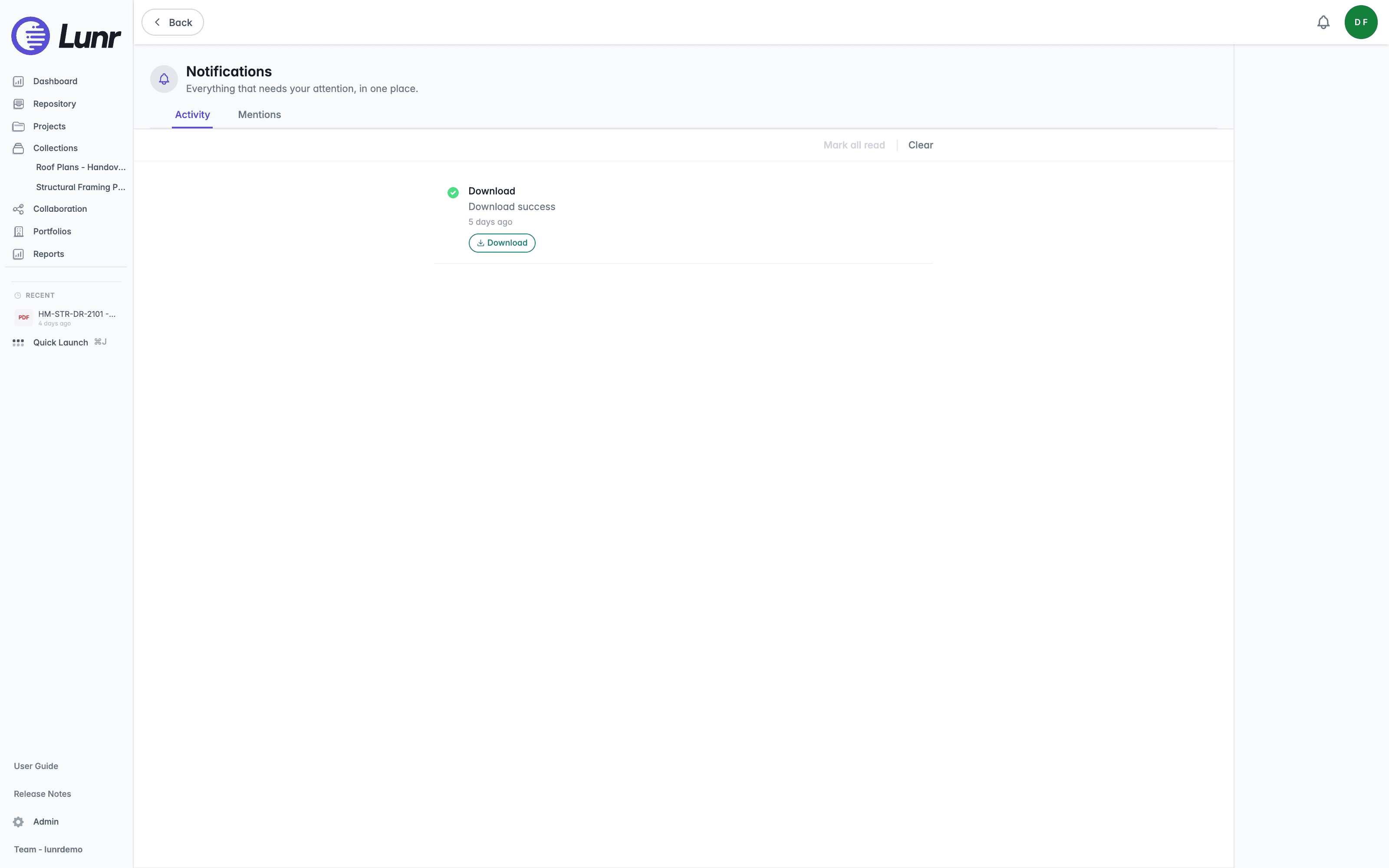
Select View all notifications at the foot of the panel to open the full Notifications page, headed "Everything that needs your attention, in one place." It carries the same Activity and Mentions views, with Mark all read and Clear.
Signing In
Sign in to Lunr with single sign-on or a Lunr username and password, work through multi-factor authentication and lockouts, reset a forgotten password, and understand how long a session lasts.
The Avatar Menu
Open the avatar menu to reach your profile, downloads, reminders, and repository picker, follow the reminders waiting on you, switch between repositories, and manage your photo, contact details, multi-factor authentication, and preferences.