Introduction
The Collections area gathers documents from across projects and folders into a named list, a dynamic Saved Search, or a Scene, covering the landing page, searching and filtering, the Options menu, and favourites.
Overview
The Collections area gathers documents from across projects and folders so you can return to them, share them, download them, or act on them as a group. Select Collections in the main menu to open it. Collections cut across the repository hierarchy rather than sitting inside it, and removing a collection never removes the documents inside it.
A collection comes in one of three types.
- A Collection is a named, user-curated list of documents. See Collections.
- A Saved Search stores a search query rather than a list of documents, so its results change as documents are added to or removed from the repository. See Saved Searches.
- A Scene is a set of 3D documents that open together as toggleable layers in the 3D viewer. See Scenes.
The Collections Landing Page
Select Collections in the main menu to see every collection you have access to. Each row shows the collection name, its reference number, prefixed with "Reference #", a calendar icon with the creation date and creator, type and sharing icons, a star, and an Options menu. What that menu offers depends on the type, covered under Collections, Saved Searches, and Scenes.
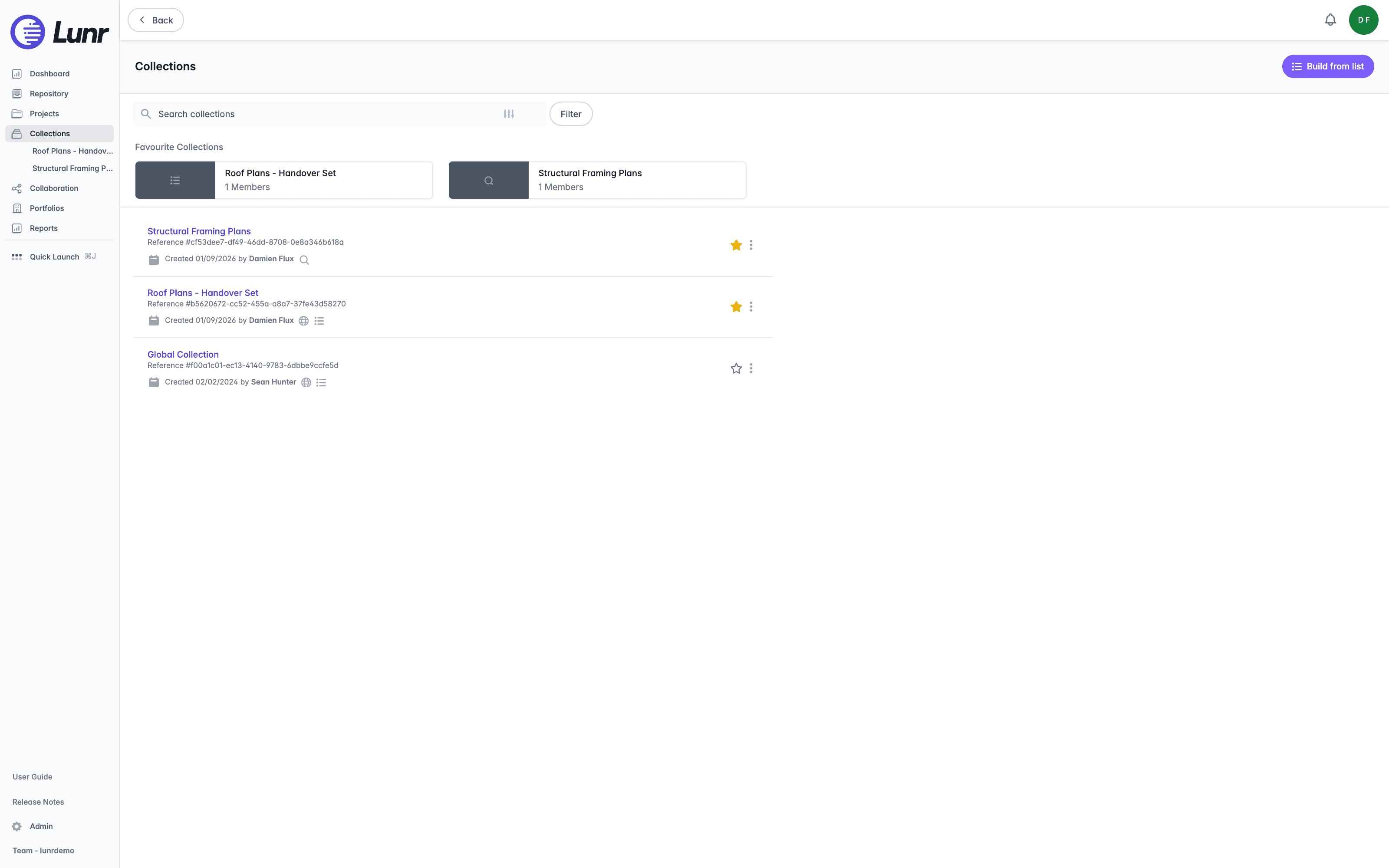
The type and sharing icons carry tooltips: a globe reads Shared with your Lunr team members, a list icon reads List for an ordinary collection, a magnifying glass reads Saved Search, and a cube reads Scene. The list holds 20 collections per page.
Searching and Filtering Collections
Enter part of a collection name in the Search collections field. The search matches the collection name only, and it is not case sensitive. Select the sliders icon inside the field to open the filter panel.
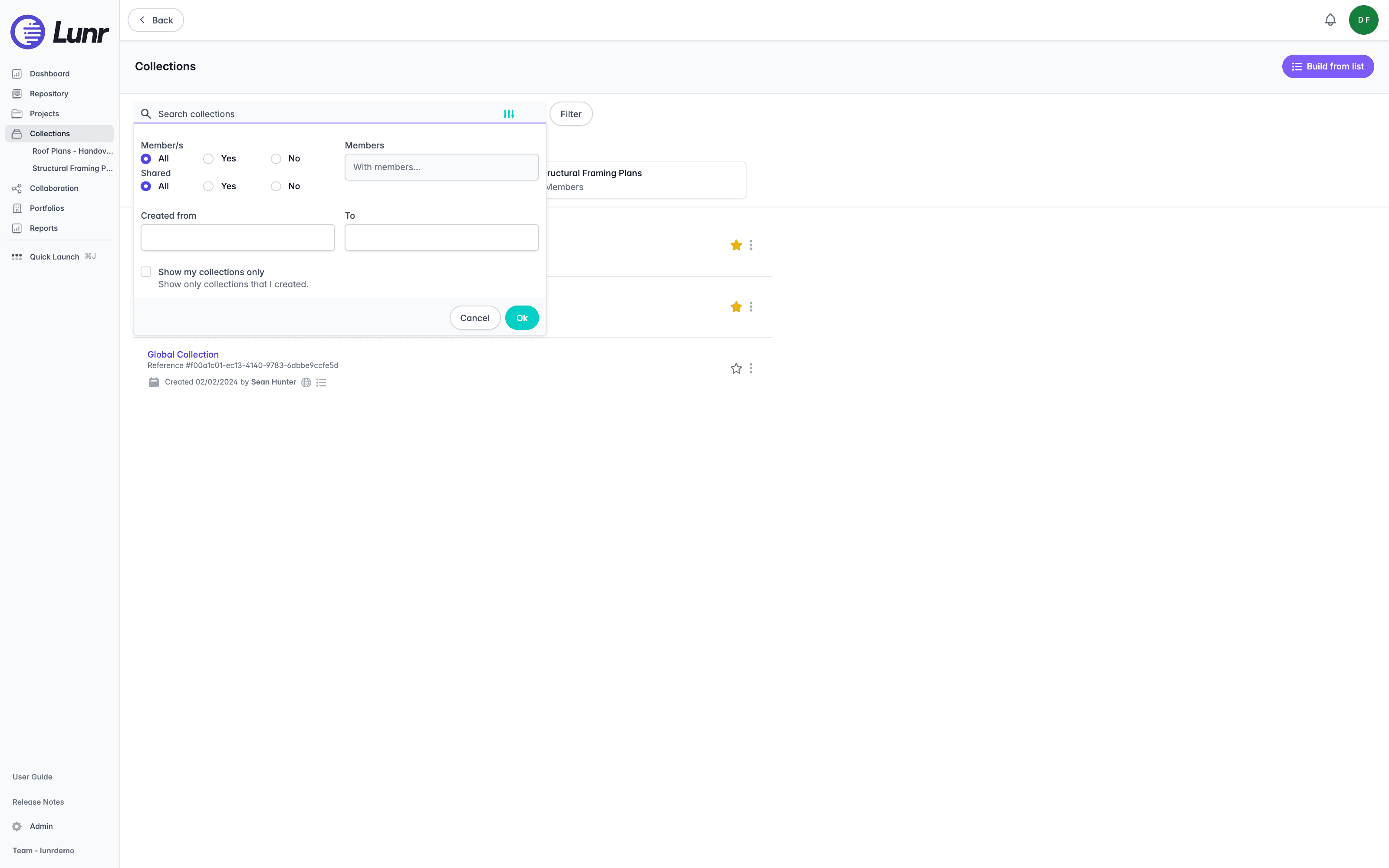
The filter panel provides options for selecting Member/s and Shared collections, each offering All, Yes, and No. It also has a Members field to find collections shared with a specific person, Created from and To date fields, and a Show my collections only box ("Show only collections that I created."). Select Ok to apply your filters, or Cancel to discard them. Applied filters appear as removable pills, including a Clear current search filters pill and badges such as Created followed by your date range, Has Member/s, Is Shared, and Has member followed by the person's name.
Favouriting Collections
Select the star on a row to favourite a collection. Its tooltip reads "Favourite this collection" and switches once starred. The star appears on the Collections page only, not inside the collection itself, and favouriting needs no more access than you already have to view the collection.
Favourited collections appear in a Favourite Collections strip above the search field, each card showing an icon for its type and sharing state, the name, and a member count. The same favourites are nested under Collections in the main menu, limited to the first five.
Project Templates
Mark a project as a template to create other projects from it, learn exactly what is and is not copied to a new project, and understand the project number format that numbers projects created from a template automatically.
Collections
Create a Collection from search results or from a list of document ids, view and filter its documents, use the Action Pane, share it with users, groups, or everyone, generate a QR code, and delete it.