Scenes
A Scene is a collection of 3D documents that open together as toggleable layers in the 3D viewer, covering how to create one, the scene editor, layer order, opacity and colour, and converting between a Collection and a Scene.
Overview
A Scene is a collection of 3D documents that open together as toggleable layers in the 3D viewer, so you can read several models against each other rather than one at a time. It carries a cube icon on the Collections page.
Opening the scene itself is covered with the viewers, in BIM Models and Point Clouds.
Creating a Scene
Narrow down the 3D documents you want using the search or filter tools on the search results page, the main repository, or inside a project. Select them with the row selection boxes, then select Add to Collection in the Action Pane.
- In the Collection field, enter a name for the scene. A list of matching existing collections appears as you type.
- Keep typing a name that does not exist to see the Add new collection hint, which confirms you are creating something new rather than adding to an existing collection.
- Under Collection type, choose Scene ("3D documents that open together as toggleable layers in the 3D viewer.") rather than Collection.
- Select Save.
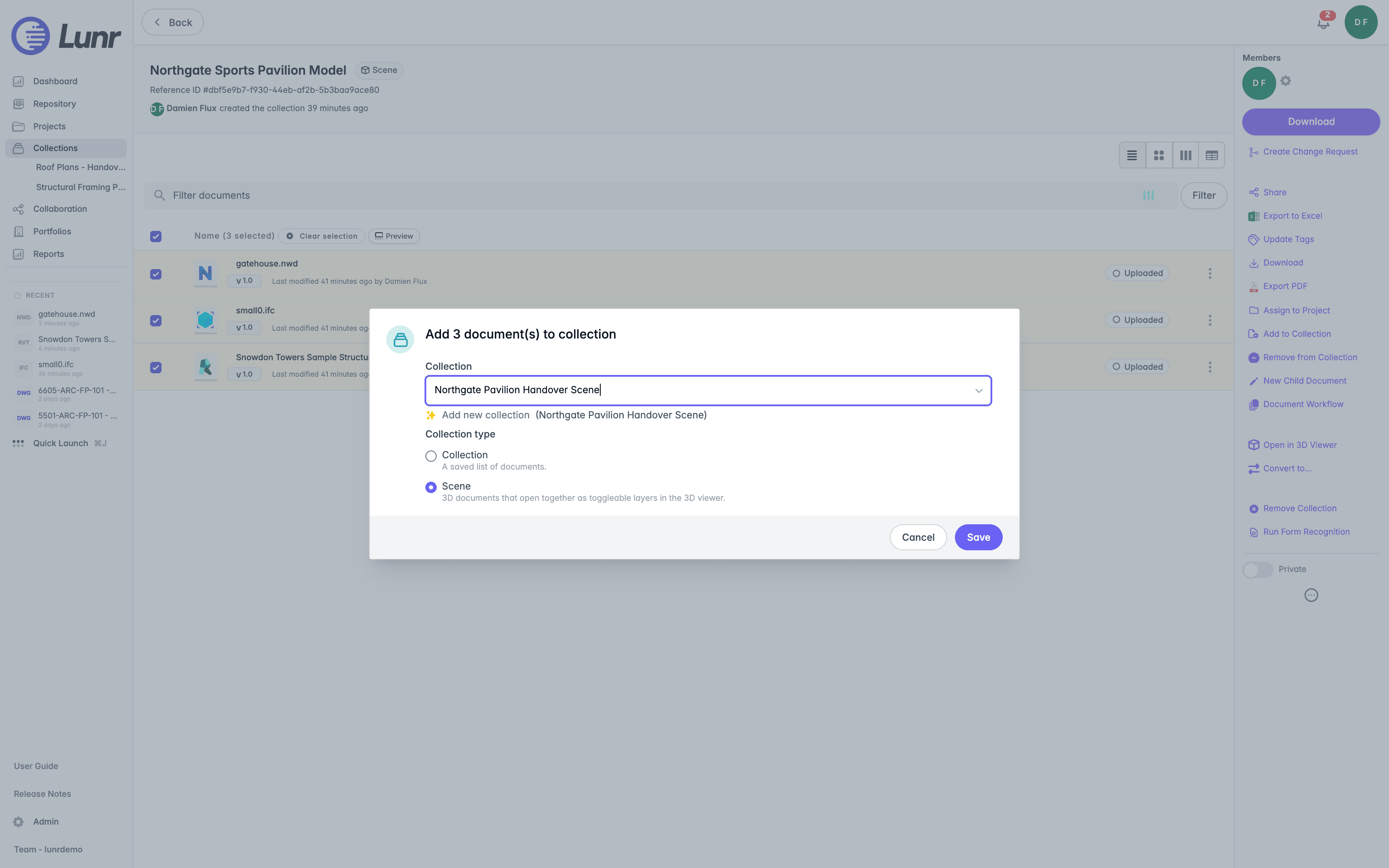
The Collection type choice appears only while you are creating something new. Adding documents to a scene that already exists uses the same Add to Collection action, but offers no type to choose.
The new scene appears on the Collections page with a cube icon. The documents you selected become its layers in the order they were added, so open it with Edit layers to set the layer order, opacity, and colour, covered in Editing a Scene.
You can also turn a collection you already have into a scene, covered in Converting Between a Collection and a Scene. A List-type collection and a Scene are the only two types you can convert between.
Selecting an empty scene's name opens the scene editor rather than the 3D viewer, because there is nothing to display until you add a document.
The Options Menu
Open a Scene's Options menu by selecting the three dots at the end of its row on the Collections page to see the actions available for it.
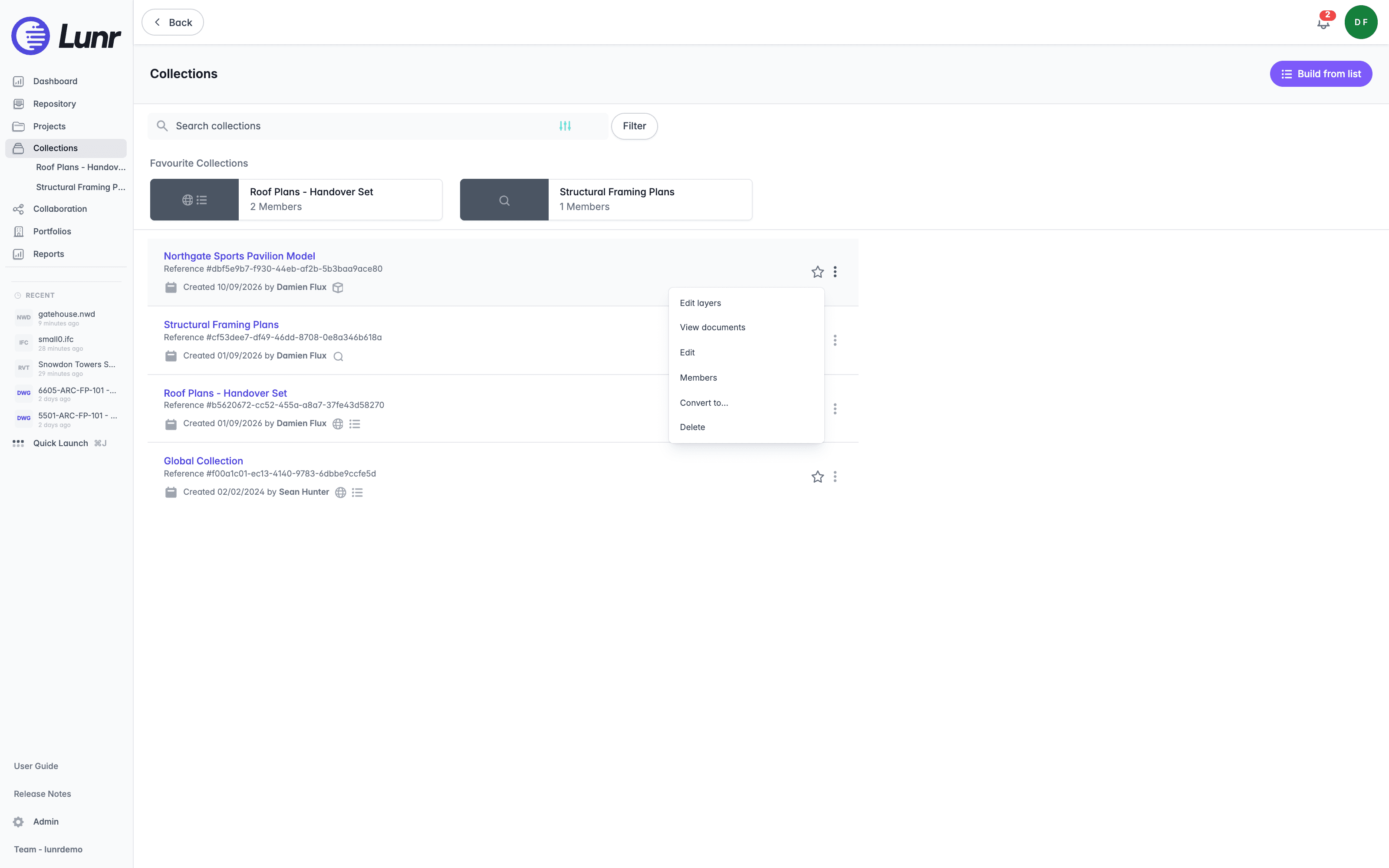
A Scene offers Edit layers, View documents, Edit, Members, Convert to…, and Delete. It offers neither Generate QR nor Copy URL, both of which are available to a List-type collection and a Saved Search only.
Edit layers, Edit, Members, Convert to…, and Delete are hidden unless you created the scene.
Select View documents to open the Scene as an ordinary document list, which is where its members and documents are managed. Select Convert to… to turn it back into a collection, covered in Converting Between a Collection and a Scene.
Editing a Scene
A Scene's documents are its layers, and the scene editor is where you choose which documents belong, what order they draw in, and how each one looks. Choose Edit layers from a Scene's Options menu to open it. The page is headed Edit scene, and Back to Collections leaves without saving.
Give the scene a Name, then use Add documents to search by document number or file name and add the 3D documents that make it up. A hint beneath the field notes that the order sets the layer order.
Each document you add becomes a layer row offering:
| Control | What it does |
|---|---|
| The box beside the name | Shows or hides that layer |
| The up and down arrows | Move the layer, which sets the order it draws in |
| Remove | Takes the document out of the scene |
| Opacity | Sets how solid the layer is, from 0 to 100 per cent |
| Colour | Chooses how the layer is coloured: rgb, intensity, elevation, classification, or return-number |
The colour choices are the same point attributes described under Colouring Points, so setting one here decides how that layer arrives in the viewer.
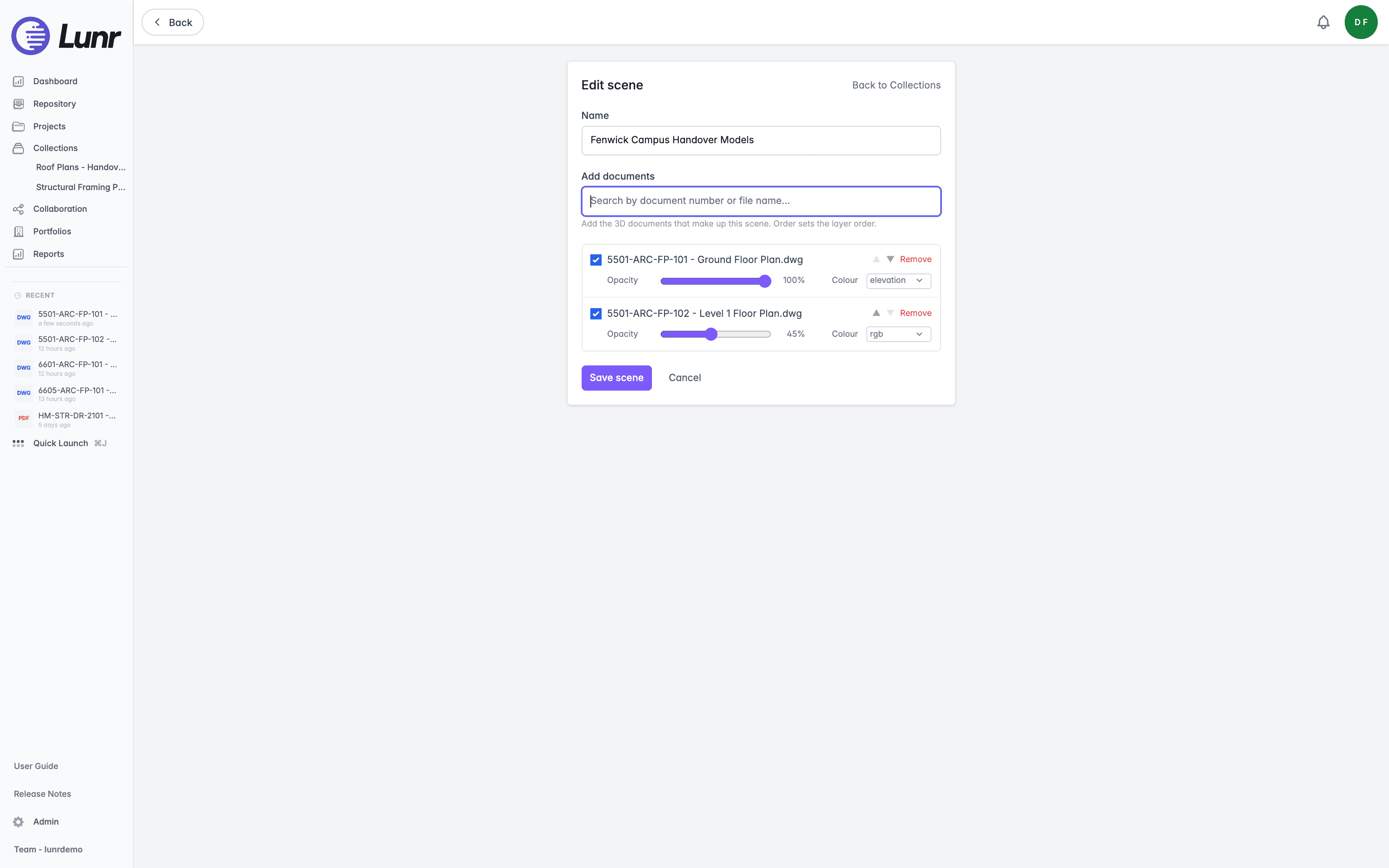
Select Save scene to keep your changes, or Cancel to discard them. Until you add anything, the layer list reads "No documents added yet."
Clash Detection
A scene is the way to get more than one model into the 3D viewer at once, so it is also where you check whether those models collide. The viewer compares every pair of loaded models and reports the places their geometry overlaps, covered in Clash Detection on the BIM Models page.
Converting Between a Collection and a Scene
Select Convert to… from a collection's row Options menu, or from the collection page itself, to open the Convert collection dialog. Choose Collection ("A saved list of documents.") or Scene ("3D documents that open together as toggleable layers in the 3D viewer.") and select Save.
Only a List-type collection and a Scene can convert into each other. A Saved Search cannot be converted.
Converting a collection follows the same access rule as editing it: you need to be the creator.
Saved Searches
A Saved Search stores a search query rather than a list of documents, so its results change with the repository, covering how to create one, how it differs from a collection, sharing it, and deleting it.
Introduction
The Collaboration area gathers the ways you exchange documents with other Lunr users, covering its tabs, what a share is, and where to find shares and requests for information.