Saved Searches
A Saved Search stores a search query rather than a list of documents, so its results change with the repository, covering how to create one, how it differs from a collection, sharing it, and deleting it.
Overview
A Saved Search looks like a collection in the list but works differently. It stores a search query rather than a list of documents, so opening it replays the query and its results change as documents are added to or removed from the repository. A collection, by contrast, holds the fixed set of documents you put in it.
A Saved Search carries a magnifying glass icon on the Collections page, where an ordinary collection carries a list icon.
You create a Saved Search with the Save Search button on a search results page, never from the Add to Collection dialog.
Creating a Saved Search
Run a search that returns results, then select Save Search in the Action Pane.
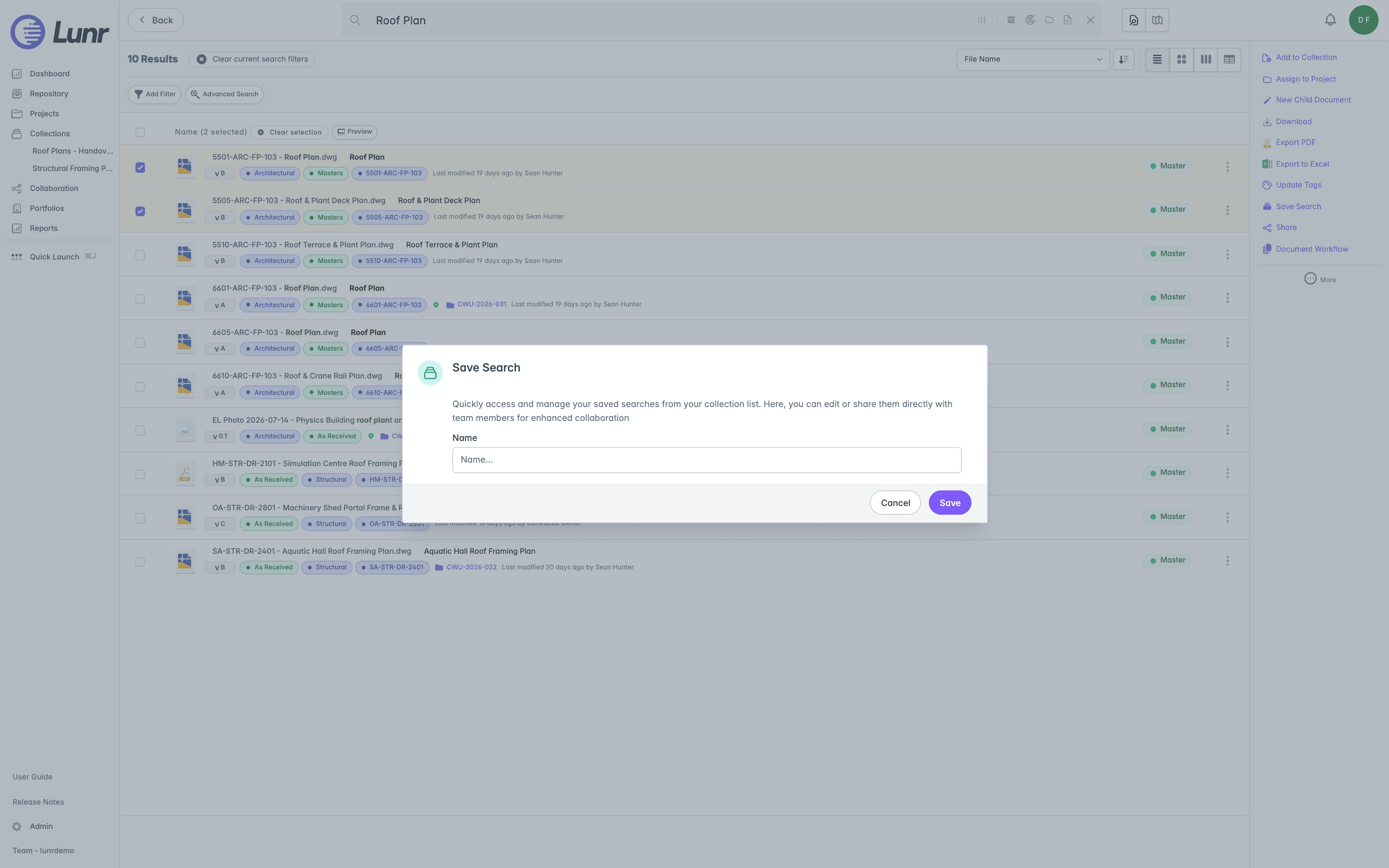
Enter a Name and select Save. The saved search now appears on the Collections page alongside your ordinary collections.
Viewing a Saved Search
Select a saved search's name on the Collections page to open it. Opening it reruns the underlying query, so its results reflect the current state of the repository rather than a fixed list. A document that no longer matches the query drops out of the results, and a newly uploaded document that matches appears in them.
Because the results come from the query, there is nothing to add to or remove from a Saved Search by hand. To change what it returns, save a new search with the query you want.
The Options Menu
Open a saved search's Options menu by selecting the three dots at the end of its row on the Collections page to see the actions available for it.
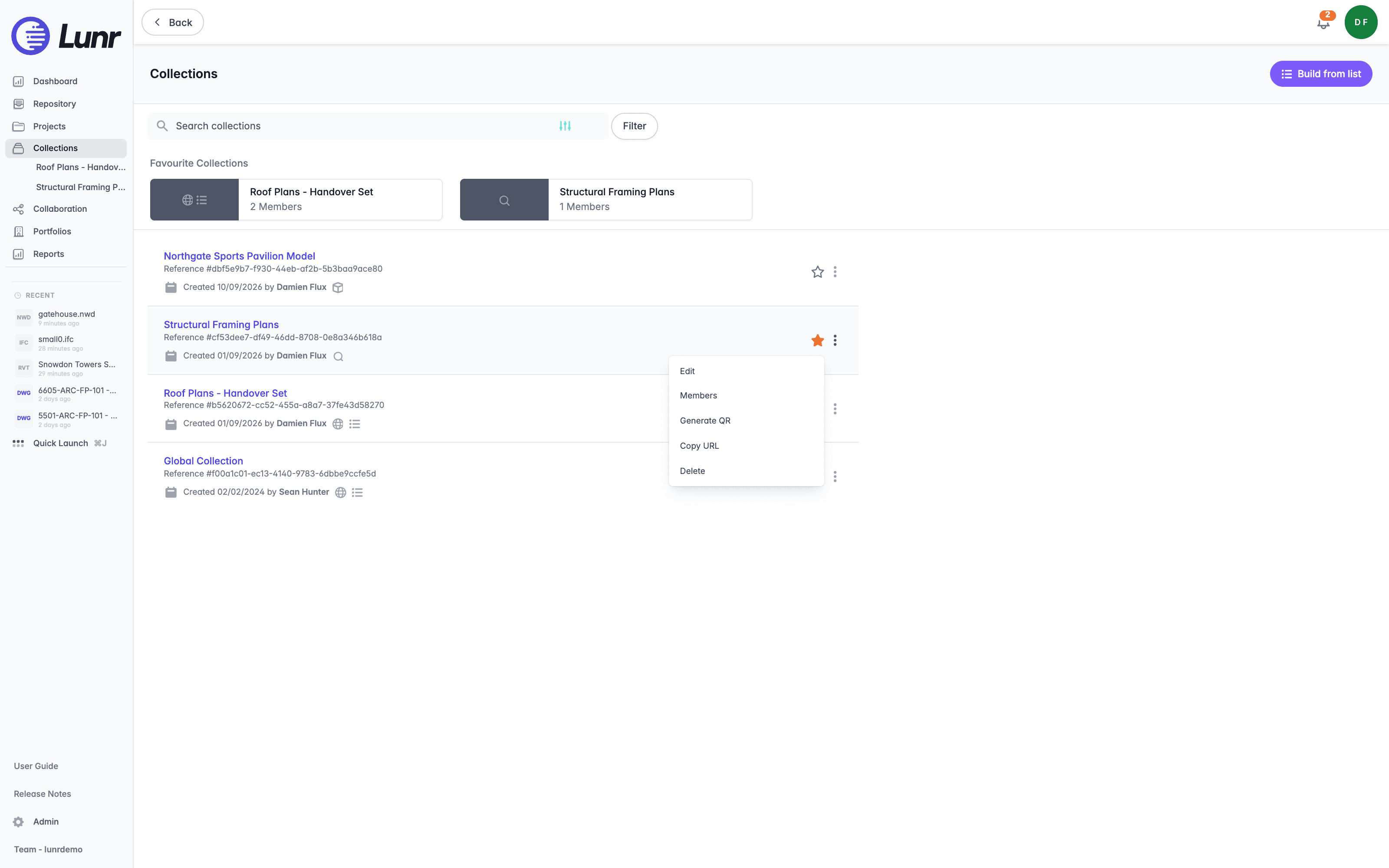
A Saved Search offers Edit, Members, Generate QR, Copy URL, and Delete. Convert to… never appears, because only a List-type collection and a Scene can convert into each other.
Edit, Members, and Delete are hidden unless you created the saved search.
Select Edit to open the Edit Collection dialog, which holds a Collection Name field and a Global box ("This collection will be available to all users"). Select Submit to save your changes. Generate QR and Copy URL are covered in Copying a Saved Search URL and Generating a QR Code.
Sharing a Saved Search
Three separate mechanisms control who can reach a saved search, and they are not interchangeable.
- Members. Select Members from the row Options menu to open the Collection Members dialog. The Users card lists direct members with their avatar, name, email, and username, each with a Remove button, and a typeahead to add another user by name. Adding or removing a member requires being the creator.
- Groups. The same dialog's Groups card shares it with a whole group at once, using a dropdown to choose the group and an Add button. Users who have access only through a shared group can view and download the results, but can never rename it, re-share it, or delete it.
- All users. Select the Global box in the Edit Collection dialog to make it visible to every user, whether or not they are a member. A Saved Search opens as a search rather than as a collection page, so it has no Shared toggle of its own.
Copying a Saved Search URL and Generating a QR Code
Select Copy URL from the row Options menu to copy a tenant-aware link straight to your clipboard, confirmed by the message "Copied URL to clipboard." Select Generate QR to open the Generate QR Code dialog, then select the Lunr box and Print Preview to open a printable QR code in a new tab.
Both the link and the QR code point at the search itself, carrying the stored query rather than a fixed set of documents. Opening either one runs the query again and returns whatever matches at that moment.
Deleting a Saved Search
Select Delete from the saved search's row Options menu to open a confirmation titled "Remove Collection", asking "Are you sure you wish to remove this collection?"
Deleting a Saved Search never deletes any documents. It removes the stored query only, and every document the query returned remains in the repository exactly as it was.
Collections
Create a Collection from search results or from a list of document ids, view and filter its documents, use the Action Pane, share it with users, groups, or everyone, generate a QR code, and delete it.
Scenes
A Scene is a collection of 3D documents that open together as toggleable layers in the 3D viewer, covering how to create one, the scene editor, layer order, opacity and colour, and converting between a Collection and a Scene.