Shares
Share documents with selected Lunr users through a Secure link or a Transmittal, and manage a share's documents, members, and comments.
Secure Link and Transmittal Shares
When you create a share, you choose between two types:
- Secure link: share documents with selected Lunr users without requesting confirmation of receipt.
- Transmittal: share documents with selected Lunr users while additionally supporting a Send step, an Acknowledge step, a Reason field, an external contact record, and cover sheet exports.
The Shares Tab
The Shares tab lists every share you are a member of. Enter part of a subject in the Filter shares field, or select the sliders icon or the Filter button to narrow the list further.
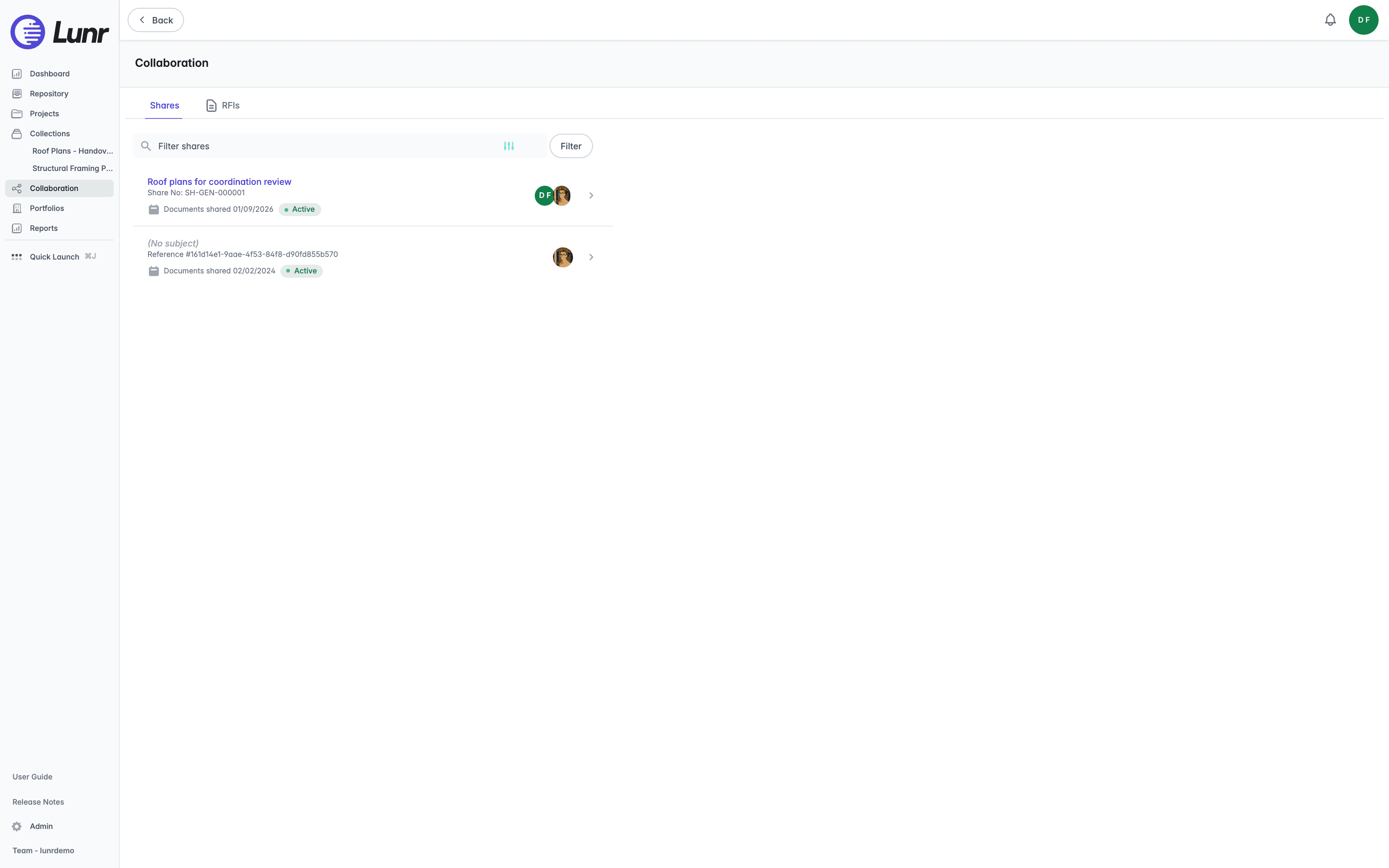
Each row shows the subject, or "(No subject)" in italics when none was set, the share number or reference number, a calendar icon with the date documents were shared, a status pill, and the member avatars. Select a row to open that share.
Creating a Share
Select one or more documents with the row selection boxes from a search results page, the repository, a collection, a project, or a change request, then select Share in the Action Pane.
- Choose Secure link or Transmittal, then select Next.
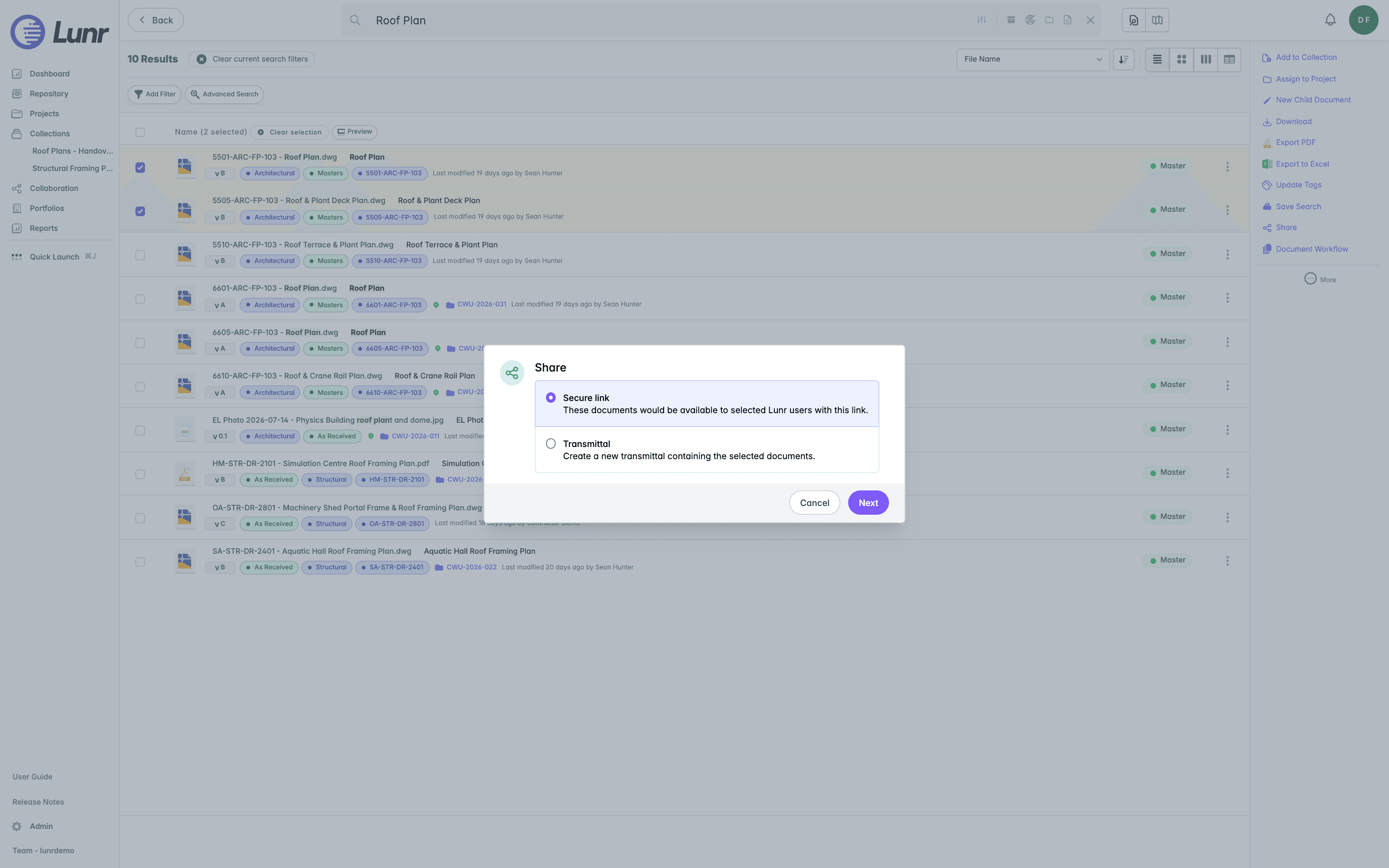
- Fill in the fields for the type you chose, then select Send for a Secure link or Create for a transmittal.
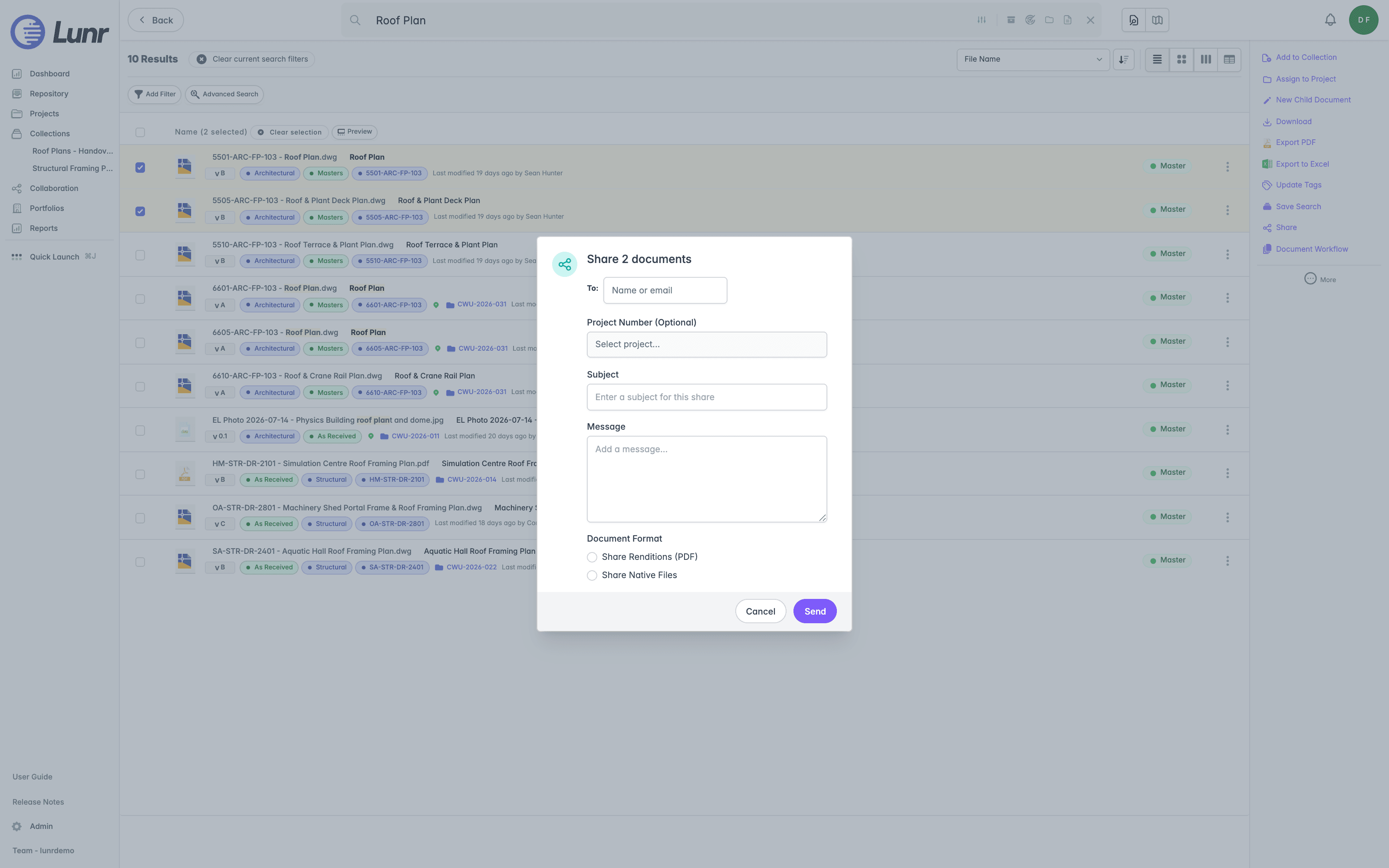
A Secure link asks for a To field (enter a name or email, though the lookup only returns existing Lunr users), an optional Project Number, a Subject, a Message, and, if you hold the download-native access right, a Document Format choice of Share Renditions (PDF) or Share Native Files. A transmittal adds a Reason field, an optional Change Request field, and an "Add external contact (non-Lunr)" box that reveals Contact Name and Contact Company fields, and its subject is required.
If you try to send without the required fields, Lunr shows validation messages in this order: "Please select one or more recipients", "Please include a subject", "Please include a message". On success, Lunr shows "The new document share is now live, share recipients have been notified" and opens the new share. You are added as a member automatically when you create a share, and you can never be removed as a member yourself.
Viewing a Share
Opening a share shows its header: the page heading (Shared Documents or Transmittal), the share number, the subject, a status pill, and "Created by" followed by the creator's name and how long ago the share was created. Below the header, a Details card shows the Subject and Message.
On a transmittal, the creator can edit the subject inline through a pencil icon, and edit the Details card. A Secure link share is fixed once created: its subject and message cannot be changed afterwards.
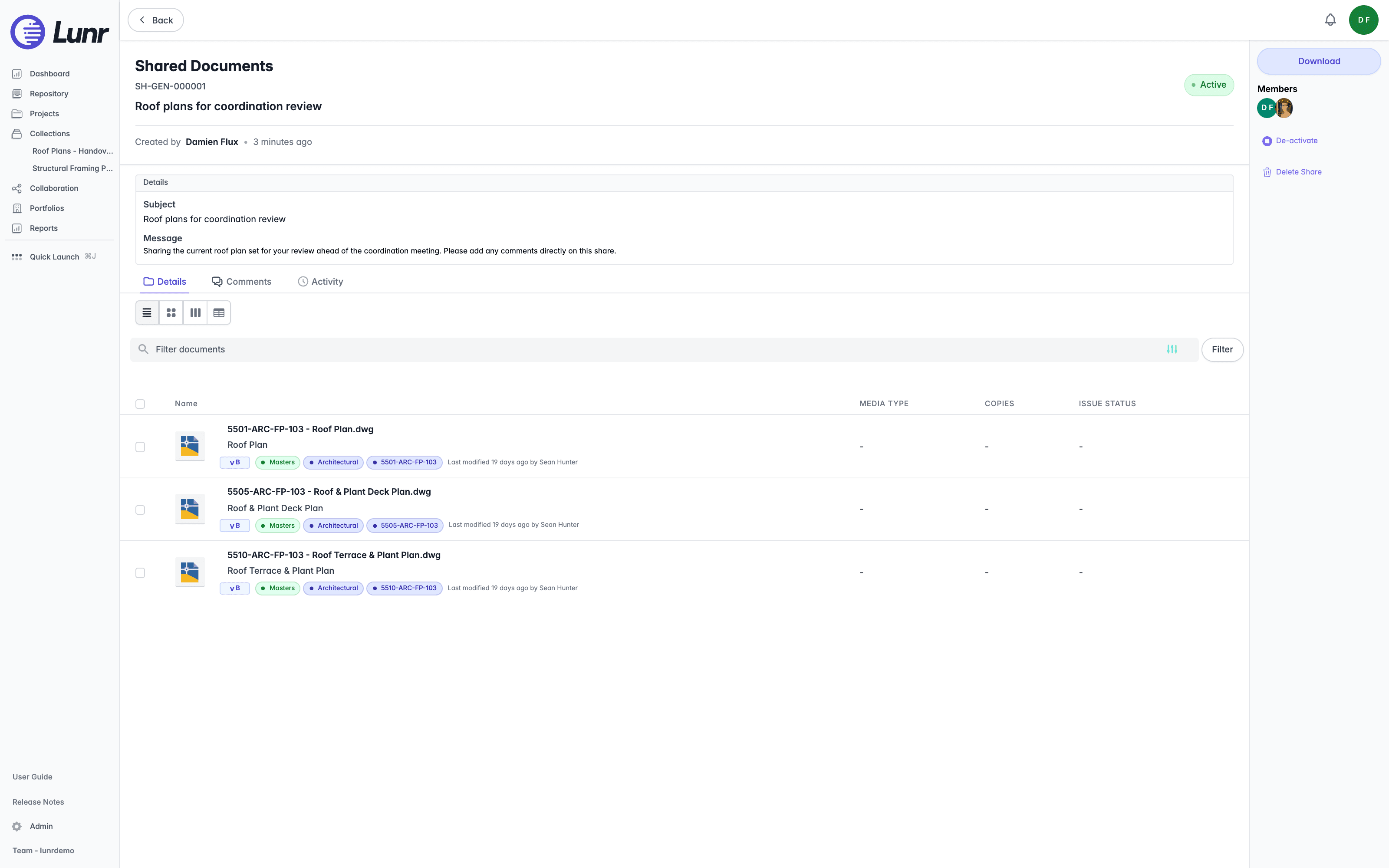
Three tabs sit below the Details card: Details, Comments, and Activity. The Activity tab shows a history of actions taken on the share.
Viewing and Filtering Documents
The Details tab offers four view modes, a Filter documents field with its own sliders toggle, and a Filter button, using the same tools as the main repository. The document table adds three transmittal register columns, Media Type, Copies, and Issue Status, which are free-text fields you can fill in directly.
The Action Pane
The Action Pane carries Download, a Members section showing member avatars, Add to Collection, and De-activate (or Activate once a share is deactivated) and Delete Share. A transmittal's Action Pane also offers Send, Acknowledge, Cover Sheet, and Cover Sheet (PDF). Select one or more documents in the table and Remove from Share also appears.
Select Add to Collection to gather the share's documents into a collection without going back to the repository to find them again. It works the same way as it does elsewhere, covered in Collections.
A cover sheet renders a tag that holds several values in full, rather than showing only the first.
Status
A share's status pill reads Active in green or Disabled in yellow. The Shares tab filter dropdown offers All, Active, and Inactive instead, so use the wording shown in whichever place you are looking. Deactivating a share hides it from everyone except its creator and users holding the All Shares access right; there is no separate closed or revoked state. Deleting a share is a soft delete, and only an administrator can restore it.
Members and Permissions
A share's members are set by the recipients you choose when you create it, and are listed in the Members section on the share page.
Members can only be changed on a transmittal. On a transmittal, its creator, or a user holding the All Shares access right, gets a settings cog beside Members that opens a "Select a member" popover with a "Type or choose a name" search. The creator is labelled "(Creator)" and can never be removed. A Secure link share offers no such control, so decide its recipients before you send it.
Only the share's creator, or a user holding the All Shares access right, can activate or deactivate the share, delete it, or send it. Any member can view the share, add or remove documents, comment, and, for a transmittal, acknowledge it. There is no read-only member tier.
Comments
Select the Comments tab to read or post comments. Only members of a share can comment.
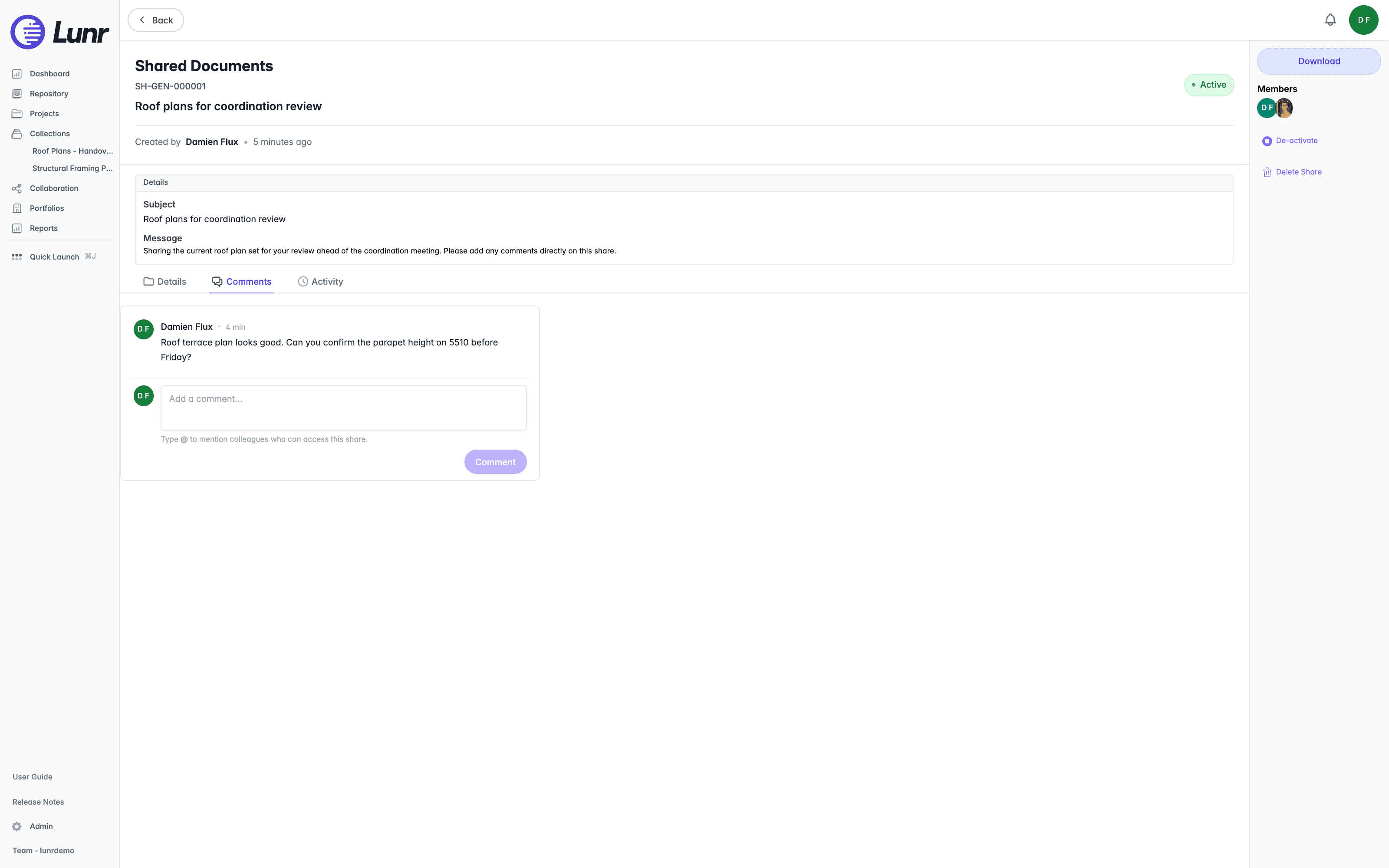
Enter @ in the composer to mention a colleague. You can only mention other members of the share, and a mentioned person gets a mention notification rather than the usual new-comment notification. You can resolve your own comments, or any comment if you hold the Resolve Comments access right, and reopen a resolved comment later. Share comments do not support attachments.
Adding and Removing Documents
To add documents to an existing share, select them anywhere in the repository, open the More menu at the foot of the Action Pane, and choose Assign to, then Add to Share. This opens an "Add documents to share" dialog with a Select share field and an Add to Share button.
To remove documents from a share, select them within the share page and select Remove from Share in the Action Pane.
Introduction
The Collaboration area gathers the ways you exchange documents with other Lunr users, covering its tabs, what a share is, and where to find shares and requests for information.
RFIs
Track requests for information from the Collaboration area, covering the RFIs tab, the RFI page, and the statuses and actions an RFI moves through.