RFIs
Track requests for information from the Collaboration area, covering the RFIs tab, the RFI page, and the statuses and actions an RFI moves through.
The RFIs Tab
The RFIs tab lists requests for information, labelled with your organisation's own wording if it has customised the term. It offers a search field, a Filter button, a My RFIs Only toggle, and an Export button.
The My RFIs Only toggle defaults to on, which hides RFIs not assigned to you, so turn it off if the tab looks empty and you expect to see more.
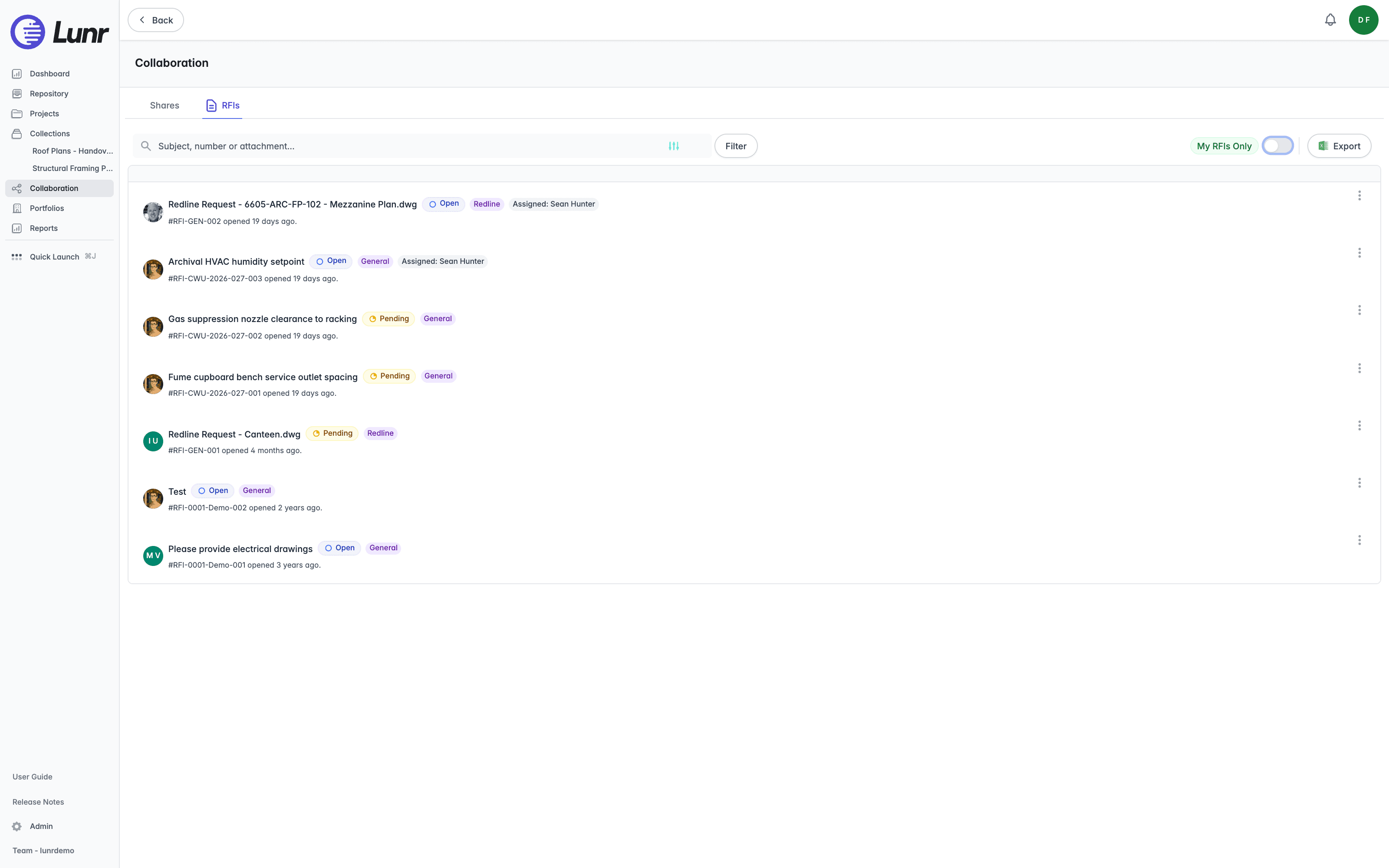
Each row shows an avatar, the subject, a status badge such as Open or Pending, a category badge such as General or Redline, a Redline request having been raised from the PDF viewer as described under Saving Markups, the assignee where one exists, a line reading the RFI number followed by how long ago it was opened, and an Options menu.
Viewing an RFI
Select an RFI to open its own page: a header with the subject, an editable pencil icon, the RFI number, a status badge, and who opened it and when, followed by a breadcrumb back through its project.
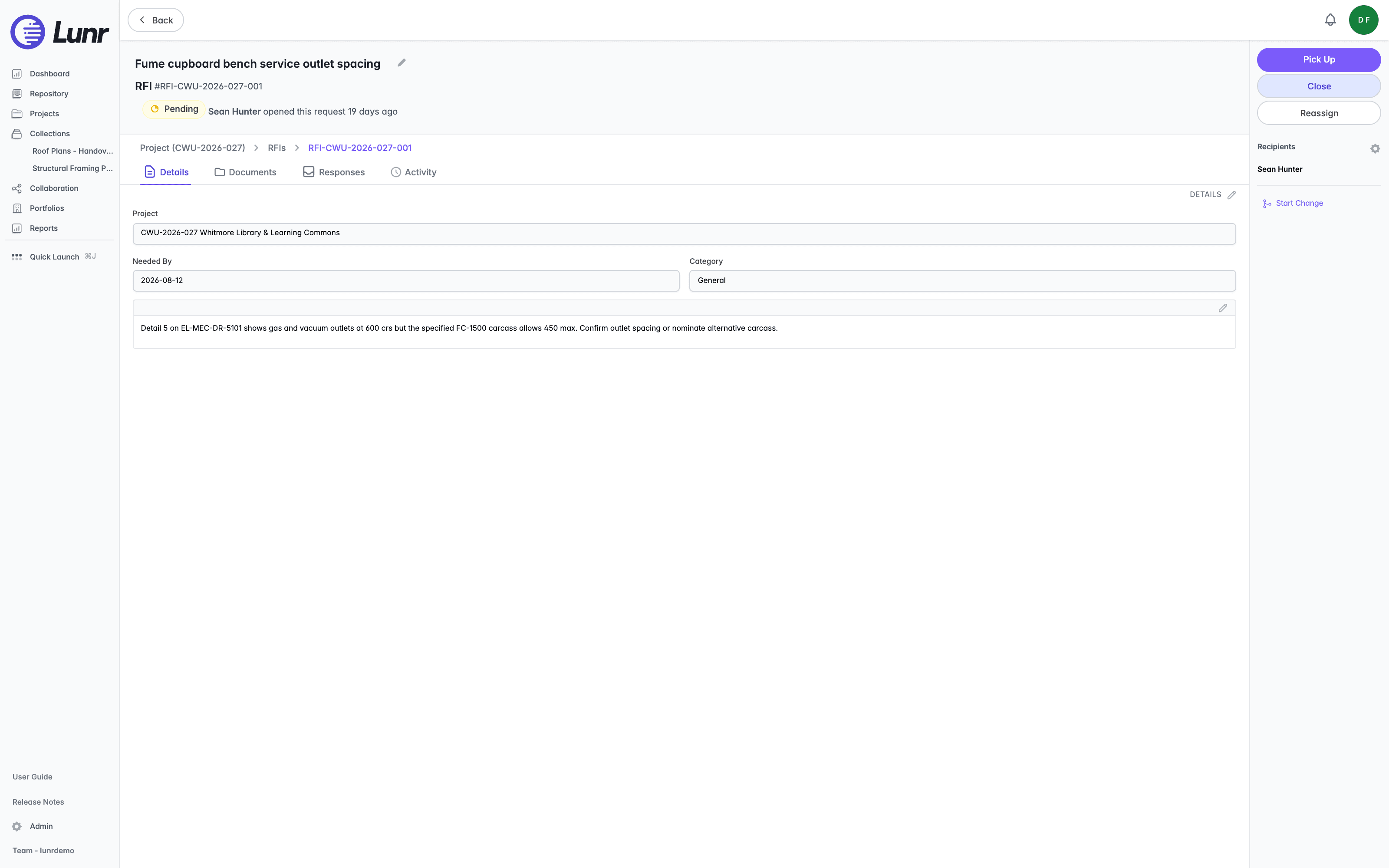
Four tabs sit below the breadcrumb: Details, Documents, Responses, and Activity. The Details tab shows the Project, Needed By, and Category fields, followed by the question text. The Action Pane offers a Recipients list with a settings cog, Start Change, and the lifecycle actions covered below.
The RFI Lifecycle
An RFI moves through six statuses, shown as a badge on the row and in the header: Draft, Pending, Picked Up, Open, Closed, and Cancelled. The buttons in the Action Pane change to match the current status, so you only ever see the actions that apply.
| Action | Available when | Who can use it |
|---|---|---|
| Send | The RFI is a draft | Its creator, or a user holding the All Requests access right |
| Pick Up | The RFI is Pending | A named recipient, a member of the recipient group, or a user holding the Administration Pages access right |
| Start Working | The RFI is Picked Up | Only the person it is assigned to |
| Reassign | The RFI is Pending or Picked Up | The current assignee, or a user holding the Administration Pages or Release as Master access right |
| Close | The RFI is not already closed | Its creator or a user holding All Requests while the RFI is Open, or a user holding Release as Master at any status |
| Re-open | The RFI is Closed | Only its creator |
| Re-send | The RFI is Open | Its creator, or a user holding All Requests |
Send moves a draft to Pending and notifies every recipient, including each member of a recipient group.
Pick Up claims the RFI for you. It assigns the RFI to you, records the time you picked it up, moves the status to Picked Up, and notifies the person who raised it. If the RFI was addressed to a group rather than to named people, picking it up also adds you to its recipient list. This is how a group queue works: the RFI goes to a team, and whoever picks it up takes ownership of it. Lunr confirms with "You have picked up this RFI."
Picking an RFI up does not mean you have started answering it. Once you have picked it up, Pick Up is replaced by Start Working, which moves the status to Open. Only the person the RFI is assigned to can start it.
Reassign hands the RFI to someone else without changing its status.
Respond is available to the RFI's creator and to any of its recipients, and opens the response form. Responses are listed on the Responses tab.
Close completes the RFI. Its creator can Re-open it later, which returns it to Open. An RFI that is Pending, Picked Up, or Open can also be cancelled, which ends it without a response.
Shares
Share documents with selected Lunr users through a Secure link or a Transmittal, and manage a share's documents, members, and comments.
Portfolios
Browse your organisation's assets and locations as a hierarchy in Lunr, open an asset to see its details, child locations, shortcuts, and attachments, and create, edit, or delete an asset record.