Change Request Documents
Report on documents across every Change Request in Lunr, filtering by drawing, Change Request, status, people, company, tag, and the dates a Change Request was created or completed, grouping the results on two levels, saving the view as a report, and exporting it to Excel or PDF.
Overview
The Change Request Documents report lists the documents attached to Change Requests across your projects in one table, rather than one request at a time. Use it to answer questions such as which drawings a reviewer still has open, or how a set of requests is progressing by workflow status.
Opening the Report
The report is a tab in the Collaboration area, available where your organisation has Change Request folders enabled. Select Collaboration in the main menu, then the Change Request Documents tab.
You can also reach it from the Change Request Documents table on the Change Request Dashboard, where Full view opens the report in a new tab.
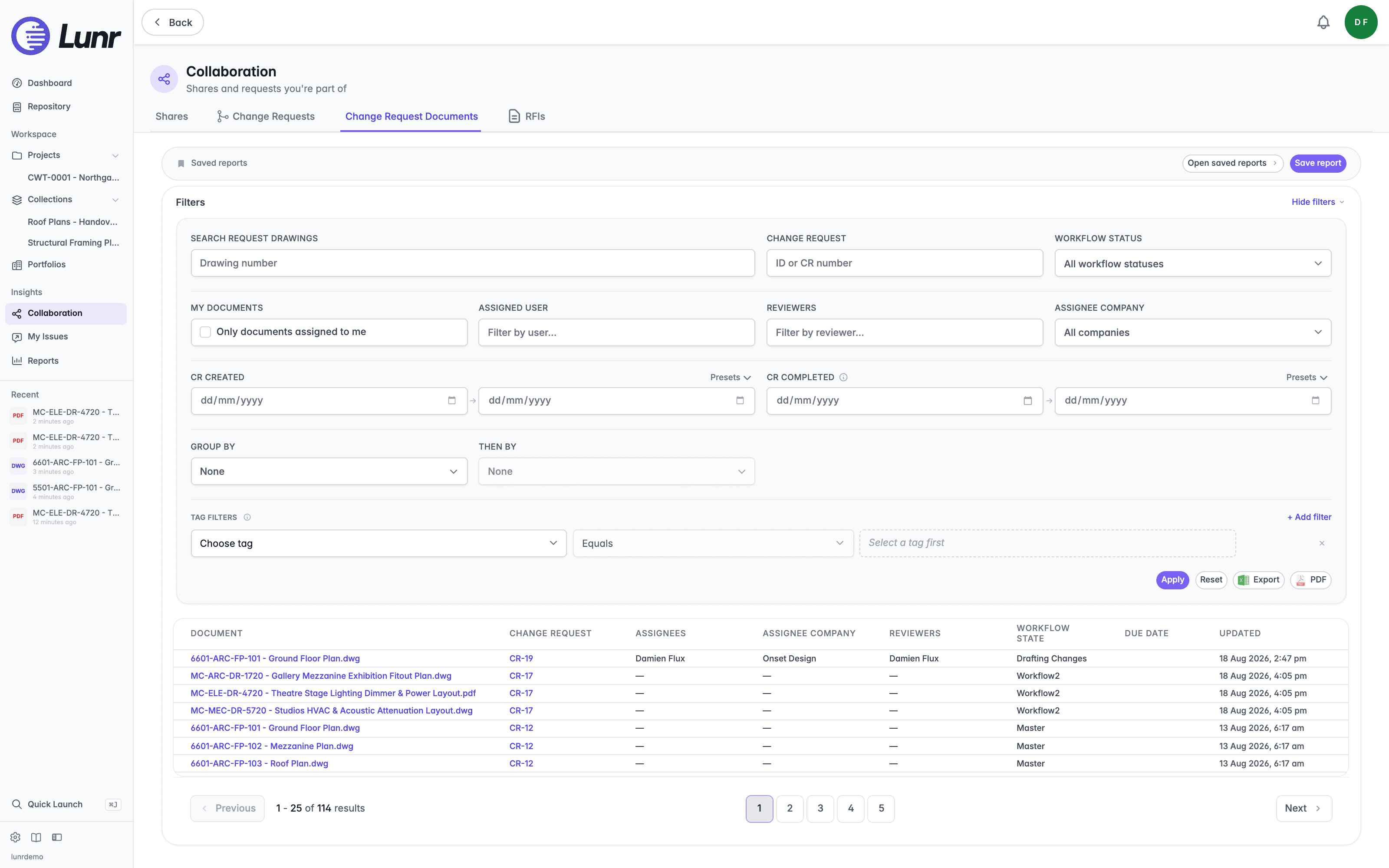
Filters
The Filters panel narrows the table. Select Apply to run the filters, or Reset to clear them. When the panel is collapsed, a line beneath its heading summarises the filters in use.
| Filter | What it does |
|---|---|
| Search Request Drawings | Matches a drawing number. |
| Change Request | Matches a Change Request ID such as CR-42, or your organisation's own Change Request number. Plain digits match either. |
| Workflow Status | Limits the table to one workflow status. |
| My documents | Select Only documents assigned to me to show only your own documents. |
| Assigned User | Limits the table to documents assigned to one person. |
| Reviewers | Limits the table to documents reviewed by any of the people you add. Each person appears as a chip, and selecting the x on a chip removes them. |
| Assignee Company | Limits the table to documents assigned to people from one company. |
| CR Created | Limits the table to documents on Change Requests created within a date range, covered under Date Ranges. |
| CR Completed | Limits the table to documents on Change Requests completed within a date range, covered under Date Ranges. |
| Tag filters | Select + Add filter, choose a tag, then a condition of Equals, Like (use % or _ wildcards), Is not empty, Is empty, Is not null, or Is null, and a value where the condition needs one. Several rules combine, and values on the same tag match either. |
Clear beside the Assigned User, Reviewers, or Assignee Company label removes that filter on its own.
Unless you can see all requests, the report shows only the documents assigned to you, reading "Showing documents assigned to you", and the Assigned User, Reviewers, and Assignee Company filters are unavailable.
Date Ranges
CR Created and CR Completed each have a From and a To date. Both dates are included in the range, and the days are read in your organisation's time zone. Leave one empty for an open-ended range: the line beneath the dates reads "On or after" or "On or before" the date you entered. If the From date is after the To date, the line reads "The From date is after the To date." and the table shows nothing.
Select Presets beside either label to fill in a range: Last 7 Days, Last 30 Days, This Month, Last Month, or This Quarter. Choosing a preset, or selecting Clear to remove the dates, runs the report immediately. After you enter dates yourself, select Apply.
While either CR Completed date is set, only completed Change Requests are included, because a Change Request that is not complete has no completed date. The two ranges combine with each other and with the other filters. The dates are saved with a saved report.
The Results Table
The table's columns are Document, Change Request, Assignees, Assignee Company, Reviewers, Workflow State, Due Date, and Updated.
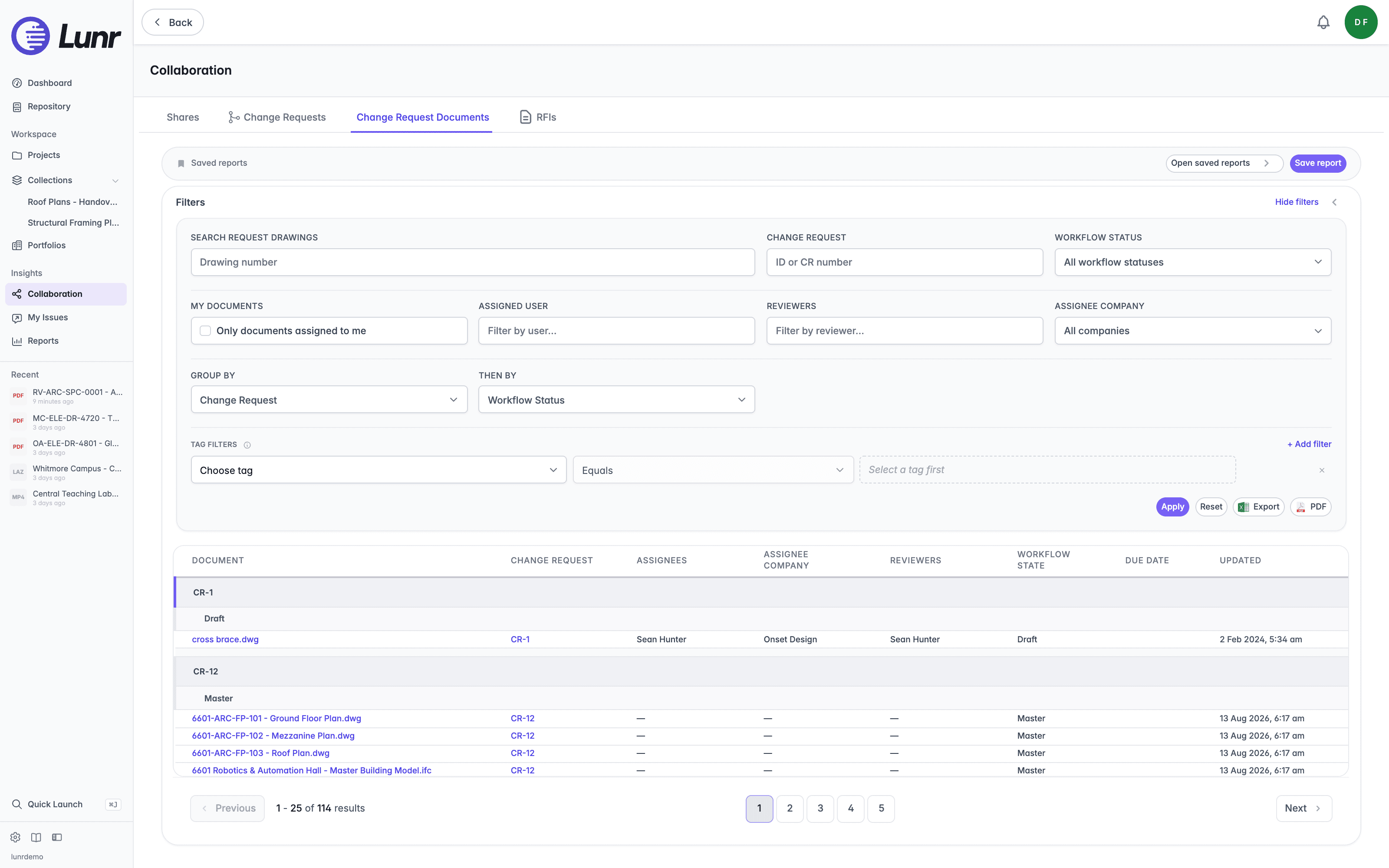
Grouping
Choose a Group by option to gather the table under headings. The options are Change Request, Workflow Status, Assignee, Assignee Company, Reviewer, and Project Number, followed by any tags your organisation has made available to the report, listed under Change request tags and Document tags.
Once you have chosen a Group by option, choose a Then by option to add a second level. Each group then breaks down into sub-headings. Then by is unavailable until a Group by option is chosen.
Saved Reports
Save a set of filters and grouping as a report to return to it later.
- Set up the filters and grouping you want.
- Select Save report.
- Enter a Report name, and choose a Collection to file it under.
- Select Save report in the panel.
To change a report that is already open, select Save report, then choose Save as new to keep the original, or Update followed by the report's name to overwrite it.
Select Open saved reports to see your reports, grouped by collection. From here you can open, rename, duplicate, copy a link to, and delete a report, and organise your collections. Reports you bookmark also appear as shortcuts across the top of the report.
While a saved report is open, its name shows at the top of the page, and (edited) appears beside it once you change its filters.
If you can administer reports, a Visibility choice also appears when you save. A Global report is visible to your organisation, and a Personal report only to you.
Exporting
Select Export to download the table as an Excel workbook, or PDF to download it as a PDF. The export follows the filters and grouping on screen. When the open saved report has no unsaved changes, its name is used as the title on the PDF.
A large export is prepared in the background rather than downloaded immediately. Lunr shows an Export queued message, then emails you a link to the file when it is ready.
Change Requests
List every Change Request across your projects in Lunr, filter by status, people, and dates, group and add tag columns, save the view as a report, and export it to Excel or PDF.
RFIs
Track requests for information from the Collaboration area, covering the RFIs tab, the RFI page, and the statuses and actions an RFI moves through.