Change Requests
List every Change Request across your projects in Lunr, filter by status, people, and dates, group and add tag columns, save the view as a report, and export it to Excel or PDF.
Overview
The Change Requests tab lists Change Requests across your projects in one table, rather than one project at a time. Use it to answer questions such as which requests are on hold, who is assigned to them, and how many were created or completed in a period.
Opening the List
The list is a tab in the Collaboration area, available where your organisation has Change Request folders enabled. Select Collaboration in the main menu, then the Change Requests tab.
The Created date filter starts 30 days before today until you change it, so the first page shows recent requests. Select All time beside a date range to clear it.
Filters
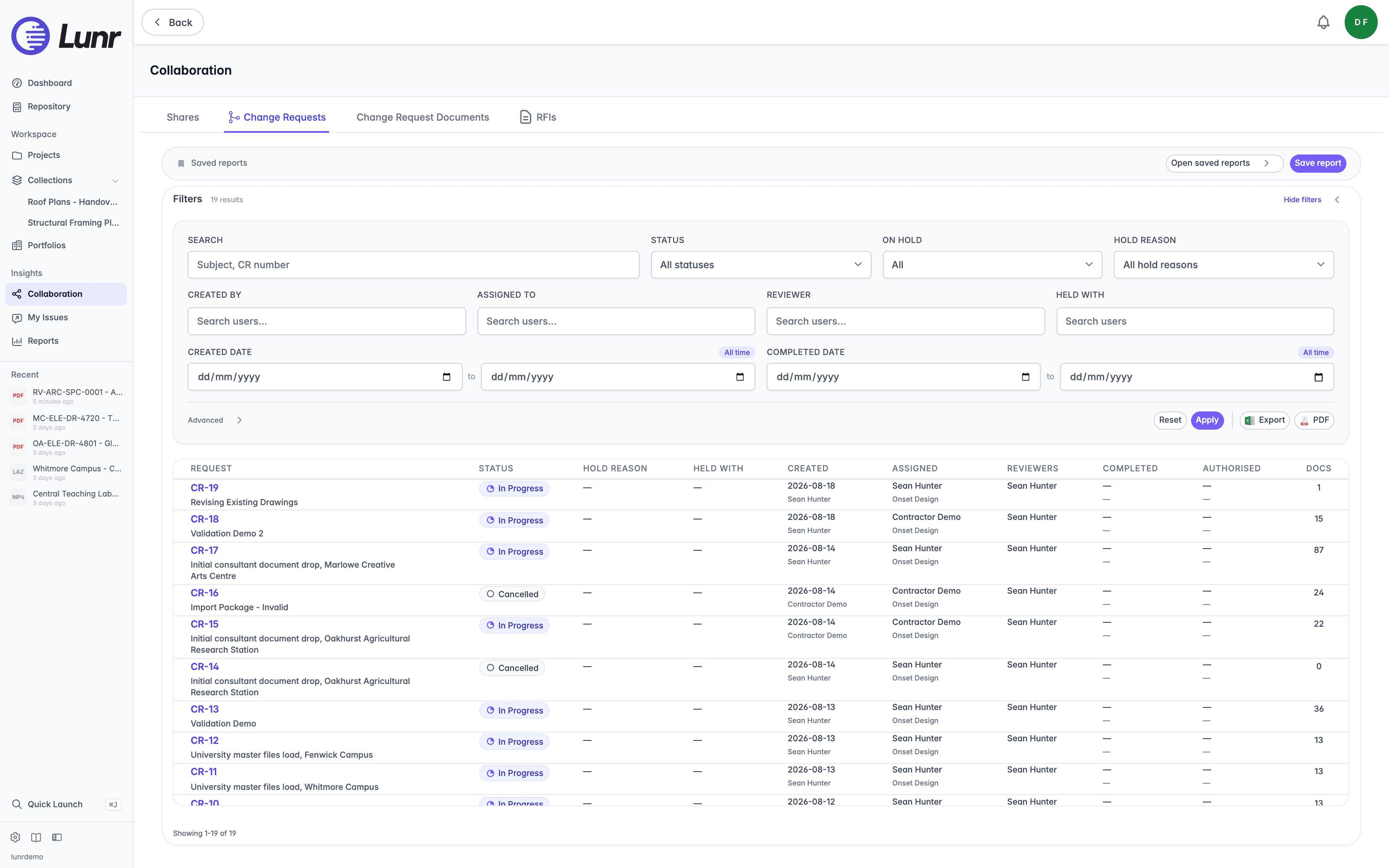
Set the filters above the table, then select Apply. Select Reset to clear them. The number of matching requests appears beside the Filters heading, and Hide filters collapses the panel, which Show filters opens again.
- Search matches a subject or Change Request number.
- Status narrows the list to one status, or to a group of statuses.
- Priority narrows the list to one priority. It appears where your organisation uses Change Request priorities.
- On hold and Hold reason narrow the list to requests that are on hold, and to the reason they were held.
- Created by, Assigned to, Reviewer, and Held with narrow the list to the requests that involve a person.
- Created date and Completed date narrow the list to a range of dates.
Advanced Options
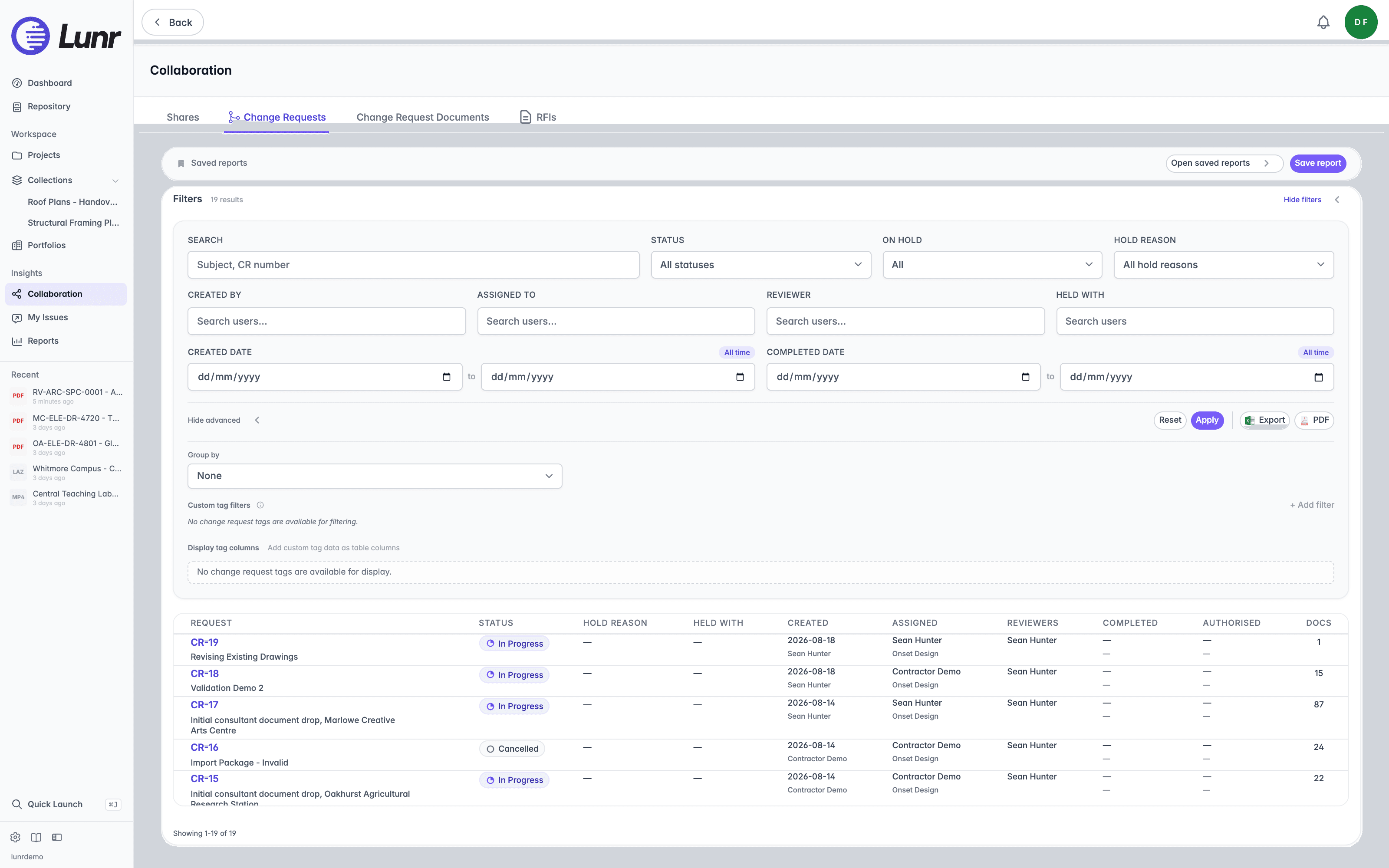
Select Advanced to show more options, and Hide advanced to hide them again.
- Group by groups the table by Status, Priority, Assigned to, or a tag.
- Custom tag filters narrow the list by the value of a Change Request tag. Select Add filter to add one. Several values of the same tag match any of them.
- Display tag columns adds the values of the tags you choose as columns.
Both tag options depend on your organisation having Change Request tags. Where it has none, they read "No change request tags are available for filtering." and "No change request tags are available for display."
The Results Table
The table has Request, Status, Hold reason, Held with, Priority, Created, Assigned, Reviewers, Completed, Authorised, and Docs columns. Priority appears where your organisation uses Change Request priorities, and you can sort by it. The list is paged.
Saved Reports
Save a set of filters and grouping as a report to return to it later, using Save report and Open saved reports in the Saved reports bar above the filters. Saved reports work as they do in the Change Request Documents report, which describes saving, opening, and organising them into collections.
Exporting
Select Export to download the list as an Excel workbook, or PDF to download it as a PDF. The export follows the filters on screen. When the open saved report has no unsaved changes, its name is used as the title of the PDF and as the file name.
Shares
Share documents with selected Lunr users through a Secure link or a Transmittal, and manage a share's documents, members, and comments.
Change Request Documents
Report on documents across every Change Request in Lunr, filtering by drawing, Change Request, status, people, company, tag, and the dates a Change Request was created or completed, grouping the results on two levels, saving the view as a report, and exporting it to Excel or PDF.