Tags
Tags store the metadata that classifies documents in Lunr, driving the repository folder structure, search filters, and validation on upload.
Overview
Metadata is fundamental to effective document management in Lunr, as it provides the structure, context, and control needed to organise and retrieve information efficiently.
Within Lunr, metadata is managed through tags that define key attributes of each document, such as discipline, status, or project, enabling consistent classification and supporting both folder structures and advanced search capabilities.
This structured approach allows users to quickly locate documents using metadata-driven filters, rather than relying solely on file names or manual browsing.
Metadata also plays a critical role in data quality and governance, as required fields can be enforced during upload to ensure completeness and accuracy before documents are accepted into the repository.
During integrations and data migration, metadata mapping ensures that documents retain their meaning, relationships, and revision history across systems, supporting continuity and trust in the data.
In this way, metadata underpins not just how documents are stored, but how they are discovered, validated, and managed throughout their lifecycle in Lunr.
About Tags
Tags are used for storing metadata related to a document.
The way a tag's options are set will define how it is displayed, how it is populated, and may even decide where a document is located in the Lunr repository.
Managing Tags
Select Tags in the admin main menu to see every tag defined for the tenant.
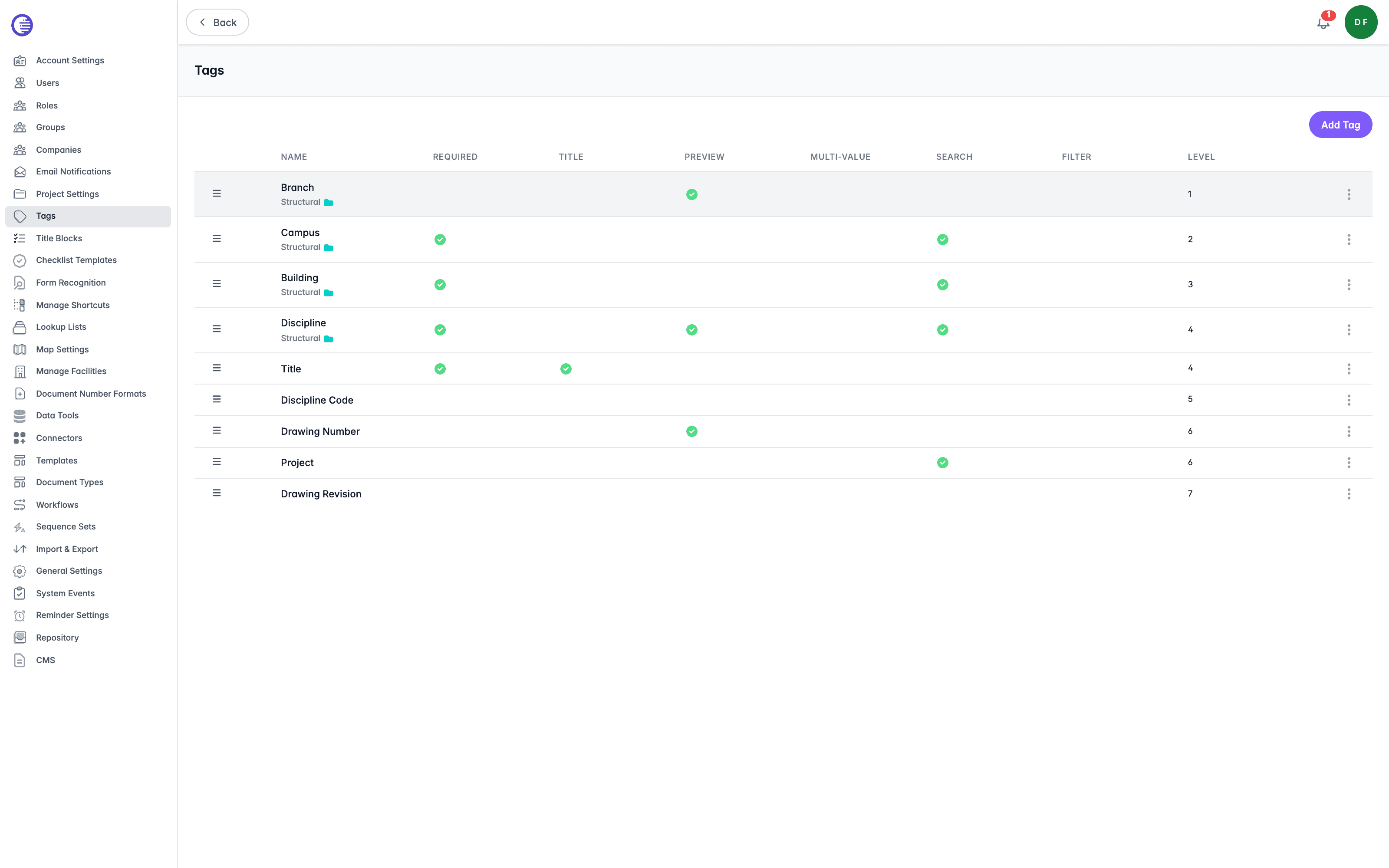
The table shows each tag's Name, with status icons for Required, Title, Preview, and Search. On wider screens it also shows Multi-value, Filter, Level, and, on a tenant with more than one repository, Repositories. A tag with the Structural badge participates in the folder structure. Drag a row by its handle to reorder tags; reordering updates each tag's Level.
Open a tag's context menu, at the end of its row, for Edit, Rules, and Delete.
- Edit opens the tag for editing, covered below.
- Rules opens the conditional Visible and Required logic for that tag. See Tag Rules below.
- Delete removes the tag definition. See Deleting a Tag below before removing a tag that other configuration depends on.
Adding a New Tag
To add a new tag,
-
Select the Add Tag button.
-
Enter the key information about the tag.
- Display Name is how the tag is displayed to users, while Name is how the name is shown in the administration settings. These will normally be the same, but you can edit the Display Name at any time, while the Name cannot be changed.
- Level is the order the tag is displayed on the drawing's metadata page. This is more important if you select the Structural box because this defines where the tag will be within the folder structure.
- For Data Type, choose one of String (text, including numbers stored as characters), Integer (whole numbers only), Datetime (a date and time value), or Boolean (true or false).
- Select the Create Tag button to save the new tag.
Add Tag only captures a tag's core identity. Colours, lookup wiring, and the Project, Change Request, and Facility tag panels described below only become available once the tag exists, by editing it.
Editing a Tag
To edit a tag,
- Open the context menu by selecting the three dots at the end of the tag's row, then select Edit.
You will now see all options for that tag. Name is read-only once a tag is created. You have already seen some of these when you created the tag, and there is a brief description below each of the others.
- When you have finished editing the tag options, select the Save button.
Core Fields
| Field | What it controls |
|---|---|
| Related Tag | Associates this tag with another tag definition. Leave as -- None -- if the tag stands alone. |
| Tag Group Name | A free-text label used to group related tags together. |
| Default Value | The value a document carries for this tag before a user sets one. |
| Placeholder Text | Hint text shown in the tag's input field when it is empty. |
| Computed From Expression | An expression that derives this tag's value automatically rather than a user entering one. |
| Tag Regex | A regular expression a manually entered value must match, for example ^[A-Z]{3}-\d{4}$. |
| Data Type | One of String, Integer, Datetime, or Boolean. |
Search and Display Behaviour
| Field | What it controls |
|---|---|
| Required | The tag must have a value before a document can be saved. |
| Show in grid | The tag appears as a column in document listing grids. |
| Show in search filter | The tag appears as a filter option in Search. |
| Include in search bar query | The tag's values are searched using the free-text search bar. |
| Exclude from search | Excludes this tag from all search filters. |
| Show in quick search | The tag appears in the quick search panel. |
| Show on details page | The tag appears on a document's details page. |
| Allow multiple values? | A document can hold more than one value for this tag. |
| Search multi-select? | Allows users to select multiple values for this tag when searching. |
Project Tag Panel
Select Is Project Tag? to use this tag to classify projects rather than documents. Two further options appear once it is selected:
| Field | What it controls |
|---|---|
| Is Visible on Project Side Bar? | The tag's value is shown on the project side bar. |
| Is Required for Projects? | The tag must be provided when creating or editing a project. |
RFI Tag
Select Is RFI Tag? to use this tag to classify RFIs.
Change Request Tag Panel
Select Is Change Request Tag? to use this tag on Change Requests. Further options:
| Field | What it controls |
|---|---|
| Is CR Reference Doc Tag? | Captures a reference document for the Change Request. |
| Is Legacy CR Tag? | Hides the tag from the Change Request form, though it can still be viewed in a separate dialog. |
| Include in CR Dashboard? | Shows the tag's value as a column on the Change Request dashboard. Only available when Is Change Request Tag? is selected. |
| Hidden from CR-Only Members | The tag will not be visible to users with CR-Only project membership. Only available when Is Change Request Tag? is selected. |
| Change Request Form Index | The tag's position on the Change Request form. Only available when Is Change Request Tag? is selected. |
| Use text area? | Presents the tag as a multi-line field on the Change Request form. Only available when Is Change Request Tag? is selected. |
| Change Request Lookup List Name (Optional) | An alternative lookup list for this tag's values on the Change Request form. Leave empty to use the standard lookup list. Only available when Is Change Request Tag? is selected. |
Other Flags
| Field | What it controls |
|---|---|
| Force Uppercase? | All values entered for this tag are converted to uppercase. |
| Computed From CR Description? | Derives this tag's value from the Change Request description. |
| Computed From CR Number? | Derives this tag's value from the Change Request number. |
| Computed From Project? | Derives the tag's value automatically from the project the document belongs to, rather than having it set on each document. |
| Is Geo Tag? | Includes the tag in geo-spatial queries for documents. |
| Show in preview | Includes the tag's value in the document preview. Label Colour and Background Colour pickers are shown alongside this option regardless of whether it is selected. |
| Show as title | Includes the tag's value as part of the document title. |
| Is Title Fragment | Marks the tag as one of the fragments used to build a standard document title. |
| Is Editable | Makes the tag editable by a broader group of Lunr contributor users. |
| Is Read Only | Prevents the tag's value from being changed once set. |
New Document Wizard Panel
Select Show in new document wizard. to present the tag as a step in the new document wizard. New Document Wizard Index sets the tag's position among the wizard's other steps; leave it blank to use the tag's global Level.
Lookup and Search Behaviour
| Field | What it controls |
|---|---|
| Is drawing number lookup? | Uses this tag to look up an existing drawing number. |
| Load Existing Values? | Loads the existing values already used for this tag, rather than a lookup list, as the choices offered to users. |
| Search Auto-Complete? | Offers auto-complete suggestions for this tag's value in Search. |
| Auto-Complete From Lookup? | Sources the auto-complete suggestions from the tag's lookup list. |
| Is User Lookup? | Captures the tag's value using a user auto-complete, for example on RFIs. |
| Enable Bulk Update? | Allows this tag's value to be changed across multiple documents at once using bulk update. |
Facility Tag Panel
Select Is Facility Tag? to use this tag as part of the facility hierarchy. This is distinct from the per-level tags configured on the Facilities page. Once selected, choose an Asset Field Name of -- None --, Number, Name, ExternalId, Value, or Description to map this tag onto the matching facility field.
Field Type
Choose Lookup or Free text. Selecting Lookup reveals Lookup List Name (Optional), naming the lookup list this tag draws its values from. Leave it empty to use the tag's own name as the lookup list name.
Repositories and Description
Use the Repositories multi-select to restrict the tag to specific repositories on a multi-repository tenant. Description is a free-text summary of the tag's purpose, shown to other administrators rather than to end users.
Changing the level associated to a structural tag will change the display order of the folders. Because this re-derives the folder placement of every document tenant-wide, it is an expensive, invisible operation. This is not recommended without first performing thorough testing and should be initiated outside of business hours.
When the tenant setting Structural changes disabled is enabled, structural tag definitions cannot be added, updated, deleted, or have their structural status or level changed. There is no message explaining this in the interface, so if a structural tag's options appear unresponsive, check this setting first.
Tag Rules
A tag definition sets what a tag is: its name, data type, and display, search, and lookup behaviour. A tag rule sets conditional runtime behaviour for one tag instead: when conditions on other tags are met, make this tag Visible or Required, or not. A rule never changes the tag's data type, display settings, or lookup configuration.
Rules are configured per tag rather than tenant-wide, and have no entry of their own in the admin main menu. Open the context menu on a tag's row and select Rules. The heading names the tag whose rules you are viewing. A tag with no rules yet shows an empty state; select Add Rule to create the first one.
Each rule appears as its own card, with an inline control to rename it and an icon to delete it. A rule holds two sections, Conditions and Outcomes. A tag can carry multiple rules, and each rule can hold multiple conditions and multiple outcomes.
Conditions
A condition compares another tag's value to a fixed value, and is displayed as <Tag> Is <Value> once saved. Select the tag to compare from the tag dropdown list, which lists every tag definition, then enter the value to compare it against. Conditions test equality only; there is no way to configure "is not equal to" or any other comparison from this screen.
Open a condition's row menu for Edit or Delete. Select the add-condition icon to add another condition to the rule. A rule with more than one condition requires every condition to be true before its outcomes apply.
Outcomes
An outcome sets what happens to the rule's tag once its conditions are met. Choose an Outcome type of Visible or Required, and an Outcome value of yes or no. For example, an Outcome type of Required with Outcome value yes makes the tag required once the rule's conditions are met; the same Outcome type with value no makes it explicitly not required instead.
Select the add-outcome icon to add another outcome, or open an outcome's row menu to Delete it.
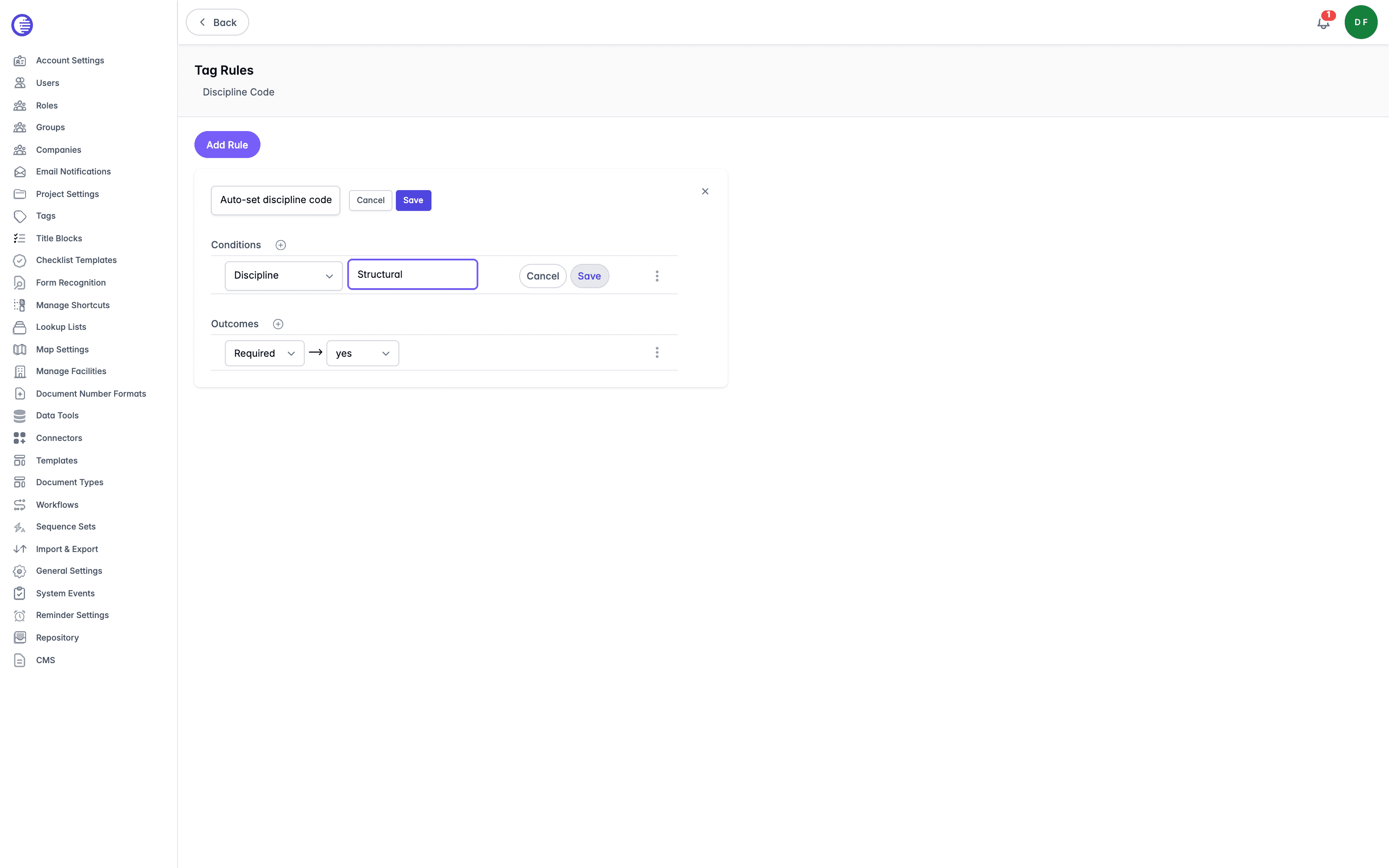
The example above illustrates the builder with one condition and one outcome. It is not a saved rule, and the values shown are not defaults.
System Tags
Some tags are system-owned, identifying a submission type such as an RFI or Change Request. A system tag cannot be deleted. On save, it silently keeps its stored Name regardless of what is submitted; only its Description and colours actually change.
Deleting a Tag
Open a tag's context menu and select Delete.
Deleting a tag definition that is referenced by a shortcut is blocked, with an error naming the offending shortcuts. Remove the tag from those shortcuts first.
Deleting a tag definition that is not referenced by any shortcut succeeds, and triggers a rebuild of the shortcut folder cache. That rebuild only runs if Shortcut cache rebuilding is enabled for the tenant; see Shortcuts.
Related
Tags can be populated automatically from a drawing's title block. See Title Blocks. To control the values a tag will accept, see Lookup Lists.
Renditions
Set the default CTB style sheet and sheet size used when Lunr generates renditions for a repository.
Document Types
Lunr uses business-focused document classifications to control document creation, metadata, workflows, numbering, versioning, storage, and governance rules, ensuring content is managed consistently regardless of file format.