Import & Export
Manage the named spreadsheet templates Lunr uses to bulk import and export document metadata, kept separate from document templates and from running an actual import or export job.
Overview
The Import & Export page manages reusable spreadsheet templates that map columns to Lunr tags, for use elsewhere in bulk metadata import and export. It does not run an import or export job itself: there is no progress bar, no "run now" wizard, and no column-mapping screen in the app. Column mapping lives entirely inside the uploaded spreadsheet file.
This page is distinct from Template Files, which manages the document templates new documents are created from. It also has no relationship to the repository-scoped CR Import and Collection Import tabs on the Repositories page, which do run an import.
Reaching this page requires the Administration Pages access right.
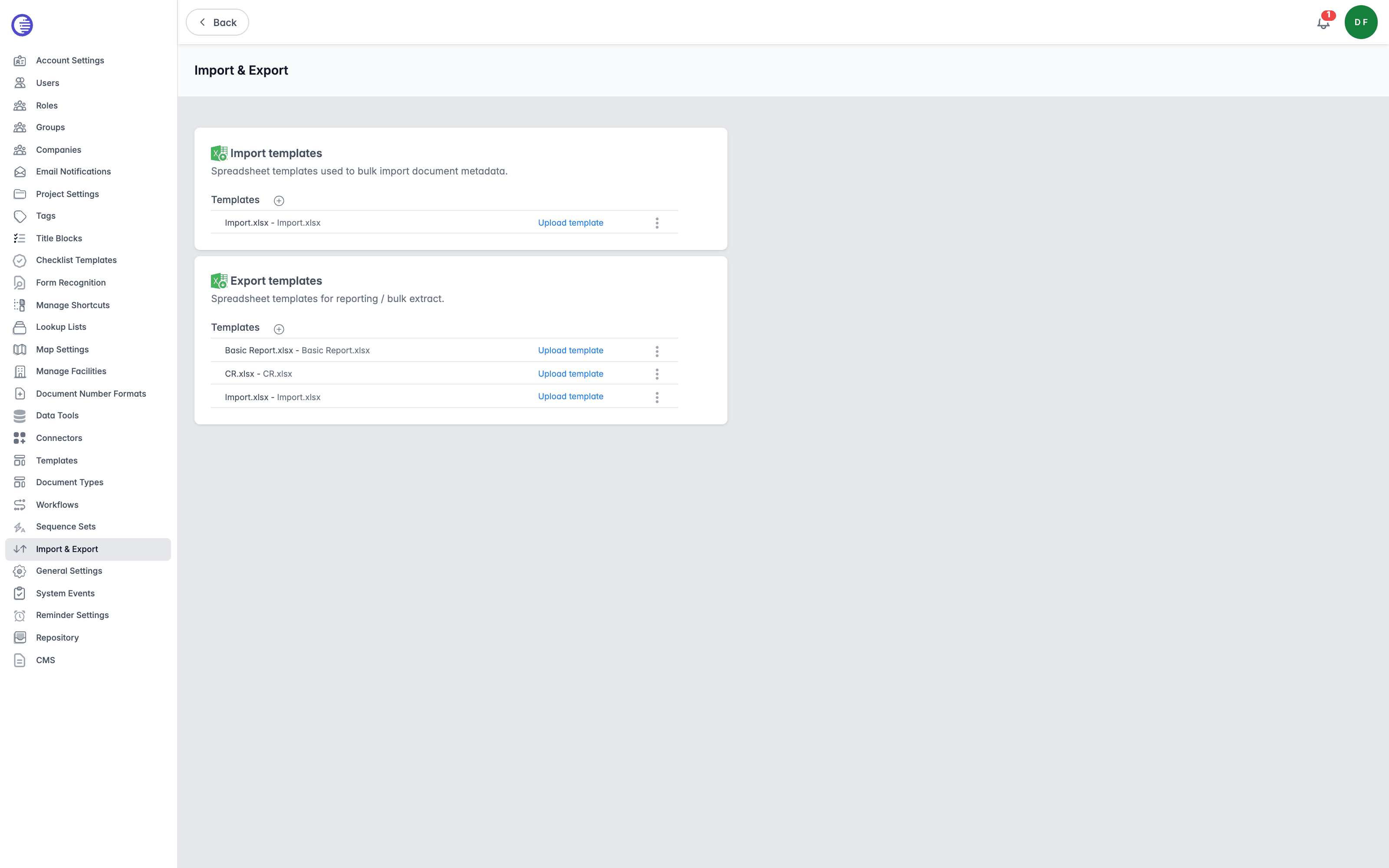
Import Templates
Import templates are spreadsheet templates used to bulk import document metadata. Design your worksheet so its column headings match the Lunr tags you want to populate, then upload it as a template.
Export Templates
Export templates are spreadsheet templates for reporting and bulk extract. They define which columns appear in the extract and which Lunr tag supplies each one.
Managing Templates
Both sections work the same way.
To add a template, select the + icon beside the Import templates or Export templates heading. To upload the spreadsheet file itself against an existing entry, select Upload template on that row.
Each template row carries a context menu, opened by selecting the three dots at the end of the row, offering:
| Action | What it does |
|---|---|
| Download | Downloads the template spreadsheet so you can edit it or reuse it as a starting point. |
| Edit | Opens the row for editing, where you can change the template's name and description. Select Save to keep your changes, or Cancel to discard them. |
| Delete | Removes the template. |
No delete confirmation
Deleting a template takes effect immediately, with no confirmation prompt. There is also no check for whether the template is still referenced elsewhere, so review the row carefully before selecting Delete.
Templates and Repositories
These options appear only when your organisation has multiple repositories enabled.
Each template can be global or restricted to particular repositories. When you edit a template, a Repositories field lets you choose which repositories it belongs to. Leave it empty to make the template global, in which case it requires the Administration Pages access right to view or change; a repository-scoped template only requires the Manage Repository Templates access right. A template's row shows Global in italics when it is global, or the names of the repositories it is restricted to.
By default the page lists only the templates available to the repository you are working in. Select the Show templates from all repositories box to list every template in the organisation instead.
Holding only the Manage Repository Templates access right has two effects worth knowing before you delegate it. Submitting a Repositories selection is silently overwritten to just your current repository, so only an Administration Pages holder can actually change which repositories a template is tied to. And deleting a template you are not authorised for reports success without deleting anything, so a blocked delete looks identical to a successful one.
Duplicate template names are permitted; Lunr does not enforce unique names for import or export templates.
Template Files
Manage the document templates Lunr creates new documents from, upload the AutoCAD stylesheets and fonts used to generate renditions, and choose which repositories each template applies to.
Renditions
Set the default CTB style sheet and sheet size used when Lunr generates renditions for a repository.