Link Types
Define the named relationships users and workflows can create between two documents in Lunr, such as an approval PDF and its drawing, including what each link reads like, its kind, and the documents it can link to.
Overview
A link type names a relationship between two documents. For example, an Approval PDF of link type ties an approval PDF to the drawing it approves. Once at least one link type exists, users can link documents from a document's Related tab, and workflow actions can follow those links to copy tags between the documents.
Select Link Types in the Content settings group of the admin sidebar, after Document Types. The page and every change on it require the Administration Pages access right. There is no setting to enable, because links are available as soon as one link type exists.
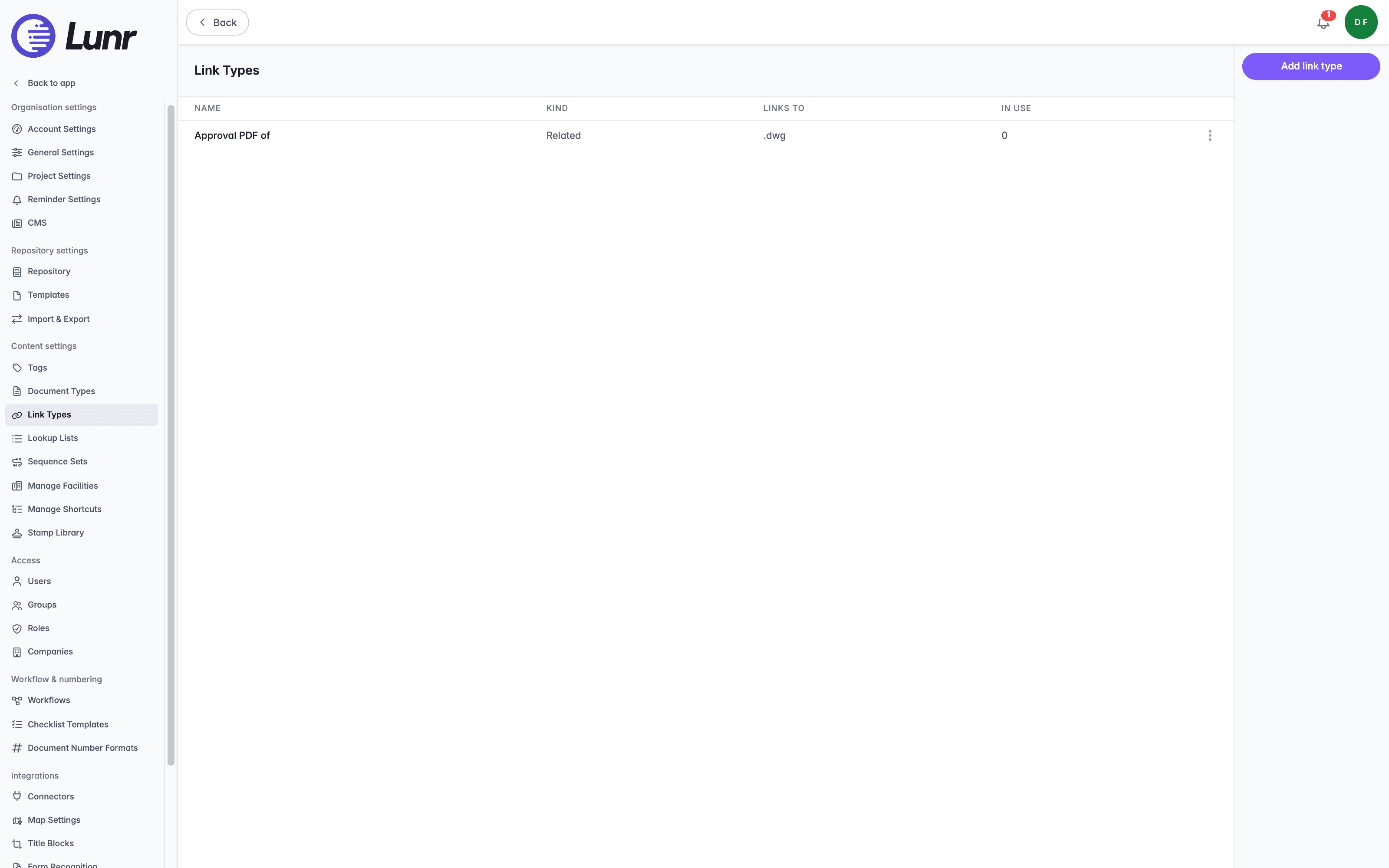
The Link Types List
The list has one row for each link type.
| Column | What it shows |
|---|---|
| Name | The name of the link type. |
| Kind | Related or Rendition. |
| Links to | The document type, the file extension, or both that a linked document must have, joined by a comma. It reads "Any document" where there is no restriction. |
| In use | How many links currently use the link type. |
A context menu at the end of each row, opened with the three dots, holds Edit, and Delete where the link type is not in use.
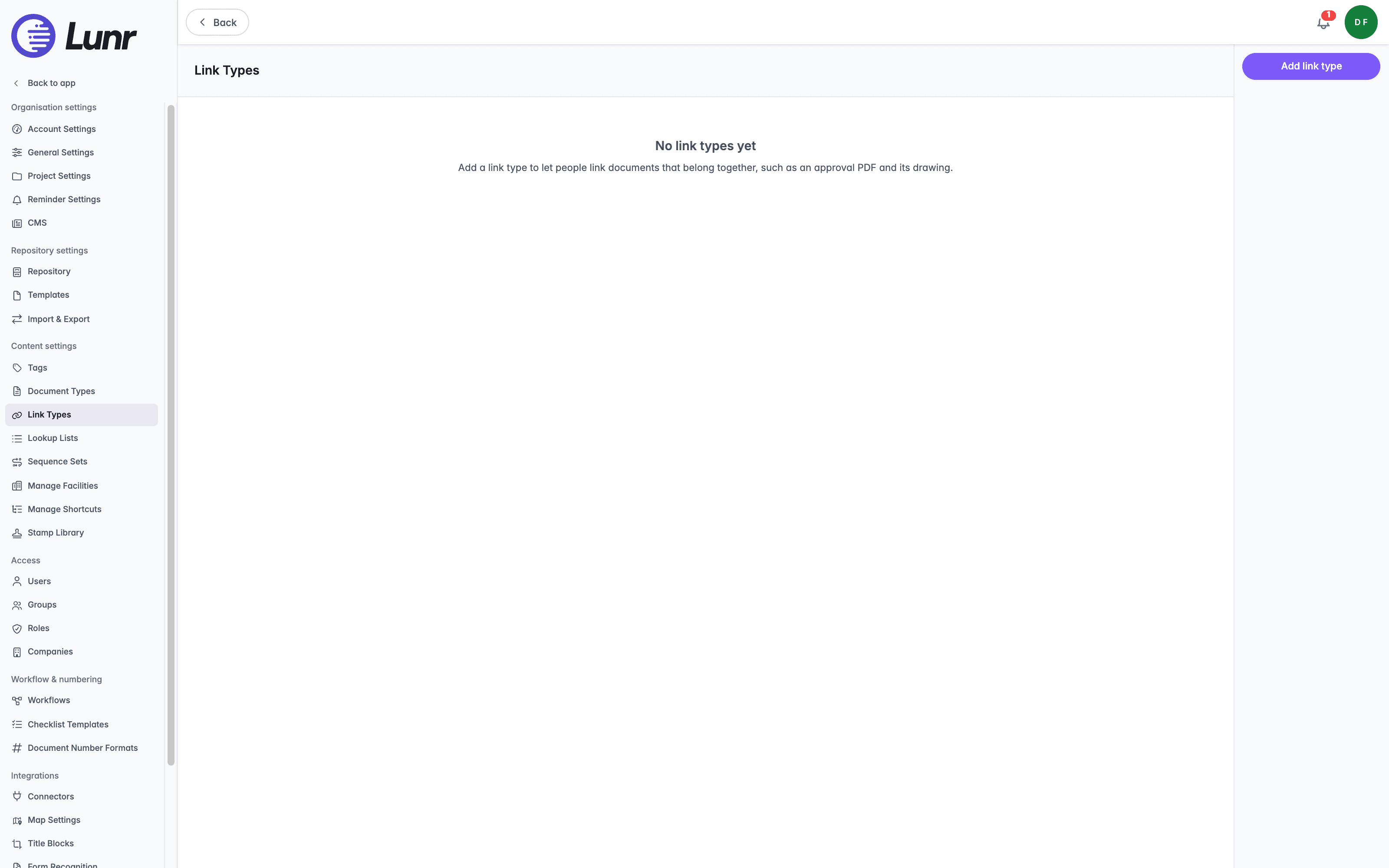
Where no link types exist, the page reads "No link types yet" and describes what they are for.
Adding a Link Type
- Select Add link type.
- Enter a Name in the field, up to 128 characters. Name it from the document that holds the link, for example "Approval PDF of". Each name must be unique.
- Choose a Kind from the dropdown list: Related document, or Rendition (for example an approval PDF of a drawing).
- Under Only link to, optionally choose a Document type and enter a File extension. The extension takes letters and digits only.
- Select Add.
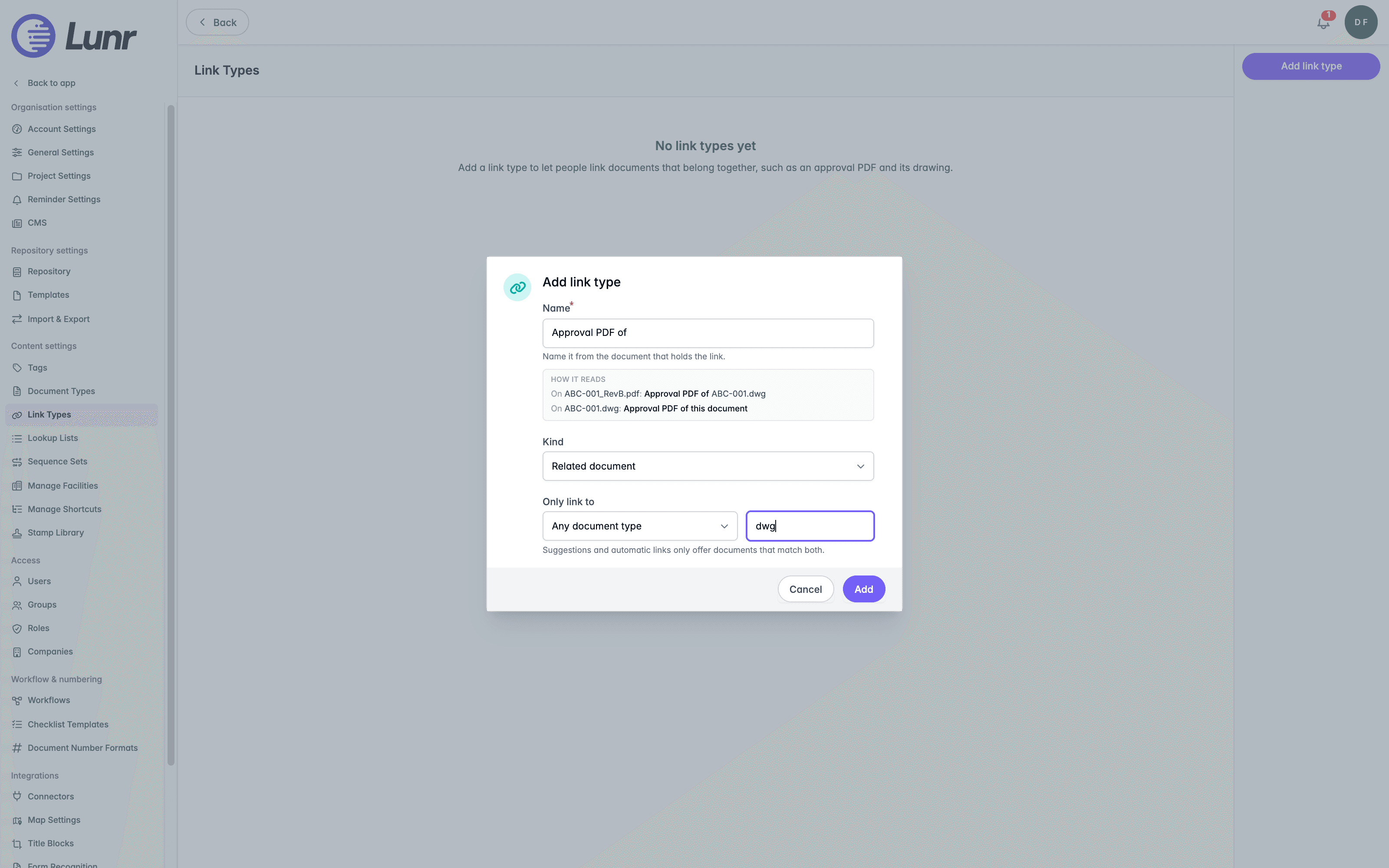
The How it reads preview shows the link from both sides, so you can check that the name works in a sentence. On the document that holds the link, it reads the name followed by the other document's file name. On the other document, it reads the name followed by "this document". For an Approval PDF of link type, a PDF reads "Approval PDF of ABC-001.dwg", and the drawing reads "Approval PDF of this document".
Only link to limits which documents a user is offered. Leave Document type at Any document type and File extension empty to offer any document. Where you set both, suggestions and automatic links offer only the documents that match both.
Editing a Link Type
Select the context menu at the end of the row, opened by selecting the three dots, and choose Edit. The Edit link type dialog has the same fields as Add link type. Select Save to apply the change.
Deleting a Link Type
Choose Delete from the context menu and confirm. Delete appears only where In use reads 0, so remove the link type's links first. Workflow actions that use a deleted link type skip until you give them another one.
Where Link Types Are Used
- The Related tab. Users add and remove links from the Links section of a document's Related tab, which groups them by link type. See Related.
- Workflow actions. The Link Matching Document and Copy Tags to Linked Document actions each take a link type. See Document Link Actions.
Xrefs are not link types. A drawing's xrefs are linked from the drawing itself, and appear in the References section of its Related tab.
Document Types
Lunr uses business-focused document classifications to control document creation, metadata, workflows, numbering, versioning, storage, and governance rules, ensuring content is managed consistently regardless of file format.
Lookup Lists
Define the accepted values that appear to users when they populate a tag, reducing incorrect tagging and supporting cascading value selection.