Sequence Sets
Sequence sets track the running number behind each document number format, and can be grouped so several prefixes share a single advancing number.
Overview
Sequence Sets are used in document numbering to keep track of the number sequence.
These are used for the initial migration of documents into Lunr using the highest sequence value for each document number format in your existing application, and should never need to be edited.
Lunr will use these values as a starting point for future documents. The formats that consume these numbers are configured on the Document Number Formats page.
The Sequence Sets Page
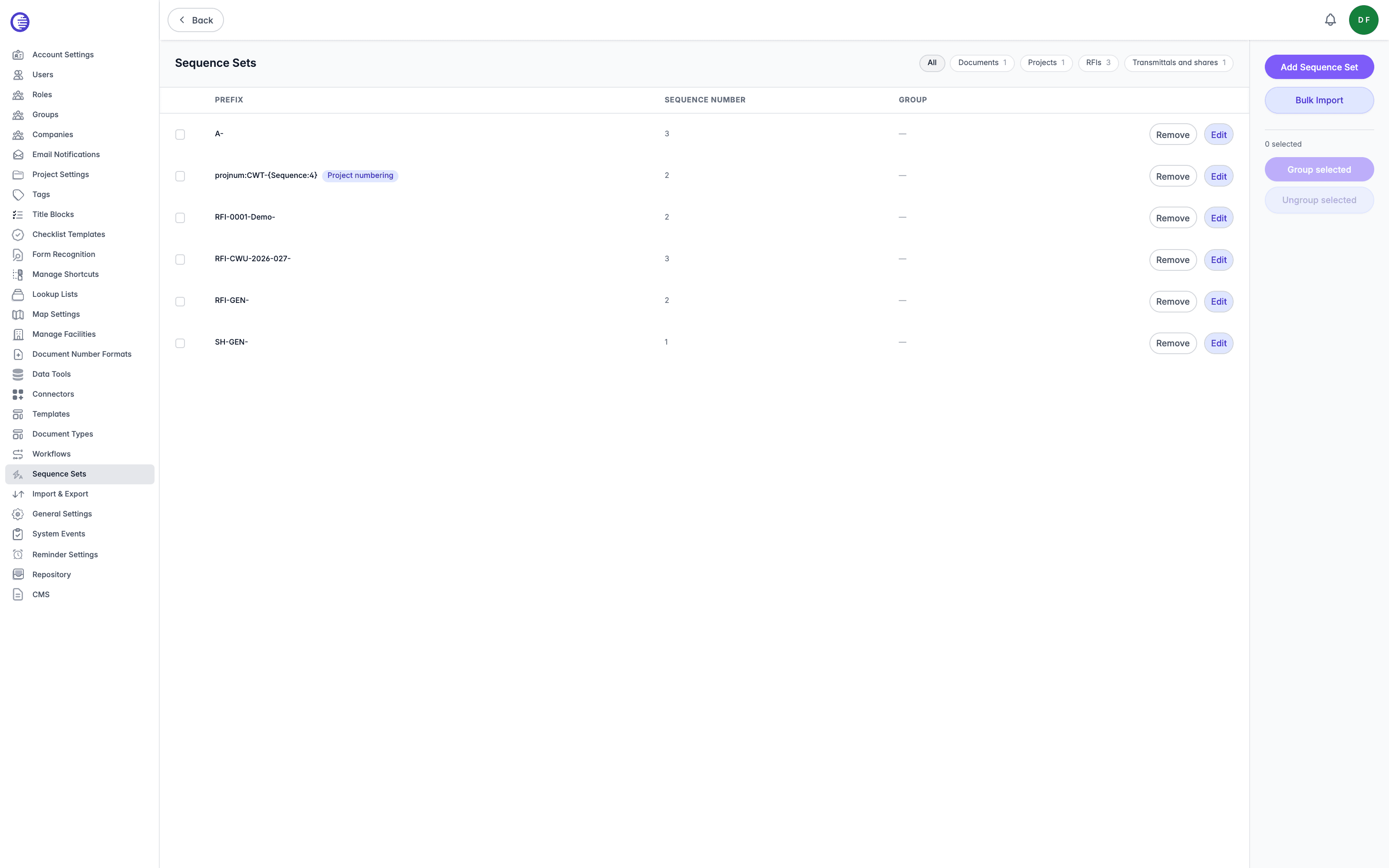
The page lists every sequence set with the following columns.
| Column | What it shows |
|---|---|
| Prefix | The prefix the sequence belongs to. |
| Sequence Number | The number the sequence has currently reached. |
| Group | The group the sequence belongs to, if it has been grouped. |
Each row offers Edit and Remove. A Realign button appears only on a row that needs it, which is explained under Grouping below.
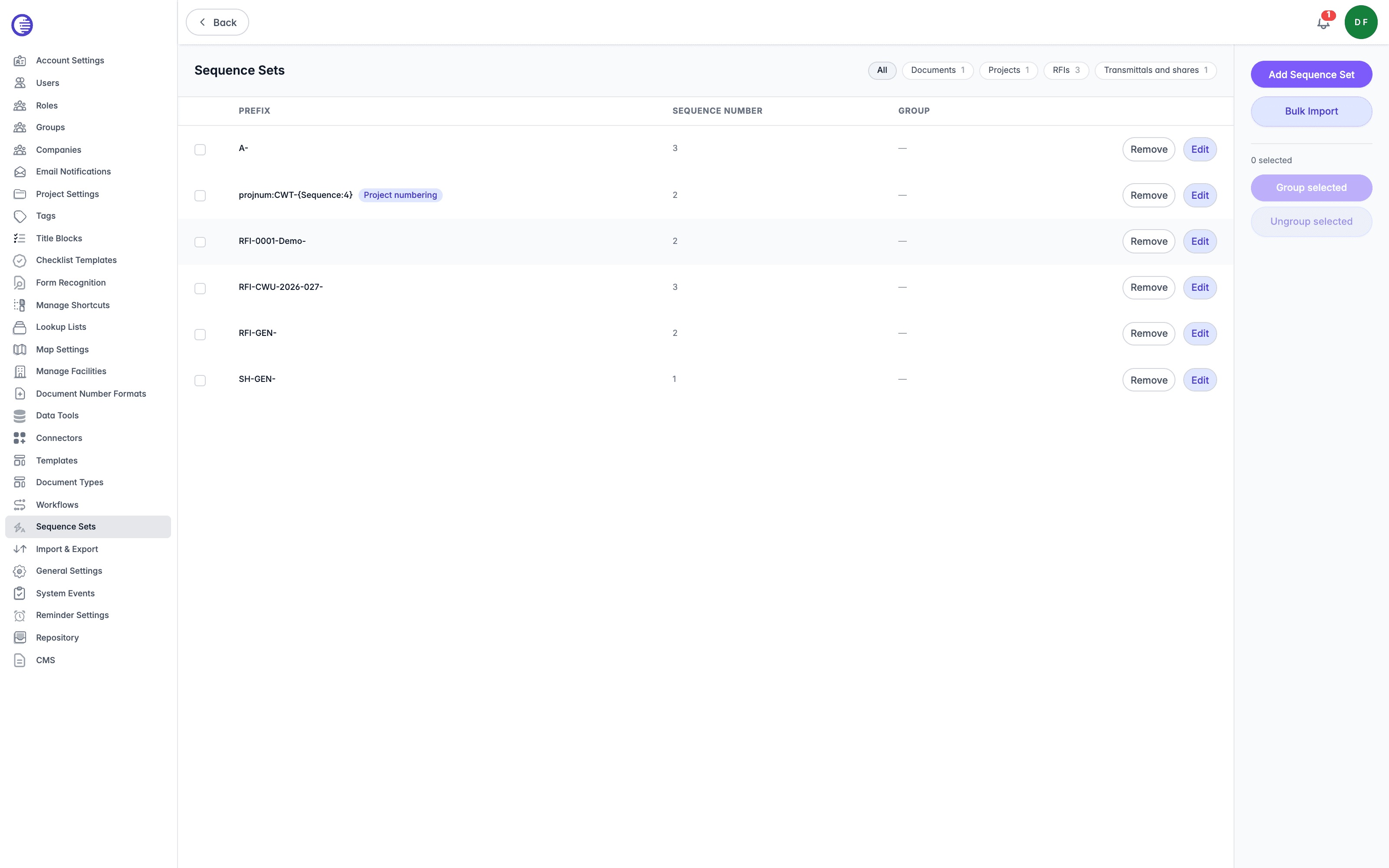
A row that drives project auto-numbering carries a Project numbering pill beside its prefix, with a tooltip naming the project template format it was allocated for. Lunr creates these rows itself, the first time a project is made from a template that carries a project number format, so they appear on this page without an administrator adding them. Editing one renumbers the projects that format will issue next. The format itself is set on the template, described in Project Templates.
Filtering by Sequence Type
A tenant that numbers documents, projects, Change Requests, RFIs, transmittals, and shares accumulates a long undifferentiated list on this page. A strip beside the heading narrows it to one kind at a time, offering All alongside a pill per type that has rows: Documents, Projects, Change requests, RFIs, and Transmittals and shares.
- Each pill carries a count. The counts are taken from the full list, so a count never changes as you filter.
- A type with no sequences gets no pill, and the strip is hidden when only one type is present.
- Select the active pill again to return to All.
- Narrowing the table narrows what the panel beside it acts on, so a row hidden behind a filter is one you cannot act on by mistake.
Lunr reads the type from the sequence prefix rather than storing it, so a document prefix you define freely falls under Documents.
Adding a Sequence Set
Select Add Sequence Set, then supply the two fields.
- Prefix is the prefix the sequence applies to, for example
DOC,DWG, orREP. - Sequence Number is the number the sequence starts from, for example
001,0001, or100.
To create many sequence sets at once, select Bulk Import, then supply a spreadsheet with the columns Prefix and SequenceNumber. Optional columns DocumentRepositoryId, Repository, and Description can also be included. Lunr shows a preview of the file before you import it. After the import runs, stat tiles show the Total, Inserted, Updated, and Skipped counts, and a collapsible Errors list gives the reason for any row that failed.
How Sequences Behave
A sequence's number only ever moves forward.
There is no automatic reset, yearly or otherwise, and no automatic reset per project. A sequence approaching the maximum number Lunr can store needs a manual reset, by editing its Sequence Number on this page, before more documents can be created against it. Plan to check long-running sequences periodically rather than waiting for one to fail.
Deleting a sequence set, or deleting a document that used one, does not free its number for reissue. A sequence's numbering can also run alphabetically instead of numerically, incrementing through A, B, C, and explicitly skipping I and O to avoid confusion with 1 and 0. Padding, such as the leading zeros in 001, does not truncate a sequence that grows past its configured width; the number simply becomes wider rather than being clipped.
Grouping Sequences
Grouping makes several prefixes share a single number so they advance together, rather than each counting independently.
Select the sequences you want to group, then select Group selected. Give the group a name, such as LOOP. Case and surrounding spaces are ignored, so "LOOP" and "loop" are treated as one group, and entering an existing group's name adds the selected sequences to that group.
Grouping has two consequences that are easier to accept before you commit than to discover afterwards.
- Every sequence in the group burns a number on every allocation, including the sequences that have no document in that batch. Skipped numbers are not reused.
- On the group's next allocation, every member levels up to the highest value any of them holds, so a sequence that is behind will jump, whether or not that allocation created a document against it.
- If any of the sequences you select already belong to another group, they will leave it, and that group continues allocating with fewer members.
To take sequences back out of a group, select them and choose Ungroup selected. They stop advancing with the group and number independently from then on.
Realigning a Sequence
A sequence that sits below the highest number in its group is marked with a Behind badge. Select Realign on that row to move it up to match the rest of the group.
Realign appears only on the row it will actually move, so you will not see it on sequences that are already level.
Lookup Lists
Define the accepted values that appear to users when they populate a tag, reducing incorrect tagging and supporting cascading value selection.
Facilities
Define the facility hierarchy Lunr uses to model buildings, floors, and other physical locations, along with the custom tags captured at each level.