Document Types
Lunr uses business-focused document classifications to control document creation, metadata, workflows, numbering, versioning, storage, and governance rules, ensuring content is managed consistently regardless of file format.
Overview
Lunr supports the storage of a wide range of content types, including specifications, drawings, manuals, correspondence, calculations, images, and other electronic records.
While folder structures, file names, and file extensions provide a basic level of organisation, they are insufficient for consistently classifying and managing large document populations.
To address this, Lunr uses document types as a primary classification mechanism. Document types are defined based on business purpose rather than file format and are used to control document behaviour across Lunr. This abstraction allows administrators to decouple content management rules from native file types or applications and enables users to organise files without being constrained by technical naming conventions.
Document Types are a core configuration component in Lunr and determine multiple document characteristics independently of the underlying file format, including:
- The templates from which documents are created.
- Naming and storage rules, including automatic and manual behaviours.
- The metadata pages and wizard steps presented to users, and the conditions under which they are displayed.
- Any custom logic or extensions applied to the document type.
- The workflows governing document lifecycle states, including review and approval.
- How document metadata is mapped to and synchronised with Lunr tags.
- Versioning and revision control rules, including incrementing behaviour.
A single Lunr document type can be associated with multiple file formats, and the same file format can be used across different document types. As a result, document type configuration should be driven by business and governance requirements rather than technical considerations alone.
Before creating or configuring document types, administrators should gather detailed information about the required characteristics listed above. This preparatory step is critical to ensuring document types are defined consistently, support required business processes, and minimise the need for reconfiguration after Lunr is in use.
Adding a Document Type
To add a new Document Type,
-
Select the Add Document Type button.
-
Enter a name for the Document Type, choose a Workflow, and select Save. This Workflow dropdown offers only
standardorsimple; it is a separate, legacy classification and is distinct from the configurable Workflow entities managed on Document Workflows, described further below.
The Document Type will be created and is ready for further configuration.
Building the Title From Tag Values
By default, a document's title is assembled from the standard title fragments. The Title Expression field on a document type overrides that, building the title from the tag values carried by documents of this type.
Write the expression from two kinds of fragment:
- A tag name wrapped in curly braces, which is replaced by that tag's value on the document.
- Fixed words wrapped in single quotes, which appear exactly as written.
For example, {Plant Number} 'Pump Station' {Asset Description} produces a title such as "PS14 Pump Station Intake Screen". An Example line below the field previews the result as you type.
Leave the field blank to keep using the standard title fragments. An expression cannot exceed 500 characters. Because the expression belongs to the document type, every document of that type is titled by the same rule.
Configuring a Document Type
Each document type is a card. Its fields save automatically as you change them; there is no separate Save button.
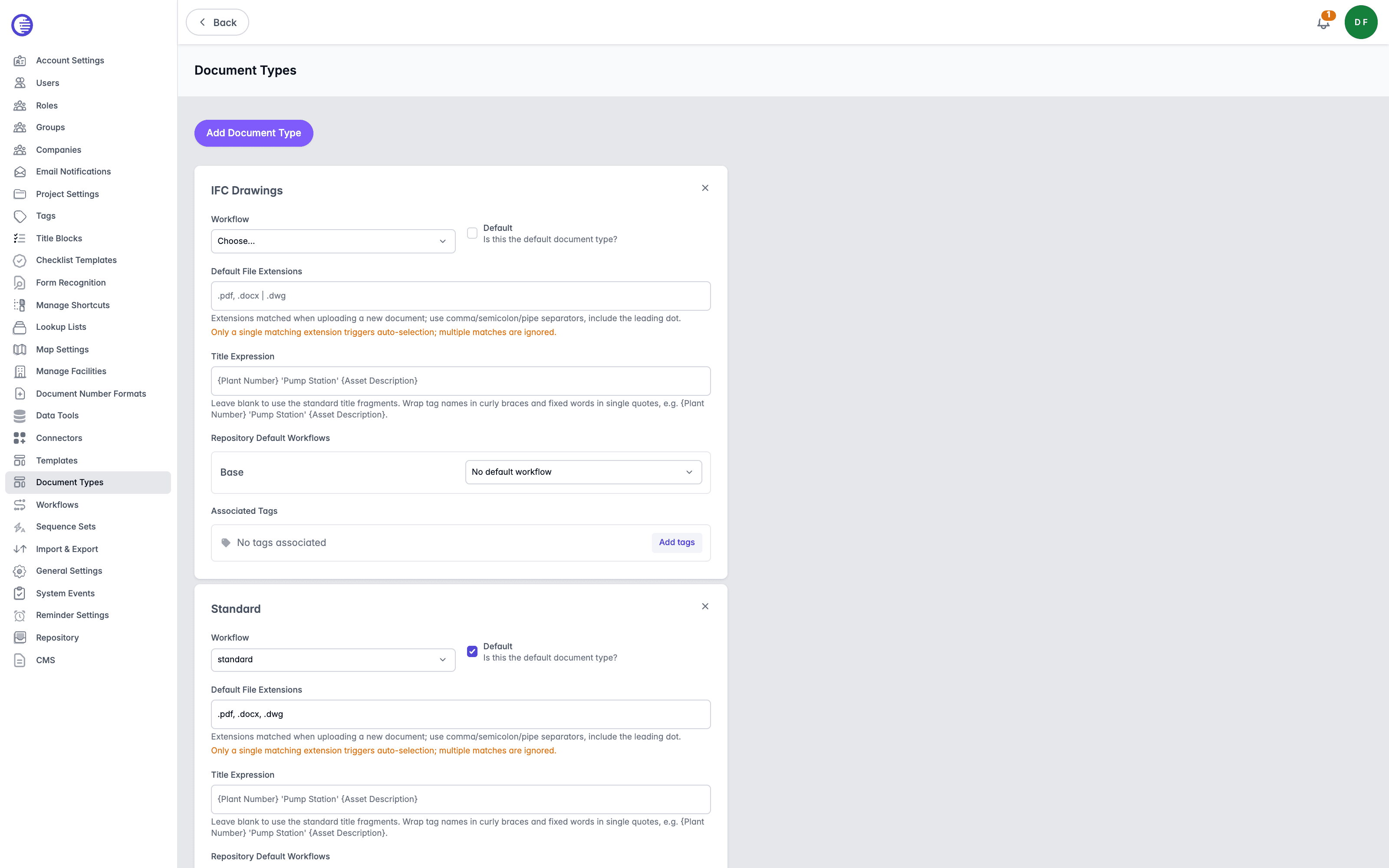
| Field | What it controls |
|---|---|
| Workflow | standard or simple. The same legacy classification set when the document type was created, described above. |
| Default | Marks this as the default document type, used when no other type is selected. |
| Default File Extensions | The file extensions that auto-select this document type when a document is uploaded, for example .pdf, .docx | .dwg. Separate multiple extensions with a comma, semicolon, or pipe, and include the leading dot. |
| Repository Default Workflows | Per repository, sets the Workflow documents of this type follow by default in that repository. |
Only a single matching extension in Default File Extensions triggers auto-selection on upload. If more than one document type's extensions match the uploaded file, none is auto-selected, and the user chooses a document type manually.
Associated Tags
Select Edit, or Add tags if none are associated yet, beside Associated Tags to choose which tags apply to documents of this type. Select Select all or Clear, or select tags individually, then Save.
Configure Workflow
A Configure Workflow button opens an external workflow configuration tool in a new tab. It only appears on specific tenants; its absence on other tenants does not indicate a fault.
Removing a Document Type
Select the remove icon on a document type's card to delete it. The Standard document type cannot be removed, and no confirmation prompt appears before any other type is deleted.
Deleting a document type still in use by documents is blocked: "Could not remove the document type. Please ensure that all documents have been migrated to a different document type before removing."