Lookup Lists
Define the accepted values that appear to users when they populate a tag, reducing incorrect tagging and supporting cascading value selection.
Overview
Lookup Lists are used to define the values that appear to users in a list of values.
For example, when a new document is added, the user selects values to populate tags. Storing accepted values in a list reduces incorrect tagging due to spelling errors.
Reaching this page requires the Administration Pages access right, or the narrower Manage Lookup Lists access right. Lookup Lists is the only screen in this section of the guide with an access right of its own, so it can be delegated to an administrator without granting the rest of the administration area.
Managing Lookup Lists
Select Lookup Lists in the admin main menu to see every list defined for the tenant.
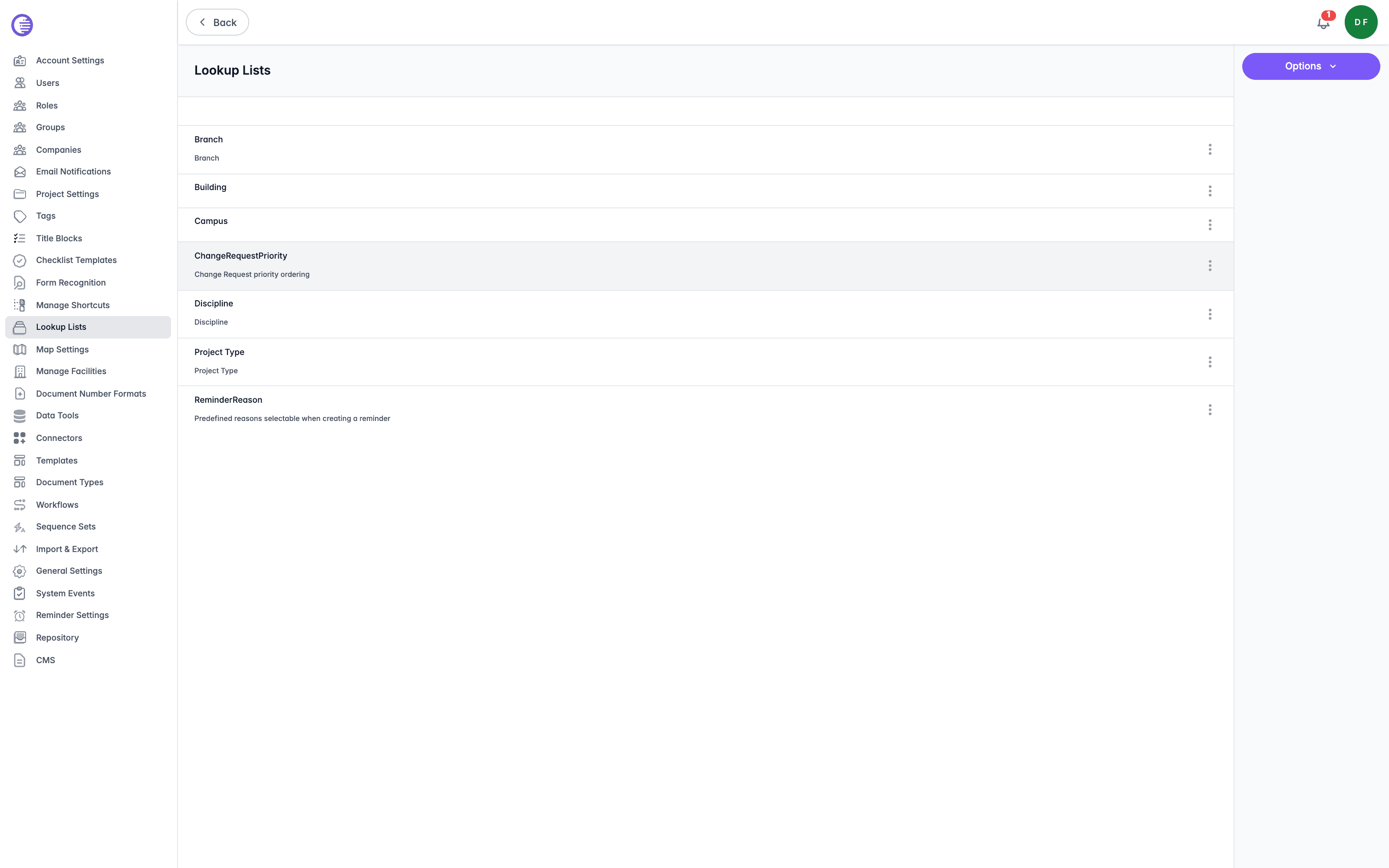
The table shows each list's Name and Description. Open a row's context menu, at the end of the row, for Edit or Delete.
Adding a New Lookup List
To add a new lookup list,
-
Select the Options button, then choose Create Lookup List.
-
Enter the list's details.
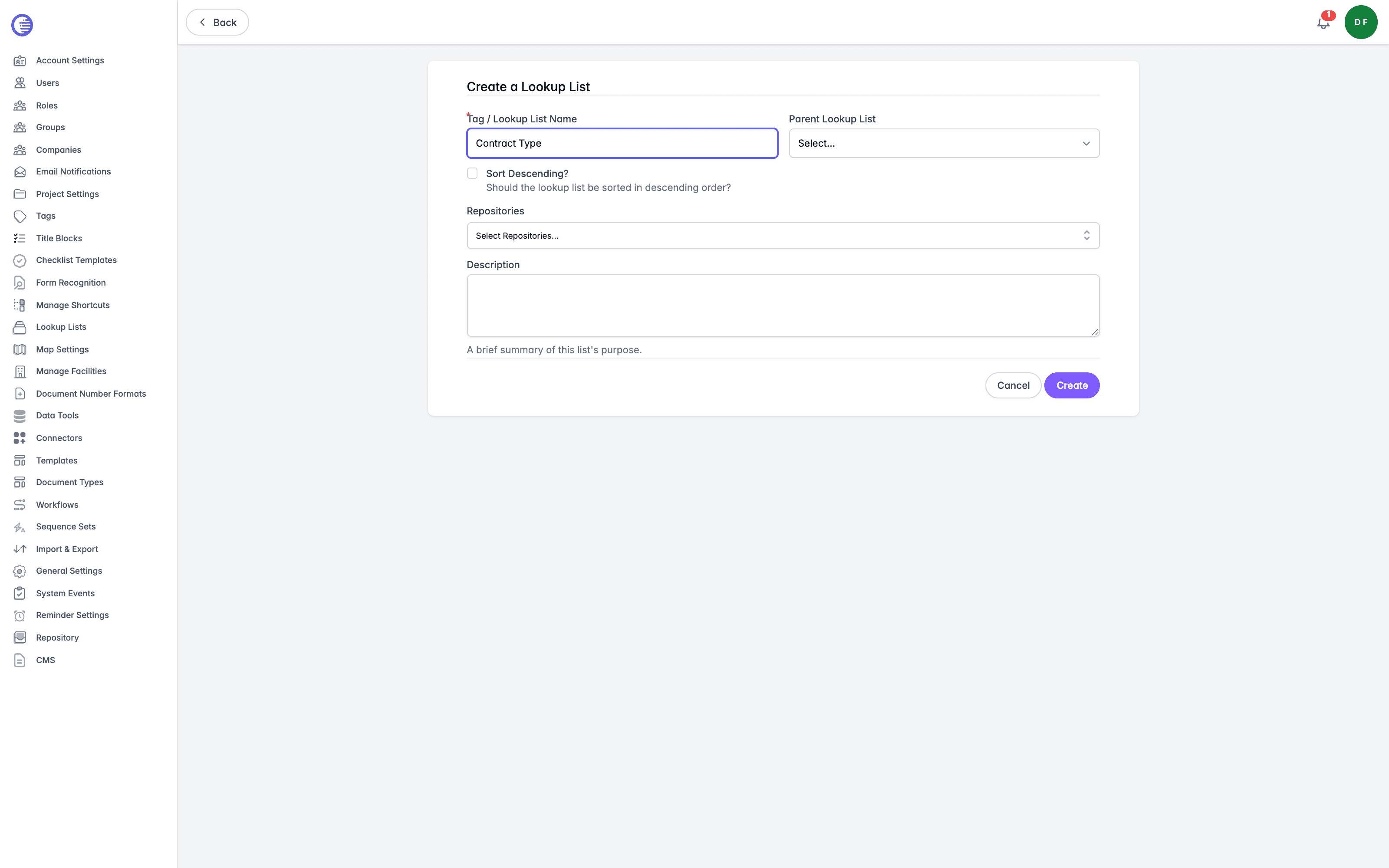
- Tag / Lookup List Name is the list's name. By default, a tag retrieves values from a lookup list matching its own name, unless a specific list name is configured for the tag on Edit Tag.
- Parent Lookup List is only needed for a cascading lookup list, one that shows values based on an already selected value elsewhere. Choose the list whose values this one cascades from.
- Sort Descending? reverses the order values are listed in, from the default ascending order.
- Repositories restricts the list to specific repositories on a multi-repository tenant.
- Description is a summary of the list's purpose, distinct from a value's own description covered below.
- Select the Create button.
The list will be created with no values. Adding values to the list is covered below.
Editing a Lookup List
To edit a lookup list,
-
Open the context menu by selecting the three dots at the end of the row, then select Edit.
-
You will be presented with the list's details, followed by its current values. If this is a new lookup list, you will only see the three buttons, Add a Value, Upload, and Export.
Server-Side Only
Selecting Server-Side Only switches the list from an in-browser editable list to a server-side searched list, intended for lists of up to 100,000 rows.
Enabling Server-Side Only changes how you manage the list's values. Values are no longer loaded into the browser or edited inline; instead, use Bulk Upload to replace them from a file of up to 10 MB, and the values table becomes a read-only preview of the first values in the list.
Add a Single Value
To add a single value to a lookup list,
- Select the Add a Value button and complete the Key and Value options. If this is a cascading lookup list, choose the matching entry found in the parent list using the Parent Value option.
- The Key is the value that is shown internally and cannot be changed.
- The Value is shown to users and can be edited later.
- Parent Value is distinct from the list-level Parent Lookup List set when the list was created. Parent Lookup List names which other list this one cascades from; Parent Value is the specific entry in that parent list this value belongs under.
- Select the Save button.
Add Multiple Values
To add multiple values to a lookup list,
- Select the Upload button to upload a text file containing multiple values for the lookup list. This is a faster, more convenient method for populating a new list.
To add multiple values to an existing list, export the list first and add to the text file, then upload it again.
Export All Values
Select the Export button to download a text file containing every value in the list.
Document Types
Lunr uses business-focused document classifications to control document creation, metadata, workflows, numbering, versioning, storage, and governance rules, ensuring content is managed consistently regardless of file format.
Sequence Sets
Sequence sets track the running number behind each document number format, and can be grouped so several prefixes share a single advancing number.