Stamp Library
Manage the organisation's shared library of SVG stamps used in the PDF (PDFTron) and Rift viewers, including uploads, groups, stamp details, CSV metadata import, and the Rift library size limits.
Overview
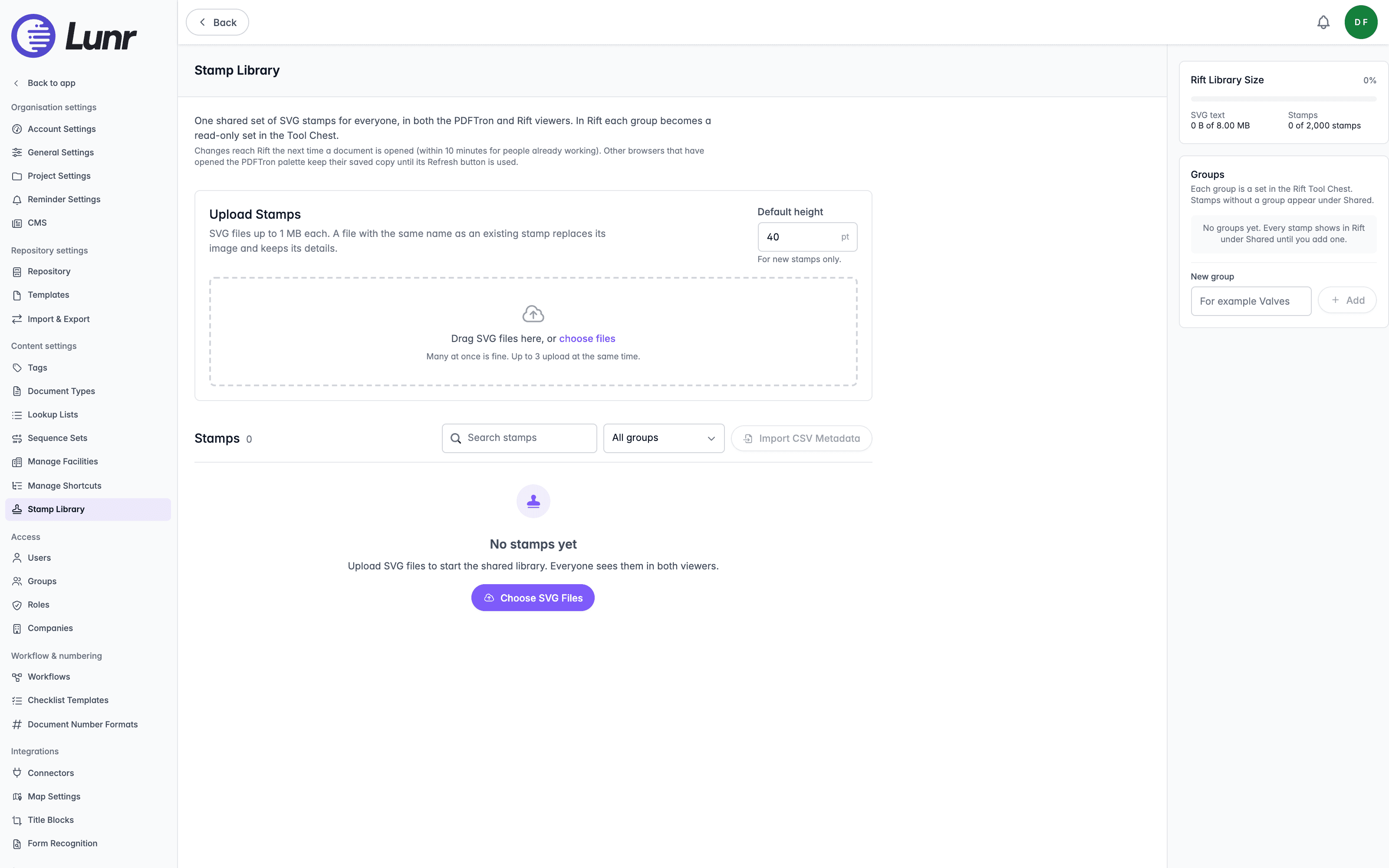
The Stamp Library is one shared set of SVG stamps for the whole organisation. Users place its stamps as annotations in both the PDF (PDFTron) viewer and the Rift viewer. In the Rift viewer, each group becomes a read-only set in the Tool Chest, shown to users who can add annotations, and stamps without a group appear under Shared.
Select Stamp Library in the Content settings group of the admin sidebar. The page and every change on it require the Release As Master access right, not Administration Pages. Any signed-in user can read the library through the viewers.
Changes reach viewers later
The Rift viewer picks up changes the next time a document is opened, and within 10 minutes for people already working. A browser that has opened the PDF (PDFTron) viewer's stamp palette keeps its saved copy until the Refresh button in that palette is used.
Uploading Stamps
The Upload Stamps panel accepts SVG files up to 1 MB each. Drag files onto the panel, or select choose files. Many files can be added at once, and up to three upload at the same time.
Each file is listed with its progress. Select Retry on a file that failed, remove a file from the list with its remove icon, or select Clear Finished to tidy completed entries.
- Default height sets the height, in points, of each new stamp. Enter a whole number from 10 to 500. The default is 40. It applies to new stamps only.
- A file with the same name as an existing stamp replaces that stamp's image and keeps its details. Names are case-sensitive, so Valve.svg and valve.svg are two stamps.
- A file that Rift is likely to reject, for example one over 256 KB, is flagged May not appear in Rift. It still uploads.
Managing Stamps
The Stamps list shows every stamp with its thumbnail, name, and, where set, its code, category, and height. Enter text in the Search stamps field to narrow the list, or choose a group, or No group, from the group filter. If no stamps match, select Clear Filters.
On a stamp's row:
- Choose a group from the row's group list to move the stamp into it, or No group to remove it from its group.
- Select the edit icon to change the stamp's Name, Code, Category, and Height (pt), then select Save, or Cancel to discard the changes. The Name field shows the file name until you enter a name.
- Select the delete icon to remove the stamp. A confirmation prompt appears first.
Groups
The Groups panel organises stamps into sets. Each group becomes a set in the Rift Tool Chest, and stamps without a group appear under Shared.
- Enter a name in the New group field, up to 100 characters, then select Add.
- Select the rename icon on a group to change its name, then select Save.
- Select the delete icon on a group to remove it.
The number beside each group is how many stamps it holds.
Importing CSV Metadata
Select Import CSV Metadata to set the name, code, and category of stamps already in the library from a CSV file. The file has the columns Symbol Name, Code, and Category. Select Choose CSV File, or paste the CSV text into the dialog, then select Preview. Nothing is saved until you apply the preview.
- Each Code matches the stamp whose file name is that code, or the only file name that contains it.
- A Category with the same name as a group also moves the stamp into that group.
- The preview lists the rows that match a stamp and the rows that match none, which are skipped, with the reason for each.
The import is unavailable while an upload is running.
Rift Library Size
The Rift Library Size panel compares the library with the limits the Rift viewer applies: 8 MB of SVG text and 2,000 stamps. A warning appears as the library nears a limit, and again when it is over. Beyond the limits, some stamps do not appear in Rift, although the PDF (PDFTron) viewer still shows them all.
Drawing References
Monitor how well drawing numbers printed on drawings are linked to other drawings in the Rift viewer, find numbers that match no drawing, and set the labels Lunr ignores when matching.
Users
Manage the people who can sign in to Lunr, invite internal and external users, and control the roles and document permissions each person holds.