Document Number Formats
Lunr uses configurable document number formats and sequence sets to automatically generate unique document numbers, ensuring consistency, reducing manual effort, and preventing duplicate numbering.
Overview
Document Number Formats let Lunr assign a new document a number automatically, instead of requiring one to be entered by hand. This saves time and reduces the chance of duplicate numbers being assigned by accident.
Multiple formats can be created, each matching a different combination of tag values.
Formats are global, not per repository
A document number format applies across the whole tenant. There is no per-repository list of formats; only the running sequence counter behind a format can optionally be scoped to a repository, using Repository-scoped sequence below.
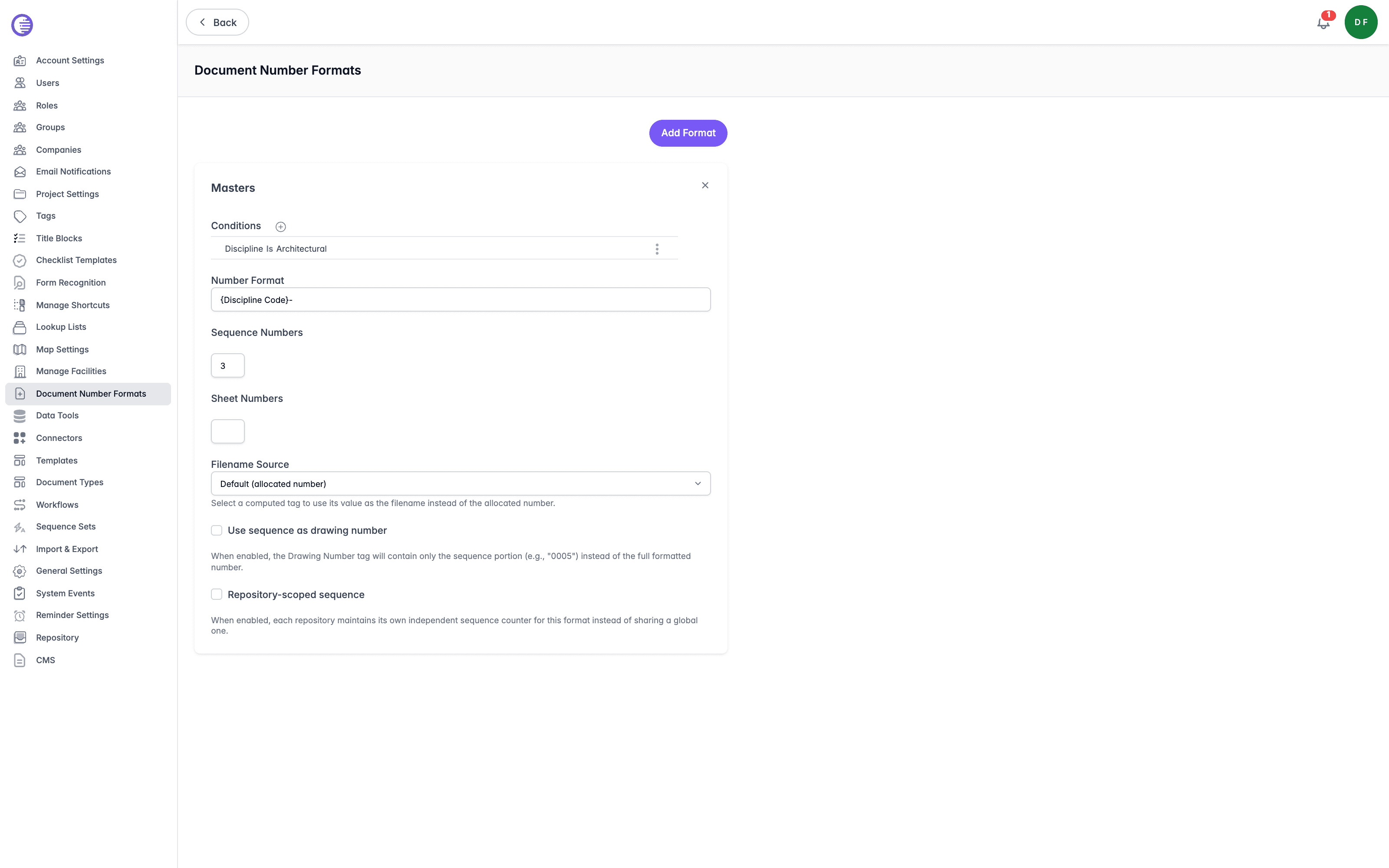
Adding a Format
Select Add Format, enter a recognisable Description for the new format, then select Create.
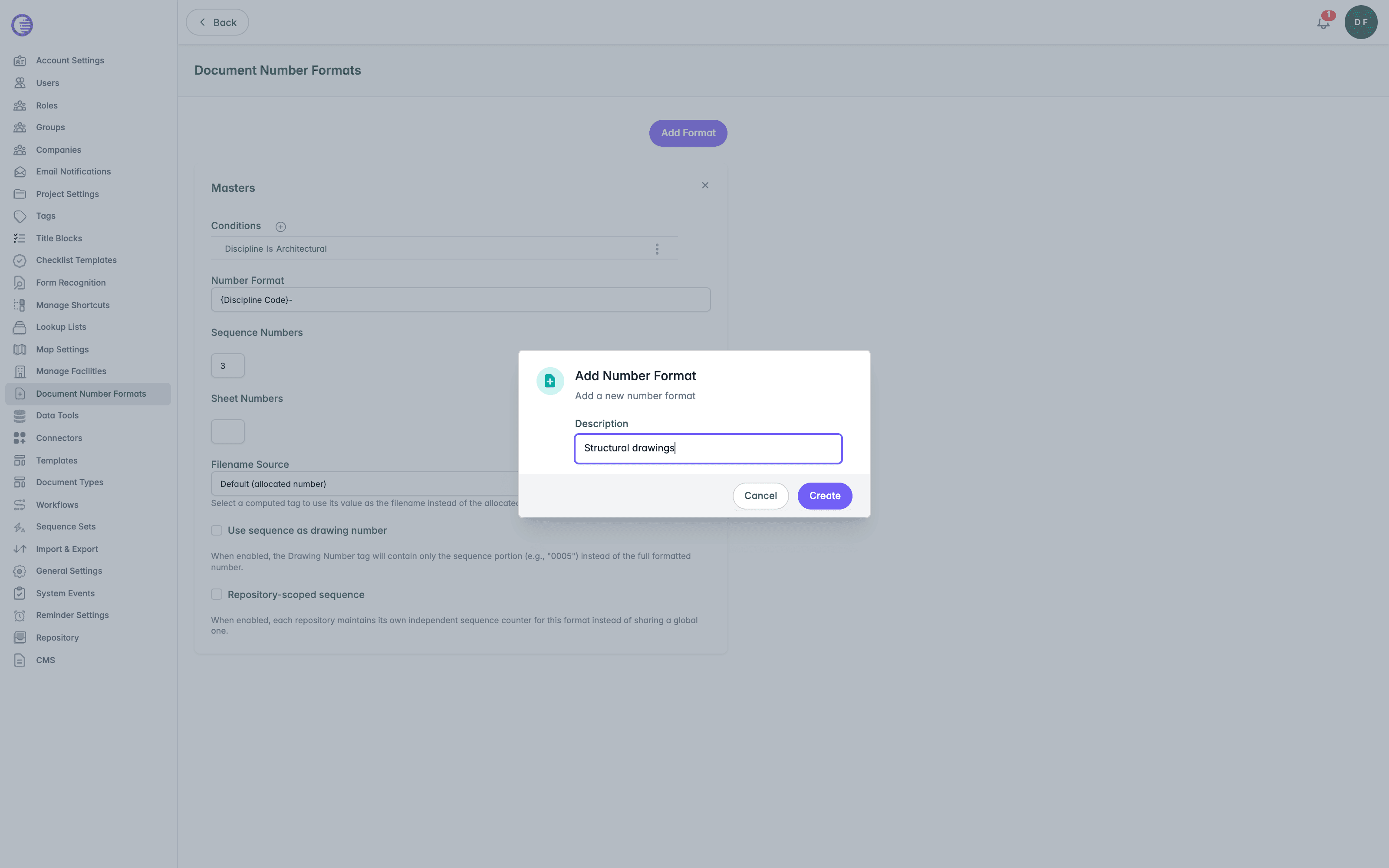
The new format is added to the page with its fields ready to configure.
Each format appears as its own card with a remove icon in the corner. Selecting it deletes the format immediately.
No confirmation, and no in-use check on delete
Deleting a format has no confirmation prompt and no guard against the format being currently in use. A format that documents are actively being numbered against can be deleted with no warning. There is also no uniqueness check on Number Format or Description, so two formats with identical patterns can both exist; only the order their conditions are checked in decides which one actually applies.
If a field fails to save, an inline banner appears above it reading "Not saved. {message}. This field has been reset to its saved value.", with a Dismiss link.
Conditions
Conditions decide which documents a format applies to. Select the + button to add a condition, then choose a Tag and enter the Value it must equal.
A format with no conditions at all is not skipped. It becomes the fallback, used whenever a document does not match any other format's conditions.
Number Format
Number Format is the pattern used to build the document number, made up of fixed text and placeholders in { }.
| Placeholder | What it inserts |
|---|---|
{Sequence} | The running sequence number for the matched format, padded to the width set by Sequence Numbers below. |
{NextSheetNumber} | The next sheet number, padded to the width set by Sheet Numbers below. |
{SheetNumberAlpha} | The value of the Drawing Sheet Number Alpha tag. |
{Tag Name} | The value of any tag with that name, for example {Discipline} or {Site Code}. |
{TagName:exclude(OtherTagName)} | The value of TagName, with any of its comma-separated values that also appear in OtherTagName removed first. |
Wrap fixed text you want copied into the number exactly as written, without it being scanned for placeholders, in single quotes, for example 'ABC-'{Sequence}'-'{NextSheetNumber}.
Do not copy syntax from Change Request Number Formats
This page and Change Request Number Formats look similar but are read by two separate, incompatible parsers. This page supports the single-quoted literal text above and the exclude modifier, but does not support inline Sequence padding such as {Sequence:4}; padding always comes from the Sequence Numbers field below. Change Request Number Formats supports inline Sequence padding but has no literal-quoting mechanism at all. Copying a pattern from one page to the other produces the wrong result rather than an error.
Sequence Numbers sets how many digits the {Sequence} placeholder is padded to, adding leading zeroes as needed.
Sheet Numbers and Filename Source
Sheet Numbers sets how many digits the {NextSheetNumber} placeholder is padded to, for example 3 for 001. Leave it blank to keep the default padding.
Filename Source is a dropdown choosing what a matching document's filename is based on. Choose Default (allocated number) to use the generated document number, or choose a computed tag to use its value as the filename instead.
Drawing Number Tags
Select Use sequence as drawing number to have the Drawing Number tag hold only the sequence portion of the number, for example 0005, rather than the full formatted number. Clearing this option removes any tag linked below it.
With Use sequence as drawing number selected, the Full Drawing Number Tag dropdown appears, letting you choose a tag to receive the complete formatted drawing number instead, for example ABC-2024-0005.
Repository-Scoped Sequence
Select Repository-scoped sequence to give each repository its own independent running counter for this format, rather than every repository sharing one counter. This only changes how the sequence is counted; the format itself is still matched globally by its conditions, regardless of repository.
Computed Expression Overrides
When the tenant has computed tags configured, a Computed Expression Overrides table appears below, listing each computed tag with a Tag name, its Default expression, and an Override field. Leave an override blank to use the repository's or tenant's default expression for that tag; enter one to use a different expression for documents matched by this format specifically.
How a Format Is Chosen
When more than one format could apply to a document, Lunr uses the first format whose conditions match, evaluated in the order the formats were created. There is no separate priority or ordering control, so changing which format wins means recreating formats in the order you want them checked.
Sequence Sets
Each number format draws its running number from a sequence set. See Sequence Sets.