Document Workflows
Lunr uses configurable workflows to manage document lifecycles by controlling states, transitions, approvals, permissions, and governance rules, ensuring documents move through consistent and auditable review and release processes.
Overview
Workflows in Lunr are used to control the lifecycle of documents by defining the states they move through and the rules governing transitions between those states. Workflows enforce governance by ensuring documents follow consistent review, approval, and release processes aligned with business requirements.
Workflows are typically associated with document types and can be configured to restrict actions such as editing, approval, or release based on the current state and the user's role. They also determine when metadata can be modified, when revisions or versions are created, and when documents become visible to broader audiences.
Proper workflow configuration is critical to maintaining data integrity, auditability, and compliance, and should be designed in conjunction with access controls and document type definitions to ensure predictable and controlled document behaviour.
This page covers building and configuring workflows. For how a workflow is used day to day, including moving a document through its steps and why an action might be unavailable, see Document Workflows in the User Guide.
The workflow engine itself is enabled by Configurable Workflow Enabled under Workflow on the General Settings page.
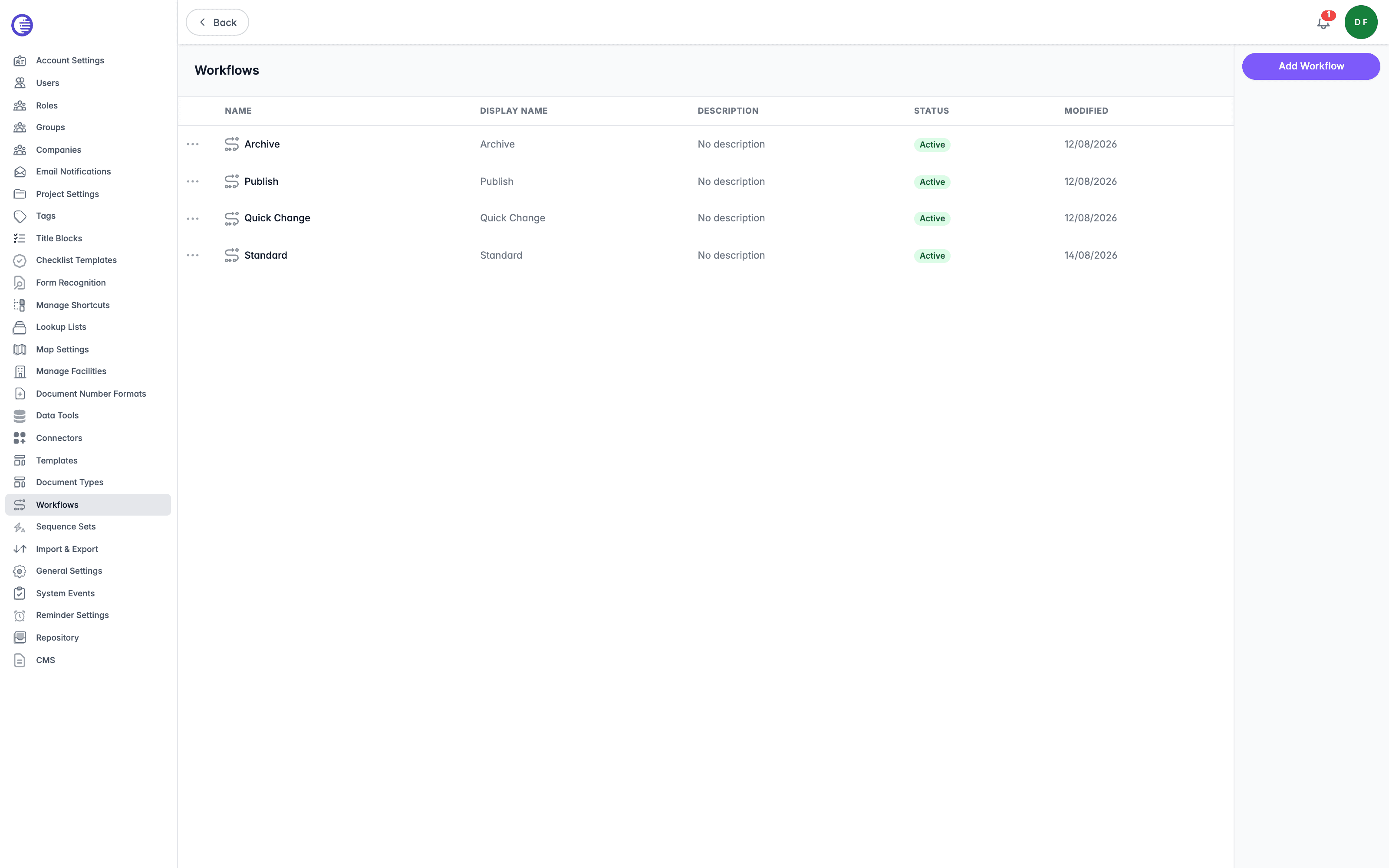
Adding a New Workflow
-
Select the Add Workflow button.
-
Complete the fields and select the Create Workflow button.
-
Use the Editor tab to build the workflow's diagram of states and transitions. See Workflow Editor for what the editor screen shows and how saving it works.
Workflow Actions Reference
When you create a workflow transition, you can attach one or more actions to it. Actions run automatically whenever a document moves through that transition, for example sending a notification, applying a tag, or locking a related document.
Notifications & Communication
 Email Notification sends an email notification to stakeholders when the document reaches this step.
 Custom Email Message sends a custom email notification with your own message.
 User Comment prompts the user to add a comment when they perform this transition.
Tags & Metadata
 Add Custom Tags adds custom tags to the document.
 Clear Tag Values clears specified tag values from the document.
 Set Tag Value sets a preconfigured tag value on the document.
 Set Tag from Change Request sets a tag value using details from the Change Request.
 Copy Tags to Parent copies selected tag values to the parent document.
 Clear Parent Tag Values clears specified tag values from the parent document.
 Set Tag to Current User's Name sets a tag to the name of the person performing the transition.
 Set Tag to Current Timestamp sets a tag to the current date and time, in a format you choose.
Approvals & Reviews
 SquadCheck Review collects approval from every required reviewer before allowing the transition.
 SquadCheck Review Summary lets the approver finalise the review cycle, or reject it to start a new cycle.
 SquadCheck Review History shows a read-only summary of the most recent review cycle.
Document Revisions
 Increment Revision increases the document's revision number.
 Increment Drawing Revision increments the drawing revision sequence number.
Assignment
 Assign Default Editor assigns the document to a specific user.
 Assign to Group reassigns the document to a specific group.
 Assign to Editor assigns the document to a specific editor.
 Reassign to Change Request Assignee reassigns the document to the Change Request's assignee.
Publishing
 Publish makes the document publicly available.
 Publish Version Event publishes a version event of a specified type.
PDF Stamping
 Stamp PDF adds a status watermark to the document's PDF rendition.
 Stamp Parent Document PDF adds a custom stamp to the parent document's PDF.
Parent & Child Documents
 Merge with Parent merges changes with the parent document.
 Lock Parent locks the parent document to prevent further changes.
 Release Parent Lock releases the lock on the parent document.
 Clear Project Data removes all project-specific data from the document.
Lifecycle & Access
 Flag as Archived marks the document as archived.
 Revoke Document revokes access to the document.
Managing an Existing Workflow
Select a workflow from the list to open its Details tab, showing its Name, Display Name, Associated Repositories, and Description.
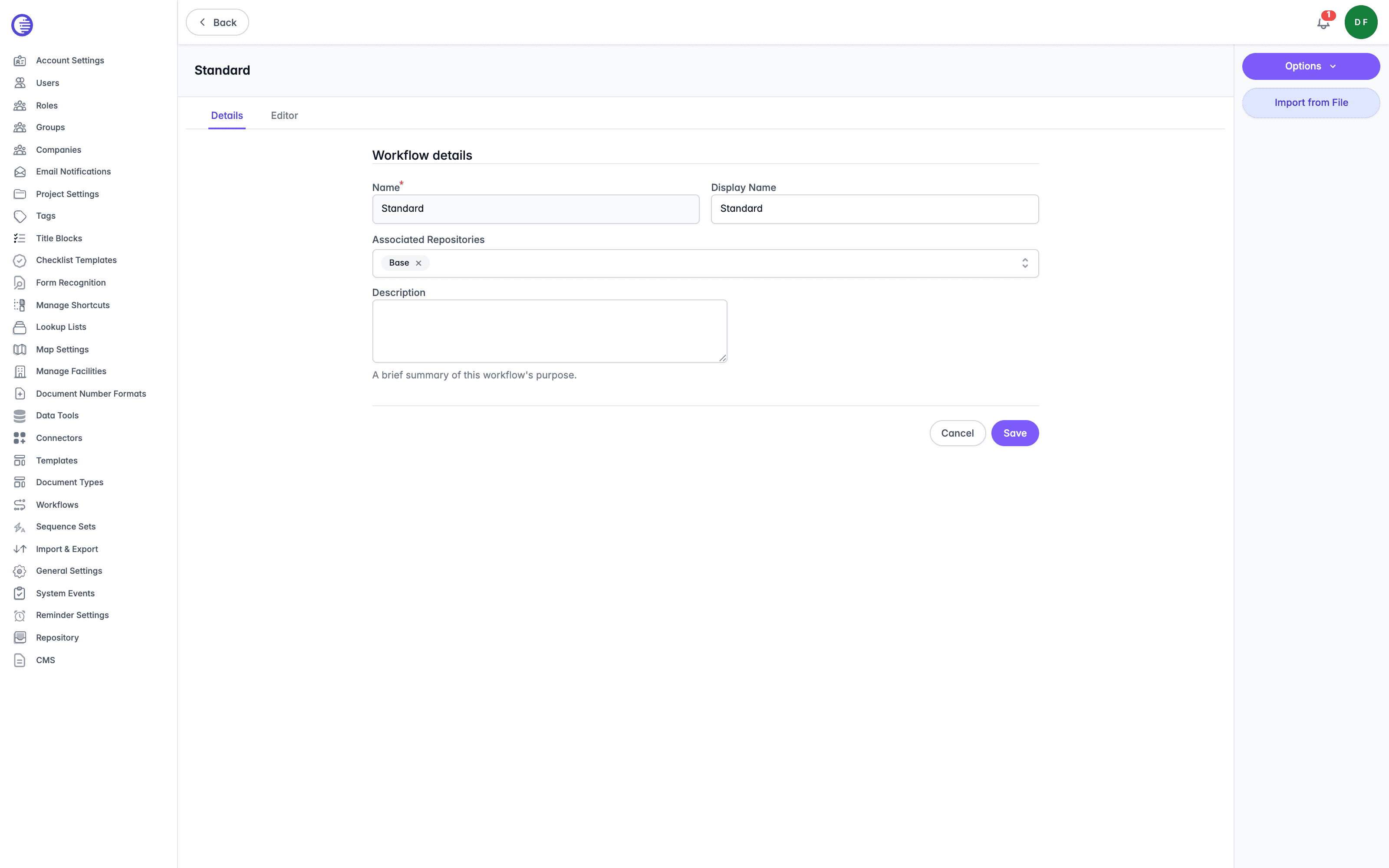
The Action Pane's Options dropdown offers two further actions:
- Export downloads the workflow's diagram as a JSON file.
- Deactivate is covered below.
Import from File loads a previously exported workflow JSON file straight into the workflow, without opening the Editor tab.
An imported file is not checked until you save
Importing a file only checks that it parses as JSON. A file that parses successfully but does not have the shape a workflow diagram expects is not rejected at import; any problem in it only surfaces later, when you open the Editor tab and select Save.
Deactivating a Workflow
Select Deactivate from the Options dropdown on a workflow's Details tab. There is no confirmation prompt.
Deactivating is the only way to remove a workflow
There is no hard delete for a workflow. Deactivating it keeps the workflow's row and all of its execution history; the only practical effect is that new documents can no longer enter it. Documents already partway through the workflow when it is deactivated are not affected, and continue through their remaining transitions as normal.
Editing a Workflow's Diagram
Open the Editor tab on an existing workflow to change its states and transitions. See Workflow Editor for what the editor screen shows.
In-flight documents are not migrated
Saving a changed diagram does not check it against documents that are already partway through the workflow. A document sitting in a state the new diagram no longer contains is not moved, flagged, or blocked from further action; it is simply left in a state the diagram can no longer account for, with no warning at save time.
Bulk Workflow Transitions
Moving many documents through a workflow transition at once processes them in batches of 5, considerably smaller than the batch of 100 used when documents first enter a workflow. This is because an action such as merging multiple revisions into a parent document can take over ten minutes for a single document, and a batch has to complete within the time allowed for one bulk operation.
A very large bulk release carries risk
If a batch times out partway through, the documents already processed in it are not rolled back. Releasing a large number of documents with heavy revision histories in one bulk transition risks leaving some documents mid-transition while others in the same batch complete, with no automatic recovery.
Companies
Track the vendors and third-party organisations your users belong to, and disable every user from a company at once.
Workflow Editor
Build and edit a workflow's diagram of states and transitions on the canvas reached from a workflow's Editor tab, with panels for the available state types and the tags, groups, repositories, and projects a diagram can reference.