Companies
Track the vendors and third-party organisations your users belong to, and disable every user from a company at once.
Overview
The Companies feature allows you to easily track users who are employed by vendors. A company record can then be selected when you create a user, so you always know which organisation a person belongs to.
Adding a Company
-
Select the Add Company button to add a new company.
-
Complete the fields and then select the Create Company button.
- Company Name must be between 2 and 100 characters.
- Description is an optional description of the company.
- Status is Active or Inactive, and defaults to Active.
The Company has been created and you can now select the company when you are creating new users.
Bulk Company Upload
Select Upload Companies to add many companies at once from a text file, rather than adding each one individually. The upload accepts .txt files only.
Companies and Users both support bulk upload, but not with the same file type. Companies takes a .txt file; Users takes an .xlsx file. Check the format before you prepare a file for upload.
Managing Companies
The Companies page lists the companies in your organisation, with columns for Company Name (with the number of users belonging to it), Description, Status, User Count, and Created Date. Inactive companies are hidden by default. Select the Show inactive companies box to include them in the list.
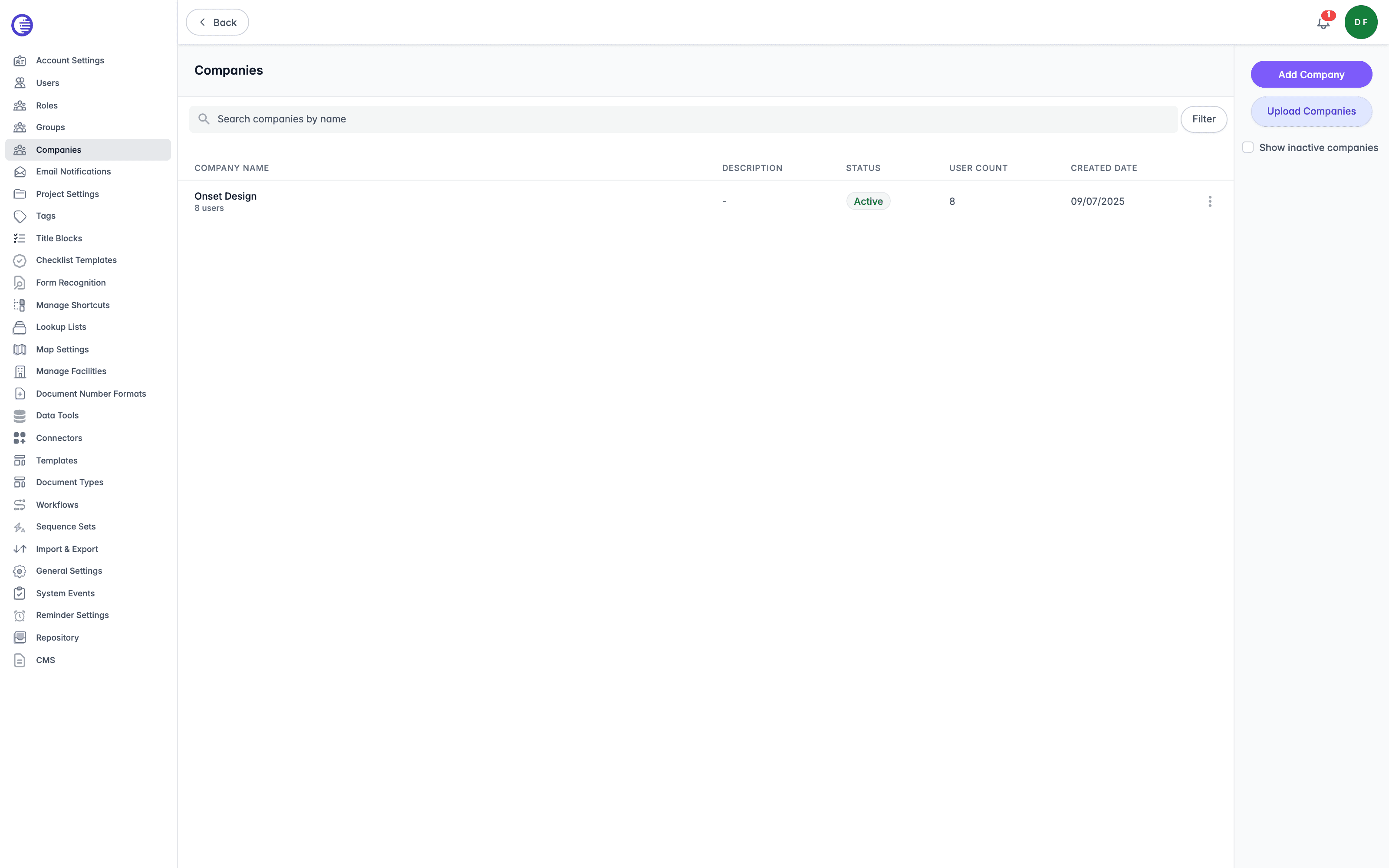
Select a company name to view detailed information. A company's page carries two tabs:
| Tab | What it shows |
|---|---|
| Company Info | The company's own details, plus read-only Created, Created By, Last Modified, and Modified By metadata. Clear the Active box to immediately disable all users who belong to that company. |
| Users | A searchable list of the users who belong to that company, showing each user's name, email, user type, status, and last login. Select View User to open a user's details, or Remove from Company to remove them from the company. |
Delete is only available when a company has no users
Delete company only appears once every user has been removed from the company, but Lunr does not explain this on screen. If you cannot find the option, check the Users tab for remaining members first.
Roles
Define the bundles of access rights that determine what users can do in Lunr, assign them to groups, and look up every access right Lunr offers, grouped by the area it governs.
Document Workflows
Lunr uses configurable workflows to manage document lifecycles by controlling states, transitions, approvals, permissions, and governance rules, ensuring documents move through consistent and auditable review and release processes.