Workflow Editor
Build and edit a workflow's diagram of states and transitions on the canvas reached from a workflow's Editor tab, with panels for the available state types and the tags, groups, repositories, and projects a diagram can reference.
Overview
The Editor tab of a workflow's details page opens the workflow diagram canvas, where you build the states a document can be in and the transitions that move it between them. Reach it by opening a workflow from the Document Workflows list and selecting the Editor tab, or by selecting Editor after creating a new workflow.
While the canvas loads, a "Loading workflow..." message is shown; if it fails to load, a red error message appears in its place instead. A brand new workflow opens the canvas empty, with no states or transitions yet, ready for you to build up its diagram from scratch.
The Canvas
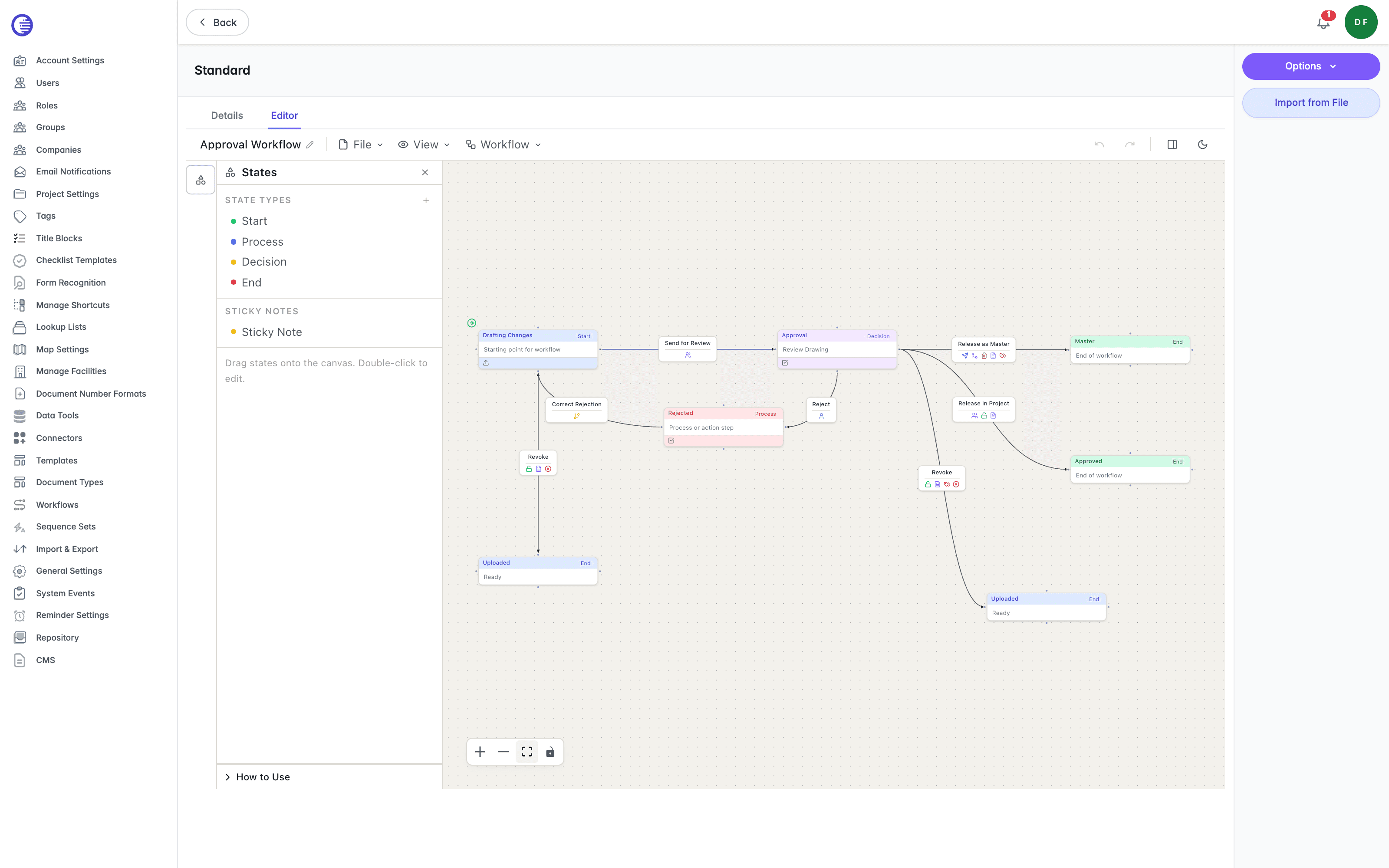
The canvas fills the space below the workflow's tab strip. It shows every state in the workflow as a node, connected by lines representing the transitions between them, as in the Standard workflow's approval diagram pictured above: a document starts at Drafting Changes, moves through Send for Review to an Approval decision node, then branches to either Release as Master or Release in Project, ending at Master or Approved. A Rejected, Revoke, and Correct Rejection path loops back to Drafting Changes.
A States side panel lists the types of node available to place on the canvas: Start, Process, Decision, End, and Sticky Note.
Referencing Groups, Tags, Repositories, and Projects
Fields on the canvas that pick a group, a tag, a document repository, or a project are populated from four lookup lists fetched when the editor loads. Groups are each assigned a colour automatically, since groups do not otherwise carry a colour of their own.
A failed lookup silently becomes free text
If any of these four lookups fails to load, the editor falls back to an empty list for that field rather than showing an error, and the field then accepts free text instead of a picked value. If a workflow's group, tag, repository, or project references behave unexpectedly, check that the referenced records still exist rather than assuming the diagram itself is at fault.
Saving a Workflow
Select Save to submit the diagram. Lunr parses and validates the submitted diagram on the server; if it fails validation, the error returned names the specific problem rather than showing a generic failure message. A successful save shows a confirmation toast.
Saving does not check documents already in progress
See Document Workflows for what happens to documents already partway through a workflow when you change its diagram and save.
Document Workflows
Lunr uses configurable workflows to manage document lifecycles by controlling states, transitions, approvals, permissions, and governance rules, ensuring documents move through consistent and auditable review and release processes.
Checklist Templates
The tenant library of checklist templates, each with its own sections and items, that can be attached to change requests and projects to track or gate their completion.