General Settings
Organisation-wide configuration covering site defaults, content generation, PDF stamping, Change Request import, user management, search, workflow, notification, and document viewer settings.
Overview
The General Settings section contains options for configuring your Lunr organisation.
These settings are organisation-wide: each one applies to every user and every project in the tenant. For settings scoped to a single project instead, see Project Settings.
Site Defaults
Site Defaults covers session behaviour, a handful of feature toggles, and the delimiter used when splitting multi-value tags.
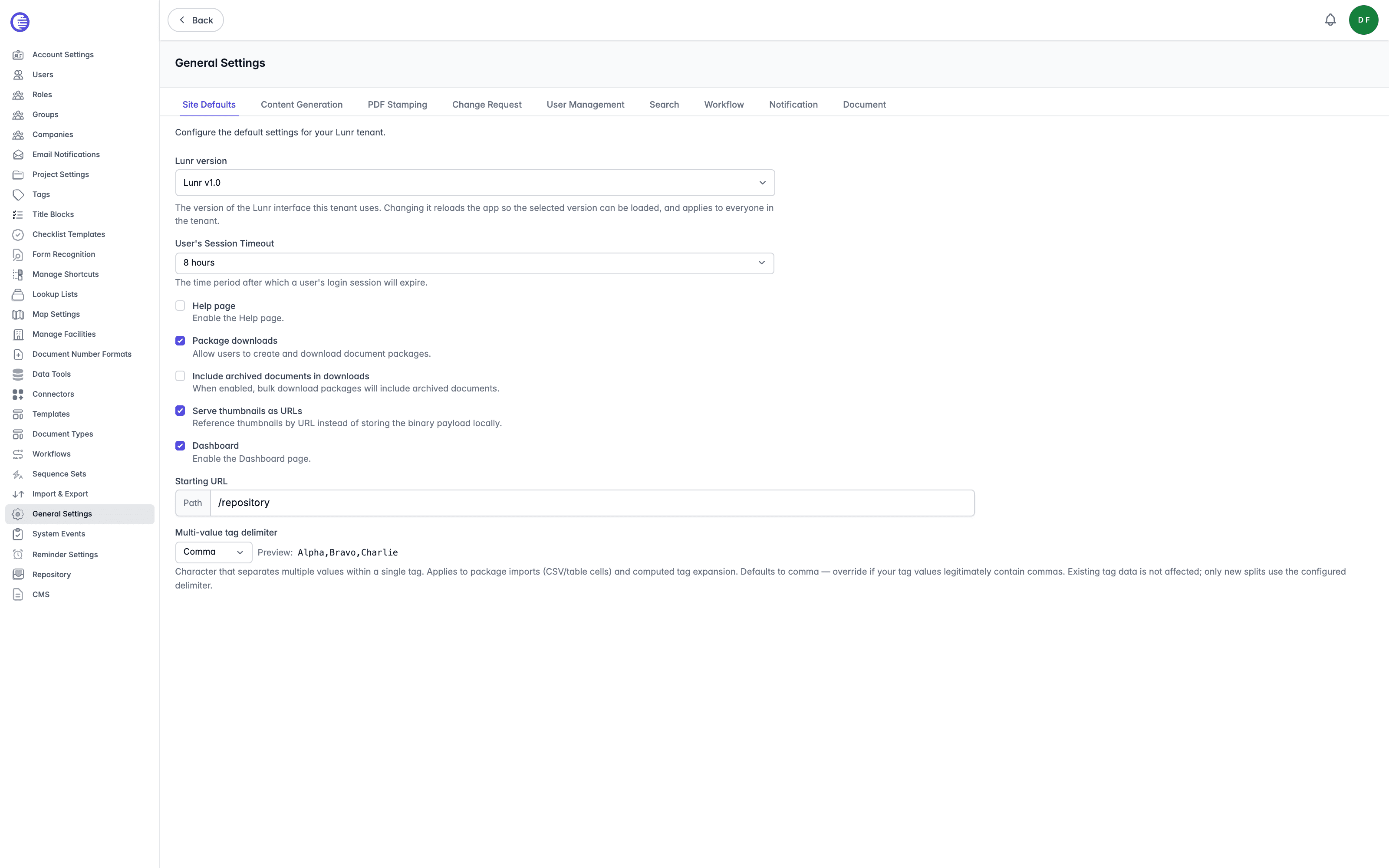
| Setting | What it controls |
|---|---|
| Lunr version | Choose which version of the Lunr interface this tenant uses, Lunr v1.0 or Lunr v2.0. Changing it reloads the application so users load the selected version, and the change applies to everyone in the tenant. |
| User's Session Timeout | Sets how long a user's login session lasts before it expires, from 30 minutes up to 12 hours. |
| Help page | Enable the Help page. |
| Package downloads | Allow users to create and download document packages. |
| Include archived documents in downloads | When enabled, bulk download packages include archived documents. |
| Serve thumbnails as URLs | Reference thumbnails by URL instead of storing the binary payload locally. |
| Dashboard | Enable the Dashboard page. |
| Starting URL | The path a user lands on after signing in, entered as a path such as /repository. |
| Default timezone | Set the timezone used to display dates and times, chosen from the full list of IANA timezones, or left as "Not set (dates use UTC)". |
| Multi-value tag delimiter | The character that separates multiple values within a single tag, applied to package imports and computed tag expansion. Choose a preset, comma, pipe, semicolon, tab, or space, or enter a custom single character, with a live preview of the result. Existing tag data is not affected; only new splits use the configured delimiter. |
Tenant-wide switch
Lunr version is saved through a dedicated setting that only accepts Lunr v1.0 or Lunr v2.0, and it switches the entire application build served to every user in the tenant, not just your own session. Confirm your organisation is ready to move before changing it.
Content Generation
Content Generation controls which content types Lunr generates automatically when a document is modified.
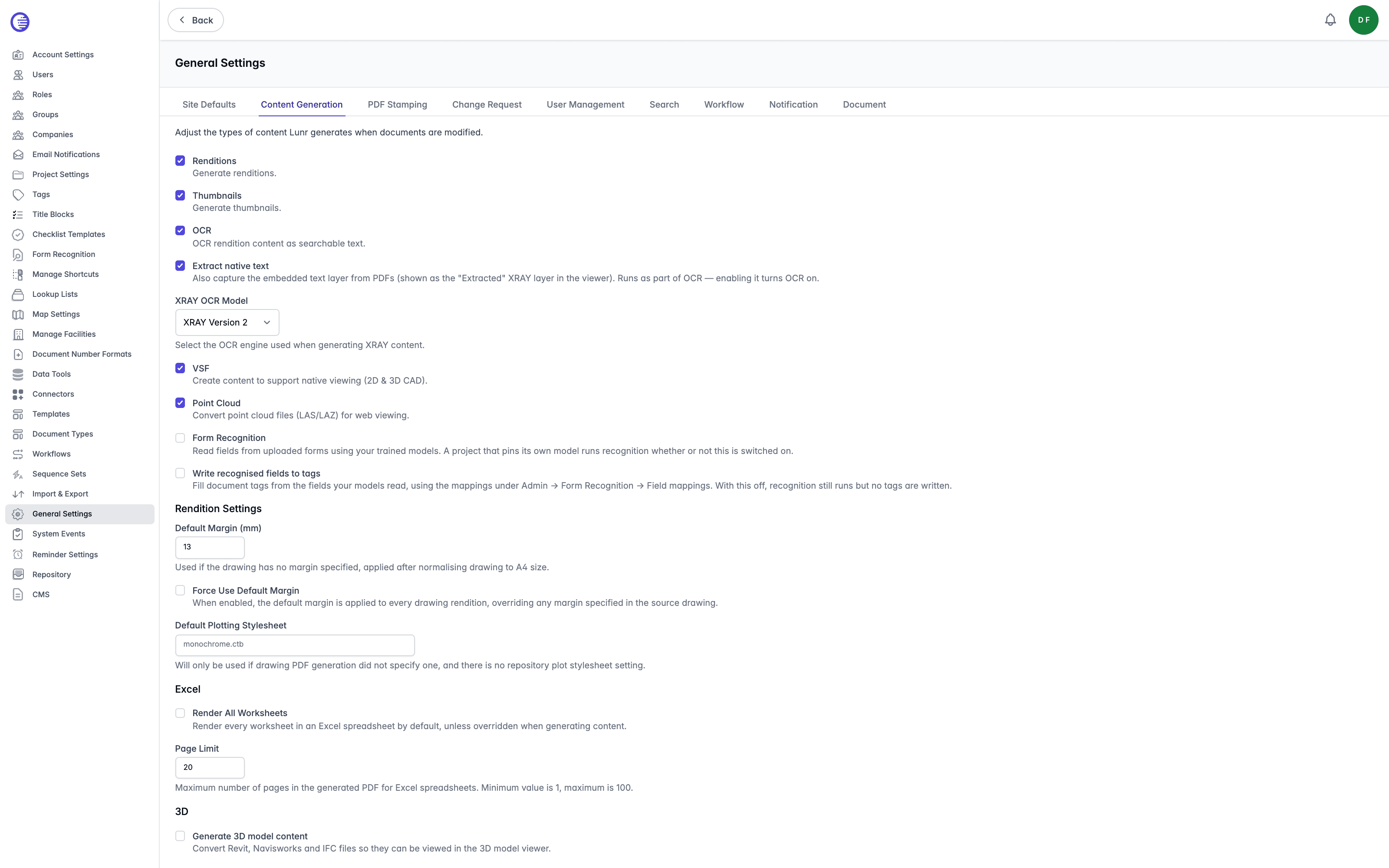
| Setting | What it controls |
|---|---|
| Renditions | Generate renditions. |
| Thumbnails | Generate thumbnails. |
| OCR | OCR rendition content as searchable text. |
| Extract native text | Also capture the embedded text layer from PDFs, shown as the Extracted XRAY layer in the viewer. This runs as part of OCR, so enabling it also turns OCR on. |
| XRAY OCR Model | Choose the OCR engine used when generating XRAY content, either XRAY Version 1 or XRAY Version 2. |
| VSF | Create content to support native viewing for 2D and 3D CAD files. |
| Point Cloud | Convert point cloud files (LAS/LAZ) for web viewing. |
| Form Recognition | Read fields from uploaded forms using your trained models. A project that pins its own model runs recognition whether or not this is enabled. |
| Write recognised fields to tags | Fill document tags from the fields your models read, using the mappings on the Form Recognition admin page. With this off, recognition still runs but no tags are written. |
Rendition Settings
- Default Margin (mm) is used if the drawing has no margin specified, applied after normalising the drawing to A4 size.
- Force Use Default Margin, when enabled, applies the default margin to every drawing rendition, overriding any margin specified in the source drawing.
- Default Plotting Stylesheet is used only if drawing PDF generation did not specify one, and there is no repository plot stylesheet setting.
Excel
- Render All Worksheets renders every worksheet in an Excel spreadsheet by default, unless overridden when generating content.
- Page Limit sets the maximum number of pages in the generated PDF for Excel spreadsheets, from 1 to 100.
3D
- Generate 3D model content converts Revit, Navisworks, and IFC files so they can be viewed in the BIM viewer.
PDF Stamping
PDF Stamping has one setting. Enable it to allow PDF stamping as part of workflow and content generation.
Change Request
Change Request controls how documents are imported and validated during Change Request package import, grouped under Package Import.
| Setting | What it controls |
|---|---|
| Validate corresponding renditions | Ensure each file in the package has a corresponding rendition. |
| Validate duplicates | Ensure that uploaded documents are unique. |
| Validate documents | Validate the documents in the package. |
| Validate xrefs | Ensure that all xrefs are included in the import package. |
| Allow ZIP-only package import | When enabled, uploading a package ZIP without an Import.xlsx spreadsheet imports its contents as documents, without a metadata import. |
| Enable enhanced Change Request documents view | Uses optimised endpoints for improved performance when browsing and searching Change Request documents. Filters the optimised endpoints cannot express, such as assignee, reviewer, company, validation, and rendition filters, fall back automatically to the standard view. |
User Management
User Management has one setting, User Registration Enabled, which allows users to self register for this team.
Search
Search controls which filters appear on the search page.
| Setting | What it controls |
|---|---|
| Document Status Filter Enabled | Show the document workflow status filter in search. |
| Pin Search Tags Enabled | Allow users to pin frequently used tag values for quick access in search filters. |
| Search Date Filter Enabled | Show date range filters (Created and Modified dates) in advanced search. |
| Geo Location Filter Enabled | Show the geo location filter in advanced search. |
| Document Type Filter Enabled | Show the document type filter in advanced search. |
| Tag Groups Enabled | Group tags by their tag group in advanced search. When disabled, tags display as a flat list. |
Workflow
Configurable Workflow Enabled enables the workflow engine described in Document Workflows.
Manage Configurable Workflow via API Only, when enabled, hides the Use Configurable Workflow option from the project create and edit screens, and new projects default to off. Configurable workflow can then only be enabled on a project through the API.
Notification
Subscriptions Enabled allows users to subscribe to projects and folders for update notifications.
Enable editable email templates (Liquid) switches all notification emails to your own Liquid templates and makes their bodies and subjects editable on the Templates tab of the Email Notifications admin page. Turning it off returns every email to the built-in templates, which are not editable; your Liquid edits are kept in case you turn it back on. A tenant created without built-in templates cannot be switched back, since there would be nothing left to send, and the app refuses the change.
Templates tab dependency
The Templates tab on the Email Notifications page only appears once Enable editable email templates (Liquid) is enabled, and only from the next time you open Email Notifications. If you already have that page open, navigate away and back to see it.
Document
Document groups viewer defaults, restricted-document behaviour, and rendition freshness.
Document Viewer Settings
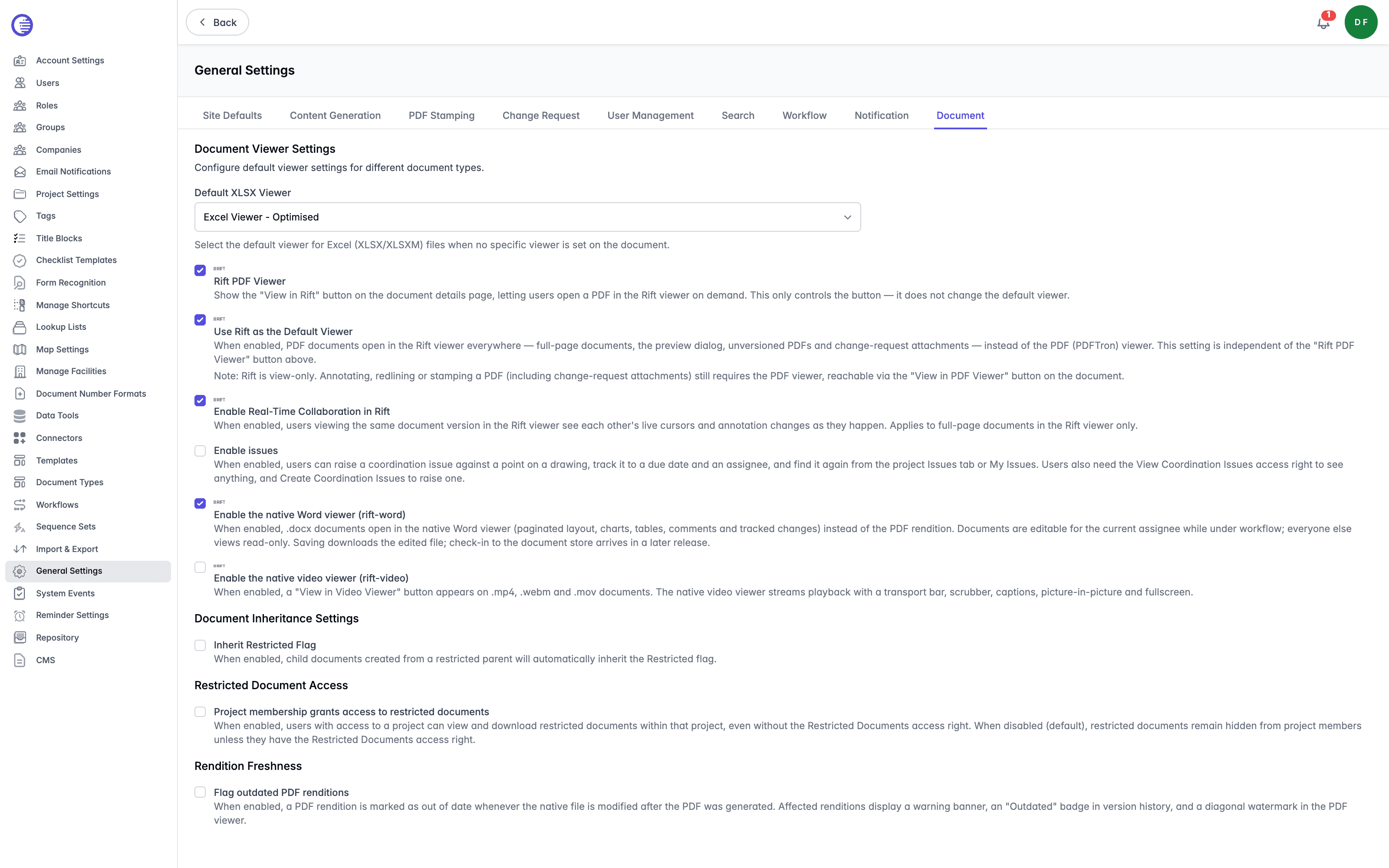
Document Viewer Settings configures default viewers for different document types.
| Setting | What it controls |
|---|---|
| Default XLSX Viewer | Choose the default viewer for Excel (XLSX/XLSXM) files when no specific viewer is set on the document: Excel Viewer - Optimised, Excel Viewer - with Formatting, or PDF Viewer. |
| Rift PDF Viewer | Show the View in Rift button on the document details page, letting users open a PDF in the Rift viewer on demand. This only controls the button; it does not change the default viewer. |
| Use Rift as the Default Viewer | When enabled, PDF documents open in the Rift viewer everywhere: full-page documents, the preview dialog, unversioned PDFs, and Change Request attachments, instead of the PDF (PDFTron) viewer. This setting is independent of Rift PDF Viewer above. The Rift viewer is view-only; annotating, redlining, or stamping a PDF, including Change Request attachments, still requires the PDF viewer, reachable through the View in PDF Viewer button on the document. |
| Enable Real-Time Collaboration in Rift | When enabled, users viewing the same document version in the Rift viewer see each other's live cursors and annotation changes as they happen. Applies to full-page documents in the Rift viewer only. |
| Enable issues | Let users raise a coordination issue against a point on a drawing, track it to a due date and an assignee, and find it again from a project's Issues tab or My Issues. Seeing issues also requires the separate View Coordination Issues access right, and raising one requires Create Coordination Issues. |
| Enable the native Word viewer (rift-word) | When enabled, .docx documents open in the native Word viewer, with paginated layout, charts, tables, comments, and tracked changes, instead of the PDF rendition. Documents are editable for the current assignee while under workflow; everyone else views them read-only. Saving downloads the edited file; check-in to the document store arrives in a later release. |
| Enable the native video viewer (rift-video) | When enabled, a View in Video Viewer button appears on .mp4, .webm, and .mov documents. The native video viewer streams playback with a transport bar, scrubber, captions, picture-in-picture, and fullscreen. |
Document Inheritance Settings
Inherit Restricted Flag, when enabled, means child documents created from a restricted parent automatically inherit the Restricted flag.
Restricted Document Access
Project membership grants access to restricted documents, when enabled, lets users with access to a project view and download restricted documents within that project, even without the Restricted Documents access right. When disabled, which is the default, restricted documents remain hidden from project members unless they hold the Restricted Documents access right.
Rendition Freshness
Flag outdated PDF renditions, when enabled, marks a PDF rendition as out of date whenever the native file is modified after the PDF was generated. Affected renditions display a warning banner, an Outdated badge in version history, and a diagonal watermark in the PDF viewer.
Overview
An overview of an organisation's Lunr usage, including branding, API consumption, licensing, storage, document volumes, and billing-related quotas.
Project Settings
Per-project configuration covering the project form, RFI, Change Request, Drawing Number Request, Checklist, Workflow, Download, Transmittal, and Dashboard & Navigation settings.