Shortcuts
Define saved, tag-based virtual folder hierarchies that let users browse documents by metadata such as discipline or building, instead of the physical project and folder structure.
Overview
A Shortcut is a saved, alternative folder hierarchy for browsing documents, built from document tags rather than from the physical project and folder structure. Each level of the hierarchy is a Branch, and each branch is built from a single tag, for example Discipline, optionally restricted to specific values of that tag rather than showing every value.
Where a repository offers more than one shortcut, a dropdown next to a tree icon appears in the document browsing toolbar, letting a user switch between browsing the ordinary folder structure and browsing by any of the configured shortcuts.
Select Manage Shortcuts in the admin main menu. Reaching the page requires the Administration Pages (AdminPages) access right, the same as every other page in the admin main menu. Creating, editing, and deleting a shortcut additionally requires the Edit Folders (EditFolders) access right.
Shortcut names must be unique, but this is enforced tenant-wide rather than per repository, so a name already used by a shortcut in one repository cannot be reused in another.
Managing Shortcuts
The page lists every shortcut you have defined, by name.
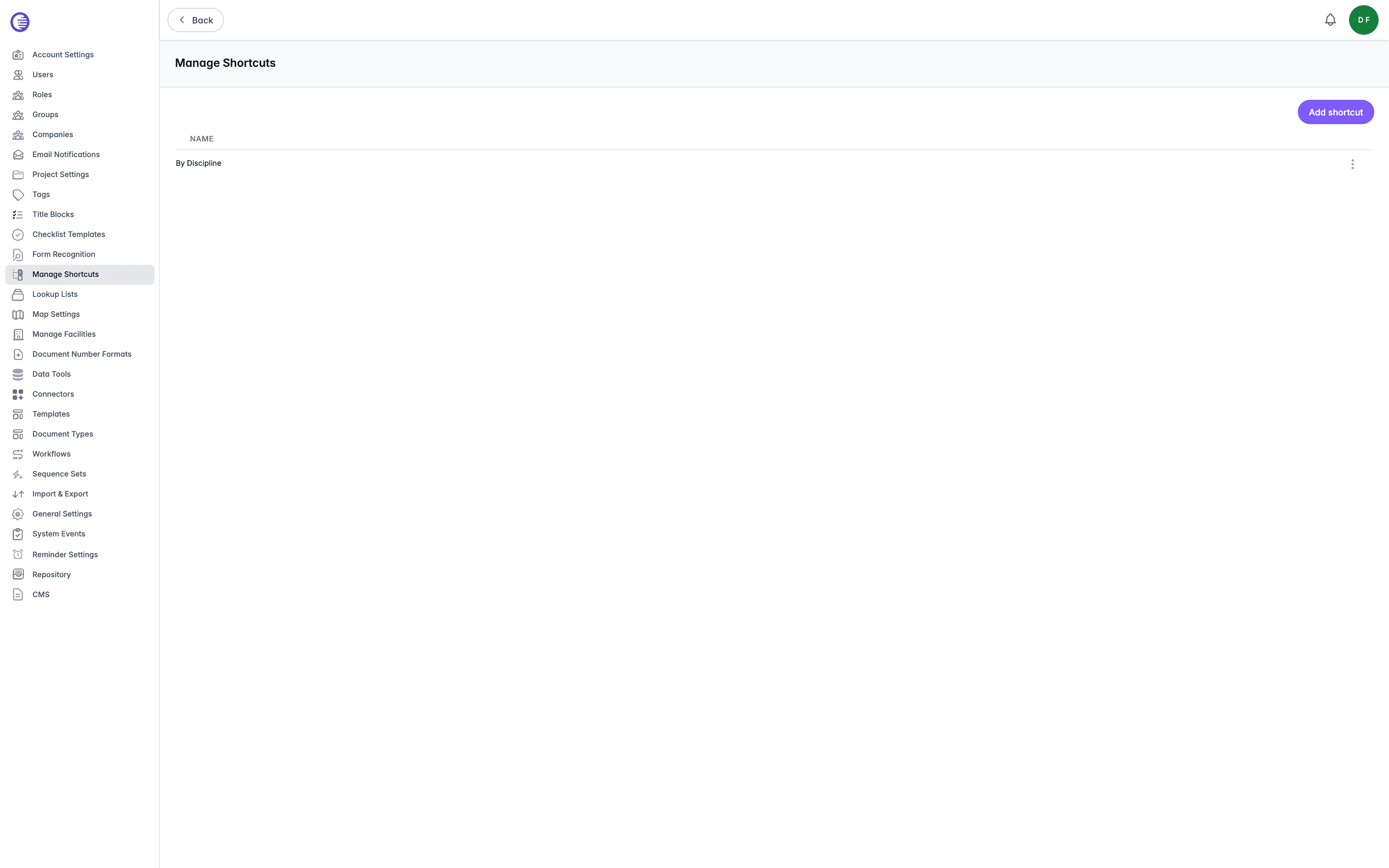
Each row's context menu, opened by selecting the three dots at the end of the row, offers Edit and Delete. Selecting a shortcut's name, or Edit, opens it for editing.
Adding a Shortcut
Select Add shortcut, then enter a Name and a Description, both required.
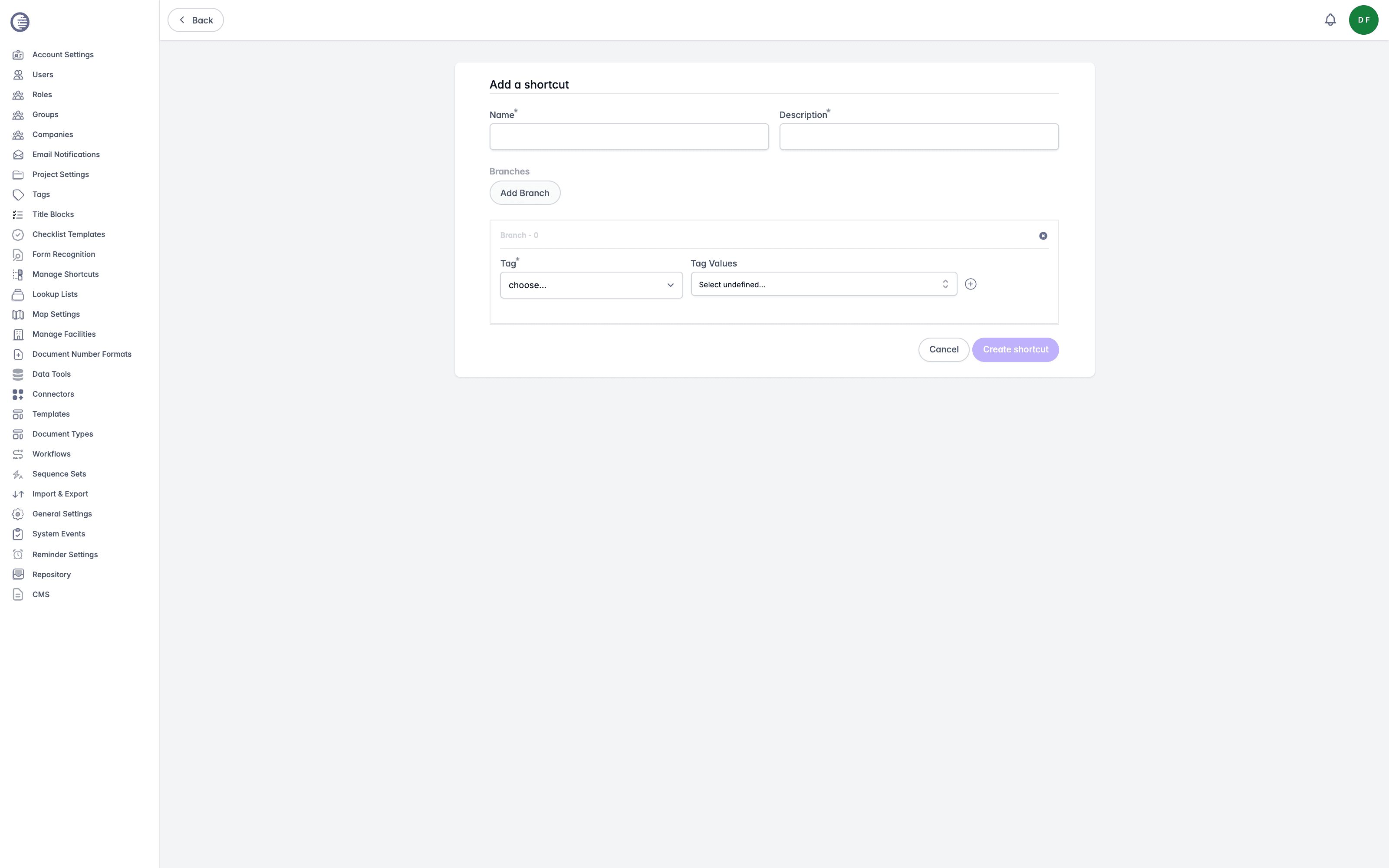
Under Branches, select Add Branch for each level you want in the hierarchy. On a branch, choose a Tag from the dropdown, then optionally choose one or more Tag Values to restrict that branch to just those values. Select the plus icon to add the tag to the branch; it appears as a badge below the row, and you can add further tags to the same branch the same way.
Select Create shortcut to save. A shortcut needs at least one branch before it can be saved.
Editing a Shortcut
Open a shortcut from the list to change its Name, Description, or branches. The example below is the demo tenant's By Discipline shortcut, a single branch built from the Discipline tag with no values selected, so it groups documents into a virtual folder for every value the Discipline tag has.
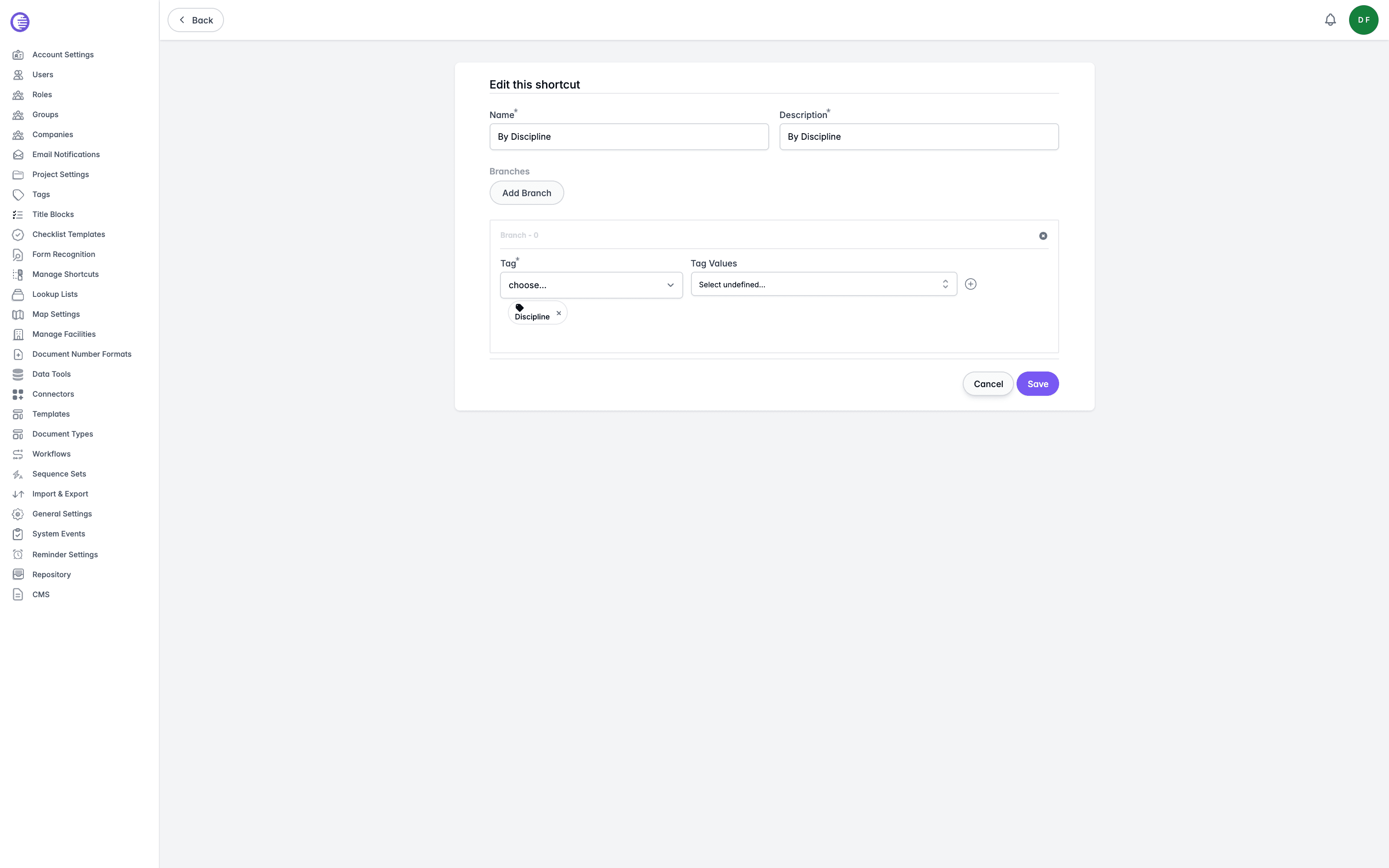
Select Add Branch to add further branches, the remove icon on a branch's header to delete it, or Save to keep your changes.
Changes take a moment to appear
Lunr rebuilds the cached document listing behind a shortcut in the background whenever you create or update it, so a newly added or changed branch can take a short time to appear when browsing.
If Folders Look Stale, Check This First
The background rebuild described above only runs when the tenant setting Shortcut cache rebuilding is enabled, and it is disabled by default. With it off, creating or editing a shortcut, or deleting a tag definition it depends on, does not refresh the folder structure at all, so browsing keeps showing a stale structure indefinitely. If folders look wrong or out of date, check this setting before assuming the shortcut itself is misconfigured.
Deleting a shortcut does not check for, or clean up, any Level Shortcut that references it. A facility level pointing at a deleted shortcut is left with a dangling reference. See Level Shortcuts on Facilities.
Related
A facility level can attach one of these shortcuts as a Level Shortcut, giving a facility record a quick link into this virtual view already filtered to that facility. See Facilities.
Facilities
Define the facility hierarchy Lunr uses to model buildings, floors, and other physical locations, along with the custom tags captured at each level.
Users
Manage the people who can sign in to Lunr, invite internal and external users, and control the roles and document permissions each person holds.