Facilities
Define the facility hierarchy Lunr uses to model buildings, floors, and other physical locations, along with the custom tags captured at each level.
Overview
A facility is a physical location or asset that a document relates to, for example a building, a floor, or a plant unit. Facilities lets administrators define the levels of that hierarchy, such as Campus, Building, and Floor, and the custom tags captured against a facility at each level.
This page manages the hierarchy itself, not individual facility records. Creating and browsing the actual buildings, floors, and rooms that use this hierarchy happens elsewhere in the app, in the facilities area available to end users. Facility names and numbers are not enforced as unique there, so two facility records can share the same name or number.
Select Manage Facilities in the admin main menu. Reaching the page requires the Administration Pages (AdminPages) access right, the same as every other page in the admin main menu.
What the Create Facilities access right covers
Creating, renaming, and deleting a level on this page requires the Create Facilities access right. That same right also controls the New and Edit controls on an individual facility record elsewhere in the app. The endpoint that saves a facility record does not carry an access-right check of its own, so outside of those two controls, this is enforced by the interface rather than by the API itself.
Managing Levels
The page lists every level you have defined, with its Name and Level number.
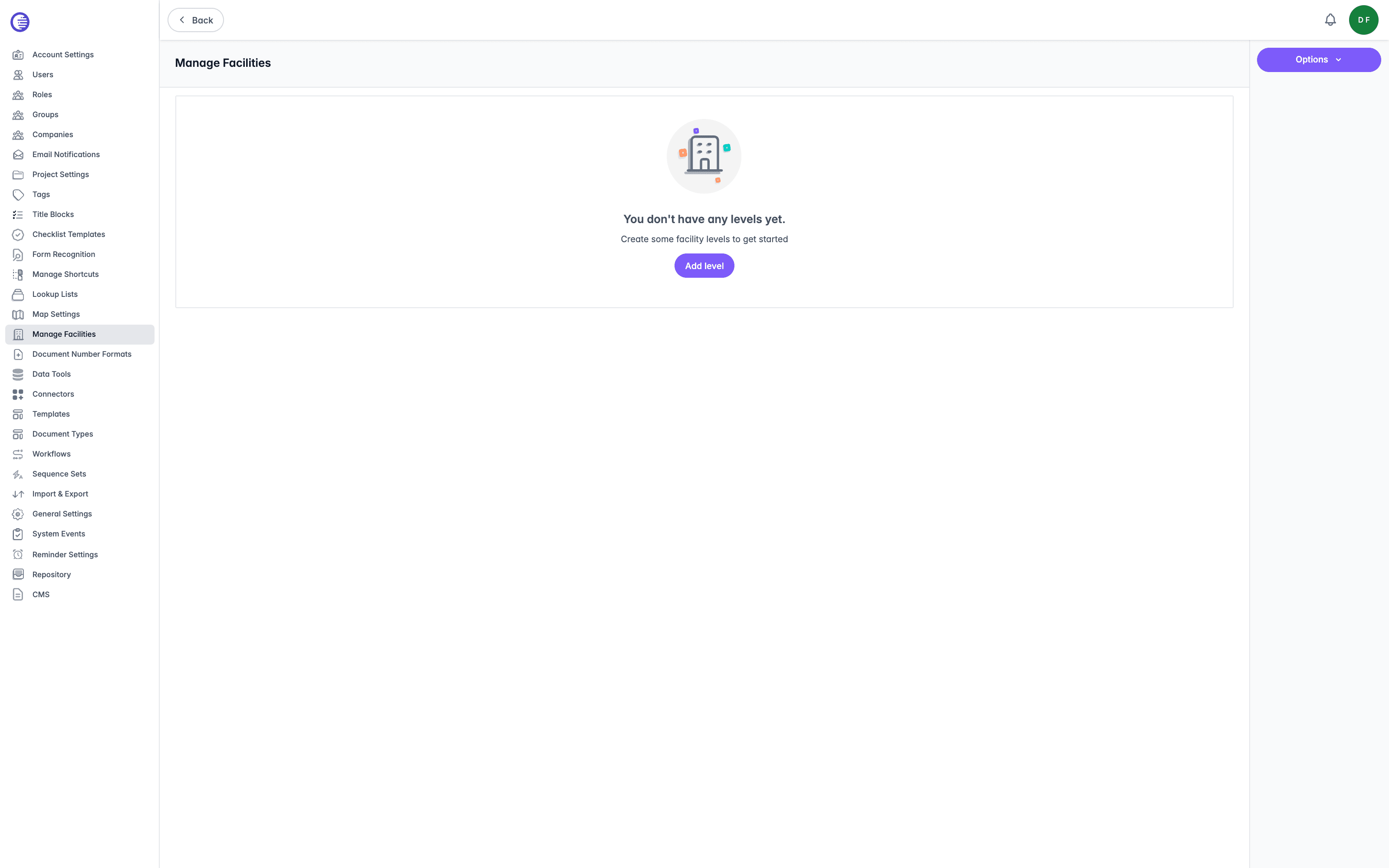
Each row's context menu, opened by selecting the three dots at the end of the row, offers Edit and Delete. Selecting a level's name, or Edit, opens its Level Details page, covered below.
Deleting a level from this list has no confirmation prompt, and cascades: it deletes every Tag Definition and Level Shortcut configured beneath that level. This cannot be undone, so check the level's Level Details page first if you are unsure what depends on it.
Adding a Level
Select Add level from the empty state, or Add Level from the Options menu, then supply the two fields.
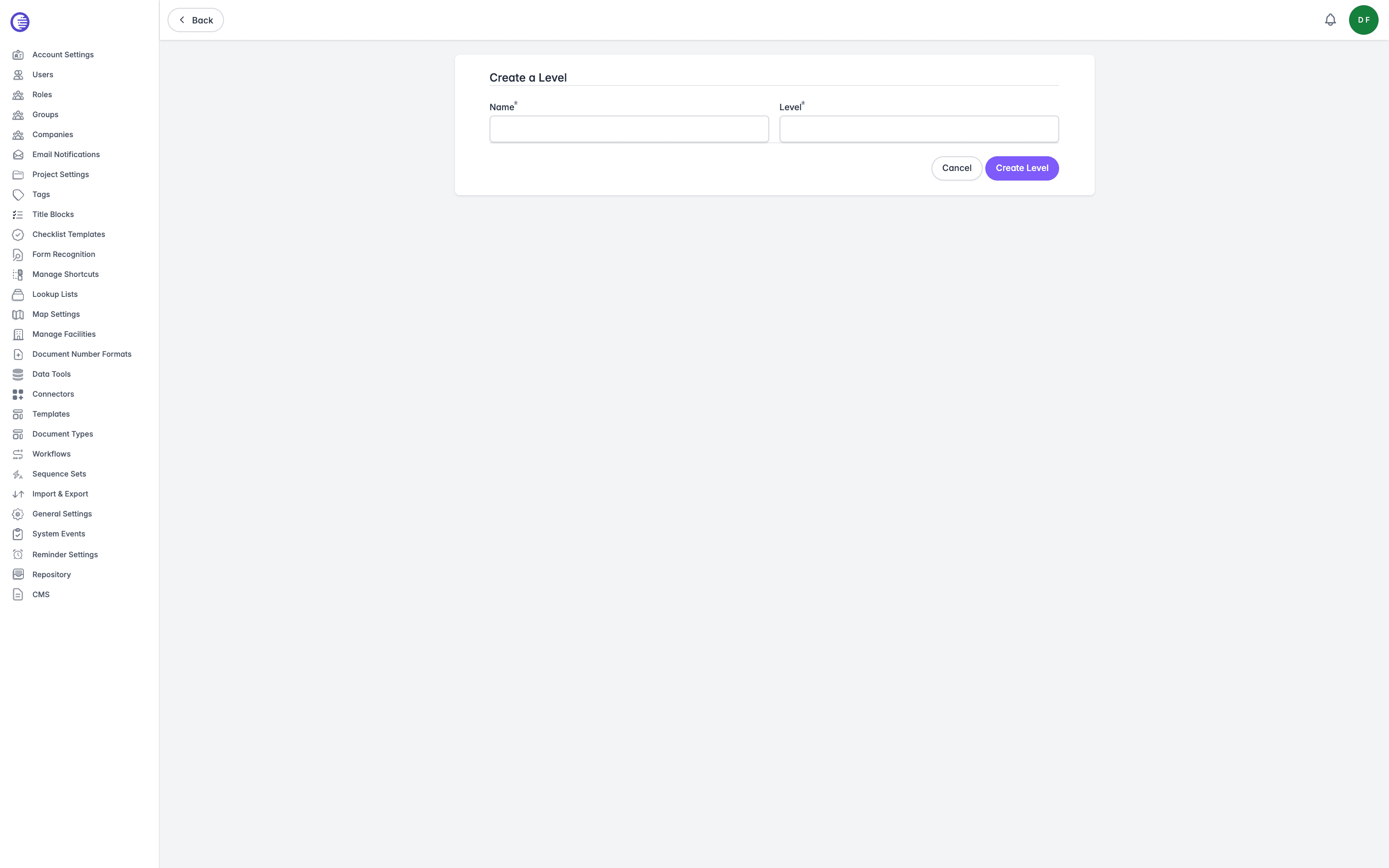
- Name is the level's label, for example
BuildingorFloor. - Level is a number giving the level's position in the hierarchy. A child level is one number higher than its parent, so if
Campusis level1,Buildingunderneath it would be level2.
Select Create Level to save.
Level Details
Opening a level shows its Level Details page. Select the pencil icon next to the level's name to rename it in place.
The Options menu on this page offers a Remove Level control, but selecting it does not delete the level. It opens the Add Level form instead. To delete a level, use Delete from its row on the Manage Facilities list, covered above.
The page has two tables, Tag Definitions and Level Shortcuts.
Tag Definitions
Tag Definitions are the custom fields captured against a facility record at this level, for example an area or an occupancy rating for a Room level. Select Add Tag, complete its fields inline, then select the save icon.
| Field | What it controls |
|---|---|
| Name | The tag's internal name. Only needs to be unique within this level, not tenant-wide, so the same name can exist under a different level. |
| Label | The label shown to users on the facility record. |
| Position | The order the tag appears in among this level's other tags. |
| Preview? | Include the tag's value in the compact facility preview card shown in facility grid views. |
| Data Type | One of text, number, date, list, or multilist. |
For Data Type list or multilist, the accepted values come from a lookup list that shares the tag's Name.
Select the box beside one or more tags and choose Delete to remove them.
Deleting a Tag Definition does not check whether any facility already holds a value for it. Deleting one silently orphans that data.
Level Shortcuts
Level Shortcuts attach an existing shortcut to this level, using one of the facility's tags as the value to filter on. Select Add Shortcut, enter a Name, enter the Tag Name to filter by, choose the Shortcut from the ones already defined on the Manage Shortcuts page, then select the save icon.
Once attached, a facility record at this level shows the shortcut as a quick link, taking the user straight into that virtual folder view already filtered to the facility.
Facility Lookup in Drawing Number Requests
The main reason to configure a facility hierarchy is the Enable facility lookup? setting on the Drawing Number Request tab of Project Settings. With it enabled, and an Asset Id Tag Name configured on the same tab, users can look up a facility by its asset ID and bulk-populate a selection of documents with that facility's tags, rather than entering them by hand.
Sequence Sets
Sequence sets track the running number behind each document number format, and can be grouped so several prefixes share a single advancing number.
Shortcuts
Define saved, tag-based virtual folder hierarchies that let users browse documents by metadata such as discipline or building, instead of the physical project and folder structure.