Connectors
Set up external data connections that sync facility hierarchies into Lunr from an uploaded CSV file.
Overview
Select Connectors in the admin main menu, then open the External Data tab. The page requires the Administration Pages access right. There is no separate access right or feature flag for it.
This page is unrelated to Esri feature services, which are a distinct integration configured on the Maps admin page.
External Data
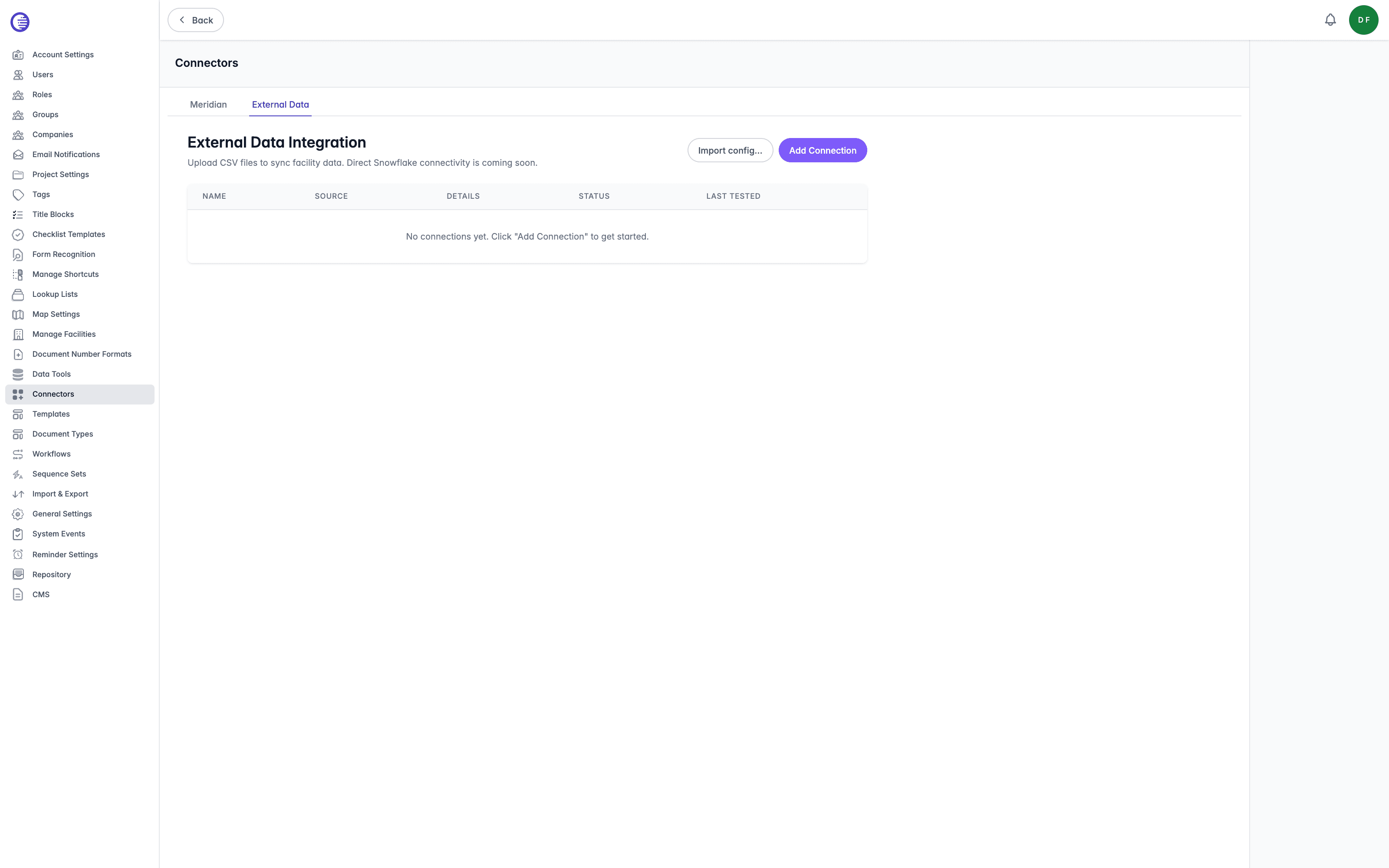
External Data syncs an external facility hierarchy, made up of root facilities and facility levels, into Lunr. Today, that hierarchy comes from an uploaded CSV file. The tab's own heading reads "External Data Integration", with the note "Upload CSV files to sync facility data. Direct Snowflake connectivity is coming soon."
Direct Snowflake connectivity is under development and is controlled by a deployment-level environment switch, not a tenant setting, so there is no administration option to enable it yourself. The Snowflake option in the connection source picker is present but disabled, marked Coming Soon, and everywhere a Snowflake-sourced connection would otherwise offer credentials or a sync control, the page shows a "coming soon" placeholder instead. When it does become available, Snowflake credentials will be held in a key vault rather than in Lunr, with only a reference to the vault entry stored against the connection. Use a CSV-based connection for now.
Connections
The tab opens on a list of your external data connections.
| Column | What it shows |
|---|---|
| Name | The connection's name. |
| Source | The connection's source type, CSV File or Snowflake. |
| Details | For a CSV connection, its delimiter and whether it has a header row. For a Snowflake connection, its database and schema. |
| Status | Active or Inactive. |
| Last Tested | Pass or Fail from the connection's last test, or a dash if it has never been tested. |
Select Add Connection to create one, or Import config… to bring in a connection exported from elsewhere as a JSON file. Importing a connection carries over its mappings and root facilities but not its credentials, so you must supply those again before syncing an imported connection.
Adding a CSV Connection
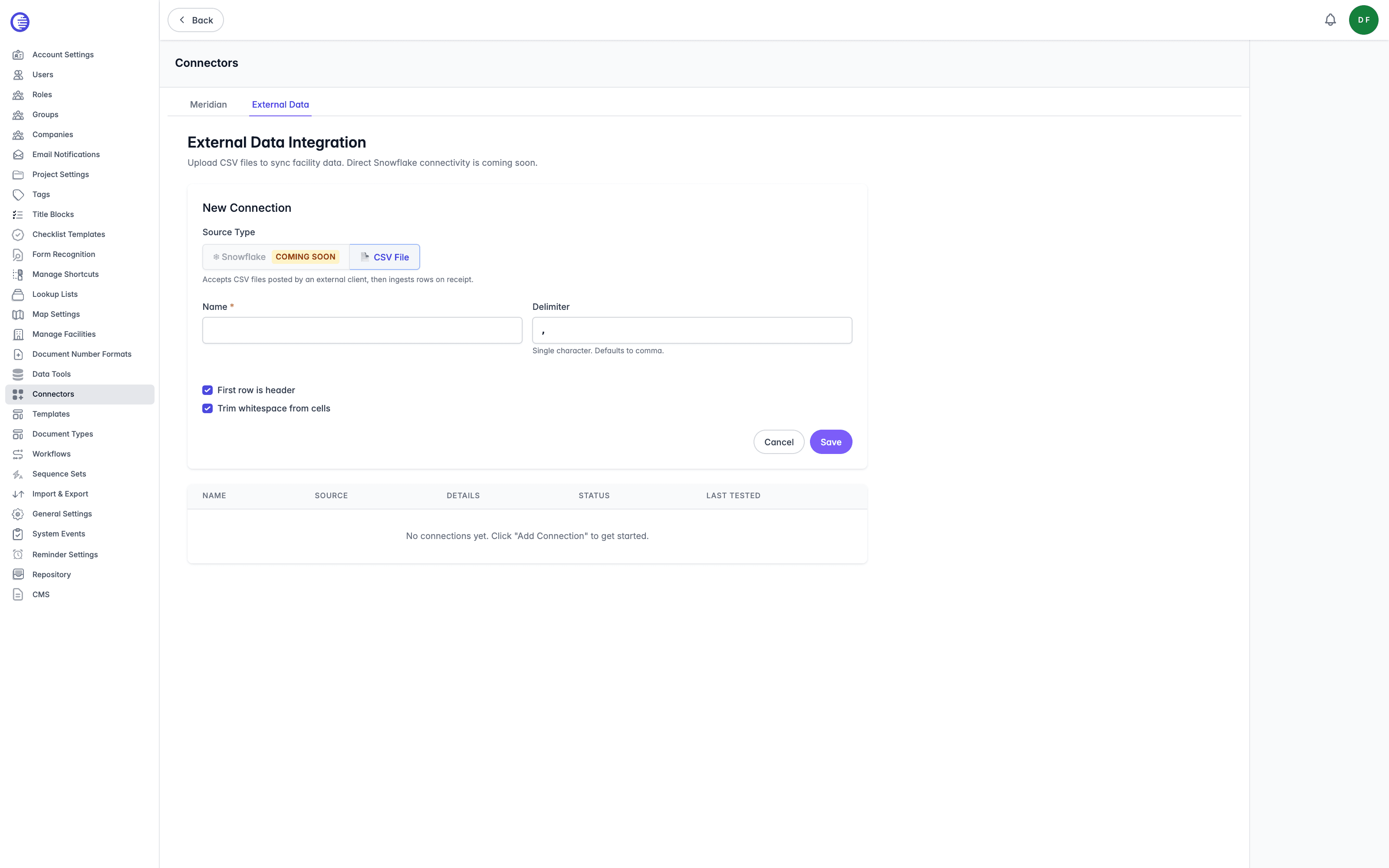
In the New Connection panel, choose CSV File as the Source Type (Snowflake is disabled while direct connectivity is in development), then supply these fields.
| Field | What it controls |
|---|---|
| Name | Required. The connection's name. |
| Delimiter | A single character. Defaults to a comma. |
| First row is header | Treats the first row of every uploaded file as column headings rather than data. |
| Trim whitespace from cells | Removes leading and trailing whitespace from every cell value on import. |
A CSV connection accepts files posted by an external client, then ingests the rows on receipt.
Working With a Connection
Opening a connection from the list gives you its connection settings, plus, for a CSV connection, a card for uploading and processing CSV files and a card for root facilities. Header actions offer Edit, Export config (downloads the connection's mappings and root facilities as JSON, with credentials excluded), and Delete, which asks for confirmation and cannot be undone.
- Root Facilities lists the synthetic top-level facilities, such as "Linear" or "Facilities", that are created before data syncs in beneath them. Each one carries a name, number, level, parent, and order, and can be added, edited, or removed. Sync never creates a root facility itself; a source row with no parent identifier value is always skipped, so seed the root facilities you need here before syncing, or the hierarchy underneath them will never appear.
- View Mappings is where you define how the source data becomes facility data in Lunr, covered below.
- CSV Uploads, for a CSV connection, is where you choose a view mapping and select Upload CSV… to add a file, or select Process pending to process files already sitting on the connection. Each upload is listed with its file name, mapping, size, status, upload date, and, once processed, its processed date. External systems can also post CSV files directly to Lunr without using this page, which is worth knowing if you plan to automate the upload step.
For a CSV connection, the header's Process Uploads button takes you to the full Sync screen described below. For a Snowflake-sourced connection, this is replaced by a "coming soon" placeholder, since direct Snowflake sync is not yet available.
Mapping
A view mapping tells Lunr how to read the source data. Its own description reads "Map source columns to a Facility Level and configure how data flows into Facility fields and tags", confirming the data flows one way, from the external source into Lunr.
Mapping settings include a view name, a sync order relative to other mappings, the facility level the mapping targets, a description, whether the mapping is active, and whether facilities missing from the source on a later sync should be deactivated.
Hierarchy columns identify each row: an identifier column is required, with optional columns for hierarchy order, parent, grandparent, and great-grandparent identifiers, and a filter expression to exclude rows. Automatic column discovery from a live source is marked Coming Soon, so column names are entered manually for now.
Column mappings themselves are listed in a table.
| Column | What it shows |
|---|---|
| Source | The source column name, or (literal) if the mapped value is a fixed value rather than a column. |
| Target | Whether the column writes to a facility field or a facility tag. |
| Field / Tag Name | The name of that facility field or tag. |
| Transform / Literal | Either a transform expression applied to the source value, for example Y=true,N=false, or a fixed literal value written regardless of the source data. |
Select Add Column to add a new column mapping. A literal value, once set, is written as-is and the source column can be left blank; a transform is applied only when a source column is supplied. Deleting a mapping asks for confirmation and cannot be undone.
When a column maps to a facility field, the Field / Tag Name must be one of Name, Description, Number, ExternalId, PathKey, AddressLine1, AddressLine2, or Status. Any other name is silently ignored rather than rejected, so a typo here produces no error and no data.
Sync
Reach the sync screen from a connection's Process Uploads action. Select Sync Now to start a run; you are asked to confirm before it starts.
While a sync runs, a status panel shows the current phase and which mapping is being processed, alongside five live counters: Read, Created, Updated, Skipped, and Errors. A live activity feed lists each row as it is processed, with its timestamp, action, identifier, and mapping.
Selecting Sync Now acts on real facility data immediately. Rows already imported by a sync that is later cancelled are not rolled back.
Every run is recorded in Sync History.
A run showing Completed can still have had rows fail. Only an unhandled failure, such as a lost connection, marks a whole run Failed; a row that fails on its own increments the Errors count without changing the run's status. Check the Errors count, not just the status, to confirm a sync completed without any problems.
| Column | What it shows |
|---|---|
| Started | When the run began. |
| Duration | How long the run took. |
| Status | The run's current status. |
| Read | Rows read from the source. |
| Created | Facilities created in Lunr. |
| Updated | Facilities updated in Lunr. |
| Deactivated | Facilities deactivated because they no longer appear in the source. This only happens when the mapping's "Deactivate facilities removed" option is enabled. |
| Errors | Rows that failed to process. Select the count to expand a detail table of each error's time, source row, and message. |
| Triggered By | Who started the run. |
| Actions | Offers Cancel while a run is still pending or in progress. |
Cancelling a run asks for confirmation, and any rows already imported before you cancel remain in Lunr.
Document Number Formats
Lunr uses configurable document number formats and sequence sets to automatically generate unique document numbers, ensuring consistency, reducing manual effort, and preventing duplicate numbering.
Form Recognition
Register the models your organisation has trained for form recognition, and map the fields those models read to the tags Lunr should fill.