Repositories
Lunr uses repositories to separate and secure content within a tenant, while allowing administrators to configure repository-specific settings such as drafting packs, renditions, groups, tags, lookup lists, templates, and import/export templates.
Overview
Multiple Repositories can be configured in a single Lunr tenant where it is required for security or data separation.
To the end user, a repository is a standalone instance of Lunr, although some users can be granted access to more than one repository.
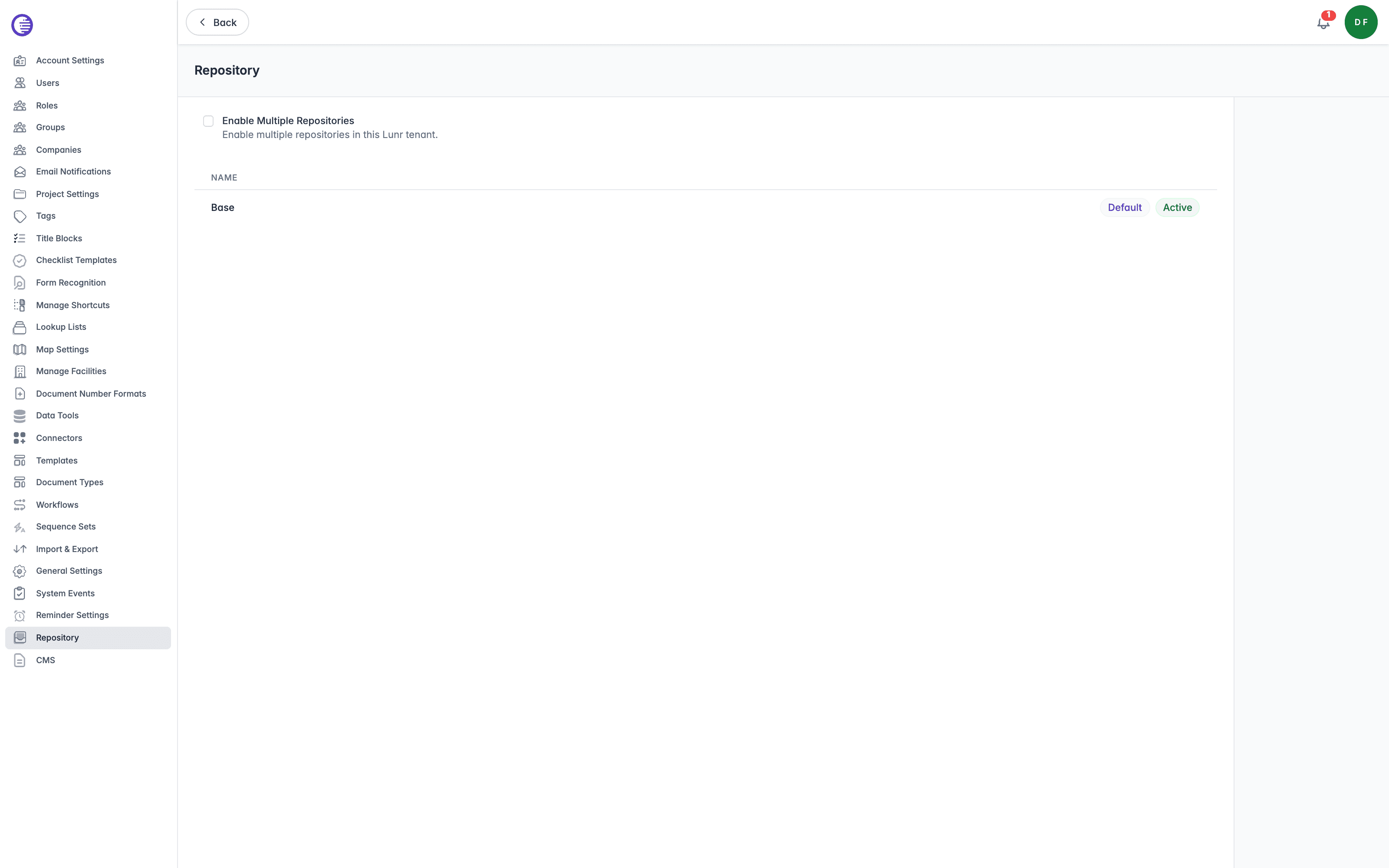
Select a repository name to display its configuration options. A repository opens with fourteen tabs, covering its own details, the content rules that apply within it, and two bulk import tools.
Access Rights
Opening a repository at all requires the Administration Pages access right. Four of its fourteen tabs carry an additional, more specific gate:
| Tab | Also requires |
|---|---|
| Drafting Packs | Manage Drafting Packs |
| Lookup Lists | Manage Lookup Lists |
| Templates | Manage Repository Templates |
| Import/Export | Manage Repository Templates |
The Restricted Docs tab is different again: it is gated only by the Download Restricted Files access right, not by Administration Pages at all, so a user who holds Download Restricted Files but not Administration Pages can still open a repository to see that one tab.
Details
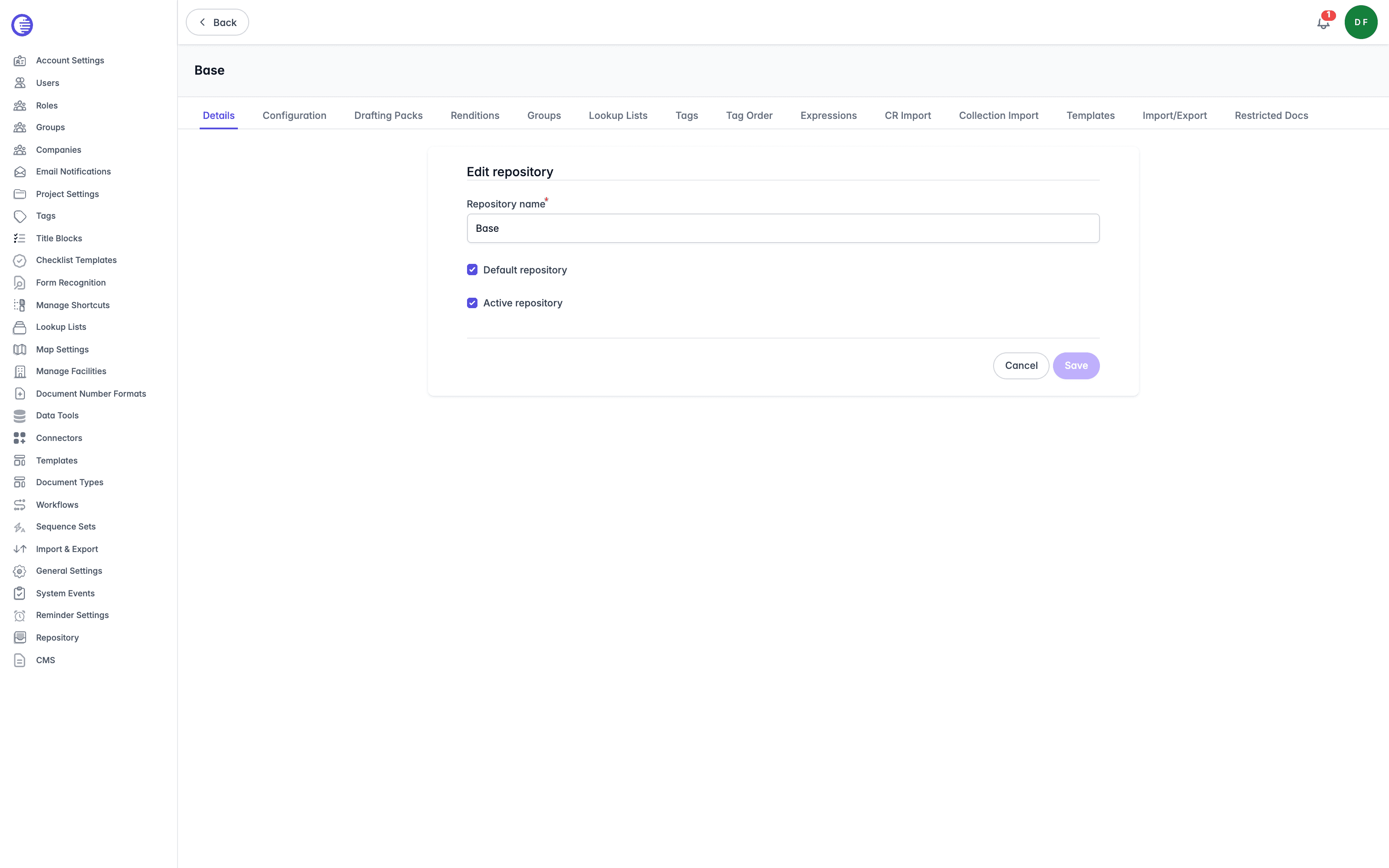
The Details tab edits the repository itself.
- Repository name is required, and capped at 50 characters.
- Default repository marks this as the repository users land in.
- Active repository controls whether the repository is in use.
Select Save to keep your changes, or Cancel to discard them.
A default repository cannot be made inactive; remove its default status before deactivating it. Deactivating a repository does not delete any document data, so reactivating it later restores full access to its content.
Configuration
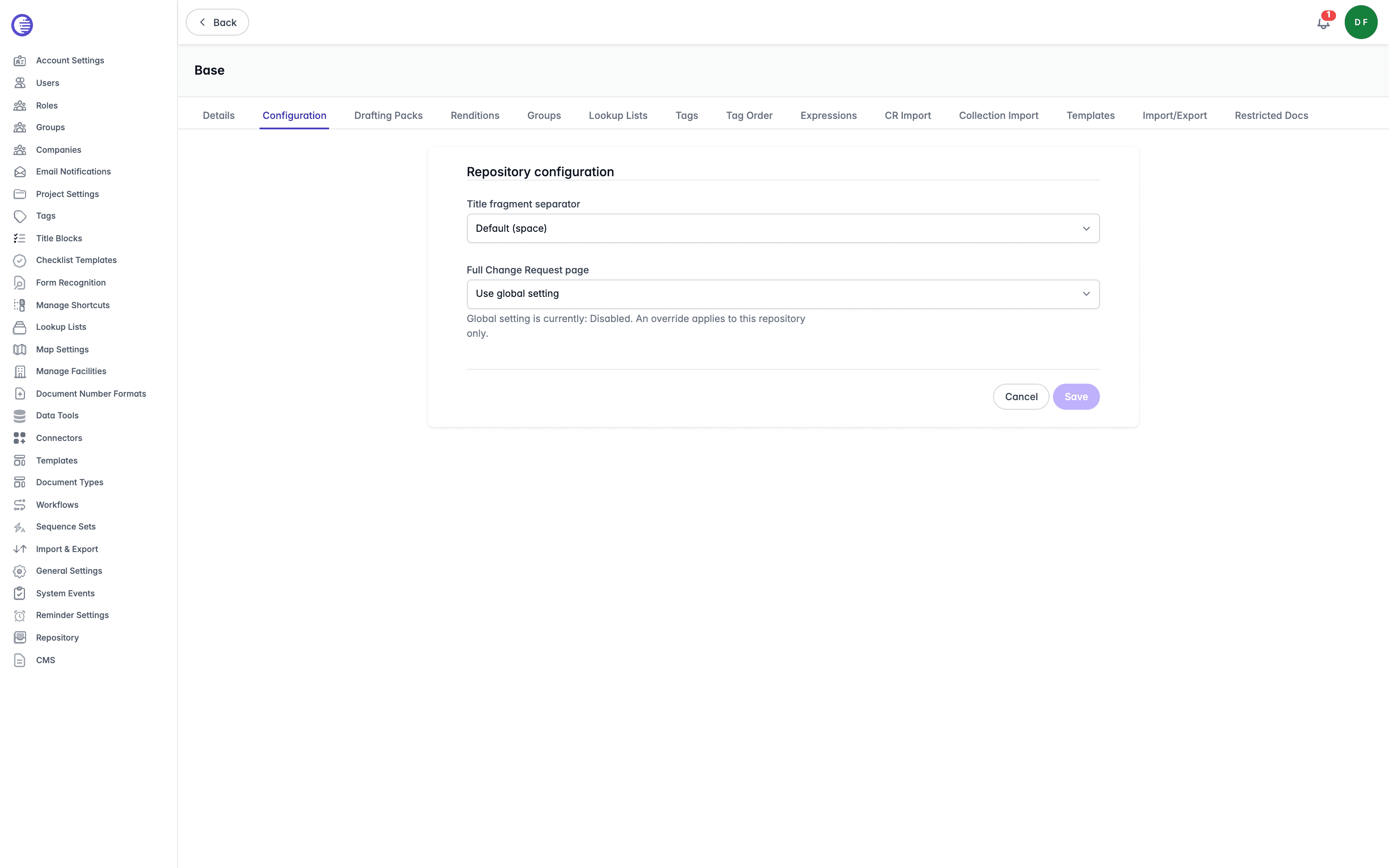
The Configuration tab holds two repository-level settings.
| Setting | What it controls |
|---|---|
| Title fragment separator | The character used to join the fragments of a document title. Choose from Default (space), :, :, ,, |, or -. |
| Full Change Request page | Whether this repository uses the full Change Request page. Choose Use global setting, Enabled for this repository, or Disabled for this repository. |
The Full Change Request page setting shows the current organisation-wide value beneath it, and an override applies to this repository only. The organisation-wide setting is Enable full Change Request page? on the Project Settings page.
Drafting Packs
The Drafting Packs tab allows you to configure the drafting pack that is available within Change Requests for users to download. Select a drafting pack to configure it, or select Create Drafting Pack to create a new one. This tab also requires the Manage Drafting Packs access right.
Removing a drafting pack archives it rather than deleting it. An archived drafting pack can be brought back into view and reused, so removing one from this tab is reversible.
Renditions
The Renditions tab allows you to configure the default rendition settings for content generation. See Renditions.
Groups
The Groups tab allows you to configure the user groups associated with the repository. Select Add Group to create a new group linked directly to this repository.
Lookup Lists
The Lookup Lists tab allows you to configure lookup lists associated with the repository. Select Add Lookup List to create a new lookup list for this repository. The boxes beside the list names let you enable or disable each lookup list on the repository. This tab also requires the Manage Lookup Lists access right.
Tags
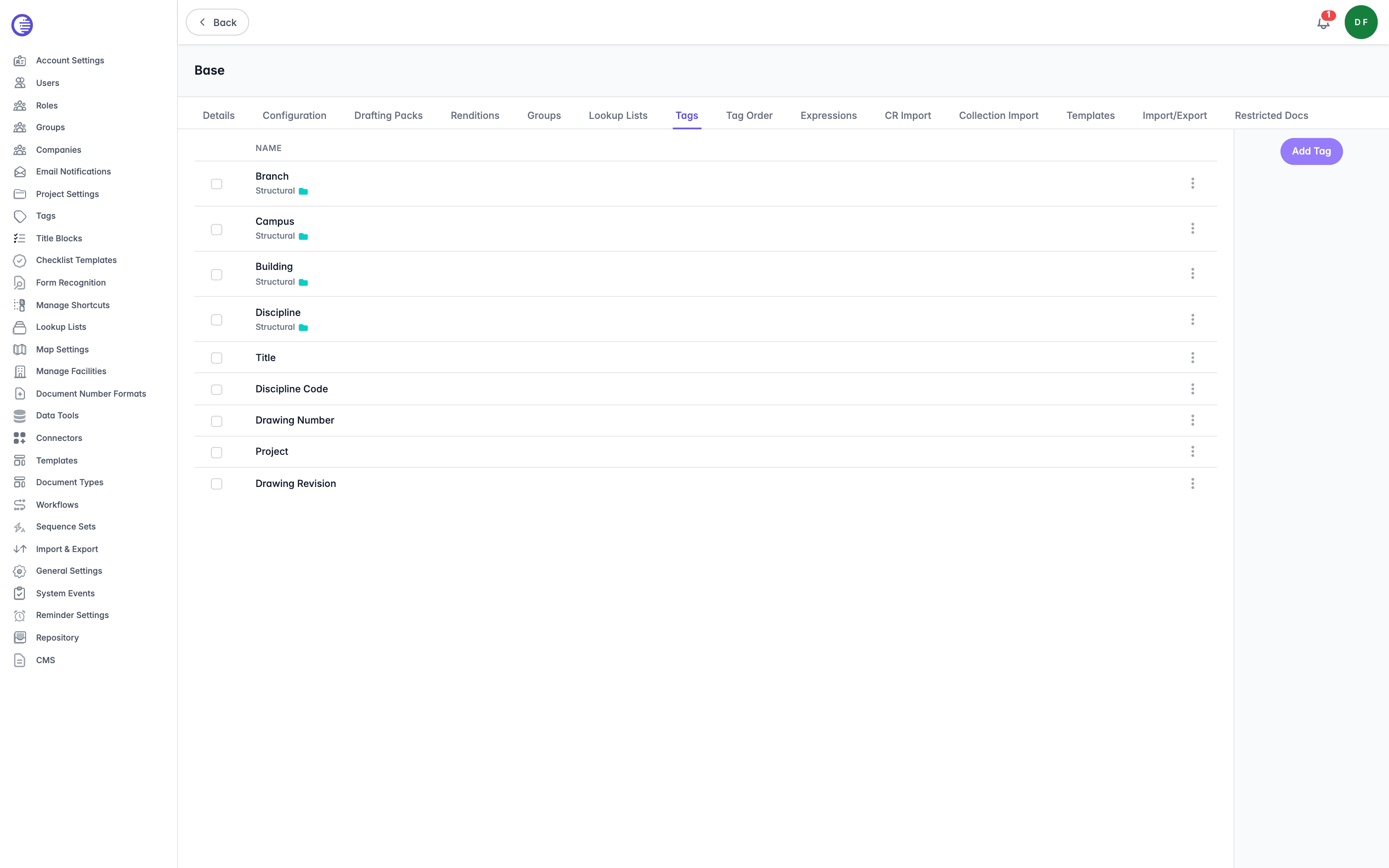
The Tags tab allows you to modify tags in the repository. The boxes beside the tag names let you enable or disable each tag on the repository.
Tag Order
The Tag Order tab sets the order that tags are displayed on both the Preview view and Grid view in the repository. Select Add tag to include another tag, and Remove from preview or Remove from grid to drop one from a single view. Drag tags into position, then use the Save Order button in the top corner when finished.
Expressions
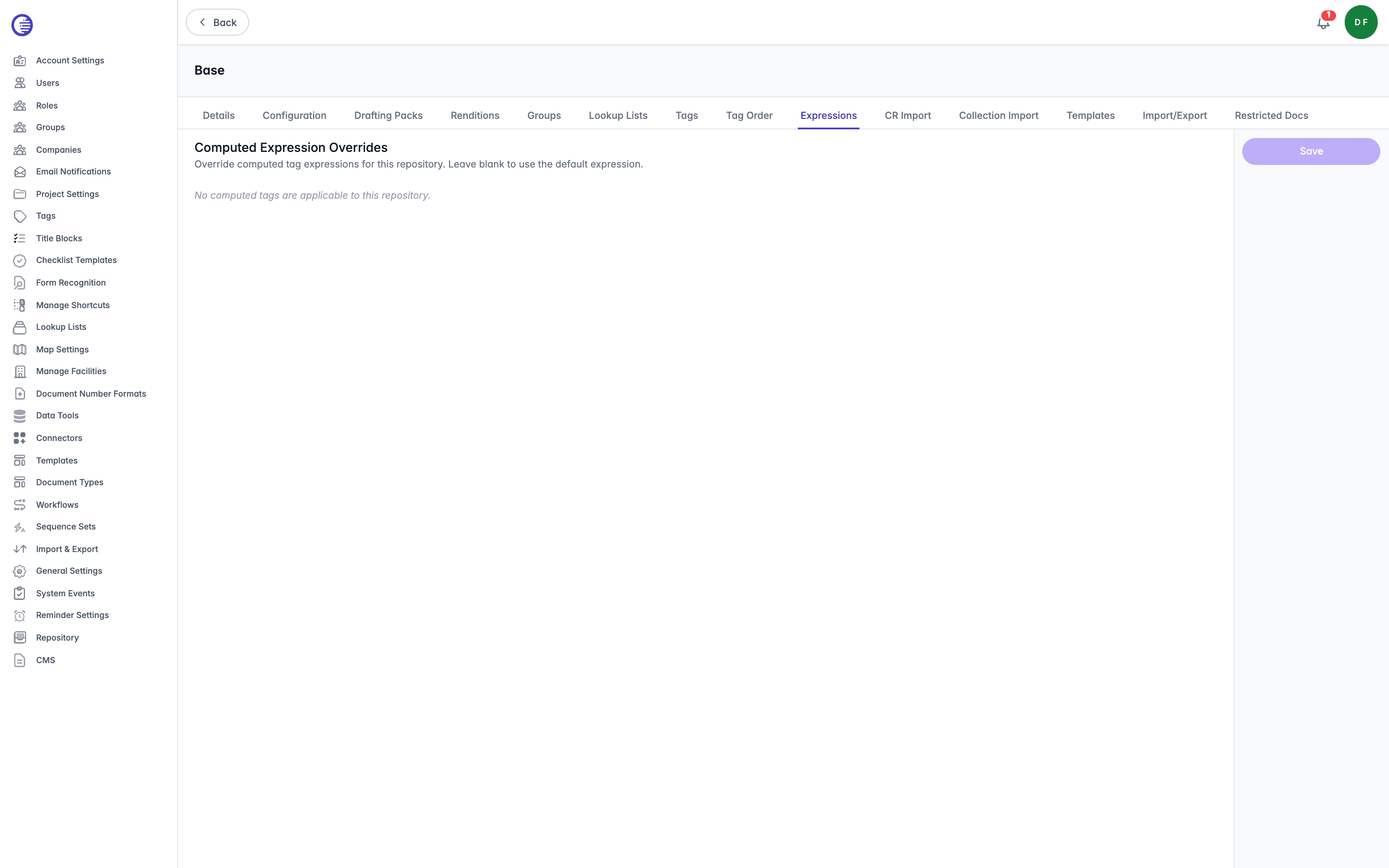
The Expressions tab holds the repository's computed expression overrides. A computed tag derives its value from an expression, and this tab lets a repository depart from the organisation-wide default.
Each entry shows the Default Expression alongside an Override Expression you can supply. Choose Use default to fall back to the organisation-wide expression, and select Save when you have finished.
CR Import
The CR Import tab imports Change Requests in bulk from an Excel spreadsheet.
-
Upload your
.xlsxfile. The file must be an Excel spreadsheet no larger than 50 MB, withChangeRequestNumberandSubjectcolumns. -
Select the target project.
-
Optionally select a default assignee.
-
Select Import to create the Change Requests.
Results are listed per row, showing the CR number and the outcome, so rows that produced an error, a warning, or a failure can be identified and corrected. Valid rows are still imported even when other rows in the same file fail, so a partial result is expected behaviour rather than an all-or-nothing operation.
Tag columns can create new tags
If your spreadsheet includes a Tag: column for a tag that does not yet exist, and the option to create missing tag definitions is enabled, the import creates a new tag definition for it across the whole tenant. This is a real change to the tag catalogue, not just to the Change Requests being imported.
Collection Import
The Collection Import tab imports collections in bulk from an Excel spreadsheet. Each row of the spreadsheet defines one collection, giving its name and description. The file must be an Excel spreadsheet no larger than 50 MB.
An option lets you create sheets named after each collection using the document ID.
Select Import to create the collections. The results list each collection with the number of documents added, any documents that could not be found, and the outcome. As with CR Import, valid rows are imported even when other rows in the same file fail.
Templates
The Templates tab allows you to select the document templates that are viewable for each repository. This tab also requires the Manage Repository Templates access right. See Template Files.
Import/Export
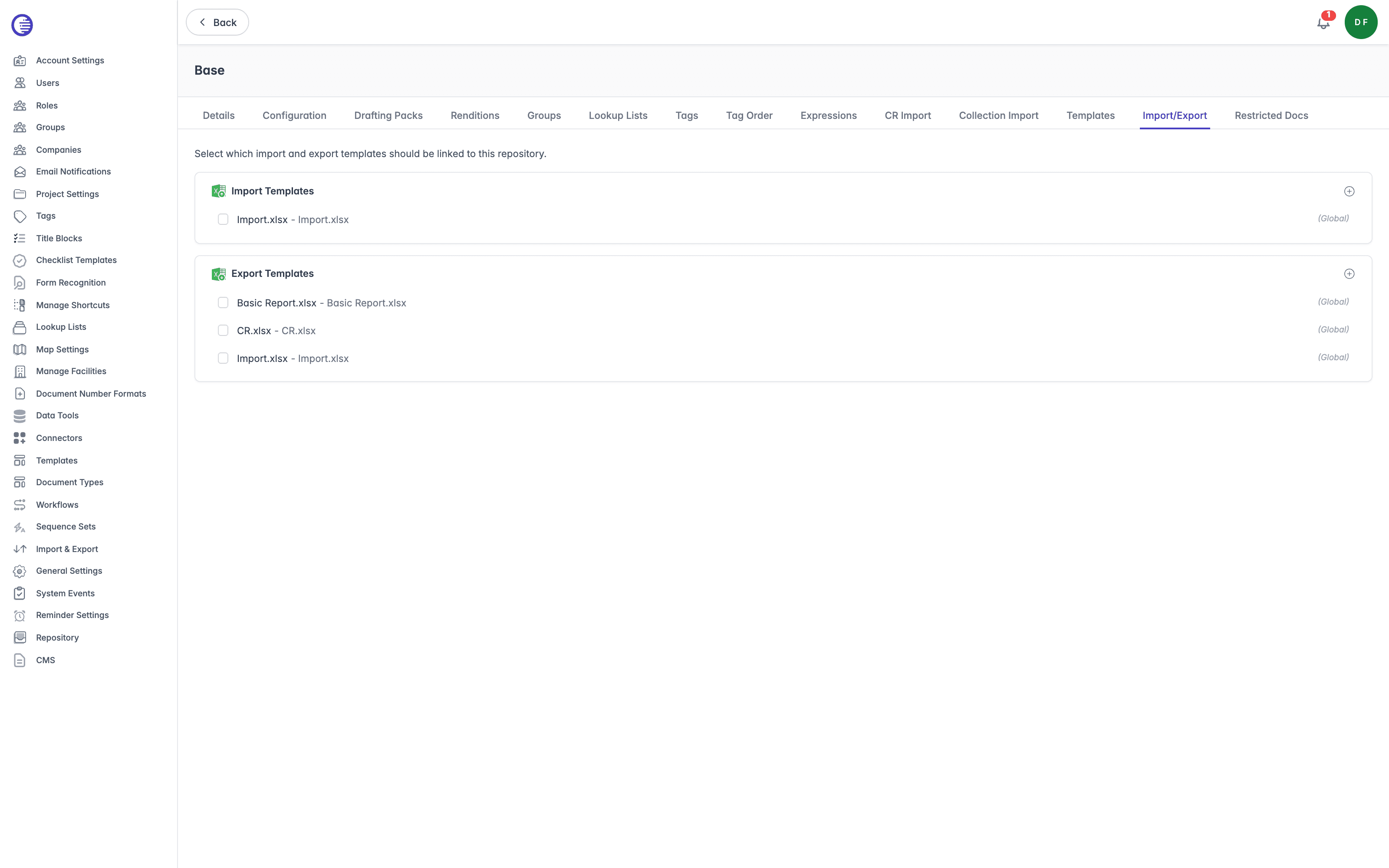
The Import/Export tab allows you to select the import and export templates that are viewable for each repository. This tab also requires the Manage Repository Templates access right. See Import & Export.
Restricted Docs
The Restricted Docs tab lists the restricted documents held in the repository, showing each document's file name, size, and its created and modified dates.
Use the search field to find a document by file name. Long lists are paged.
This tab is gated by the Download Restricted Files access right rather than Administration Pages. See Access Rights above.
Custom Text
Write and enable the custom text your organisation shows on the Help page and above the attachments box when a Change Request is created.
Template Files
Manage the document templates Lunr creates new documents from, upload the AutoCAD stylesheets and fonts used to generate renditions, and choose which repositories each template applies to.