Renditions
Set the default CTB style sheet and sheet size used when Lunr generates renditions for a repository.
Overview
The Renditions tab on a repository allows you to configure the default rendition settings used for content generation. These defaults apply to the repository you are configuring, so different repositories can render drawings to different sheet sizes or with different plotting styles.
A repository has a single default rendition setting. Once one exists, the Add Rendition Setting button no longer appears and you edit the existing entry instead. Users can choose another rendition setting when required for a particular document.
The Rendition Setting
The tab lists the current setting with the following columns.
| Column | What it shows |
|---|---|
| Repository ID | The identifier of the repository the setting belongs to. |
| Repository Name | The name of that repository. |
| Sheet Size | The default sheet size renditions are generated at. |
| CTB Stylesheet | The CTB plotting style sheet applied when generating renditions. |
Each row offers Edit and Delete.
Delete always reports success, even if there was nothing to delete. If the row does not disappear afterwards, refresh the page rather than selecting Delete again.
Adding a Rendition Setting
-
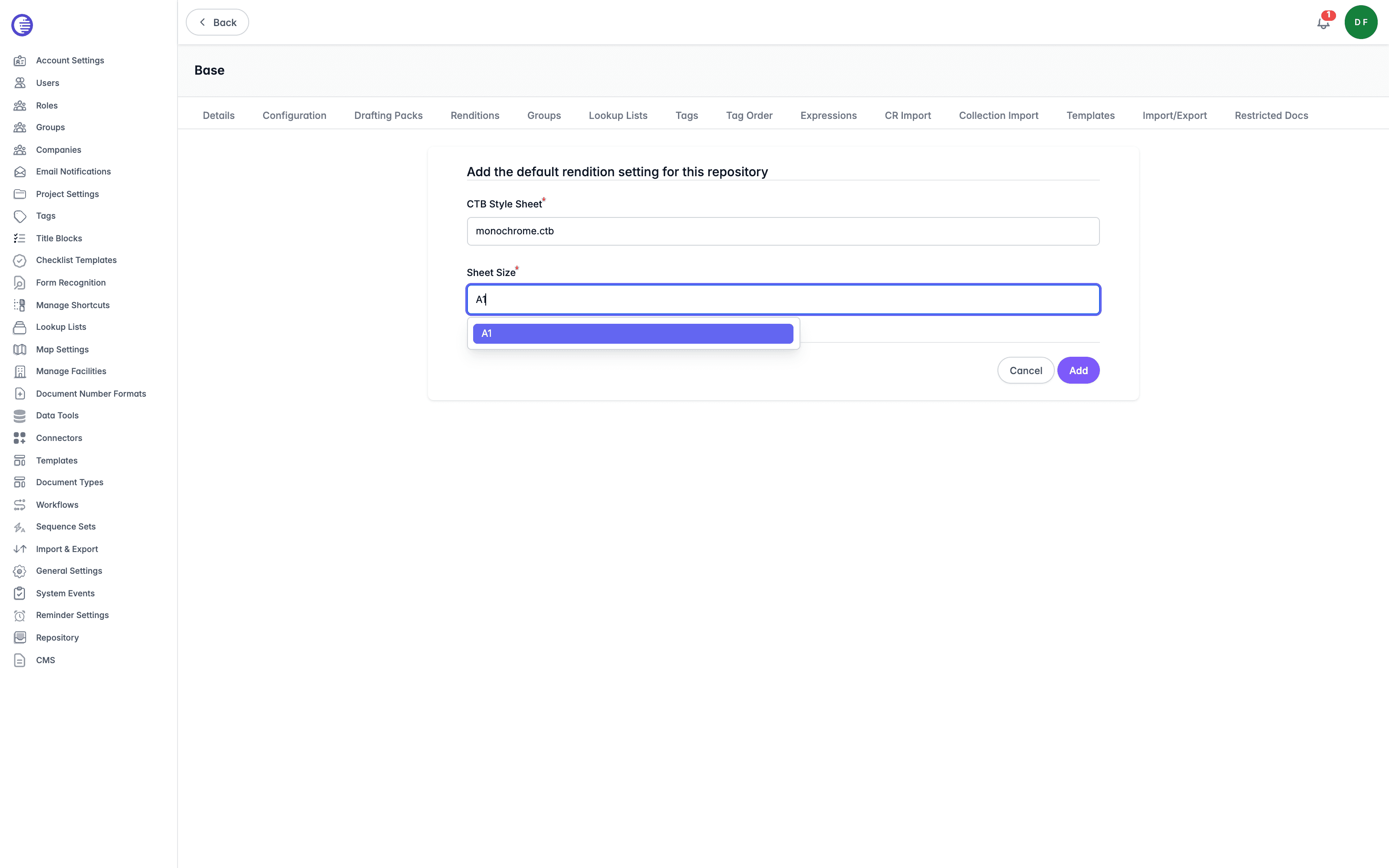
Select Add Rendition Setting. The page is headed "Add the default rendition setting for this repository".
-
Choose a CTB Style Sheet. Both dropdowns support searching, which helps when your organisation has uploaded many style sheets.
-
Choose a Sheet Size.
-
Select Add to save the setting, or Cancel to discard it.
Related Settings
The CTB style sheets available here are the files uploaded against the AutoCAD Drawing section on the Template Files page.
Organisation-wide rendition defaults, including the default margin and the default plotting stylesheet, are set under Content Generation on the General Settings page. The organisation-wide plotting stylesheet is used only when drawing PDF generation did not specify one and there is no repository plot stylesheet setting, so the repository setting documented here takes precedence.
Import & Export
Manage the named spreadsheet templates Lunr uses to bulk import and export document metadata, kept separate from document templates and from running an actual import or export job.
Tags
Tags store the metadata that classifies documents in Lunr, driving the repository folder structure, search filters, and validation on upload.