Custom Text
Write and enable the custom text your organisation shows on the Help page and above the attachments box when a Change Request is created.
Overview
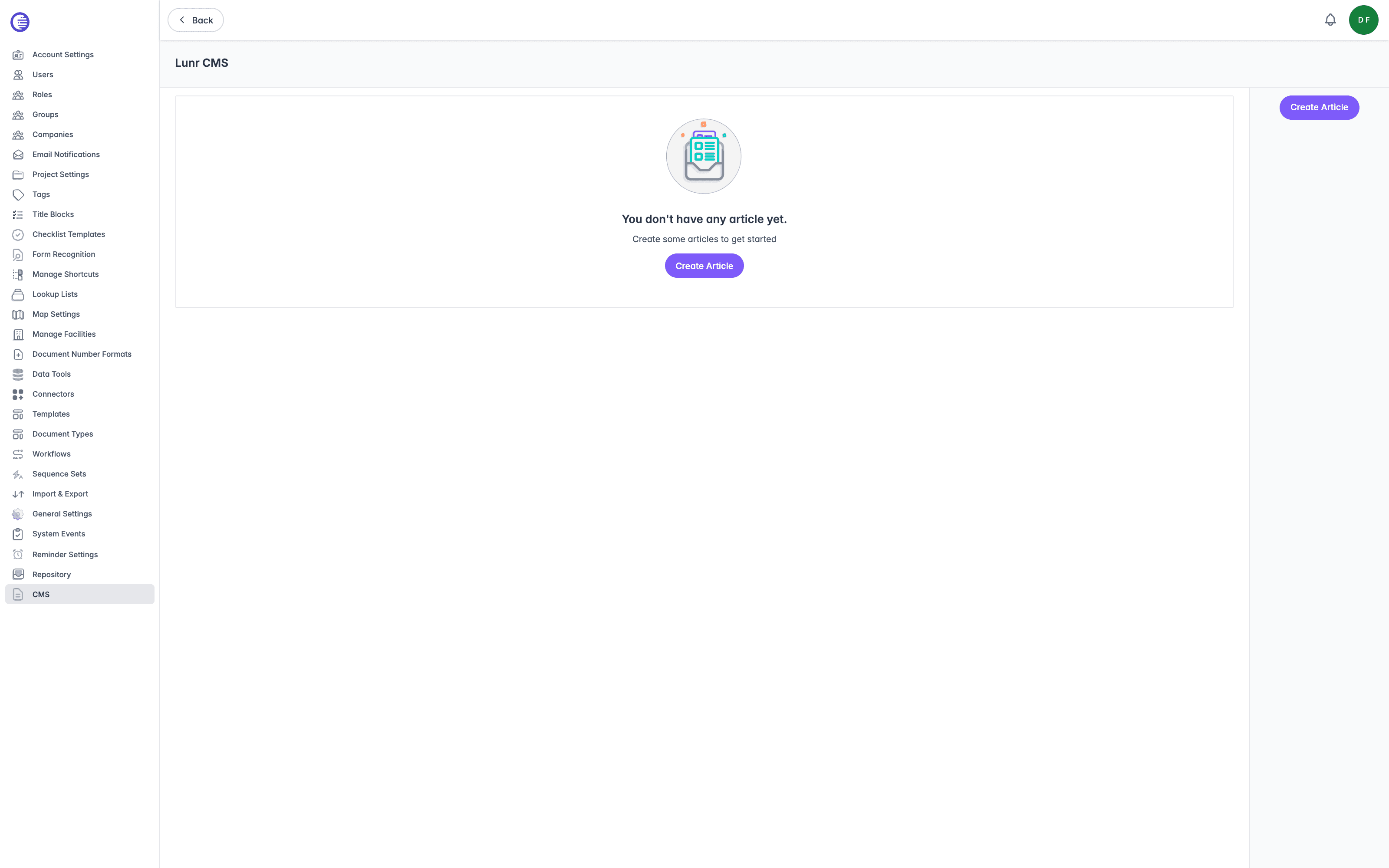
Select CMS in the admin main menu to open the Lunr CMS page. Reaching it requires the Administration Pages access right.
The CMS holds a small, fixed set of articles, each one a block of rich text your organisation writes to replace or extend text Lunr shows its own users elsewhere. It is not a general content management system: you cannot create an article with a name of your choosing, only fill in the ones Lunr defines.
Article Types
An article is identified by its Key, and Lunr defines exactly two:
| Key | Where it appears |
|---|---|
HelpPageText | The body of the Help page, reached from the main menu when the Help page setting on the General Settings page is enabled. |
CreateCRAttachmentsDescription | Above the file upload area in the Attachments section when a user creates a Change Request. |
Each key can only be used once. Once an article exists for both keys, the empty-state message and Create Article button disappear, since there is nothing left to create; you can still open either article from the list to edit it.
Creating an Article
Select Create Article, which is only offered while at least one key has no article yet.
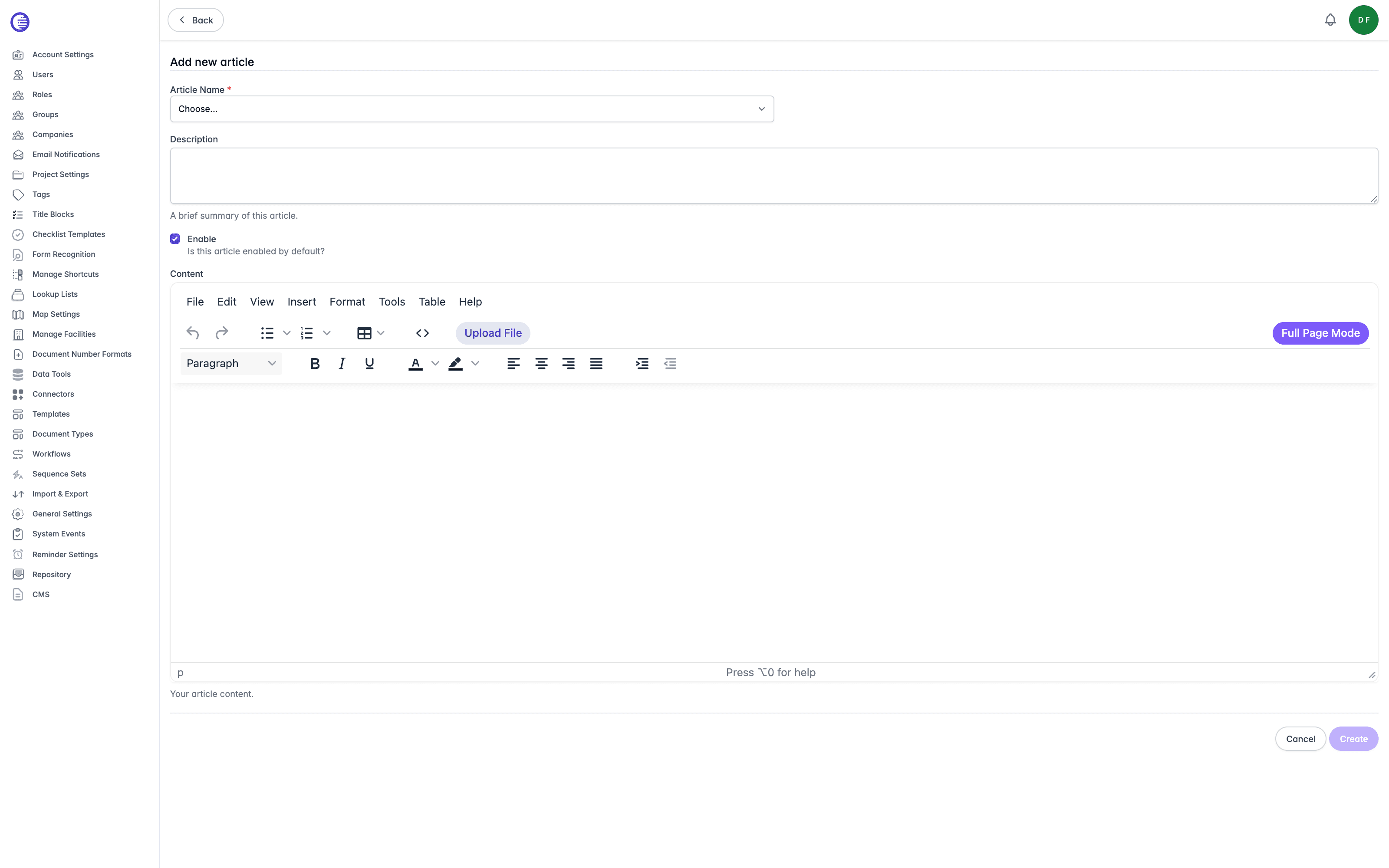
| Field | What it does |
|---|---|
| Article Name | Choose which key this article fills, from a dropdown of the keys not already in use. Fixed once created. |
| Description | A brief summary of the article, shown under its key in the list. |
| Enable | Whether the article is enabled. Enabled by default. |
| Content | The rich text body, edited in a two-row toolbar. |
The first toolbar row has Undo, Redo, bullet and numbered lists, Table, a Code view for editing the underlying HTML directly, Upload File, and Full Page Mode. The second row has a Paragraph format dropdown, Bold, Italic, Underline, text colour and background colour pickers, left, centre, right, and justify alignment, and indent/outdent.
Select Upload File to attach a file to the text. Allowed types are .jpg, .jpeg, .png, .gif, .tif, .tiff, .dwg, .dgn, .docx, .xlsx, .xlsm, and .pdf. The upload inserts a downloadable attachment link rather than an embedded image.
Pasting an image directly into the editor is rejected, with the message "Image pasting is not allowed. Please use the Upload File button instead." Use Upload File to attach an image; it appears as a downloadable link rather than inline.
Select Create to save the article, or Cancel to discard it.
Full Page Mode
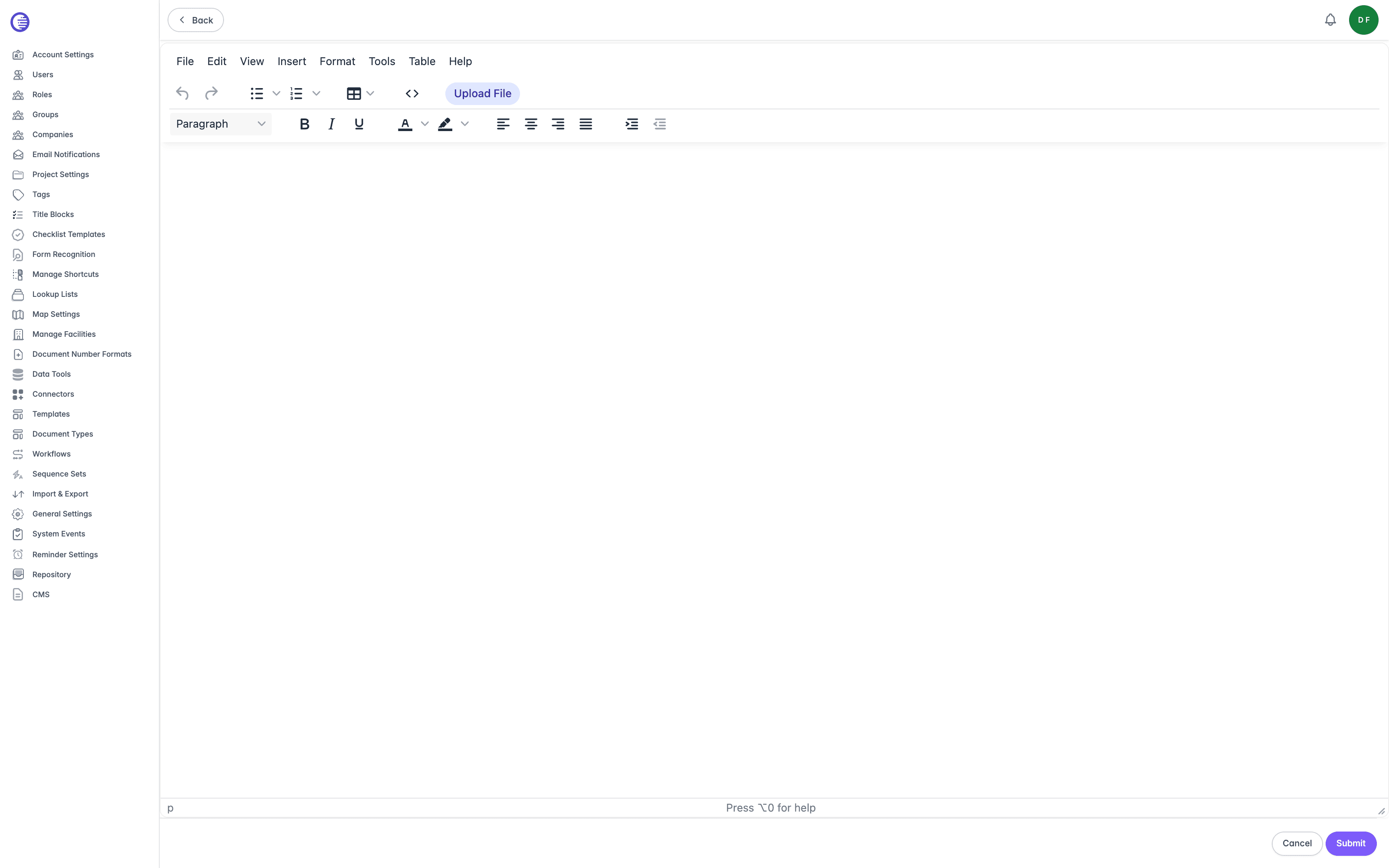
The Content editor's toolbar carries a Full Page Mode button that reopens the same editing session, with everything you have entered so far, on its own full-width page. It is the same editor with more room to work in; select Submit there to save, or Cancel to return to the CMS without saving. There is no separate route to reach full page mode other than through this button.
Editing an Article
Select an article in the list to open it. Article Name is read-only once created; Description, Enable, and Content can all be changed. Select Save to keep your changes, or Delete Article to remove the article entirely, which brings back the empty state and the Create Article button for that key.
What Happens When an Article Is Disabled or Missing
The two keys behave differently when there is nothing to show:
HelpPageTextalways shows something. With no article created yet, the Help page reads "This page is under construction. Please check back later." With an article created but Enable disabled, it instead reads "This article is disabled by your organisation's admin."CreateCRAttachmentsDescriptionis optional. If it has no article, is disabled, or its content is blank, the Attachments section on the Create Change Request page simply shows no description, with nothing in its place.
Reminder Settings
Switch reminders on for the tenant, and set how many days ahead of a due date each reminder type notifies its recipients.
Repositories
Lunr uses repositories to separate and secure content within a tenant, while allowing administrators to configure repository-specific settings such as drafting packs, renditions, groups, tags, lookup lists, templates, and import/export templates.