Events & Audit
Search the audit trail of everything that has happened in Lunr, and monitor the project and document event queues that feed connected systems.
Overview
The audit trail provides a complete, system-generated record of all actions performed on documents, workflows, and related activities, ensuring full traceability and accountability across the document lifecycle.
Every interaction, such as uploads, revisions, approvals, comments, and workflow transitions, is logged automatically, allowing users and administrators to track who performed an action, what was changed, and when it occurred.
This comprehensive audit capability supports governance and compliance requirements by maintaining an immutable history of changes, while also enabling users to review past actions, validate data integrity, and investigate issues when required.
For a record of the emails Lunr has sent, see Email Log instead.
Workflow-scoped auditing, the success or failure of each individual transition in a workflow execution, is a separate, execution-level view and is not shown anywhere on this page. See Document Workflows instead when troubleshooting a stuck workflow execution.
System Events
Select System Events in the admin main menu. You reach the page with either the Administration Pages or the View Principal Audits access right, but the two rights are distinct and each gates a different set of tabs: View Principal Audits is required for the Audit Events tab, while Administration Pages is required for the Projects and Document Events tabs. Holding Administration Pages does not automatically grant View Principal Audits, so an administrator without it can open this page but cannot see Audit Events.
Three tabs divide the page, and they do quite different jobs. Audit Events is the searchable history. Projects and Document Events are live processing queues that can be paused and resumed.
Audit Events
The Audit Events tab searches the audit history. Nothing is listed until you choose your filters and select Load Events; before that the tab reads "Select filters to refine audit events."
Audit Group is required
Audit Group is the one filter you must set. Load Events stays unavailable until you choose a group, so start there and add the other filters to narrow the result.
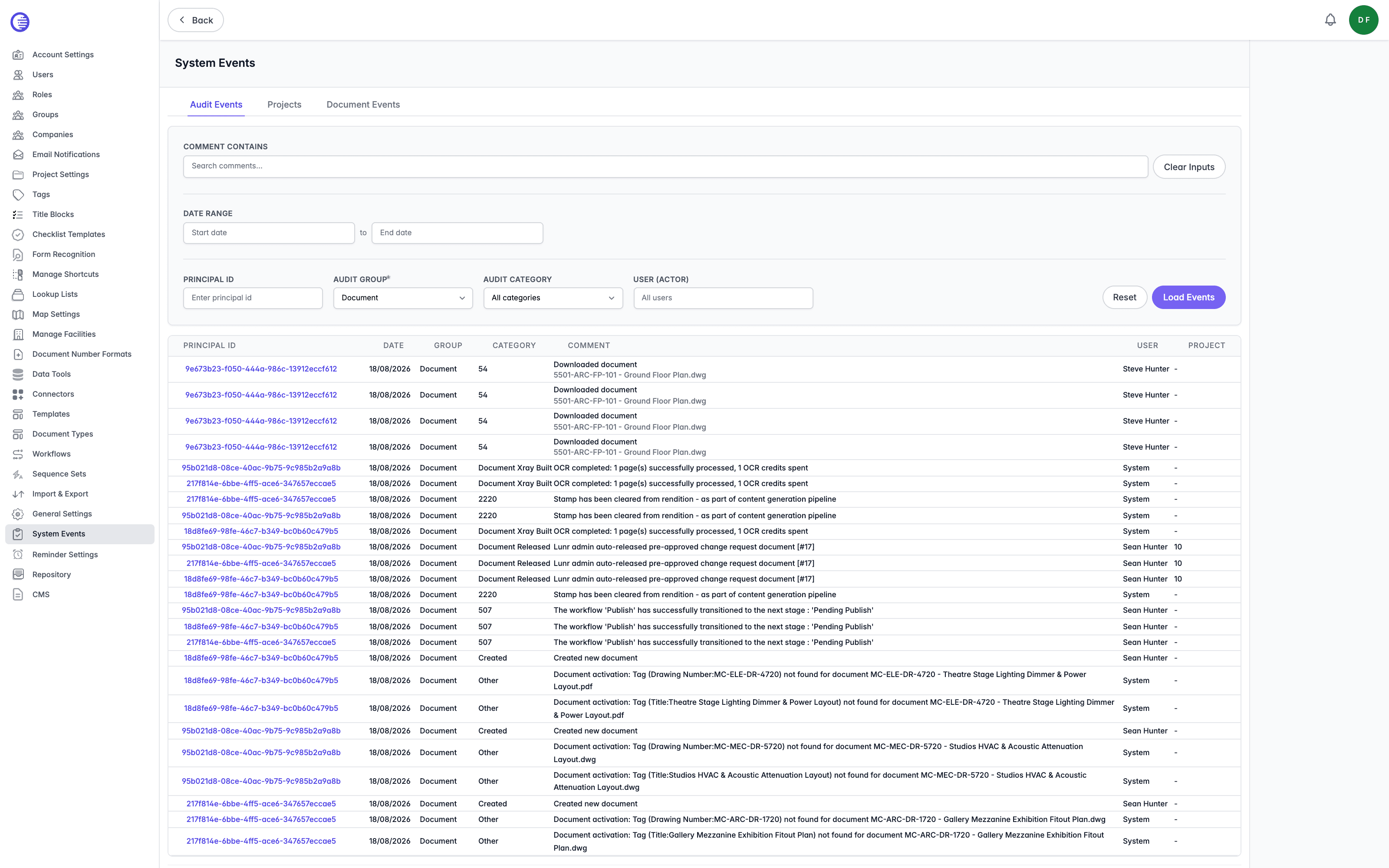
Filters
| Filter | What it does |
|---|---|
| Comment Contains | Free text searched against the event comment. Clear Inputs empties the filters you have entered. |
| Date Range | A Start date and End date, each chosen from a date picker. |
| Principal Id | The identifier of the record the event was recorded against, such as a document or project. |
| Audit Group | Required. The kind of thing the event happened to. |
| Audit Category | What happened. Defaults to All categories. |
| User (actor) | The person who performed the action. Defaults to All users. |
Select Load Events to run the search, or Reset to clear every filter and start again. If nothing matches, the tab reads "No audit events found for the selected filters."
If Start date is later than End date, Lunr silently swaps the two rather than rejecting the search, so an unexpectedly correct result for a reversed range is not a bug. Leaving Principal Id blank caps the results at 1000 rows, which stops a wide, unscoped search from returning the entire audit log; narrow the search with a Principal Id if you need a complete result for one record.
Audit Group offers fifteen choices: Change Request, Company, Document, Document Version, Downloads, Facility, Group, Project, Project Folder, RFI, Share, Subscription, Tenant, User, and Workflow.
Audit Category offers around seventy choices, from broad outcomes such as Created, Updated, Approved, Rejected, and Error, through to specific events such as Document Released Master Revision, Document XRef Linking Failed, Change Request On Hold, User Locked Out, Av Scan Performed, and Rendition Failed. Choosing a group first is the practical way to find the category you want.
Results
| Column | What it shows |
|---|---|
| Principal Id | The record the event belongs to, linked through to that record where Lunr can resolve it. |
| Date | When the event was recorded. |
| Group | The audit group, as above. |
| Category | The audit category, as above. |
| Comment | A description of the event, with the file name underneath where one applies. |
| User | Who performed the action, or System where Lunr performed it itself. |
| Project | The project the event belongs to, or a dash where none applies. |
Some rows show a number in the Category column rather than a name, for example 54 or 507. Lunr records more categories than the filter dropdown lists, and any it cannot match to a name is shown as its raw value. The Comment beside it still describes what happened.
Results are paged, twenty-five to a page.
Projects
The Projects tab lists project events waiting to be processed, and lets you control that processing. The list opens on events that have not been processed yet.
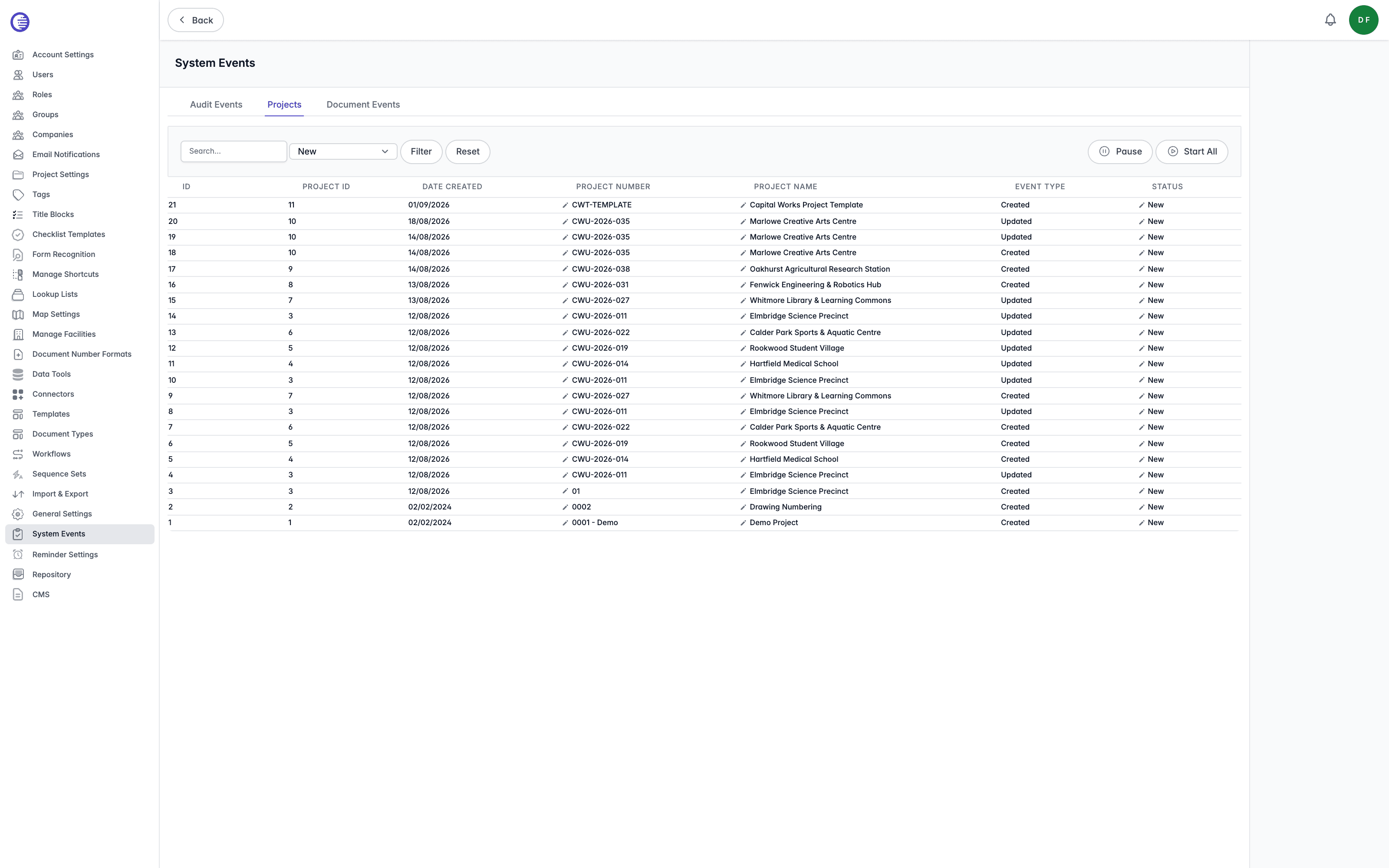
Each row shows its Id, Project Id, Date Created, Project Number, Project Name, Event Type, and Status. The project identifier links through to the project.
Enter text in the search field or choose a Status, then select Filter. Reset clears both. Status covers New, In Progress, Pending Approval, Complete, Rejected, Cancelled, Error, Processing, Re-try, and Re-processing, so filtering on Error is the quickest way to find events that did not go through.
Editing an Event
Project Number, Project Name, and Status can each be edited in place. Select the pencil beside the value, make the change, then select the tick to save it or the cross to discard it.
Changing an event's Status is how you deal with one that has stalled. Setting it to Re-try puts the event back in the queue to be processed again, and the same list of states is available here as in the filter, plus Pause to hold that one event without stopping the rest.
Pause and Start All act on every project event, not on the rows you are looking at, and not on the row you have selected. Pausing halts processing across the organisation until someone selects Start All. To hold a single event instead, set that row's Status to Pause.
Document Events
The Document Events tab does the same job for events raised against document versions rather than projects. It carries the same search field, Status filter, Filter and Reset buttons, and the same Pause and Start All controls, with the same organisation-wide effect.
Its table identifies documents rather than projects, showing Id, Project Id, File Name, Date Created, Document ID, Version ID, Event Type, and Status.
Only the Status is editable in place here. The pencil, tick, and cross work as they do on the Projects tab, and Re-try requeues the event in the same way, but there are no editable name or number fields on this tab.