Data Tools
Operational tools for bulk-renaming documents, queuing antivirus re-scans, and exporting document and version metadata, each acting on real tenant data rather than on settings.
Overview
Select Data Tools in the admin main menu. The page requires the Administration Pages access right, and offers three tabs: Bulk Rename Documents, Batch AvScan, and Document Data Report.
These are operational and support tools, not everyday settings. Two of the three, Bulk Rename Documents and Batch AvScan, act on real documents in bulk as soon as you submit them, with no confirmation step in between. Read what each tab does before you use it. Document Data Report is the safest of the three: it only ever produces a file, and never touches a document.
Bulk Rename Documents
Bulk Rename Documents renames document versions in bulk from a spreadsheet. Select Download template to get the .xls starting point, which ships with one example row showing the three required columns: VersionId, OriginalFileName, and NewFileName.
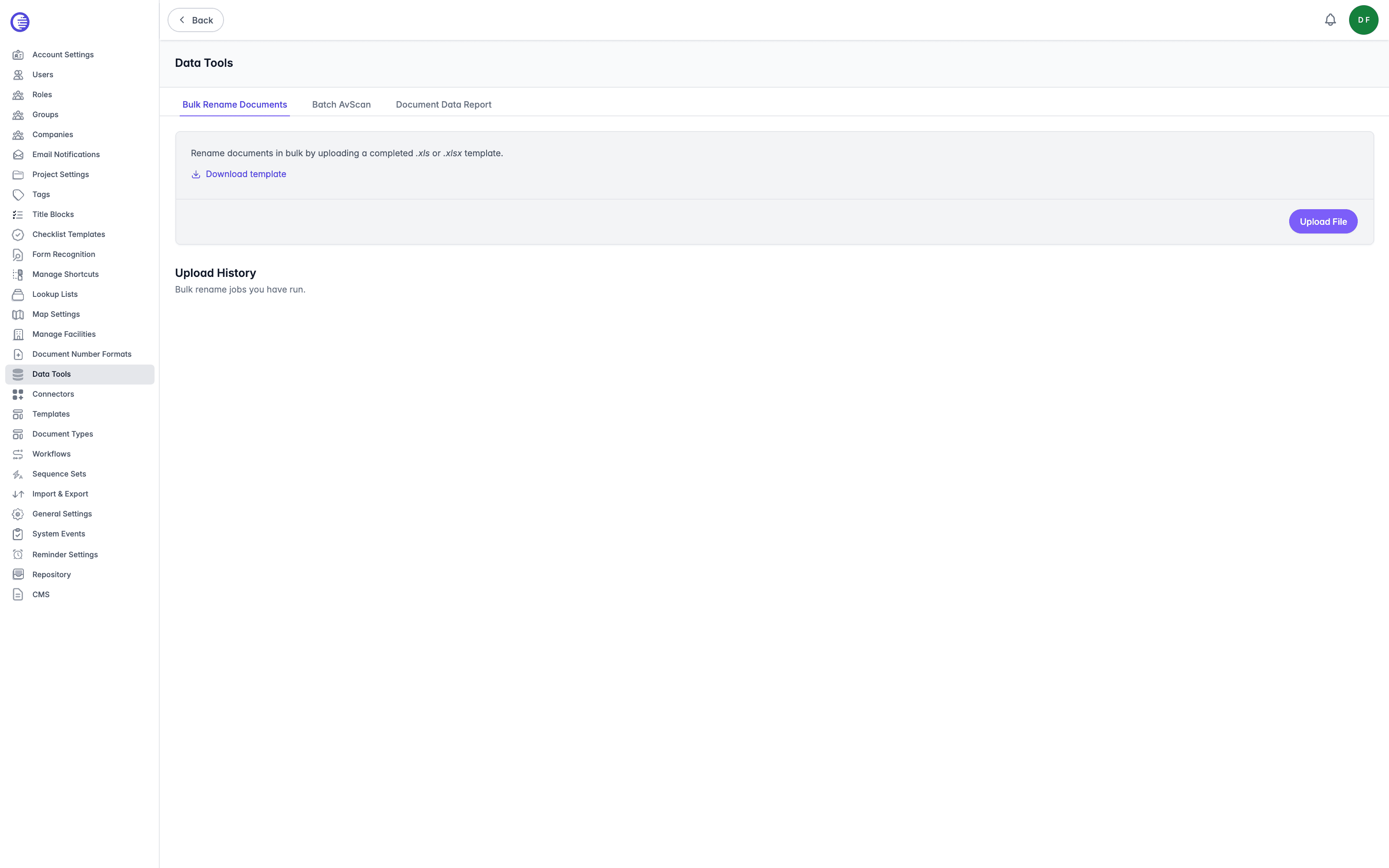
Select Upload File and choose your completed .xls or .xlsx file. There is no confirmation dialog. Selecting the file starts the rename job immediately.
Before any renaming happens, the whole file is validated: if a required column is missing, a NewFileName uses a disallowed extension, or any row has blank data, the job does not run at all and the affected row numbers are returned instead.
For each row that passes validation, Lunr checks it against these conditions in order, and stops at the first match:
- If
NewFileNameis the same asOriginalFileName, the row is Skipped. - If the version ID does not exist, the row is marked Not Found.
- If you do not have access to that document version, the row is marked No Access.
- If the version's current file name no longer matches the
OriginalFileNamecolumn, the row is marked Mismatched Original Name. This catches a spreadsheet that has gone stale, for example if someone else renamed the document after you built the file. - Otherwise, the version is renamed and the row is marked Success.
A bulk rename has no undo. Once a row succeeds, the only way back is another rename, manual or bulk. Check your spreadsheet carefully before uploading it, particularly the OriginalFileName column, since a mismatch there is what stops you renaming the wrong version by accident.
Bulk renaming is gated only by the Administration Pages access right, at the level of the whole tool. It does not separately check the Rename Master Documents access right that a manual, one-at-a-time rename requires. In practice this means a bulk rename job can rename documents that the same user could not rename individually through the document viewer.
Upload History
Every job you run appears in Upload History, with these columns.
| Column | What it shows |
|---|---|
| ID | The job's correlation ID. This identifies the job itself, not a document. |
| Status | The job's overall status: Success, Partial Success, Error, Skipped, Cancelled, Running, or Unknown. |
| Success | Count of versions renamed successfully. |
| Not Found | Count of version IDs that did not match an existing document version. |
| No Access | Count of versions you did not have access to rename. |
| Skipped | Count of rows where the new name matched the original name. |
| Mismatched Original Name | Count of rows where the version's current file name no longer matched the spreadsheet. |
| User | The person who ran the job. |
| Started At | When the job began. |
| Completed At | When the job finished. |
Progress updates live while a job runs, and a completion toast appears only for the user who submitted it.
Batch AvScan
Batch AvScan queues an antivirus re-scan for specific document versions. Enter their version IDs into the Version IDs field, separated by commas, then select Submit.
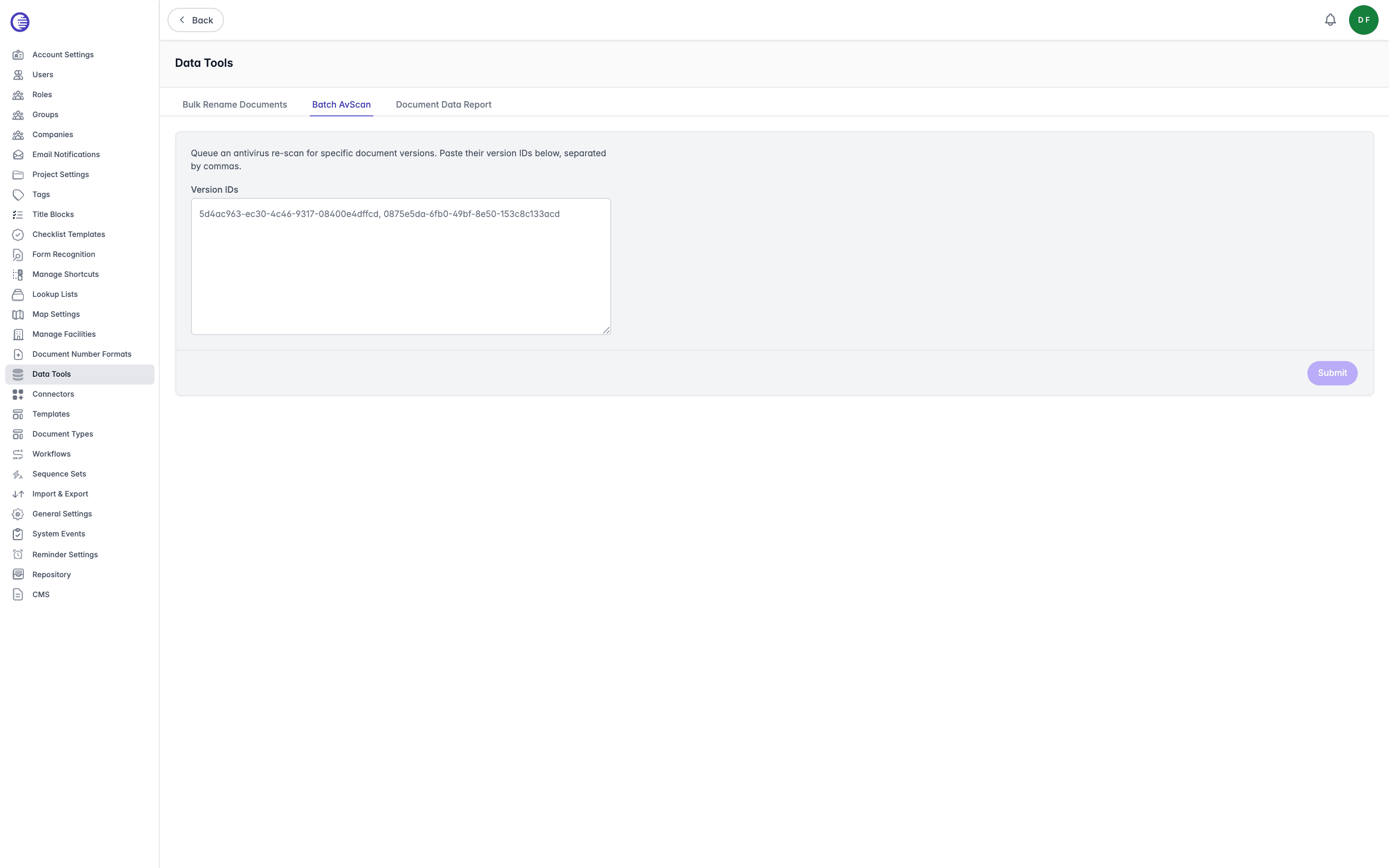
There is no confirmation dialog, no results table, and no history for this tool. Submitting shows only a toast confirming how many versions were queued. If you paste a version ID that does not exist, it is counted internally but nothing in the page tells you which of your IDs did not match, so check your list before you submit it.
Queuing a re-scan runs an antivirus-only content generation pass against each version, and its rendition unless the version itself is a rendition; every other generation option, such as thumbnails, OCR, and form recognition, is disabled for this pass.
Re-scanning does not alter a document's content, so it is not destructive in the way a bulk rename is. If a scan detects malware, that is recorded as a "Malware content detected" entry in Events and Audit, alongside every other system event.
Document Data Report
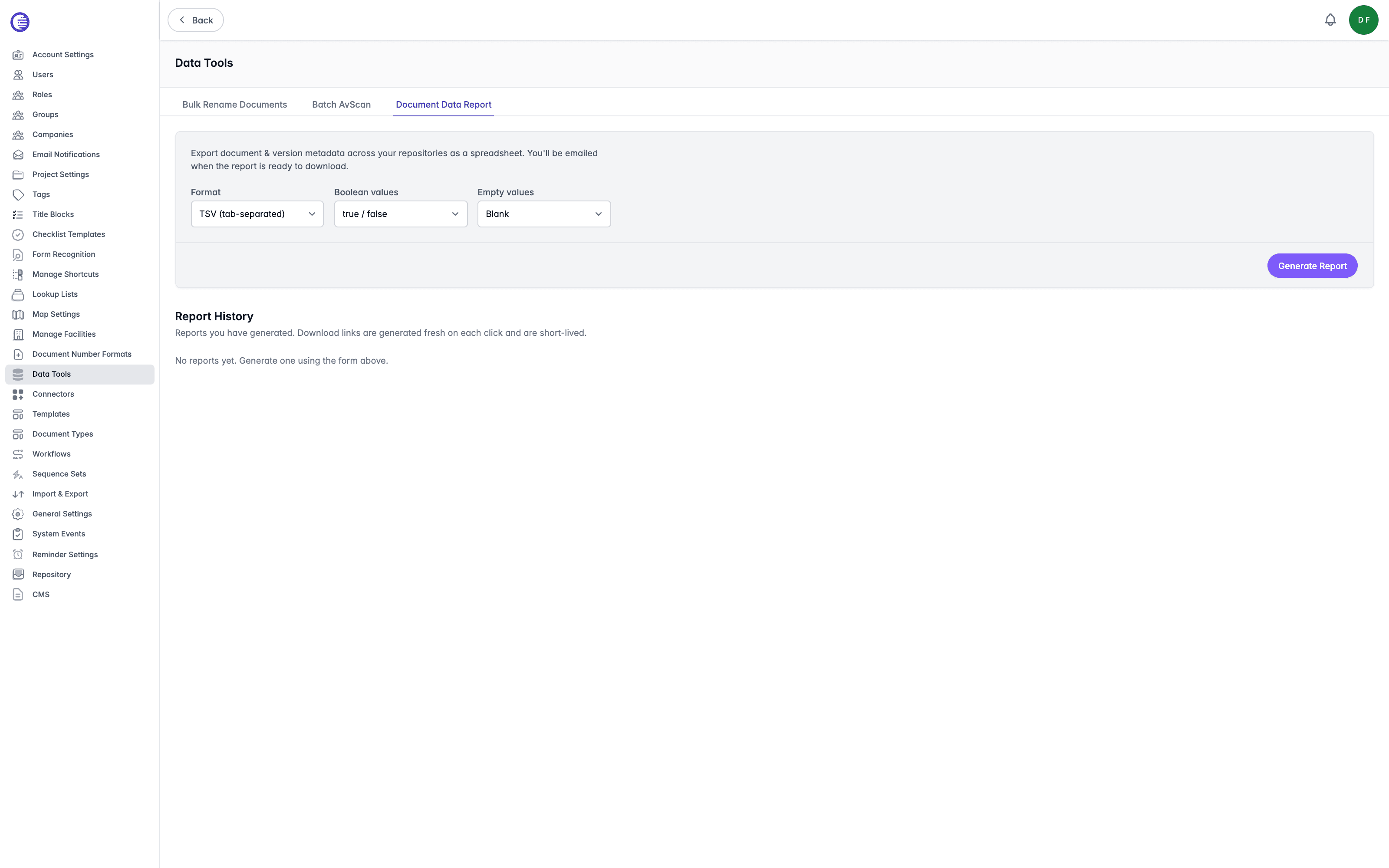
Document Data Report exports document and version metadata across your repositories as a spreadsheet-style file. This is the safest tab on this page: generating a report never changes a document, only ever produces a file, and that file expires automatically.
Choose your export options, then select Generate Report.
| Option | Choices |
|---|---|
| Format | TSV (tab-separated) or CSV (comma-separated). |
| Boolean values | true / false or 1 / 0. |
| Empty values | Blank or NULL. |
| Repositories | Only shown when your tenant has more than one repository. Leave every box unchecked to include every repository you can access, which is not necessarily every repository in the tenant, only the ones you have access to. |
The report contains one row per document version, not per document, covering a fixed set of columns describing the document and the version, such as its repository, workflow state, file name, size, revision numbers, and modification details, plus one extra column for every tag definition in the tenant, holding that version's value for that tag.
You are emailed when the report is ready, with a link to a standalone status page that also offers a download button and a link back to this tab.
Report History
Report History lists the reports you have generated, with these columns.
| Column | What it shows |
|---|---|
| Created | When you generated the report. |
| Format | TSV or CSV. |
| Rows | The number of version rows the report contains. |
| Status | Generating, Ready, Failed, or Expired. |
| Available Until | The date and time the report's download stops working. |
This list only ever shows your own reports, not every report generated by every administrator; a report you generate cannot be downloaded by another administrator, even if they have the direct link. Select Download on a Ready report to fetch it; the download link is generated fresh each time you select it, and is short-lived, so do not save the link itself, only the file it downloads.
A report left showing Generating for longer than about an hour has most likely failed silently rather than being genuinely slow. Generate a new report rather than continuing to wait on one stuck this way.
Document Data Report is unrelated to the downloads area covered in the user guide. It does not appear under My Downloads, and generates a separate report file with its own expiry, rather than a document package.
Email Log
Review every email Lunr has sent, including welcomes, login attempts, workflow changes, and project assignments, with the recipient, date, and time of each message.
Events & Audit
Search the audit trail of everything that has happened in Lunr, and monitor the project and document event queues that feed connected systems.