Email Log
Review every email Lunr has sent, including welcomes, login attempts, workflow changes, and project assignments, with the recipient, date, and time of each message.
Overview
Select Email Notifications in the admin main menu to open the email log, on the Messages tab. A tenant with Enable editable email templates (Liquid) enabled also has a Templates tab here, covered in Message Templates. It displays a list of every email that is sent by Lunr. This includes items such as
- Welcomes
- Login attempts
- Multi-factor authentication codes
- Workflow changes
- Project assignments
Sensitive information such as authentication codes is not displayed in the notification log for security reasons. Administrators are still able to view the receiver, date, and time of the message.
The Email Notifications Page
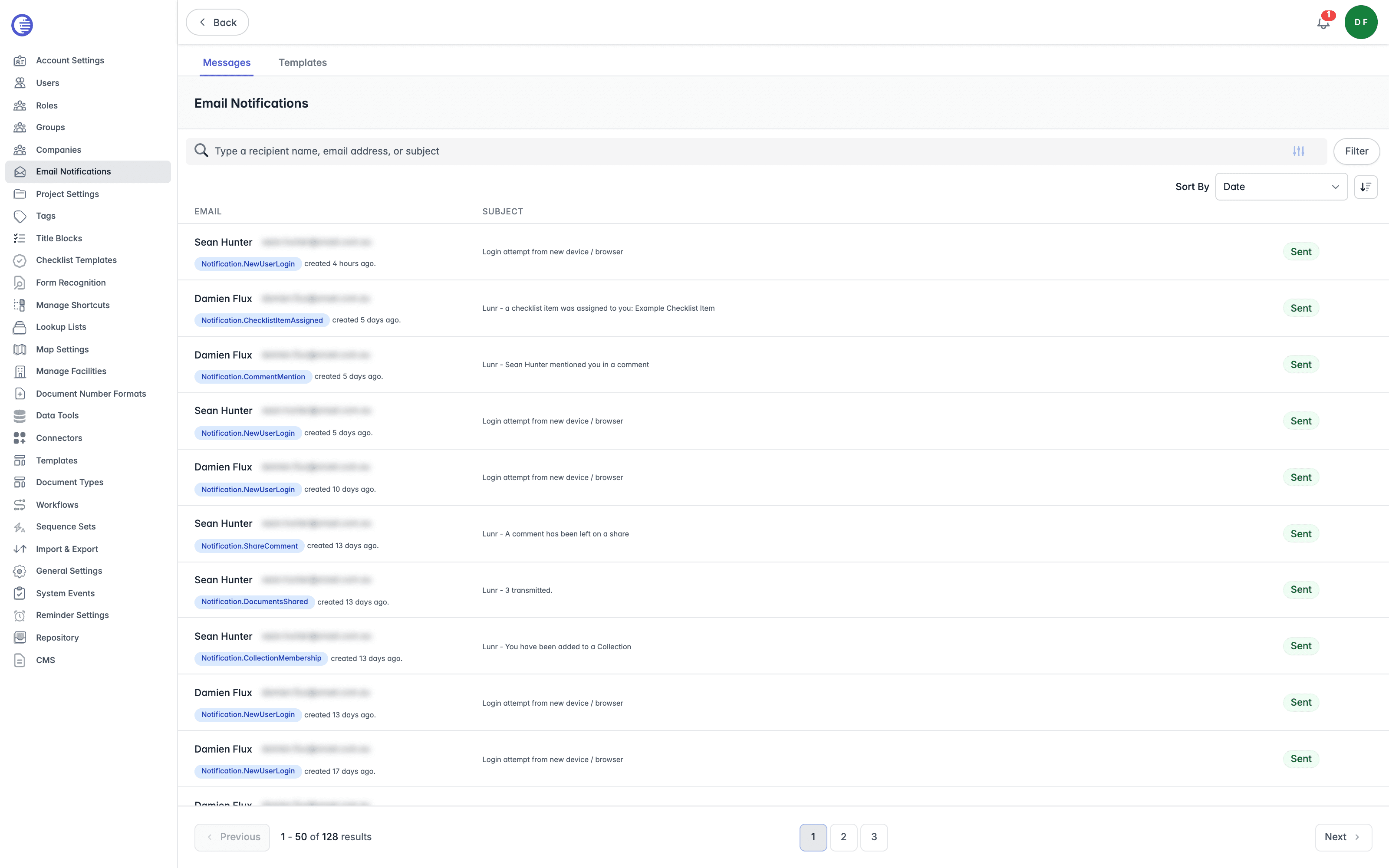
The list shows every email Lunr has sent, most recent first, with these columns.
| Column | What it shows |
|---|---|
| The recipient's name and email address, the keyword of the template that generated the email, and how long ago it was created. | |
| Subject | The subject line of the email as it was sent. |
| Sent | A status badge. |
The Sent badge always reads green, even if the email failed further along the delivery pipeline after Lunr generated it. This log confirms that Lunr generated and queued the email, not that it reached the recipient's inbox; it is not a delivery-failure report.
Filtering the Log
Enter a recipient name, email address, or subject in the search field to narrow the list. Select the filter icon to open a filter popover with Created from and To date fields, then select Filter to apply them or Cancel to close the popover without changing the list.
Sort By offers only Date, with a direction toggle beside it to switch between newest and oldest first. Long lists are paged.
Message Details
Select a row to open its details, showing the full Subject, the recipient's name and address, Date created, and the rendered body of the email as it was sent. Select Back to return to the list.
Message Templates
The Templates tab of Email Notifications, where you edit the Liquid subject and HTML body of every notification email the tenant sends.
Data Tools
Operational tools for bulk-renaming documents, queuing antivirus re-scans, and exporting document and version metadata, each acting on real tenant data rather than on settings.