Change Request Export Columns
Choose which columns appear in the documents and reference documents tables on the Change Request PDF export, in what order, how wide, and whether they wrap.
Overview
Change Request Export Columns lets administrators choose which columns appear in the tables on the Change Request PDF export, their order, their heading text, their width, and whether long values wrap. It requires the Administration Pages access right to open and to save; the current, already-saved configuration is also read whenever any user generates the export.
Open this page from Configure export columns → on the Change Request tab of Project Settings.
Documents and Reference Documents Tabs
The page can show two tabs, Documents and Reference documents, each configuring a separate table on the export.
- Documents configures the DOCUMENTS table: the documents attached to the Change Request.
- Reference documents configures the REFERENCE DOCUMENTS table: the documents requested on the Change Request itself. This table only prints when the Change Request actually has reference documents on it, and only when the Reference documents tab's own Include reference documents on the PDF export box, above its column table, is selected.
Reference documents tab is conditional
The Reference documents tab only appears for a tenant where reference documents are actually captured, that is where the tenant-wide Enable full Change Request page? setting on Project Settings is enabled, or at least one document repository has full Change Request page mode individually enabled. Without either, this page only shows the Documents tab.
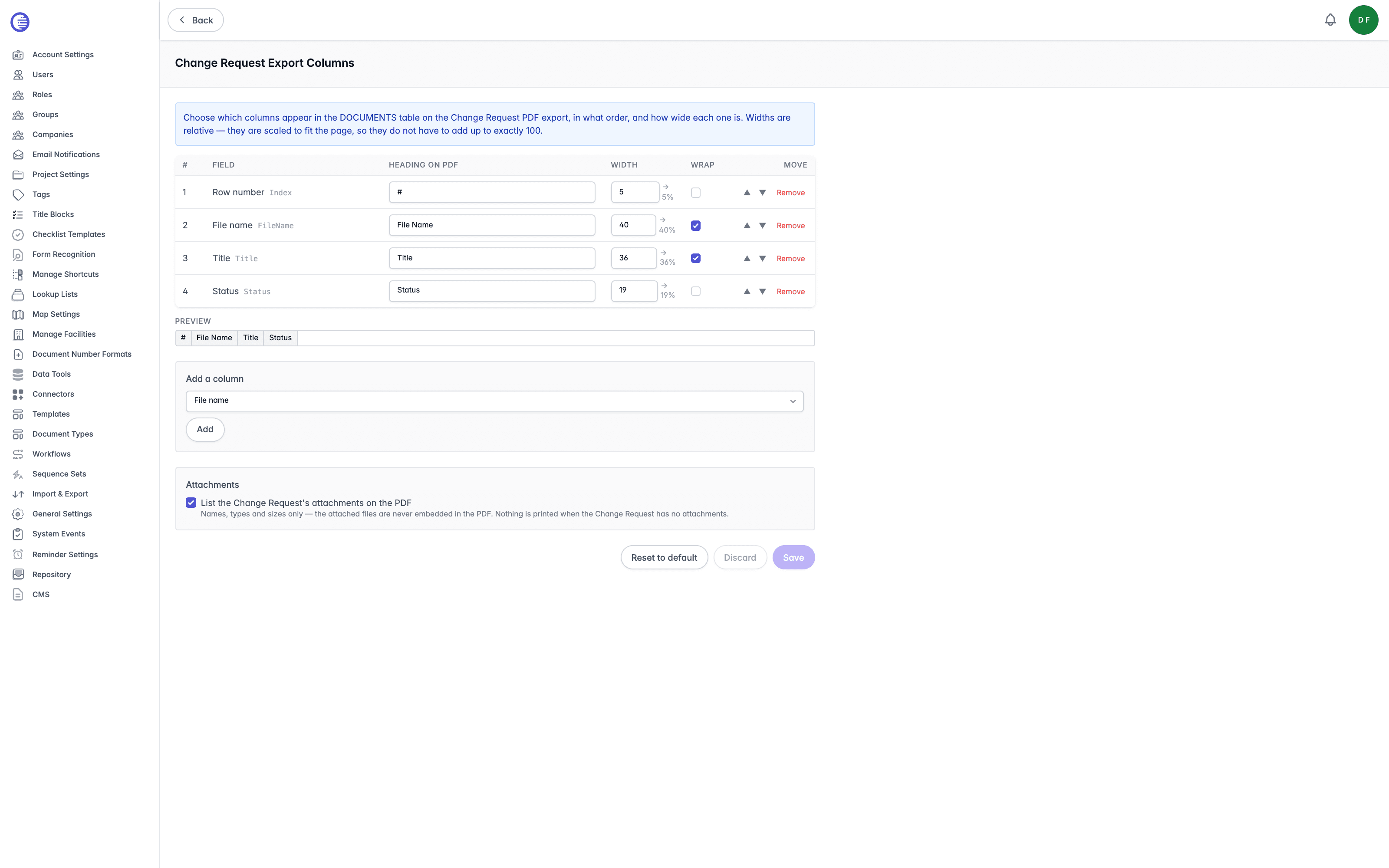
The Column Table
Each configured column is a row with these fields.
| Column | What it shows or controls |
|---|---|
| # | The column's position in the table, matching its left-to-right order on the PDF. |
| Field | The underlying data the column pulls from, for example File name or Status. Shown alongside its internal field key. Not editable once added; remove the column and add it again to change its field. |
| Heading on PDF | The column heading text printed on the export. |
| Width | A relative width value from 1 to 100. Widths do not need to add up to 100. A small preview alongside each value shows the percentage of the table the column will actually receive once every column's width is scaled to fit the page. |
| Wrap | A box that lets long values wrap onto multiple lines instead of being clipped to one line. |
| Move | Up and down arrows to reorder the column, plus a Remove button to delete it. |
A live preview strip below the table shows each column's heading sized to its actual rendered width, so you can check the balance of the layout before saving.
If every column is removed, the table shows a message that the export falls back to the standard layout until you add some, rather than printing with no columns at all.
Adding a Column
Under Add a column, choose a field from the dropdown and select Add.
The Documents tab offers these fields: Row number, File name, Title (the document's Title tag), Status, Revision, Document type, File type, Date created, Date modified, CR folder, and Tag value.
The Reference documents tab offers a different set, matching what is actually recorded against a reference document: Row number, Document number, Revision, Title, Change type, Priority, Due date, Quantity, Comment, and Tag value.
Choosing Tag value reveals a second dropdown to choose which tag to pull the value from.
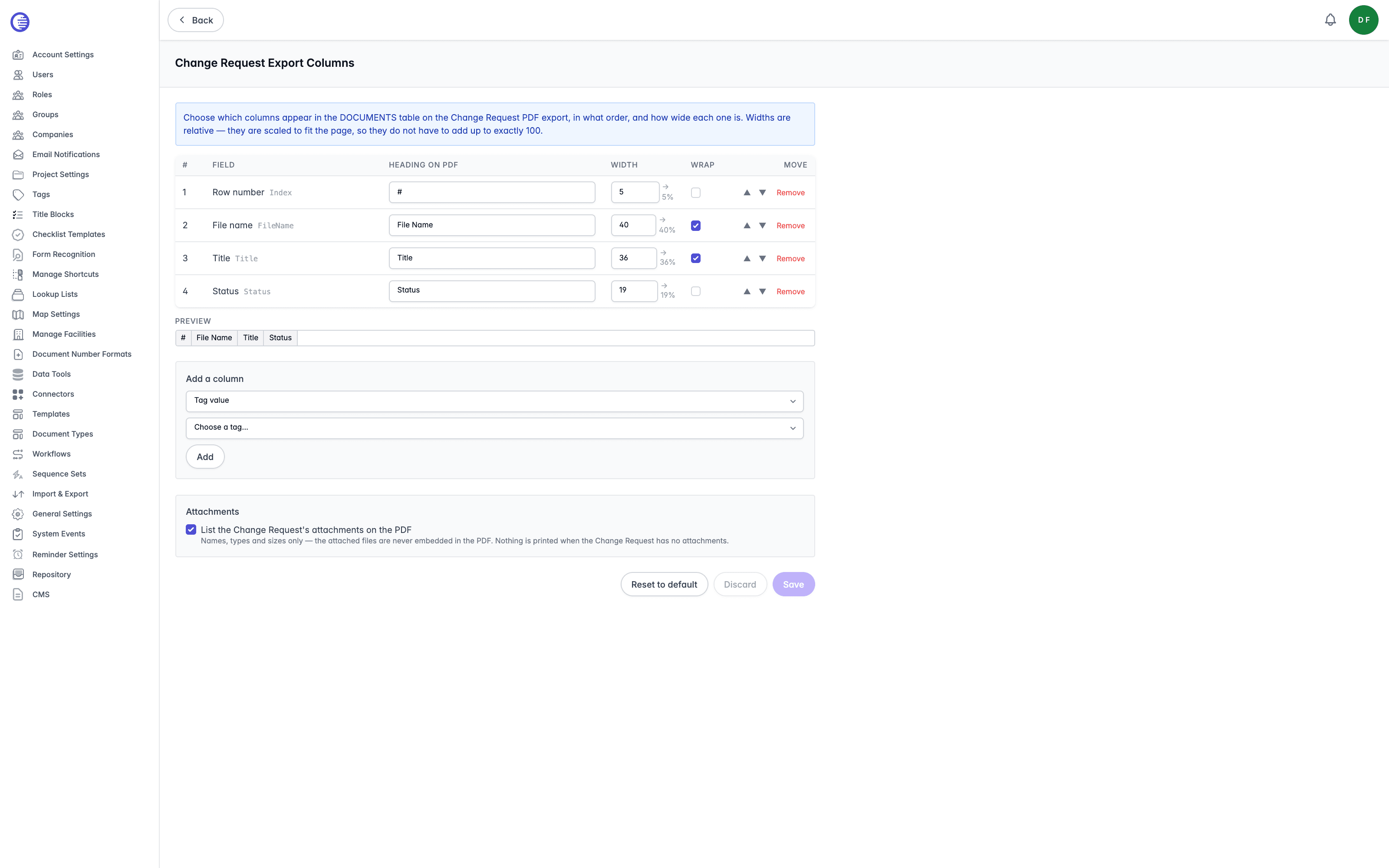 You cannot add a Tag value column without selecting a tag, and you cannot add the same field, or the same field and tag combination, twice.
A newly added column takes a heading from the field's label, or the tag name for a tag column, and a starting width of whatever is left to reach 100 across the existing columns, or 15 if there is no room left.
Attachments
Below the column table, List the Change Request's attachments on the PDF is a single box that adds a summary of the Change Request's attachments to the export: names, types, and sizes only. The attached files themselves are never embedded in the PDF, and nothing is printed if the Change Request has no attachments.
Saving, Discarding, and Resetting
- Save persists your changes. It is disabled until something is dirty, and refuses to save if the Documents table has no columns at all, or if any column on either tab has been left with a blank heading.
- Discard reloads the saved configuration from the server, dropping any unsaved edits. If you have unsaved changes, a confirmation prompt appears first.
- Reset to default loads the standard column layout into the page as a draft, after a confirmation prompt warning that it discards your current layout. This only replaces what is on screen; you still need to select Save to apply it.
The standard layout that Reset to default loads is:
| Table | Columns |
|---|---|
| Documents | # (row number), File Name, Title, Status |
| Reference documents | # (row number), Document Number, Rev (revision), Title, Change Type |
Both the standard Documents table and the standard Reference documents table include their attachments summary and each other, that is Include reference documents on the PDF export and List the Change Request's attachments on the PDF both start selected.
Related Settings
Project Settings documents the Change Request tab this page is linked from, along with Enable full Change Request page?, which governs whether the Reference documents tab appears here.
Change Request Workflow Display
Customise the display name, category, badge colour, and progress-nav position of each Change Request status, and the labels and ordering of the workflow actions offered at each status.
Reminder Settings
Switch reminders on for the tenant, and set how many days ahead of a due date each reminder type notifies its recipients.